Choose the task first, then follow the matching guide and confirm the login or transfer works. If a connection fails, find out whether the problem is the address or route, the TCP connection or listener, or SSH identity and authentication before changing server settings. When your current SSH session is your only way into a remote machine, arrange a recovery path before any disruptive change.
Start from what you need to do and how far a connection gets. A timeout, a refused connection and a rejected SSH key each call for a different check.
Start with the task: connect, troubleshoot, inspect, or transfer
Treat a first-time SSH login as a setup task, a connection that stopped working as a troubleshooting task, and a working session that needs to move files as a transfer workflow. Choose the next test by the failed layer: name resolution, route, listening port, authentication, or the application behind the connection.
| What you need | First direction | Where to go |
|---|---|---|
| Connect to a Linux machine | Set up the SSH client, destination and server | Connect to a Linux Server with SSH. Use identity checks if authentication fails |
| Investigate a failed connection | Identify the exact error and failure stage | Read the SSH error |
| Inspect addresses or ports | Choose a network-route or server-listener check | Address and route checks or listening ports |
| Transfer files | Select a copy or interactive file-management workflow | Choose SCP or SFTP |
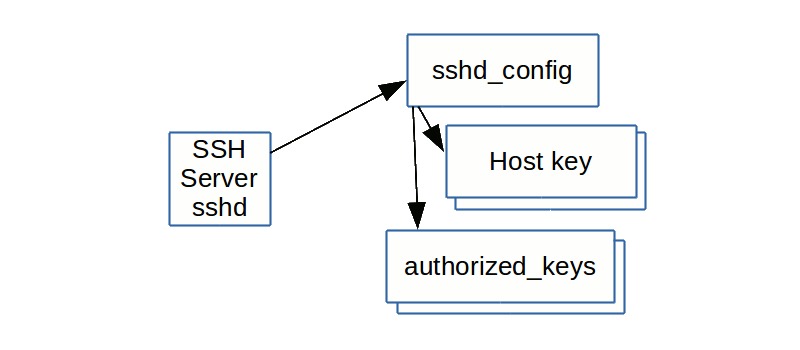
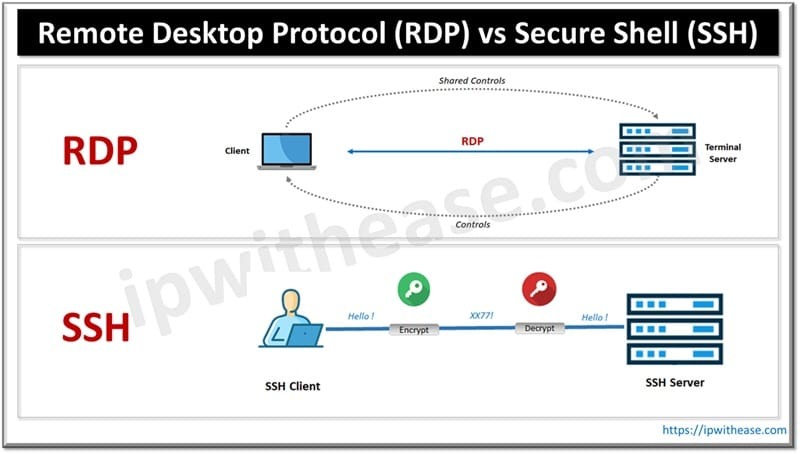
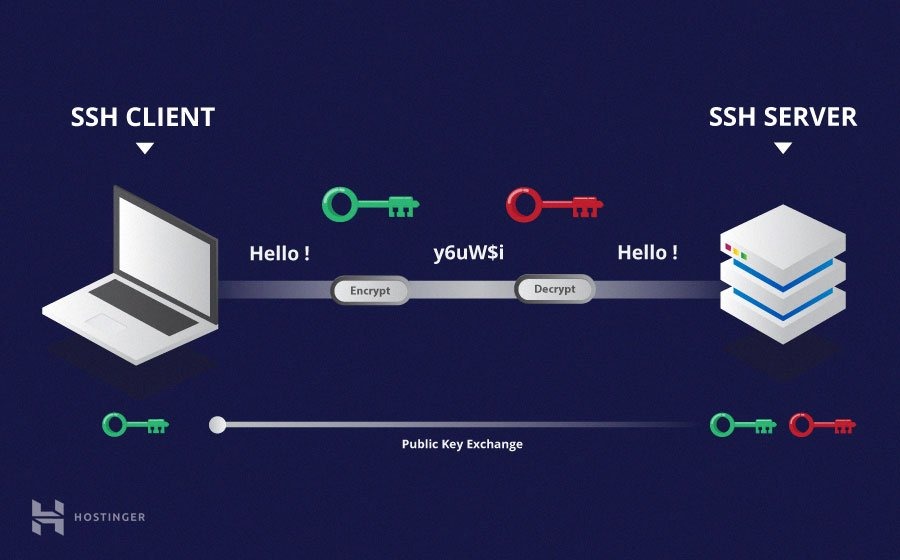
The SSH client starts the connection. The SSH server receives it and handles authentication. With OpenSSH, the server daemon is called sshd. A command run on the client shows which destination or identity it selected. A command run on the server shows that server's local sockets.
When a connection fails, record these before changing any configuration:
- Exact error: the full message and the command that produced it.
- Destination: the hostname or IP address and port you tried.
- Account: the SSH username.
- Where you ran it: the client, the remote server or the hosting-provider console.
Check the address, route, and name before blaming SSH
| Run on | Command | What it shows |
|---|---|---|
| Machine being investigated | ip -br addr |
Network interfaces and their assigned IP addresses |
| Linux client | ip route |
Route entries, including the default route |
| Linux client | ip route get <DESTINATION_IP> |
The route and interface the kernel selects for that destination |
| Linux client using a hostname | getent ahosts <HOSTNAME> |
The addresses the name-resolution system returns |
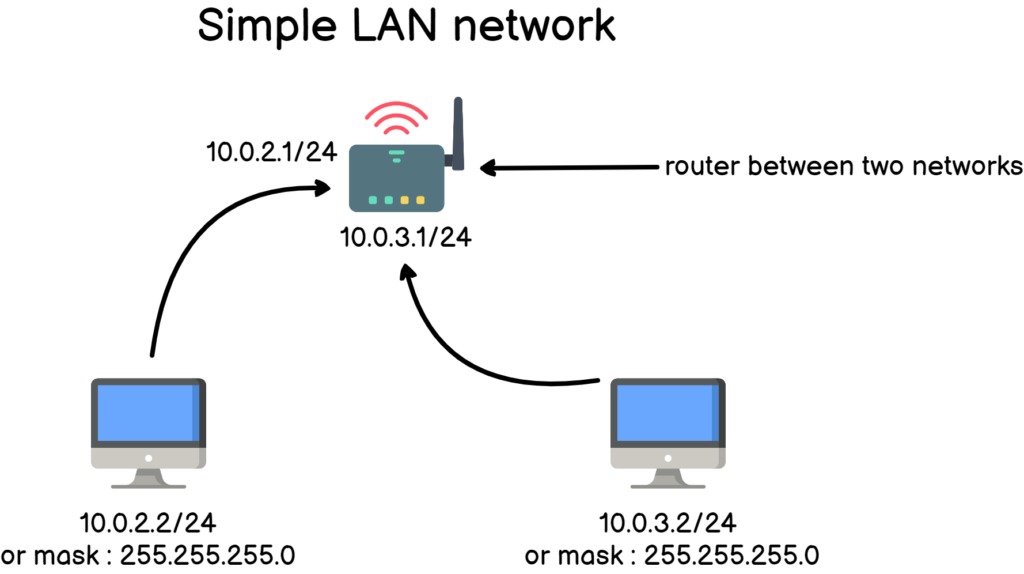
Replace the angle-bracket placeholders with your actual destination values. According to the Linux ip-route manual, ip route get reports a route lookup without sending packets. It can't tell you whether the remote SSH service receives traffic.
On a machine with several interfaces or a VPN, the selected route can differ from the one you expected, before SSH authentication even comes into play.
When the hostname resolves to an unexpected address
A hostname can resolve to an IPv4 or IPv6 address. If a connection to a known numeric IP works while a hostname attempt fails, compare the resolved addresses with the endpoint you meant to reach.
On a system using systemd-resolved, resolvectl query <HOSTNAME> also shows name resolution. dig is an alternative if it's installed.
For an unexpected destination, interface or route, continue with the Linux Network Diagnostics guide, which covers DNS and network-manager configuration in full.
Ping results and traffic direction
Ping ordinarily uses ICMP, which can be filtered while TCP traffic to the SSH port still works. A failed ping therefore doesn't rule out an SSH connection.
A successful outbound connection from the server only tells you about the outbound path. An incoming client connection travels the other way and can meet different addressing, routing and filtering.
Read the SSH error: timeout, refusal, or authentication failure?
The exact SSH message tells you where the connection stopped.
| Message or symptom | Stage involved | What to check next | Next section or guide |
|---|---|---|---|
Connection timed out |
TCP connection or network path | Selected destination, route, remote port and network path | Network checks; Linux Network Diagnostics |
Connection refused |
TCP connection rejected | Listener, bind address and intended port | Inspect the SSH listener |
Permission denied (publickey) |
SSH user authentication | Username, offered identities and server key acceptance | Inspect SSH identity selection |
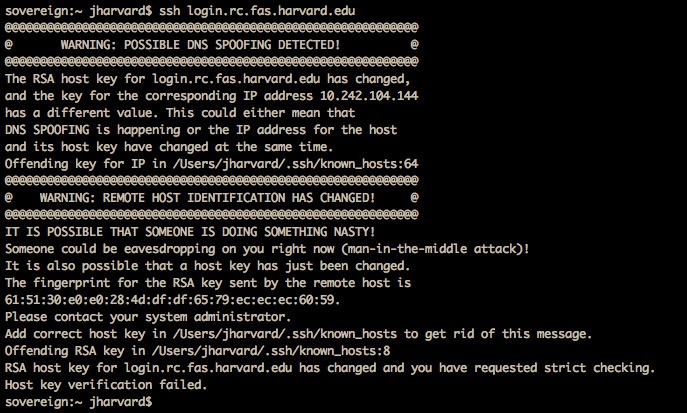
REMOTE HOST IDENTIFICATION HAS CHANGED |
Server identity verification | Host-key fingerprint confirmed through a trusted independent channel | Host identity investigation before accepting a new key |
| File transfer fails after a working login | Established access and file operation | Destination path, permissions and transfer-specific error | SCP or SFTP workflow |
A timeout means the client got no response within the connection interval, and a refusal means the connection attempt was actively rejected. A refusal points you to the port and the service listener, while a timeout can call for a wider network-path investigation.
One Fedora user on r/linuxquestions hit a timeout on port 558 connecting to an Arch TinySSH server through a mobile hotspot, with no new server log entry. They asked, “My question is how do I interpret these results? Where do I look next for the cause of the problem?”
It's a typical timeout case. The check starts with the destination, route and remote port.
Changed host-key warnings
A changed-host-key warning is about the identity of the remote server itself. Confirm the new fingerprint through a trusted channel before accepting the key or update known_hosts. Deleting a stored host-key entry without checking removes the protection the warning gives you.
Check whether the SSH service is listening
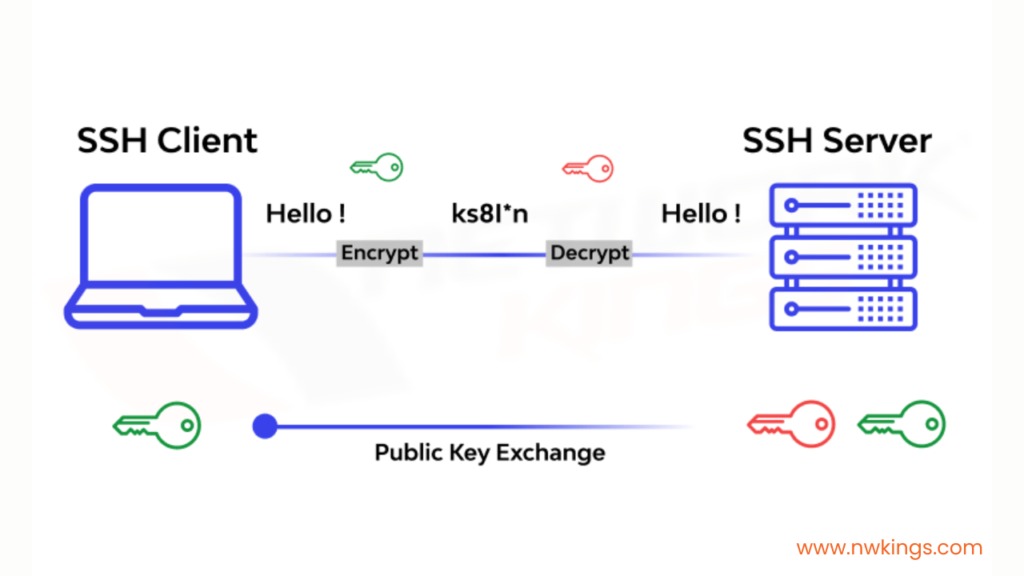
When a connection is refused or never reaches the service, look at the server's listening address and port. You need access to the server or its console for that.
On that server, list the listening TCP sockets:
ss -ltnThe Linux ss manual defines -l as listening sockets, -t as TCP and -n as numeric address and port display.
- No listener on the intended port: Investigate the SSH service, the configured port and the daemon logs.
- Listener on
127.0.0.1: The service is bound to loopback, so a connection to another interface's address won't reach it. - Listener on the intended interface or a suitable wildcard address: The server has a local listening socket. If the client still fails, look at the remote path and access controls next.
ss describes only the machine it runs on. A listening socket doesn't prove an outside client can reach the port through every firewall and network device between them.
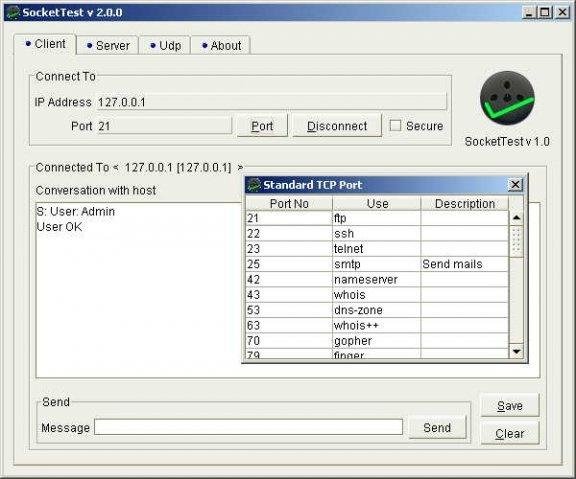
On an Ubuntu machine using UFW, ufw status shows the local firewall status. Cloud security groups, router rules and other upstream controls apply separately, and UFW isn't installed on every Linux system.
If the setup used to work, compare the current environment with the working one: server address, SSH port, daemon configuration, packages and network policy. Restart the service only after you've found the fault and set up the recovery precautions in the next section.
Fix SSH identity and key selection only after reaching authentication
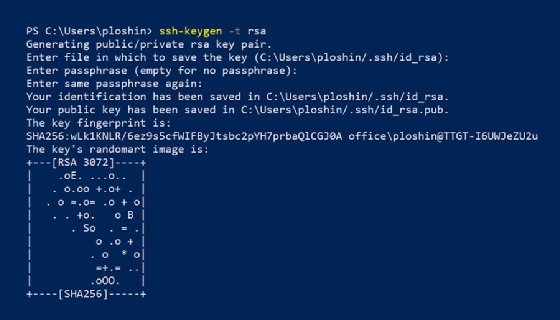
Once the server responds at the authentication stage, the username and the offered key are what matter.
Your private key stays on the client. The matching public key is recorded in the account's authorized_keys file on the server. The server's host key has a separate role: it identifies the server, and the client records trusted hosts in known_hosts.
Inspect effective SSH client settings
OpenSSH takes client configuration from command-line options, the user's ~/.ssh/config and the system-wide /etc/ssh/ssh_config. For most directives the first value obtained applies, and matching Host or Match rules decide which settings count.
Multiple IdentityFile directives are the exception: they accumulate. An authentication agent can also offer additional identities unless IdentitiesOnly restricts them, as the OpenSSH client configuration manual describes.
For the target or configured alias, inspect the effective client configuration:
ssh -G <HOST>Read the reported hostname, user, port and identity settings against the attempt that failed. For more detail, ssh -v or ssh -vvv prints the client's connection and authentication diagnostics.
-i sets an identity file and -p sets the SSH port. Using -i doesn't limit the client to a single identity by itself.
A user on r/linux4noobs wrote, “If I use ssh -i and specify the key to use I am able to connect to the server.”
If -i works but a plain ssh command doesn't, ssh -G shows which identities the client picks on its own.
For a reusable alias or a chosen identity, see the SSH Config File Examples guide. To set up public-key login, see SSH Key Authentication. If the server rejects you at this stage, use the Permission Denied (publickey) troubleshooting guide.
Keep a recovery path before changing remote SSH or firewall settings
Changing a remote configuration is riskier than a read-only check. If SSH is the only way into a headless server, a failed daemon restart, route change or firewall rule can cut you off.
- Confirm fallback access. Find a provider console, out-of-band management interface, physical console or other authorized recovery path. If you have none, postpone the change until you do.
- Preserve existing settings. Copy the configuration you're editing and keep a way to restore it.
- Validate the configuration syntax. On the OpenSSH server environment Ubuntu describes,
sudo sshd -tchecks the server configuration before a restart. - Try a fresh session. After the change, open a separate authenticated connection while keeping the original session and your rollback path available.
sshd -t only checks that sshd accepts its configuration. It doesn't test the firewall, the remote route or a new login.
The Ubuntu OpenSSH server guide documents the configuration check and warns about remote lockout from an invalid SSH setup.
These steps apply to changes that can affect access. Your SSH implementation and distribution determine the daemon name, validation command and service procedure.
Choose SCP or SFTP when the task is moving files
- SCP: use the Copy Files with SCP guide for a straightforward command-line copy.
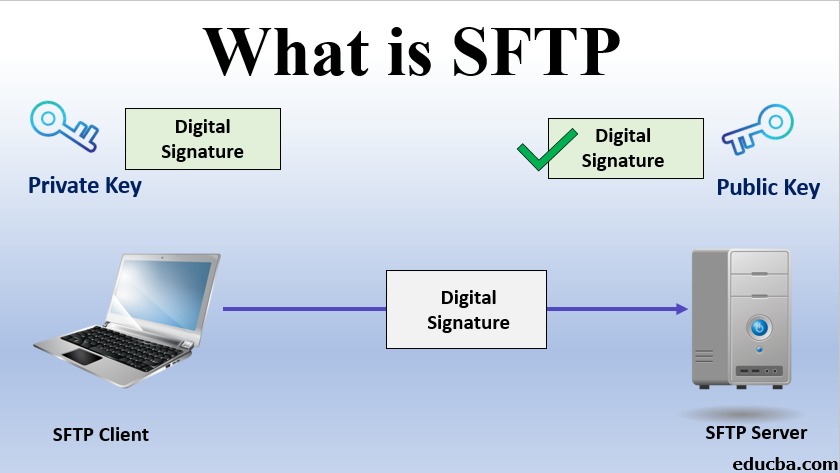
- SFTP: use the SFTP File Transfers guide for an interactive session with remote directories and file operations.
In OpenSSH, as its manuals document, scp uses the SFTP protocol over SSH, so the choice comes down to command interface and workflow. After the transfer, confirm the file reached the destination and the permissions allowed it.
Know when to switch tools, distributions, or guides

Ubuntu documents Netplan and UFW workflows, Red Hat Enterprise Linux 9 documents NetworkManager-centered networking administration, and a system using systemd-resolved provides resolvectl while other installations can have a different resolver setup. Confirm your operating system, SSH implementation and release before applying a distribution-specific procedure, because OpenSSH-specific commands and service conventions don't carry over to a server running TinySSH or another implementation.
The Ubuntu 26.10 release notes describe separate openssh and openssh-gssapi package variants and warn that purging the removed counterpart package when you switch between them can lose configuration, so read that release's package guidance before changing SSH packages on a remote host.
SSH reachable from the internet needs a deliberate access-control and authentication policy, unlike an ordinary LAN connection, and full firewall hardening, VPN access and gateway design belong in the Secure SSH Access to a VPS guide.
Explore related guides
- How to SSH Into a Linux Server
- How to Fix SSH Permission Denied (publickey)
- SSH Config File Examples: Set Up and Verify Host Profiles
- How to Use ssh-copy-id and Verify SSH Key Login
- SCP Command in Linux: Copy Files, Directories, and Troubleshoot Errors
- How to Check Listening Ports and Processes in Linux
- How to Diagnose Linux Network Problems with Ping, Traceroute, DNS, and Curl
- How to Use SFTP on Linux: Commands, SSH Keys, and Transfer Fixes
