Run cat /etc/os-release to see which distribution you have, then use its own package manager for software from its repositories. Flatpak, Snap, and manually installed apps update separately, and Arch, openSUSE, and rpm-ostree systems follow their own upgrade rules. After any change, verify the result.
What does a Linux package manager manage?
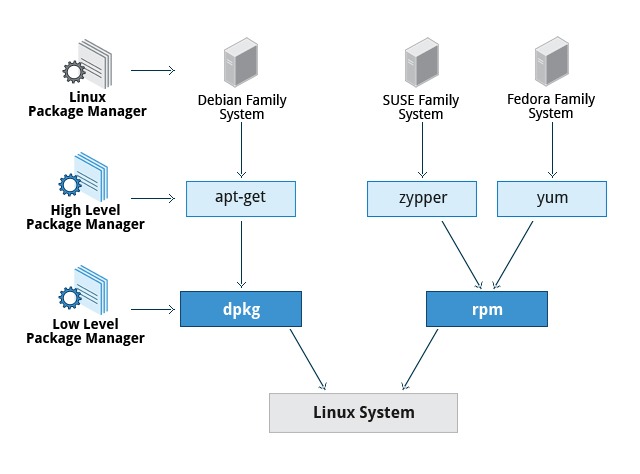
A package manager downloads software from repositories and installs the dependencies it needs. A repository publishes packages along with metadata. The package manager reads that metadata to find software, resolve dependencies, and install or remove it. Before choosing a command, decide whether you need to find, install, update, remove, or investigate a package.
Which package manager does your Linux distribution use?

Your distribution determines which tool manages its native software. Start by identifying it:
cat /etc/os-releaseThe ID field names the distribution, and ID_LIKE lists related families. Use both to find the right maintenance documentation.
| Distribution or system | Native management tool | Package format |
|---|---|---|
| Ubuntu and Debian | APT, with dpkg underneath |
.deb |
| Conventional Fedora and RHEL-family systems | DNF or DNF5, depending on release | .rpm |
| Arch Linux | pacman |
Arch native packages |
| openSUSE Leap and Tumbleweed | zypper |
RPM |
| rpm-ostree-based host | rpm-ostree |
OS deployments and layered packages |
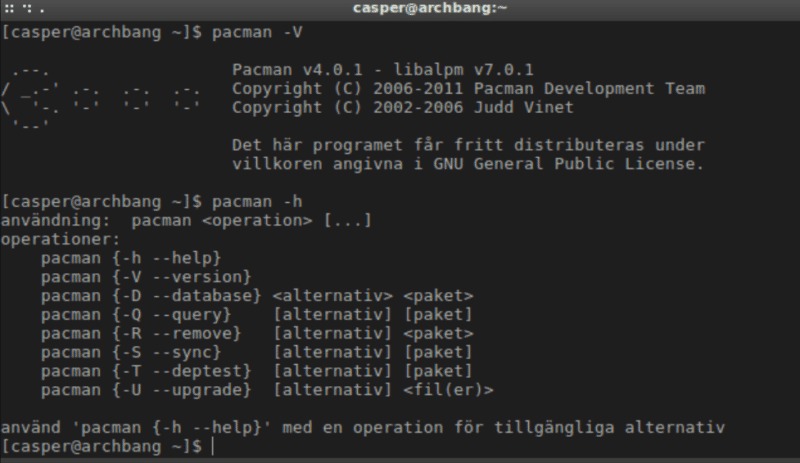
In an April 2026 discussion on r/linux4noobs, a reader comparing distributions wrote, “I thought package managers could generally be used on any distro. But maybe that's a wrong assumption, I guess?”
Use the package manager documented for your installed distribution and release.
Which tool owns the app you want to update?
Your native package manager controls only the packages it installed. Software from another channel has its own update mechanism, even when a graphical app store lists it next to native software.
A former Windows user with about a year of Fedora experience wrote in r/linuxquestions: “Some installed apps are not shown in the app store. I don't even know if the commands updates all apps.”
- Native repository package. APT, DNF, or your distribution's equivalent manages software installed from its repositories.
- Flatpak application. Flatpak maintains its own installed apps and has separate list and update commands.
- Snap application. Snap uses its own refresh workflow, including channels where they apply.
- Manually installed binary. Use the update method the publisher supports.
If Flatpak or Snap is installed, list its apps with these read-only commands:
flatpak list --appsnap listOn Debian or Ubuntu, this command shows the package database status for a package name you know:
dpkg --status PACKAGEConfirm the status says installed. Removed packages can leave configuration records behind. Names shown in a desktop app can differ from package names.
A software center combines several sources in one window. A native update check can therefore show nothing to upgrade while another source offers an app update.
Search, install, update, or remove: what changes?
Package commands do different jobs. Some only read package information, some change installed packages, and some remove dependencies or downloaded files.
| Task | Command | Effect |
|---|---|---|
| Refresh APT repository metadata | sudo apt update |
Updates local information about available repository packages. Installed versions stay the same. |
| Upgrade APT packages | sudo apt upgrade |
Upgrades installed packages under APT's dependency and transaction rules. |
| Check DNF5 upgrade availability | dnf5 check-upgrade |
Reports whether package upgrades are available. |
| Remove unused APT dependencies | sudo apt autoremove |
Removes automatically installed packages that nothing requires anymore. |
| Clear downloaded APT archives | sudo apt clean |
Deletes cached downloaded package archives. |
To search your repositories without changing anything, replace TERM with a package name or search term and run the command for your system:
- Ubuntu / Debian:
apt search TERM - Fedora with DNF5:
dnf5 search TERM - Arch Linux:
pacman -Ss TERM - openSUSE:
zypper search TERM
Results, available versions, and dependency behavior differ between distributions.
Use apt interactively and apt-get in scripts and automation, since its interface is more stable. Before confirming an autoremove, read the list of packages it proposes to remove.
Arch, openSUSE, and image-based Fedora have different upgrade rules
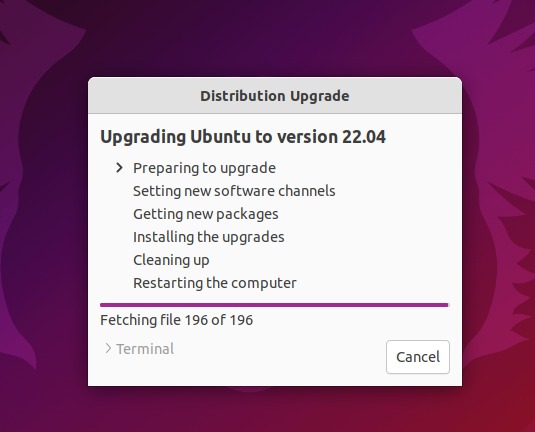
Arch needs a consistent package set, Tumbleweed upgrades by snapshot, and rpm-ostree hosts upgrade by deployment.
Arch Linux: upgrade the system coherently
Arch does not support partial system upgrades. In a normal account with sudo, synchronize the package database and upgrade the whole system with:
sudo pacman -SyuNever run pacman -Sy alone. It refreshes the package database without upgrading the system, and later selective package installs can leave package versions and dependencies mismatched. The ArchWiki System maintenance guide documents the full-upgrade requirement.
openSUSE: distinguish Leap from Tumbleweed
- openSUSE Leap:
zypper uphandles routine package updates. - openSUSE Tumbleweed:
zypper dupruns the rolling distribution's snapshot upgrade.
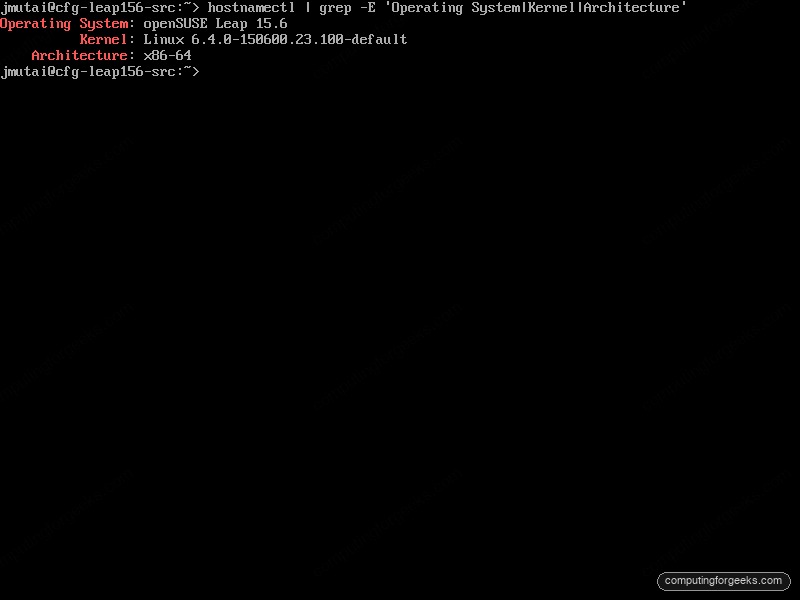
Image-based Fedora systems: update the deployment
Some Fedora-derived systems manage the host with rpm-ostree. They prepare bootable deployments, and host changes activate after a reboot. Layered packages and deployment rollback follow rpm-ostree rules, so updating the host differs from a DNF upgrade on standard Fedora.
Why can't the package manager find a package?
The error means your manager could not find the package in your configured sources. Check next whether one package is missing or many unrelated ones are.
| Symptom | Likely cause | First check |
|---|---|---|
| One named package cannot be found | Different package name, package absent from enabled repositories, or unsupported release | Its distribution-specific name and the repository package listings |
| Many unrelated packages cannot be found | Repository, index, release-support, or architecture problem | Whether your configured sources support your installed release and architecture |
| Still missing after an APT index refresh | Package absent from the refreshed sources, or another availability condition applies | Repository coverage and package compatibility |
If you know the exact APT package name, look at its metadata:
apt show PACKAGEReplace PACKAGE with the name. If APT shows nothing, check the name and the repositories configured for your release. If many packages fail, work through the checks above before adding new sources.
A poster using an ODROID U3 with Ubuntu Server 20.04 wrote in r/linux4noobs, “EDIT: no, it isn't neofetch that doesn't work, it's basically every package”. When nearly every package fails, check repository and release support first.
Older distributions and uncommon hardware architectures can lack a supported repository path for a package.
What if the repository version is older than the developer's release?
An older repository package can be the right choice. Decide based on the features you need, your supported release, and who maintains the package.
- Installed version: The version on your machine.
- Repository candidate: The version your configured distribution sources offer.
- Upstream version: The release the software developer publishes directly.
The three can differ. A Linux Mint user choosing between the repository package of the Kitty terminal and an upstream binary faces exactly this.
Before adding a third-party APT repository, check the publisher, compatibility with your Ubuntu release, how the repository is maintained, and its signing-key configuration.
Ubuntu's repository guidance uses Signed-By to tie a signing key to one source, which limits what that key is trusted for. A valid signature does not make the publisher's software safe or compatible with your machine.
The older global apt-key approach is obsolete in Ubuntu's configuration guidance.
Arch has a similar split with the Arch User Repository (AUR). AUR packages are community-submitted build recipes outside the official repository set. They do not go through the official package-vetting process.
If the repository build lacks a feature you need, weigh the benefit against compatibility with your release and the work of keeping it updated yourself.
Can you undo a bad package update?

Some package managers record install and upgrade transactions and offer commands to undo or roll back eligible changes.
With DNF5 history enabled, the history interface lets you inspect recorded transactions and try to undo or roll them back. The transaction, the package versions still available, and the installed package state decide success.
A transaction can also affect dependencies and services, so read the proposed changes before approving a disruptive upgrade.
On a production server, reversing package changes does not restore unrelated filesystem changes, application data, external databases, or later configuration edits. Rolling back an rpm-ostree deployment likewise covers only the bootable deployment state, not user and application data. If uptime or stored data matters, set up a separate, usable recovery path for the affected system and application.
How do you verify a package change?
A finished command only shows what the package manager attempted. Check the result yourself, depending on what you changed:
- Installed state: Check the installed package and version with the tool that owns it.
- Pending updates: Check the update list of the tool that owns the package.
- Application behavior: Launch the application or check the affected service to confirm it works.
For an APT package, this shows the installed and candidate versions:
apt policy PACKAGEOn Fedora with DNF5, dnf5 check-upgrade checks for native package updates. Exit code 100 means upgrades are available. The check did not crash. Other managers can assign different meanings to exit codes.
If the result is still missing, these guides cover the next step:
- APT operations: APT commands for installing, upgrading, and removing packages gives the full command reference.
- Local package files: Installing downloaded DEB packages covers that separate installation route.
- Repository configuration: APT repository setup covers source configuration and maintenance.
- Other Linux tasks: Linux command-line and administration guides cover everything else.
