On Debian and Ubuntu, update refreshes the package lists, install adds software, and upgrade applies regular updates. Broader operations can add or remove packages, so read the proposed changes before confirming and check the result afterwards.
What is apt, and which command should you use?
APT, the Advanced Package Tool, manages Debian packages and their dependencies. The apt command is the interactive interface for finding, installing, upgrading, and removing software.
In the table, NAME is the package name you supply.
| Task | Command | Effect |
|---|---|---|
| Find software | apt search NAME | Search indexed package information |
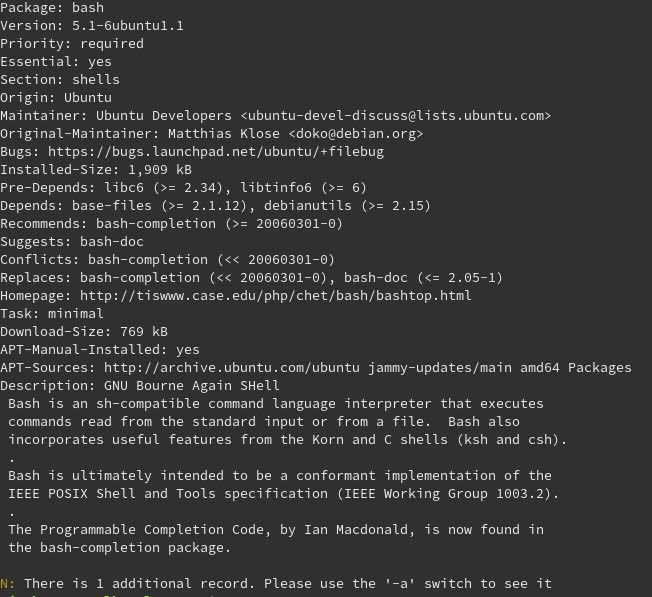
| Read package details | apt show NAME | Show description and dependencies |
| List installed packages | apt list --installed | Show installed packages |
| Find available updates | apt list --upgradable | List packages with available upgrades |
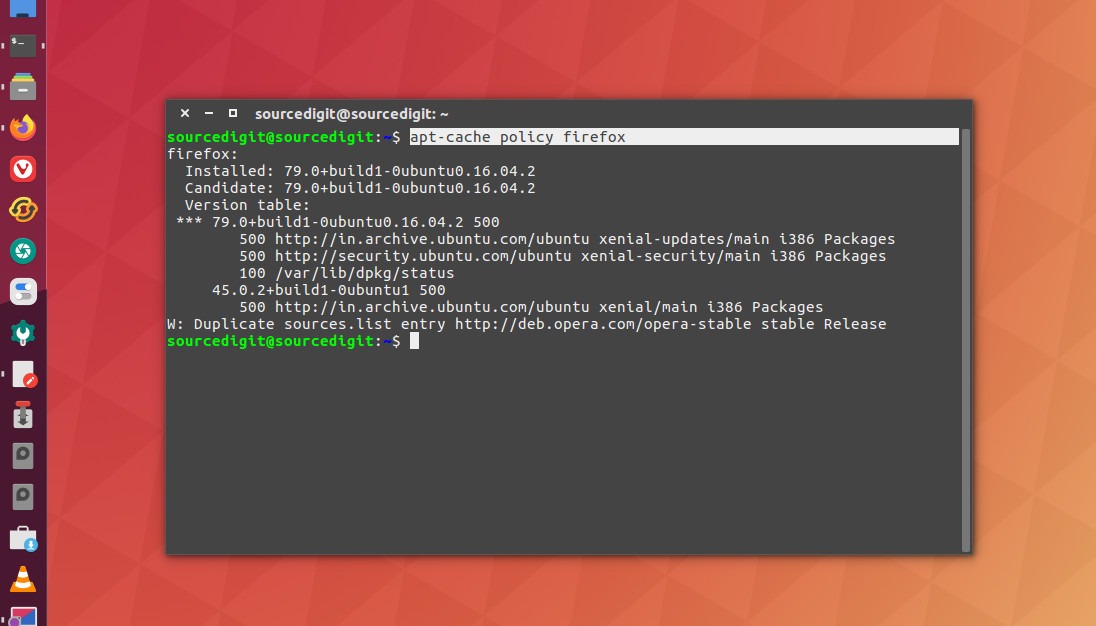
| Compare versions | apt policy NAME | Show installed and candidate versions |
| Refresh package metadata | sudo apt update | Download repository information |
| Install a package | sudo apt install NAME | Install a named package and dependencies |
| Apply regular upgrades | sudo apt upgrade | Upgrade without removing installed packages |
| Permit broader upgrades | sudo apt full-upgrade | May add and remove packages |
| Remove a package | sudo apt remove NAME | Remove named software |
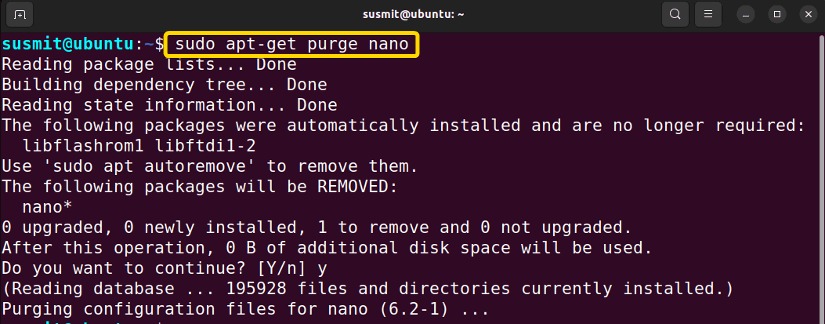
| Remove packaged settings | sudo apt purge NAME | Remove package and packaged configuration |
| Clean up dependencies | sudo apt autoremove | Propose unused automatic dependencies for removal |
Read-only commands work without elevated privileges. Commands that change packages need root, for example through sudo.
Other Linux families, including Fedora and Arch, use different package managers.
Find a package and check its version before installing it
Get the package name right first. A project's public name, its Debian package name and the version in your repositories can all differ.
To look for curl, search the index and read its description:
apt search curl
apt show curl
Search runs against the metadata already on your machine. show gives the description, package size and dependencies.
To see the installed and candidate versions:
apt policy curlFor the full lists of installed packages and pending upgrades:
apt list --installed
apt list --upgradable
Your OS release, your enabled repositories and the state of your package index decide what you can install. A tutorial can name versions your machine can't install.
Install, reinstall, or select a package version
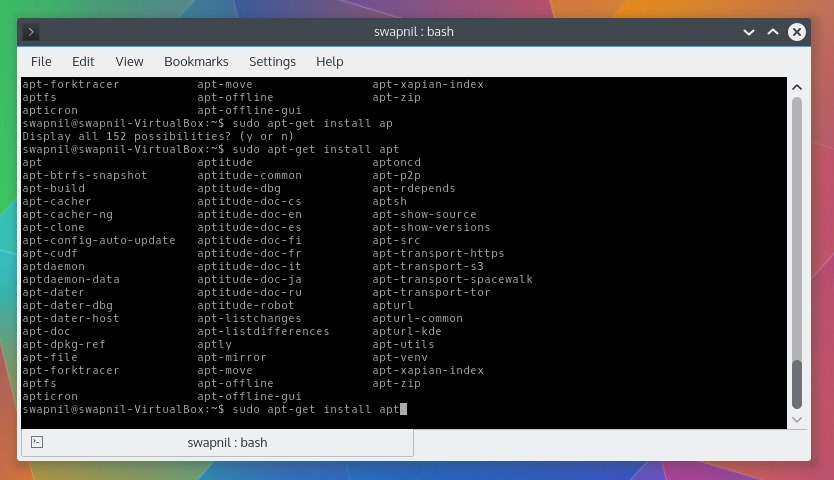
To install a package from your repositories, use its name:
sudo apt install curlAPT resolves the dependencies the install needs and asks you to confirm the changes. Installing a package you already have upgrades it if a newer candidate is selected.
Reinstall package-managed files
If a package's files need to be installed again, use the reinstall option:
sudo apt install --reinstall curlReinstalling restores the package's own files. It won't fix your data, your service settings or other problems with the application.
Request an available version
If your package policy offers a specific version, add it to the package name. Replace VERSION with the exact version listed by apt policy:
sudo apt install curl=VERSIONA local .deb file raises different source and dependency questions than a repository package.
apt update vs upgrade vs full-upgrade: what each one changes
apt update refreshes package information. apt upgrade installs available updates. apt full-upgrade allows dependency resolution that can remove installed packages.
| Operation | Refreshes metadata | Installs upgrades | May add dependencies | May remove installed packages |
|---|---|---|---|---|
sudo apt update | Yes | No | No | No |
sudo apt upgrade | No | Yes | Yes | No |
sudo apt full-upgrade | No | Yes | Yes | Yes |
sudo apt-get upgrade | No | Yes | No | No |
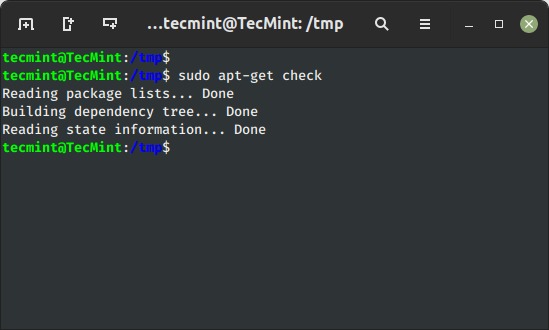
A regular maintenance run looks like this:
sudo apt update
sudo apt upgrade
You can chain the steps with the shell's conditional operator:
sudo apt update && sudo apt upgradeThe second command runs only if the first exits successfully. Even then, repository-fetch warnings can mean APT kept older package lists for some sources.
A Debian user on r/debian asked in May 2025, “Is it correct to perform these three commands after each other every time you do a upgrade of the system?” You do not need to add full-upgrade to a routine upgrade.
Details are in the Debian apt manual.
Updating packages is different from upgrading to another OS release. full-upgrade alone does not change the configured distribution release.
apt remove vs purge vs autoremove: which one deletes what
| Command | Removal scope | Configuration consequence | When it fits |
|---|---|---|---|
sudo apt remove NAME | Named package | Some system configuration can remain | You may want the settings later |
sudo apt purge NAME | Named package and packaged configuration | Removes packaged configuration | You no longer need those settings |
sudo apt autoremove | No-longer-required automatic dependencies | Depends on packages selected for removal | You have evaluated the proposed list |
To remove curl and keep the configuration APT preserves:
sudo apt remove curlTo purge its packaged configuration too:
sudo apt purge curlPurging does not erase application data that users created in their home directories.
autoremove relies on APT's dependency records. Once the packages that required an automatically installed dependency are gone, that dependency becomes a candidate for removal. The automatic mark only records how APT tracks a package.
Check the marks with apt-mark showauto and apt-mark showmanual. If you rely on a package that is marked automatic, mark it manual by putting its exact name in place of PACKAGE:
sudo apt-mark manual PACKAGEThis only changes how APT tracks the package.
Preview APT changes before confirming
The transaction preview lists the package additions, removals and configuration steps.
To simulate an install or a dependency cleanup, use apt-get:
apt-get -s install curl
apt-get -s autoremove
In the output, Inst means a package is being installed or unpacked, Remv means removal, and Conf means configuration. The Debian apt-get manual covers these markers and the simulation option.
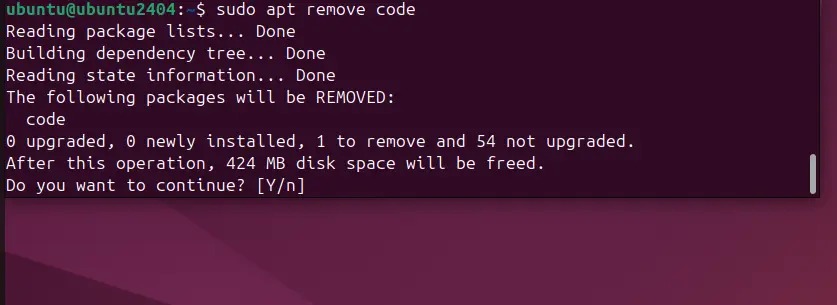
A simulation does not lock package state. The real transaction can differ if repository information or installed packages change before the real run. Running the simulation without suitable privileges can also limit the configuration it can read.
Check three things before confirming:
- New packages: Do they belong to what you asked for?
- Proposed removals: Would any named package affect a service or application you still need?
- Unexpected changes: Can you explain the dependency relationship behind them?
If a service you need appears on a removal list you can't explain, decline the transaction and look into the dependency first.
The -y option accepts confirmation prompts automatically. It reduces your chance to check the proposed changes interactively, although other safety checks can still apply.
Verify the package state and review what changed
Run the same check afterwards. For curl:
apt policy curlThe Installed field shows the installed version. Candidate shows the version APT selects under your package policy. After an install, Installed shows a version, and after a successful removal it shows that the package is no longer installed. After an upgrade, compare it with the version you meant to apply.
To see whether other updates are still available, run:
apt list --upgradable
APT records past transactions in:
/var/log/apt/history.logOn Ubuntu 26.04 LTS, APT 3.1 supports apt history-list to list transactions and apt history-info ID to inspect one by its transaction ID. These commands were introduced in Ubuntu 25.10, so older APT installations lack them.
Canonical also documents apt history-undo and apt history-rollback, which display the proposed package changes before reversing them. A reversal does not guarantee that application data, configuration or the whole system returns to an earlier state.
APT errors: locks, missing packages, 404s, and repository problems
Each error points to a different check. Note which operation failed and the exact message before trying any repair.
| Symptom | Possible cause | First safe check |
|---|---|---|
Could not get lock | Another package process is active | Find out which process holds the lock and whether it is still running |
| Permission denied | The operation needs administrative privileges | Check what access the operation requires |
Unable to locate package | Name mismatch, unavailable package, or stale/missing metadata | Check the search results and your configured sources |
404 Not Found for an archive | Stale reference or missing file at a mirror | Look at the failed URL and the package candidate |
Missing Release file or NO_PUBKEY | Repository configuration or authentication problem | Find the affected source and check its trust setup |
| Unmet dependencies | Conflicting requirements or inconsistent package state | Look at the named packages and the changes the repair proposes |
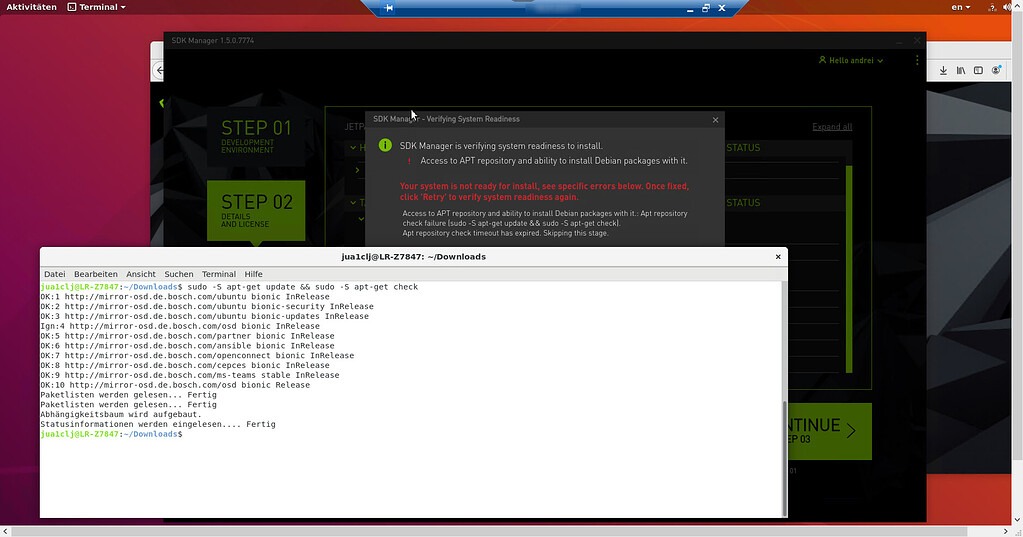
An HTTP 404 can mean a missing package archive or an unavailable repository Release file. The failed URL and your package-source configuration tell you which.
Ubuntu 24.04 LTS and later use the deb822 format by default, in /etc/apt/sources.list.d/ubuntu.sources. Earlier releases used /etc/apt/sources.list.
When another process holds the lock
PackageKit or another package-management service can legitimately own an APT lock. Find the process and let an active transaction finish. Deleting lock files or killing a process you have not identified can damage package-management state.
When repositories or dependencies fail
Repository authentication errors are about source trust. APT verifies signed repository metadata, and the Debian apt-secure manual explains the model. Do not disable signature checks to force an update through.
apt clean deletes downloaded package archives from the cache.
For an inconsistent dependency state, apt --fix-broken install can help once you understand the changes it proposes.
Why apt says packages are kept back
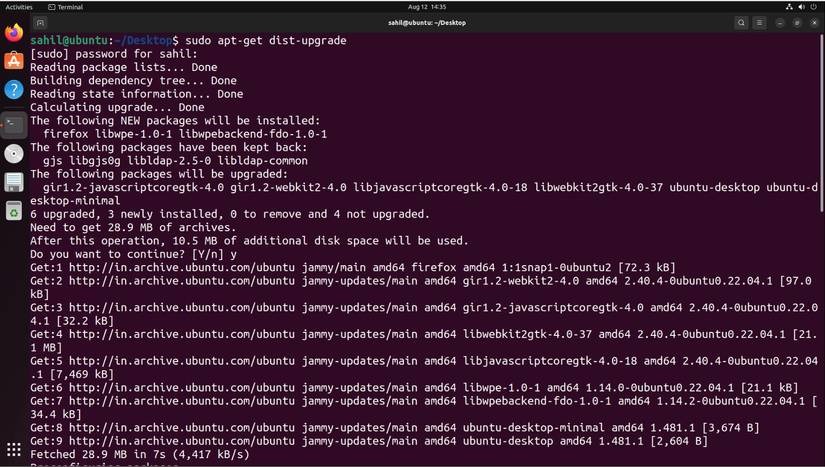
A package reported as “kept back” was not upgraded by that operation. Three things can cause it:
- Phased rollout: Ubuntu policy delays the selected update for that system.
- Explicit hold: An administrator asked to keep the installed version in place.
- Dependency or repository policy: The candidate upgrade can need changes the chosen command does not allow, or your configured sources can limit it.
To check a specific package, put its actual name in place of curl in the first command:
apt policy curl
apt-mark showhold
The first shows package-policy information, including installed and candidate versions and any phasing indication. The second lists held packages.
Ubuntu phased updates defer some non-security package updates while Canonical rolls them out gradually, so a delayed package can be working as intended. The Canonical phased-update explanation excludes security updates from phasing and says routine rollouts should proceed unless you have a specific reason to override them. Debian systems can implement Ubuntu's rollout policy differently.
apt vs apt-get: which one to use in scripts
Use apt for interactive work. For scripts, Debian recommends apt-get and apt-cache, because the higher-level interface can change.
The commands behave differently. apt upgrade can add dependencies, while apt-get upgrade does not add packages. apt-get dist-upgrade can remove packages.
dpkg handles lower-level package operations. It does not replace APT's repository dependency management.
