Use the terminal editor you already know on this machine: Nano for an occasional quick edit, Vi or Vim if you know its modes, and a viewer if you only need to read a file. Edit protected configuration with a method your permissions allow, then validate the result. Check what's installed and practice saving and verifying a disposable file before changing anything important.
Opening a file in an SSH terminal sounds simple, but an unfamiliar editor can make it hard. You can know exactly which line needs changing and still have no idea why typing does nothing or how to leave the editor without losing your work. Start with three questions: what do you need to do, what does this machine have, and how will you know the edit worked?
Which Linux terminal editor should you use?
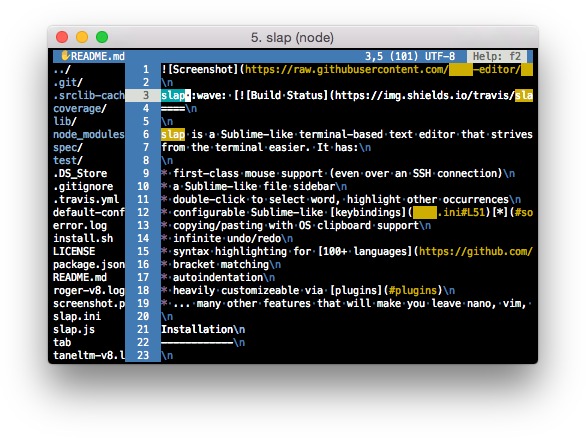
A terminal text editor lets you change text without a graphical desktop. Nano, Vim, vi, and Micro all do that, but they work differently. Pick Nano for a brief, unfamiliar terminal edit with visible key prompts. Choose Vim when modal editing and repeatable navigation will pay off across many files.
| Your situation | Tool | What matters | Next step |
|---|---|---|---|
| Read a log or inspect a file | less or cat | Shows content, no editing | No editor needed |
| Make a short edit with familiar controls | Nano | Plain text entry, control-key commands | Check it's installed, then practice |
| Work in a familiar modal editor | vi or Vim | Normal and Insert modes | See the save and quit table below |
| Prefer familiar shortcut conventions | Micro | Terminal interface with familiar keybindings | Check that the command exists |
| Change protected configuration | An editing method you have permission to use | Permissions, recovery and validation | Follow the four checks in the protected files section |
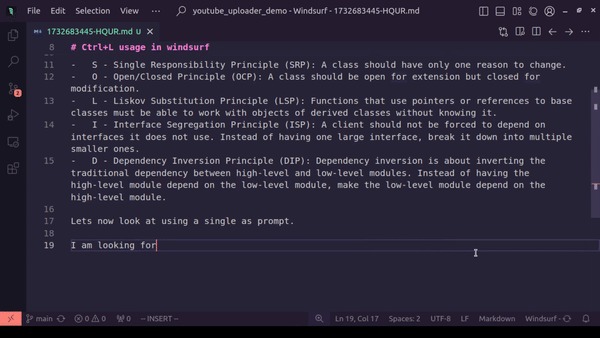
A Nano user posted to r/linuxquestions on February 9, 2025, asking why others prefer Vim: “In my experience, Nano feels comfortable to edit in, but vim has me wrestle with achieving even the most basic tasks.”
Check which editors are installed on your Linux system
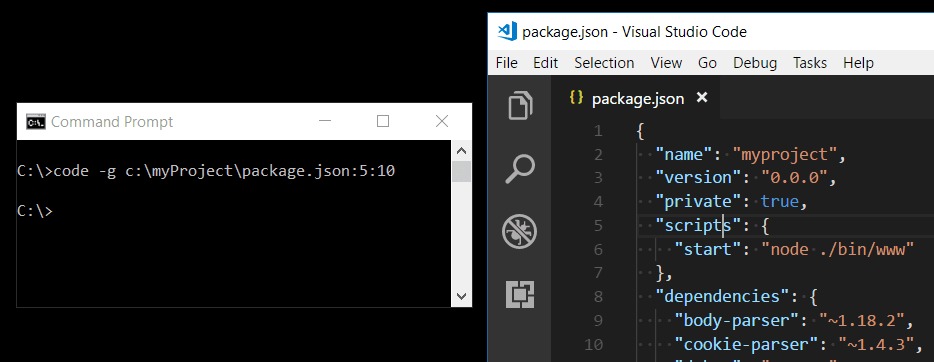
Check that your shell can find the editor before opening it. A minimal container, remote server, or restricted machine can have different programs from your laptop.
Run these one at a time:
command -v nano
command -v vi
command -v vim
command -v micro
command -v prints the path to each editor it finds. If nothing prints, your shell can't find that command.
The vi command can come from a different implementation or a Vim compatibility mode. POSIX defines the vi utility, but it doesn't guarantee that Vim is installed or that every vi has Vim's extended features.
To see which version of Nano or Vim you have, run:
nano --version
vim --version
If you prefer Micro but the command isn't found, use whichever editor is installed. On a managed server or rescue environment installing anything can be off limits.
Practice one edit in a disposable file and verify the result

Create a text file, change it, and read the saved result back. Do it in a writable directory you control, away from service configurations and without elevated privileges.
Use editor-practice.txt as the example filename. If Nano turned up in the previous check, open the file with:
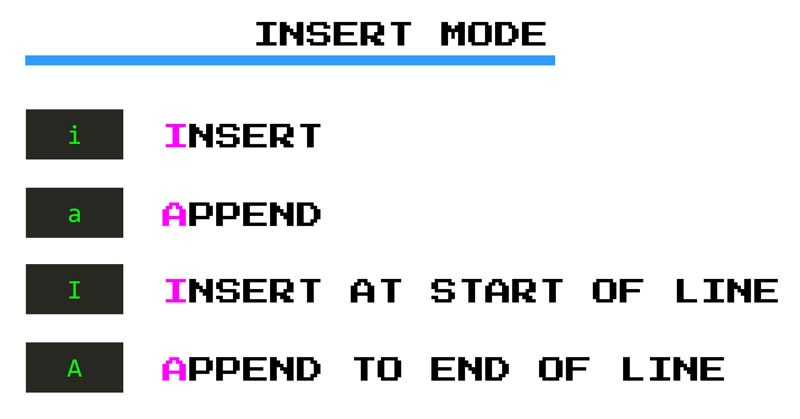
nano editor-practice.txtType first line, press Enter, then type second line. Press Ctrl+O to write the file, confirm the filename at Nano's prompt, and press Ctrl+X to leave. To use Vim instead, run vim editor-practice.txt, press i to enter Insert mode, and type the same two lines. The save and quit commands are in the next section.
Back at the shell, read the file:
cat editor-practice.txtYou should see:
first line
second line
A Windows user editing Docker-server files through PuTTY wrote in an r/linuxquestions discussion on January 17, 2024: “Editing and writing text files through Putty has been a pain and has caused multiple typo issues.”
Save, exit, or discard a change in Nano and Vim
Nano uses control-key commands and on-screen prompts. Vim has editing modes, so the same key can insert text or run a command depending on the mode you're in.
| Task | GNU Nano | Vim | What to watch for |
|---|---|---|---|
| Begin entering text | Start typing | Press i for Insert mode | – |
| Save changes | Ctrl+O, then answer the write prompt | Esc, type :w, press Enter | Saving and quitting are separate steps |
| Quit | Ctrl+X | Esc, type :q, press Enter | Unsaved changes trigger a prompt or block the quit |
| Discard unsaved changes | Follow Nano's exit prompt and decline saving | Esc, type :q!, press Enter | Unsaved changes are lost |
| Open help | Ctrl+G | :help | Both show built-in help |
In Vim, Esc returns you from Insert mode to Normal mode. From there you can enter a colon command such as :w or :q. If you typed a few characters by accident, :q! discards them. Vim also documents ZZ as a write-and-quit shortcut.
GNU Nano's upstream shortcut reference also lists Ctrl+S for saving, but terminal flow control can intercept that combination. Your session's on-screen shortcuts show what works.
Editing a protected file: permissions, sudoedit, and validation
An editor can only do what its process has permission to do. If a file belongs to another user or system policy protects it, switching from Nano to Vim won't make it writable.
For a system-owned configuration file, run these four checks:
- Authorization: Confirm that you are permitted to change this particular file.
- Recovery: Preserve a recoverable copy or equivalent rollback mechanism according to the system's operating procedure.
- Editing method: Use a dedicated safe editing tool or
sudoeditwhere the system's sudo policy allows it. - Validation: Use the relevant application's configuration validator before applying changes to a running service.
Where you have permission, sudoedit (also run as sudo -e) lets you edit a temporary copy. Sudo then updates the real file.
It creates no automatic backup and doesn't check whether the configuration is valid.
For the sudoers policy file, the sudo documentation specifically recommends visudo to help prevent syntax errors.
Why another editor opens: EDITOR, VISUAL, Git, and cron
Your shell can set editor preferences through environment variables such as EDITOR and VISUAL. Each application decides which setting it follows, so different tools can open different editors on the same machine.
| Context | Relevant editor selection | Scope |
|---|---|---|
| Git commit message | GIT_EDITOR → core.editor → VISUAL → EDITOR | Git's documented order |
| Programs following Debian editor policy | EDITOR, possible VISUAL preference, and /usr/bin/editor fallback | Debian conventions for programs and alternatives |
sudoedit under sudoers | SUDO_EDITOR, VISUAL, EDITOR | Depends on your sudo policy |
crontab -e | VISUAL or EDITOR | Documented Linux crontab(1) behavior, using the environment of the user running it |
The Git git-var documentation lists this order for commit messages, then a compiled-in fallback.
Debian also provides an /usr/bin/editor fallback managed through alternatives. Changing the alternatives selection changes that fallback, but applications with their own settings can still choose differently.
In an r/Ubuntu discussion from October 31, 2019, a poster who chose Vim for sudo crontab -e on Ubuntu 18.04 wrote: “Now I can't change the editor back to "nano" no matter what.”
To find out why an unexpected editor opens, first note which program launched it and which user ran it. These commands only read settings. They show your shell's preferences, Git's configured editor, and the editor Git picks for commit messages:
printf '%s\n' "$EDITOR" "$VISUAL"
git config --get core.editor
git var GIT_EDITOR
For cron run under sudo or another account, that account's environment and the application's policy decide which editor opens.
When Nano is enough and when Vim, Micro, or another editor is worth learning
If Nano already covers your regular editing, keep using it. Learn Vim when a recurring navigation or text-transformation task would benefit from its modal commands and you're willing to practice them. Neovim and terminal Emacs offer advanced editing for developers whose work calls for them. Identify one repeated task your current tool handles poorly before investing in a new editor. For extensive project work, a full remote IDE is the better fit.