Use Docker on Linux when you want your app's dependencies packaged and its services kept apart, while a native service or a VM fits better when its maintenance or isolation model is simpler for the job. You still have to decide who can access the daemon, which ports to publish, and how to recover your data. Start with the small test, then pick the install, container, Compose, or backup guide that matches your next task.
How Docker containers work on a Linux host
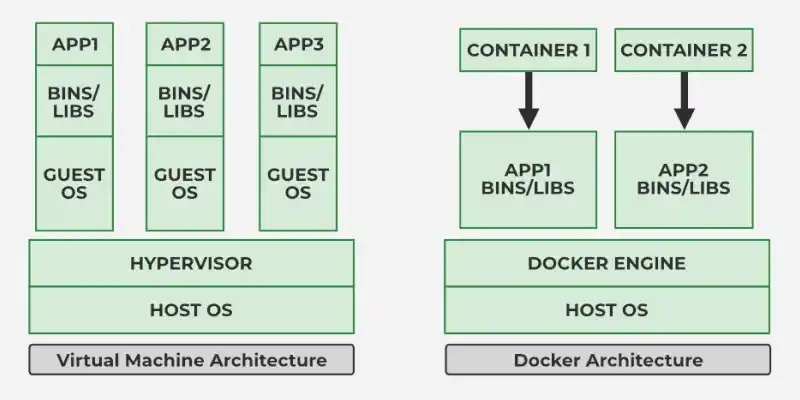
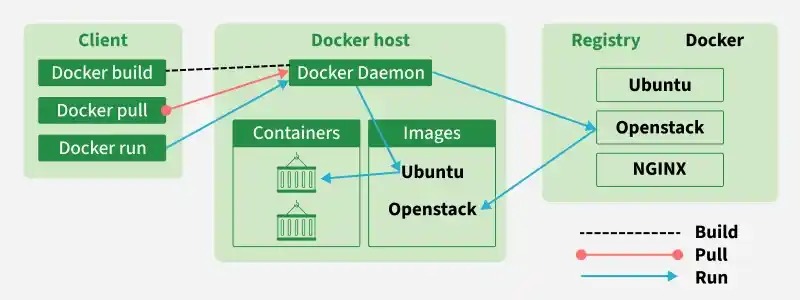
A Docker container runs an application in an isolated process environment that uses the Linux host's kernel. The Docker command-line interface sends your instructions to the Docker daemon, the service that manages images, containers, networks, and storage.
Say you run a web application on a Linux VPS. The host supplies the kernel, network interfaces, hardware resources, and filesystem. Docker Engine creates and manages a container from an image that holds the application's packaged files and configuration.
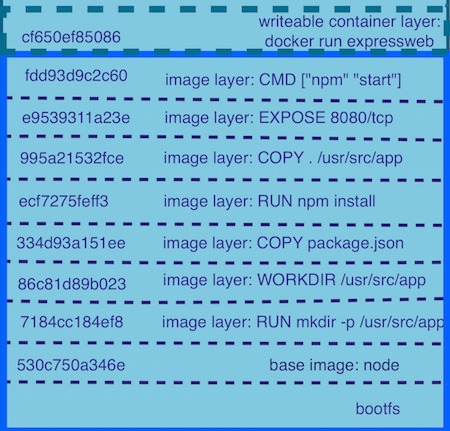
Several containers can start from the same image, and each keeps its own runtime state. Linux namespaces isolate parts of their process environments. Control groups (cgroups) track resource use and let you set limits.
A virtual machine runs a guest operating system with its own kernel. Containers share the host's kernel, so the isolation boundary and the maintenance work differ. You stay responsible for the kernel and the machine beneath Docker.
When Docker makes sense and which guide to use next
Containers help when an application needs a repeatable environment, separate dependencies, or several cooperating services. Pick the row that matches your task.
| Your situation | What you need to do | Where to go |
|---|---|---|
| Ubuntu Server without Docker Engine | Install an Engine package that matches your release, then verify it | Install Docker on Ubuntu |
| A different Linux distribution without Docker | Find the procedure that matches your distribution, release, and CPU architecture | Docker Engine's platform-specific installation instructions |
| You already have containers | Inspect lifecycle, logs, images, and day-to-day operations | Manage Docker containers |
| Your application has related services | Define and run a repeatable stack | Docker Compose essentials |
| Application state must be recoverable | Plan persistent data, backups, and restores | Back up and restore Docker data |
| You're deploying WordPress | Handle the services and data WordPress needs | Run WordPress with Docker |
For a throwaway experiment, running the container can be the whole job. A database-backed web service brings storage, access, and recovery work, so plan for that work up front.
Install Docker Engine and run your first container
Install Docker Engine with the instructions for your distribution, release, and architecture. Docker's own docker-ce and Ubuntu's docker.io package follow different maintenance paths.
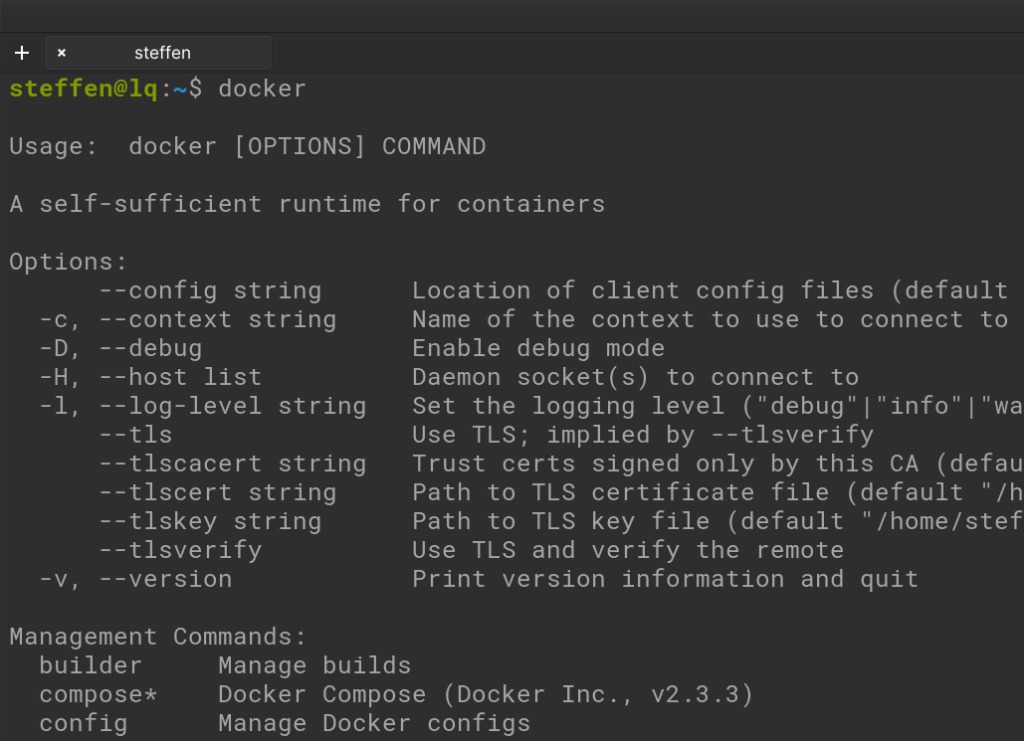
On a standard rootful install with the daemon running, check the client and server with sudo docker version, then run sudo docker run hello-world. It pulls the image, then prints a success message and exits.
Rootless installs use their own user-level Docker context. The test only proves that containers start on your machine.
Use docker run for a trial, Compose for a repeatable application
docker run fits a quick experiment or a single container you want to inspect. Docker Compose describes an application's services, networks, and volumes in one configuration, which helps when you reuse that setup or manage it as a whole.
Take a web application with one service for web requests and another for its database. Compose records how they relate and what storage they declare. Securing ports, backing up data, and keeping services healthy are still up to you.
| Approach | Best for | Trade-off |
|---|---|---|
docker run | Disposable trials and single-container tasks | Settings live in scattered commands, which are hard to reproduce |
| Docker Compose | Related services or repeatable application definitions | You maintain the Compose file and everything it declares |
| Management interface | A graphical view of your containers | Adds another admin interface, and you still manage Docker Engine |
In this r/selfhosted discussion, a Linux homelab user comparing Compose files with graphical management wrote, “What I like about this setup is that everything is very explicit.”
Know what survives: volumes, bind mounts, and actual backups
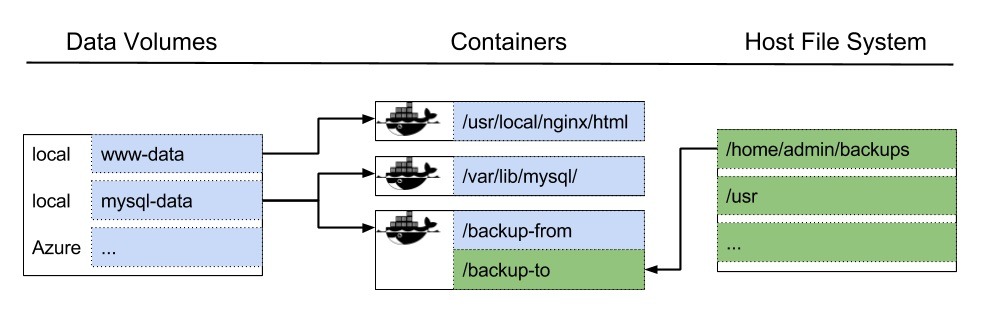
You can replace a container, but live data needs a place to live. An image supplies the packaged application files. Anything written to a container's writable layer is tied to that container's lifecycle.
A named Docker volume has its own lifecycle, separate from the container that uses it. Removing the container leaves the volume in place unless you explicitly remove the data too. A bind mount maps a path inside the container to a path on the Linux host. That makes host files available as application data or configuration, and the mount can also let the container write to them.
| Object | What it represents | What matters when recovering |
|---|---|---|
| Container image | Packaged application environment | Brings back the application software, not its live database |
| Container writable layer | Changes inside one container | Tied to that container's lifecycle |
| Named volume | Docker-managed persistent data | Survives container removal, but you can still remove it explicitly |
| Bind mount | Host-path-backed data or configuration | Depends on the host path, its permissions, and its contents |
| Separate backup copy | Application data captured for recovery | Needs a supported capture method and a restore procedure that works |
A surviving volume is not a backup.
For a web service with a database, the Compose definition and the database contents serve different recovery purposes. Copying a live database's files safely requires the database engine's supported backup procedure. A coordinated snapshot or a database-specific method can work when the engine's documentation allows it.
One operator running Docker Compose services with data on a separate drive wrote in an r/selfhosted backup discussion, “I am struggling to find a backup solution that actually works for me.”
For each stateful service, find where its data lives, note whether that is a volume or a bind mount, and confirm that a separate backup has been restored successfully.
Check Docker privileges and published ports before exposing a service
Two controls decide who can manage Docker and who can reach the applications it runs: daemon access and network access.
Docker socket access carries host-level privileges
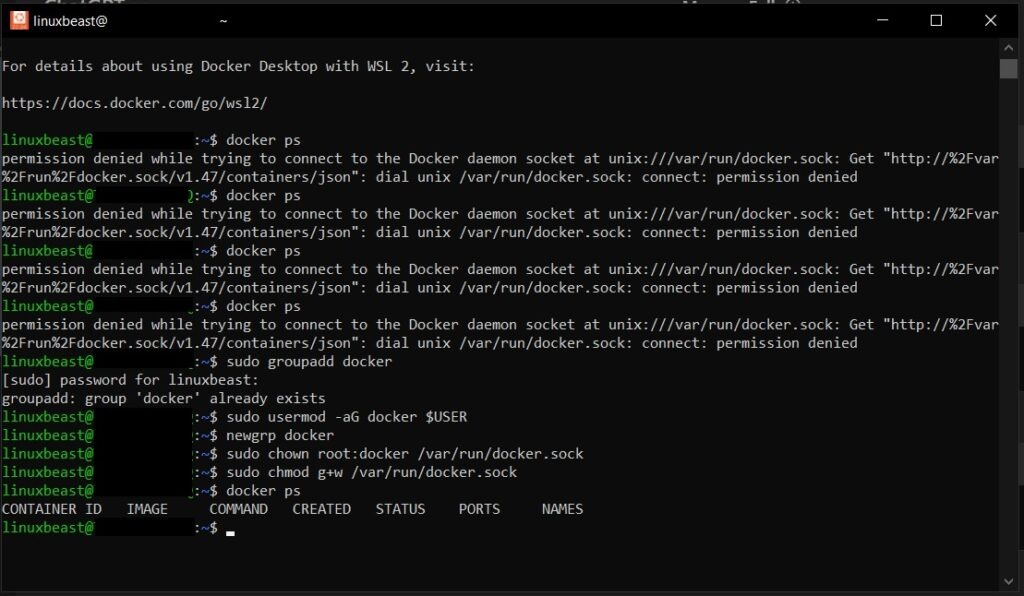
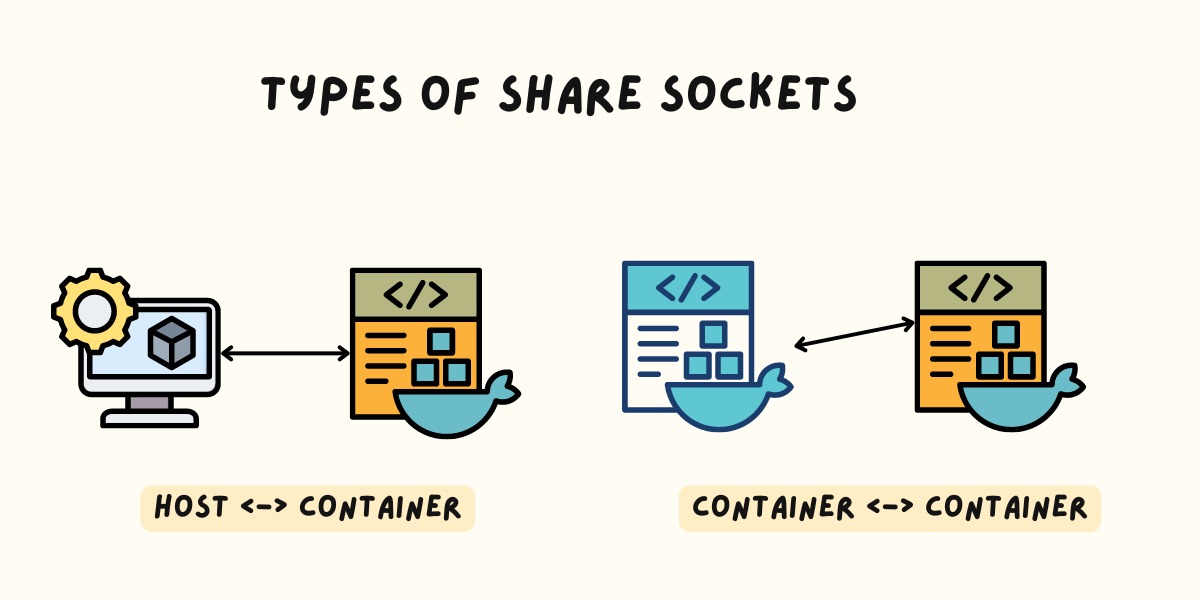
On a standard rootful installation, the Docker daemon accepts management requests through a Unix socket. You can run Docker commands with sudo, or add a user to the docker group so they can use the socket without it.
Docker's Linux post-installation guidance warns that membership in the docker group grants root-level privileges. If you get “permission denied” on the socket, decide who should control Docker before you change group membership.
Rootless mode runs the daemon and containers without root privileges. It has setup requirements and feature limits, so check that your workload fits.
Published ports decide who can reach a service
The mapping -p 8080:80 publishes host port 8080 to port 80 inside a container. Without a narrower host binding, Docker can publish on all host interfaces. Your firewall, router, and network also affect which outside clients can connect.
Docker's Ubuntu Engine installation guidance warns that published ports can bypass rules managed through ufw or firewalld.
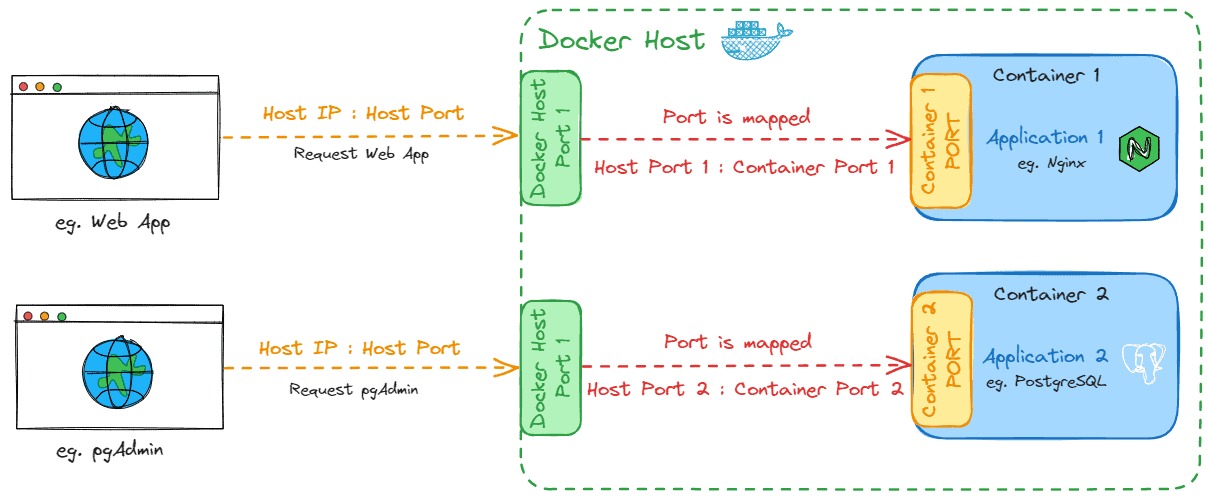
On a public VPS, an internal admin endpoint published with -p 8080:80 can end up reachable through a public interface.
Check container status, logs, and resource use
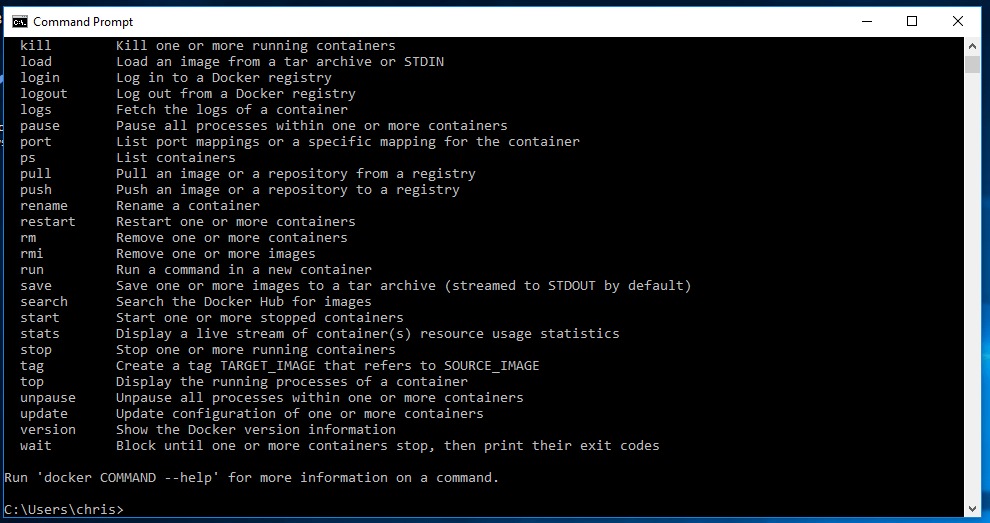
When a long-running service stops unexpectedly, look at its state and output before changing anything. A one-shot test container is supposed to exit. Run these commands with access to the Docker daemon or context you mean to inspect.
docker ps -a: Lists all containers, including exited ones, with their reported state.- Logs:
docker logs CONTAINERprints the container's output. docker stats: Shows resource use for running containers.
Docker does not apply CPU or memory limits to containers by default.
Restart policies tell Docker when to attempt a restart under set conditions. They give no guarantee of application health or uninterrupted service.
Docker's default JSON-file logging can use a lot of disk space unless you manage retention or rotation.
Before cleanup: Check what an operation will remove. docker system prune --volumes can remove unused anonymous volumes, though it does not indiscriminately delete every named volume.