On a Linux Docker host, list what you have with docker ps -a, docker image ls and docker system df -v, then check mounts before deleting anything. Remove one named container or image with docker container rm or docker image rm, or prune a category you have reviewed. If the disk stays full afterwards, look at logs, shared layers and build cache before deleting more.
Decide which Docker resources need cleanup
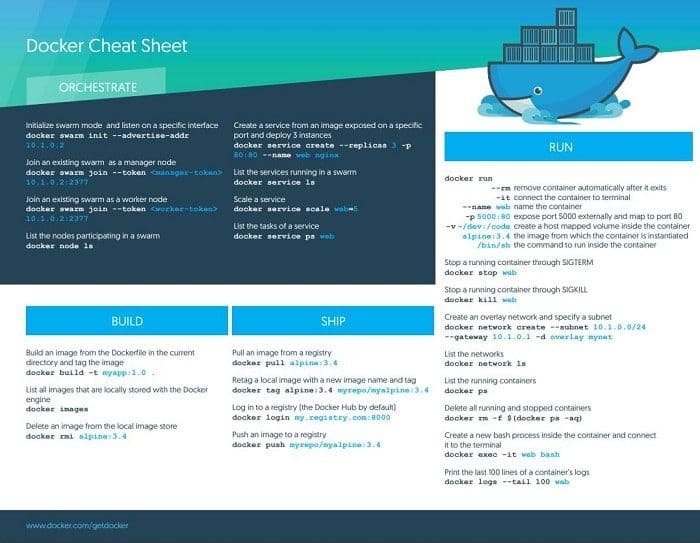
First work out what you are fixing. A host cluttered with old container names needs different work from a server whose root filesystem is nearly full. Compare host free space with Docker's reported image, container, and volume usage before pruning.
| Your goal | Check first | Next step |
|---|---|---|
| See what's on the host | Running containers, stopped containers, images | List them with docker ps -a and docker image ls. Nothing gets deleted. |
| Remove one discarded item | The exact container name or image reference | Remove that one object with docker container rm or docker image rm. |
| Clear a class of leftovers | Everything the category would delete | Prune that category with docker container prune or docker image prune. |
| Recover missing disk capacity | Docker usage against host disk usage | Find what takes the space. If it isn't images or containers, deleting them won't help. |
Docker treats containers, images, volumes, networks and build cache as separate resources, and a general cleanup command can touch several at once. An image no container uses can be a production host's rollback copy, while a developer's test container can be disposable.
Inspect containers, images, and Docker disk usage
Start with a read-only inventory.
Run these against the Docker Engine instance you intend to manage:
docker ps
docker ps -a
docker ps -a --filter status=exited
docker image ls
docker image ls -a
docker system df -v
docker ps is an alias for docker container ls and lists running containers by default. Add -a to include containers in other states, such as exited ones. The status=exited filter lists only exited containers.
The listing shows each container's name, ID, source image and status. For a compact view of those fields:
docker ps -a --format 'table {{.ID}}\t{{.Names}}\t{{.Status}}\t{{.Image}}'
docker ps -a --size adds the writable-layer size of each container. It does not count the contents of mounted volumes.
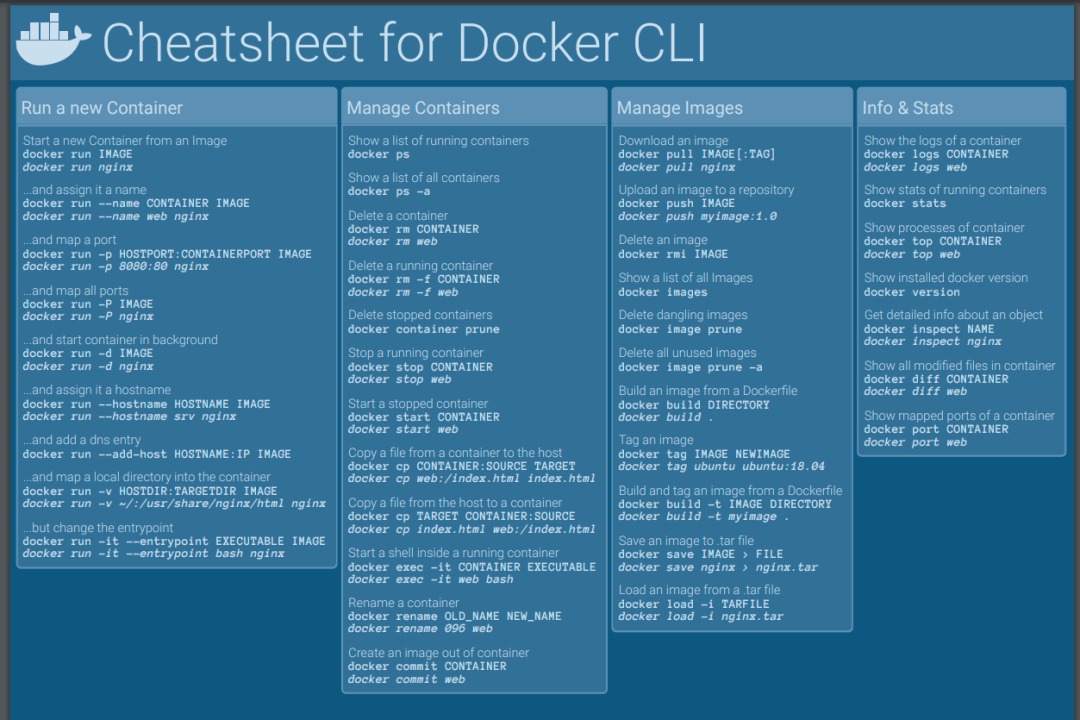
docker image ls shows repositories, tags, IDs and sizes. docker image ls -a adds intermediate and dangling images that the default view can hide.
Two tags can point to the same image ID. The SIZE column counts layers that images share, so the rows don't add up to your unique disk use.
docker system df -v breaks down storage by images, containers, volumes and build cache. For images it separates shared size from unique size.
Host disk usage can include storage outside that report, such as container logs.
The Docker container listing reference documents more filtering and formatting options. If these commands fail with a connection or permissions error, fix access before deleting anything.
Check what depends on the container or image
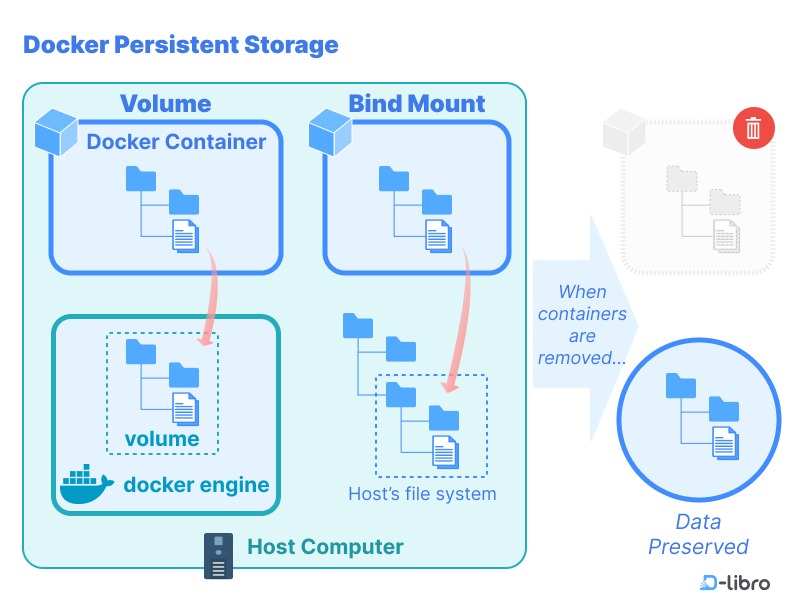
Before removing a container, find out what it owns and where it writes data. A stopped container can be a discarded test, a service left stopped on purpose, or the last recoverable instance of an application.
Each container has a writable layer tied to its lifecycle. Removing the container removes that layer, along with any changes stored nowhere else.
Volumes and bind mounts store data separately from the container, so the data can outlive it.
Inspect the mounts declared on the container you plan to remove:
docker inspect --type container --format '{{json .Mounts}}' CONTAINER
Replace CONTAINER with the container's name or ID. The JSON shows each mount's type, source location and destination inside the container.
A mount of type volume points to Docker-managed volume storage. A bind mount connects the container to a path on the host. The mount list does not prove a working backup exists.
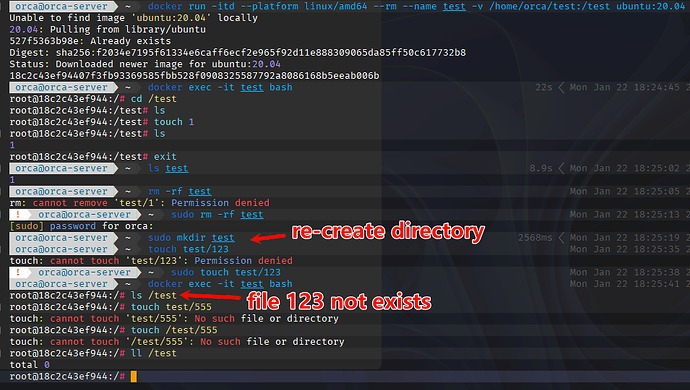
Take a stopped database container that wrote its application state into its writable layer. Removing it discards that state. A second database container that uses a named volume keeps its data when the container goes.
Check who owns the application too. Container labels and inspection metadata can show which Compose project a container belongs to. A stopped Compose service can be in maintenance, and removing it as a stray leftover can disrupt that project.
To inspect the container's labels:
docker inspect --type container --format '{{json .Config.Labels}}' CONTAINER
When present, com.docker.compose.project and com.docker.compose.service name its Compose project and service.
Before you delete, answer four questions:
- Who owns it? Name the service, project or person responsible for the container.
- Where does its state live? In the container's writable layer or on mounted storage.
- Can you recreate it? Decide whether the container or its data can be rebuilt when needed.
- Is it kept for a reason? Incident reproductions, offline images and rollback artifacts that still serve a purpose should stay.
If you are unsure you can recover the data, back up and restore Docker volumes and databases before retiring the container.
The Docker storage documentation covers each persistence mechanism.
Remove one known container or image without broad pruning
Once an object has passed the dependency check and you no longer need it, remove that exact object.
An Ubuntu admin working with an Azure VM explained why in a January 7, 2025 Docker Community Forums post: “I do not want to use the docker system prune command, as I may want to retain one or more previous images.”
For a known unwanted stopped container:
docker container rm CONTAINER
docker rm CONTAINER is the short form of the same command. Replace the placeholder with the container's verified name or ID.
A running container won't go through ordinary removal. The -f option forces it by terminating the running process with SIGKILL, which can interrupt a live service, so this routine procedure doesn't use it.
docker rm -v also removes attached anonymous volumes, which changes what persists, so don't add it casually.
For a specific unwanted image reference:
docker image rm IMAGE_REFERENCE
docker rmi IMAGE_REFERENCE is the short form.
Image removal works on references and on any underlying image data that can be deleted. If two tags point to the same image, removing one tag untags that reference and leaves the shared layers in place.
A container can also still reference the image you are deleting. Identify that dependency before considering any force option.
Prune stopped containers or unused images by category
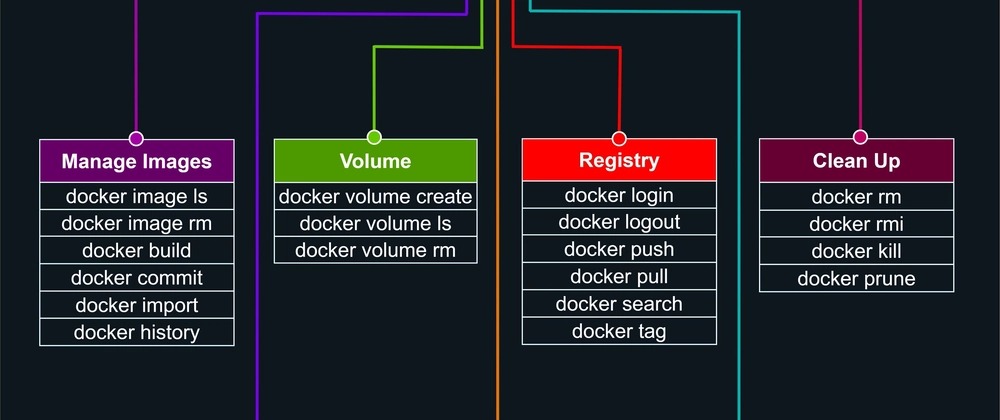
Prune when you have reviewed everything a category would delete and decided all of it can go.
| Command | What it removes | Decision that matters |
|---|---|---|
docker container prune |
Stopped containers that match any filters you supply | Is every stopped container on the list disposable? |
docker image prune |
Dangling images | Can all dangling images go? |
docker image prune -a |
Images no container references, including tagged ones | Do you need any of them for rollback or offline use? |
For a reviewed category of stopped containers:
docker container prune
Docker prunes every stopped container, including one you meant to keep.
For dangling images:
docker image prune
A dangling image has no tag and no container referencing it. An old image with an ordinary repository tag isn't dangling just because nobody has used it lately.
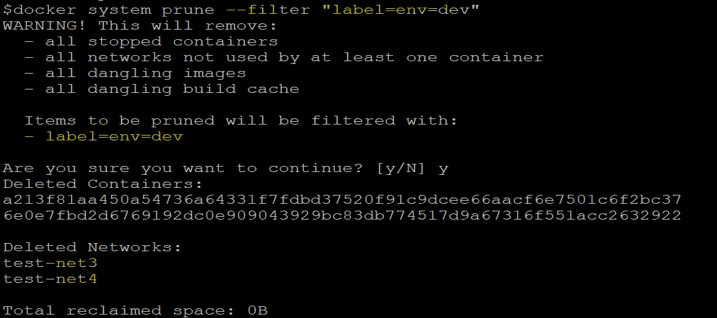
The broader image prune:
docker image prune -a
Prune commands also take filters, including time-based ones such as until and some label criteria. An age filter tells you when something was created, not when anyone last needed it.
The confirmation prompt comes right before deletion and does not preview every effect. -f suppresses it.
A development environment with several exited test containers and no state to keep is a good fit. Check the list, then one docker container prune clears them.
Understand the scope of docker system prune before using it
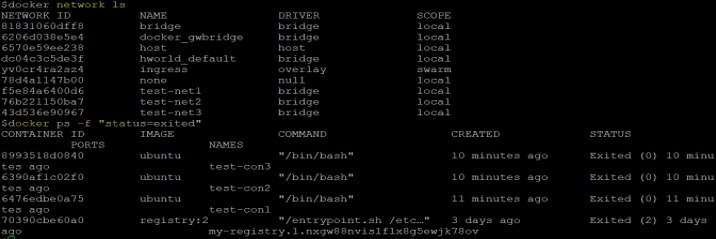
docker system prune combines several categories. By default it removes stopped containers, unused networks, dangling images and unused build cache.
Flags change the scope:
| Command | Removal scope | Additional consequence |
|---|---|---|
docker system prune |
Stopped containers, unused networks, dangling images and unused build cache | Touches four categories in one command |
docker system prune -a |
Default categories plus images not referenced by containers | Tagged rollback images can be removed |
docker system prune --volumes |
Default categories plus unused anonymous volumes | Can delete persistent volume data |
docker volume prune -a |
Unused local volumes, including named volumes | Can delete named volumes that no container currently uses |
On a disposable build host, plain docker system prune is fine. On a long-lived server, check each category it covers first.
Named volumes attached to existing containers are not pruned.
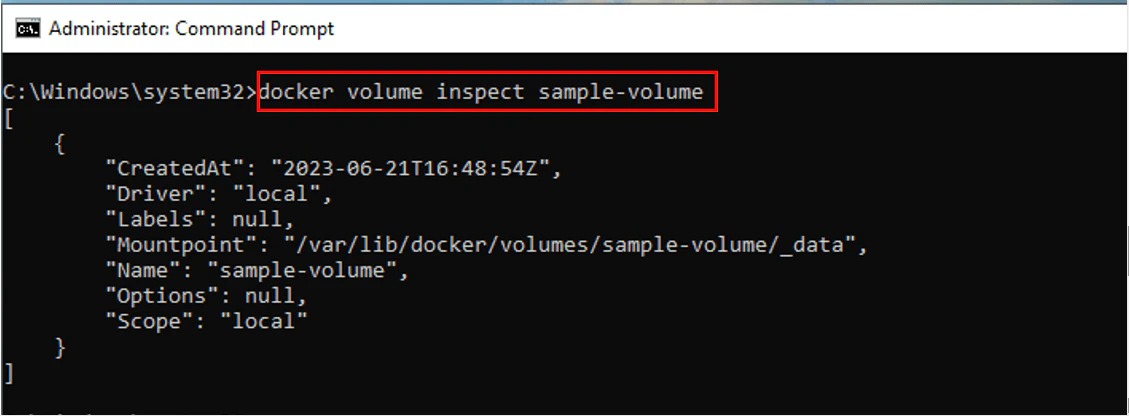
A removed Compose service can leave behind a volume with data worth keeping. With no container referencing it, the volume looks unused but can still matter for recovery.
Compose teardown follows its own commands and ownership rules. docker compose down -v removes volumes at the application level, so manage it through the Docker Compose guide.
Removing build cache and retained images means future builds or image downloads have to recreate them.
A 2026 r/selfhosted participant wrote: “My answer to this is always "it depends". Remember that pruning is a destructive operation to your local docker cache.”
The Docker pruning documentation covers each resource-specific command and its options.
If disk usage stays high, find the actual source
If removal or pruning worked but the filesystem is still nearly full, find out which kind of storage is responsible before deleting anything else.
| Symptom | Usual cause | Where to look |
|---|---|---|
| An image reference disappears, with little change in free space | Other tags or images retain shared layers | Compare image references and shared against unique size |
| Docker reports modest container sizes, but host usage is high | Container log files can take substantial space | Check log files and the host's wider storage footprint |
| One container uses unexpectedly large writable storage | The application writes data into its container layer | Review writable-layer size and the application's storage paths |
| Images seem small, but build activity has consumed capacity | Build cache has accumulated | Look at build cache, which Docker tracks as its own resource |
| Container removal changes little | Volume data outlives the container | Check volumes on their own |
| Docker Desktop occupies more host disk than visible images suggest | The virtual disk and guest storage are accounted for differently | Follow platform-specific virtual disk diagnostics |
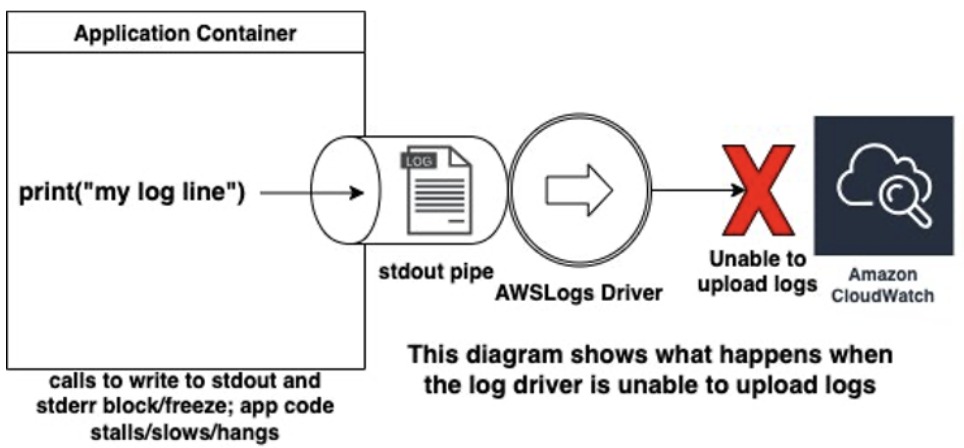
Docker's json-file logging driver can produce very large log files when no rotation policy is configured. Docker documents alternatives, including its local driver. A changed daemon logging default applies only to newly created containers.
An r/docker operator who was upgrading from Debian 12 to 13 and hitting Docker service failures reported 73G in the Docker containers directory against just 269.7MB of container size in docker system df. They later identified 53G of logs.
Don't truncate or delete Docker-managed json-file logs by hand as a routine fix. Find the application producing the output and use supported logging configuration.
The Docker logging configuration guide covers logging drivers and how to configure them.
When the host filesystem is full, find the affected one with df -h and compare its free space with docker system df -v. Then check the image-store backend so you know which storage directories to measure:
docker info --format '{{.DriverStatus}}'
If the output contains driver-type io.containerd.snapshotter.v1, you are on the containerd image store. Fresh installations of Docker Engine 29.0 or later use it by default. An upgraded installation can keep the legacy backend.
In the standard separate-process configuration, containerd image storage is distinct from the Docker daemon's data directory. Custom and experimental embedded configurations can differ. Don't assume /var/lib/docker alone holds all image storage.
Measure the configured Docker and containerd storage directories with read-only du. For example, du -sh STORAGE_DIRECTORY measures one directory. Replace the placeholder with a path you have confirmed on the host. If logs or unrelated host files take most of the space, follow the server disk-usage guide.
Build cache has its own cleanup command, docker builder prune, for when it is the confirmed cause. On Docker Desktop and WSL, compacting the virtual disk is a separate platform-specific task.
Verify cleanup and decide what to retain next time
After you remove anything, run docker ps -a, docker image ls and docker system df -v again and compare them with your first inventory. If you wanted disk space back, check host free space too. Confirm that required applications still pass their real service checks and that retained data and rollback resources are still there.
