Before you enable UFW on a remote Ubuntu server, allow your SSH port and your admin IP if you restrict it, then open only the web ports you use. Once UFW is on, log in with a fresh SSH session and load the site from another network. UFW's rule list alone doesn't show what is reachable when Docker publishes ports or a provider firewall filters traffic upstream, so check those too.
Check the server and recovery path before changing UFW
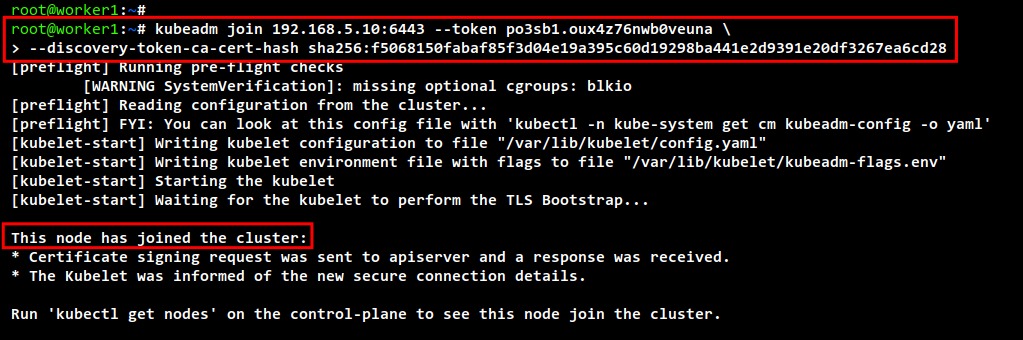
Your VPS can already have active firewall rules, a custom SSH port, a reverse proxy, or a network filter upstream. Run these three commands to see your firewall state, listening TCP sockets, and installed application profiles:
sudo ufw status verbose
sudo ss -ltnp
sudo ufw app list
SSH uses 22/tcp by default, but your daemon can listen elsewhere, and the OpenSSH profile can describe a different port than your customized service.
- Administration: Note the port SSH listens on and the network you connect from.
- Website: Find the Nginx, Apache, or reverse-proxy listener, and whether it runs on the host or in a container.
- Existing policy: List any required services besides SSH and the public site before changing defaults.
- Reachability: Check whether public IPv6, a provider firewall, or Docker-published ports affect the route.
- Recovery: Confirm you can reach a provider console or other out-of-band access if SSH stops working.
Take an Apache VM that serves HTTP and HTTPS publicly but accepts SSH only from a private address range: the two services need different rules.
Allow the real SSH port before enabling UFW
Add an allow rule for the SSH port you found in the first step. Decide who can connect before writing it. An admin with a stable source address can use a narrower rule, and other setups can need a different access path.
| Administration scenario | Rule |
|---|---|
| SSH on TCP 22, open to the public | Allow 22/tcp |
| Custom SSH port | Allow that exact TCP port, matching the daemon |
| Fixed administrator IP | Allow only that source, while the address stays usable |
| VPN or private administration | Allow the private source, once the route is reliable |
To allow the port from any source, replace SSH_PORT with your port number:
sudo ufw allow SSH_PORT/tcpWith SSH on port 2222, the rule looks like this:
sudo ufw allow 2222/tcpIf your admin address is stable and confirmed, use this instead:
sudo ufw allow from ADMIN_PUBLIC_IP to any port SSH_PORT proto tcpFor the address 203.0.113.10 and port 2222:
sudo ufw allow from 203.0.113.10 to any port 2222 proto tcpA source-specific rule blocks you if you connect from a network it doesn't permit.
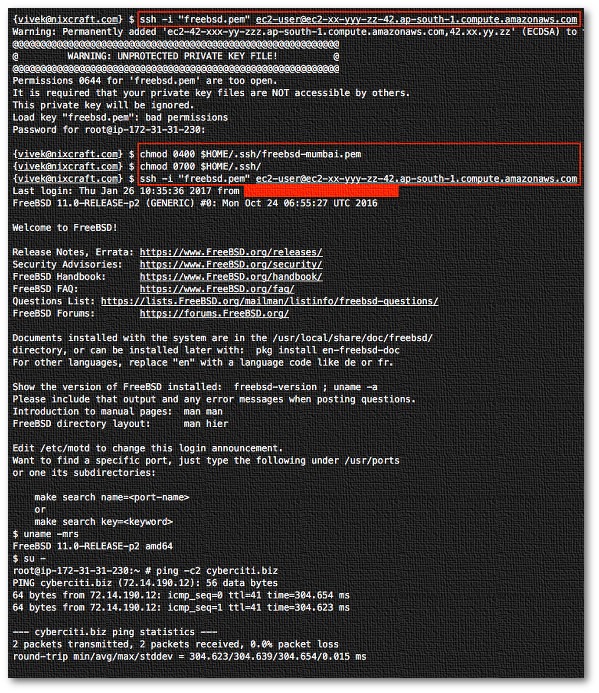
An r/linuxadmin poster running an internal wiki VM described the custom-port mistake: “Our ssh service was running on a custom port. Guess which port I had forgotten to allow.”
Set the default policies
If UFW is inactive, the usual starting point denies incoming connections and allows outgoing ones. Add your SSH rule and any other required services first, then set the defaults:
sudo ufw default deny incoming
sudo ufw default allow outgoing
If UFW is already active, rules take effect as you add them, so you only need to validate the live policy at the end. Changing a default policy on a live firewall can flush chains and interrupt connections, so schedule that change when you have working recovery access.
Hold ufw enable until the web rules are in place.
UFW's limit action can restrict bursts of new SSH connections.
Allow only the web ports your site uses
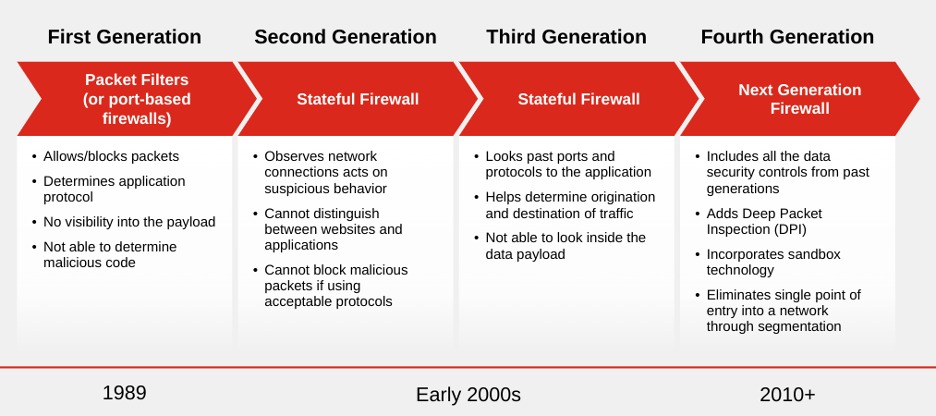
For a conventional public site, allow TCP 80 for HTTP and TCP 443 for HTTPS. Your listener and certificate-validation method decide which of them you need.
| Service | Port and protocol | When to allow it |
|---|---|---|
| HTTP or HTTP redirect | 80/tcp | Site accepts HTTP requests or redirects |
| HTTPS | 443/tcp | TLS website listens on that port |
| Let's Encrypt HTTP-01 | 80/tcp | You use that ACME challenge |
| Let's Encrypt TLS-ALPN-01 | 443/tcp | You use that ACME challenge |
| HTTP/3 over QUIC | 443/udp | Your server has a QUIC listener on UDP 443 |
| Let's Encrypt DNS-01 | DNS record challenge | No inbound challenge port needed |
The Let's Encrypt challenge-type documentation explains each validation path.
Open ports directly or use an app profile
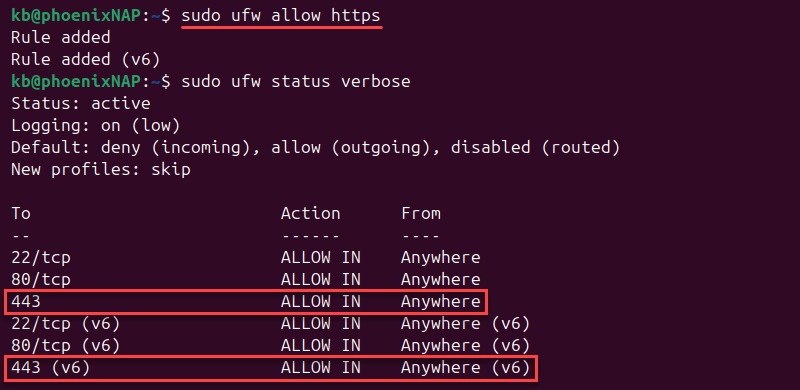
For host services on the standard web ports, add direct rules:
sudo ufw allow 80/tcp
sudo ufw allow 443/tcp
You can also use an installed Nginx or Apache UFW profile. Check its declared ports first:
sudo ufw app info 'Nginx Full'If the profile exists and matches your Nginx listeners, use it instead of the two direct rules:
sudo ufw allow 'Nginx Full'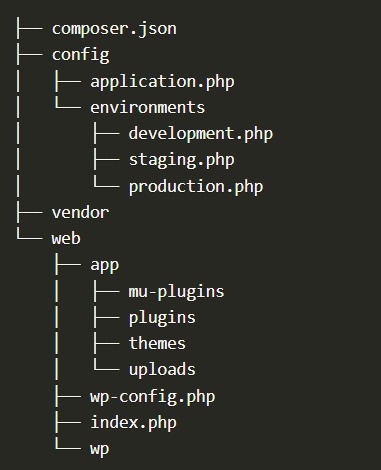
Apache users can do the same with the Apache Full profile if it's installed. A rule for 443/tcp lets packets through the host firewall, but Nginx, Apache, or your reverse proxy still has to listen and serve working TLS.
If you have an HTTP/3/QUIC listener on UDP 443, add that port as well, whether you used direct rules or a profile:
sudo ufw allow 443/udpFor a QUIC listener on another port, use that UDP port instead.
Keep MySQL, MariaDB, Redis, and administrative backend ports off the public web allowlist unless a specific, justified access path requires them.
Enable UFW and verify SSH and website access

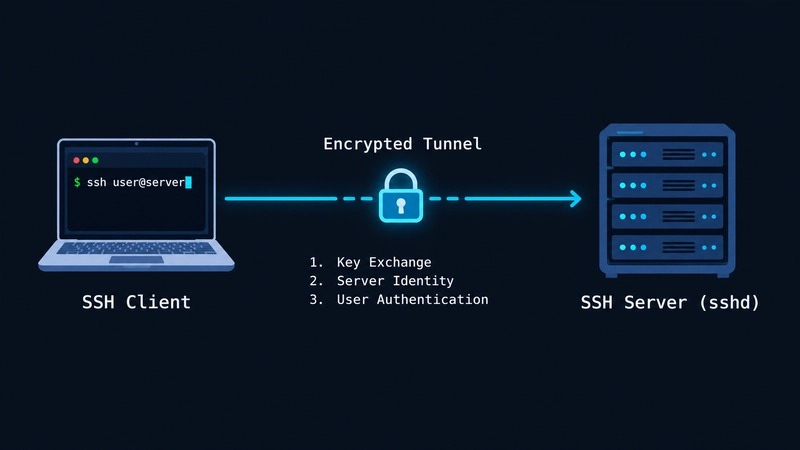
Once your SSH and web rules are in, enable UFW if it's inactive. Keep your current SSH session open until a new login works, because enabling the firewall can interrupt a remote connection. Also check any cloud firewall that filters traffic before it reaches the host.
sudo ufw enable
sudo ufw status verbose
sudo ufw status numbered
Then work through the table.
| Check | Passing result | If it fails, look at |
|---|---|---|
| UFW status | Expected policies and allowances shown | Firewall configuration |
| New SSH connection | An outside client completes a new login | SSH listener or network filtering |
| Web listener | Expected address and TCP port have a listener | Web server or reverse-proxy configuration |
| External HTTP | A public request gets the page or redirect you expect | Inbound path or web service |
| External HTTPS | A public request completes TLS and gets the right response | TLS service or network path |
| Unexpected public ports | An outside check finds no unapproved open services on the tested address and ports | Unexpected listener, published container port, or upstream policy |
| Public IPv6, if used | IPv6 requests succeed on their own | IPv6 listener, UFW setting, or upstream IPv6 policy |
An external port check shows only what that one client sees. A closed or filtered result doesn't tell you which firewall dropped the traffic, and the port can still be reachable from other networks.
A second SSH terminal isn't always a new TCP connection. OpenSSH connection multiplexing can reuse an existing master connection, so test with a client or configuration that opens a new one.
For the website, request the public hostname from another network and check the HTTP response or redirect and the HTTPS application response. A request against localhost tests something else. On a dual-stack host, check /etc/default/ufw and test public IPv4 and IPv6 separately where configured.
A Nextcloud admin running Ubuntu 22.04 behind a reverse proxy wrote, “I am trying to figure out why the heck I can't open port 443 on my Ubuntu 22.04 server.”
Account for Docker-published ports
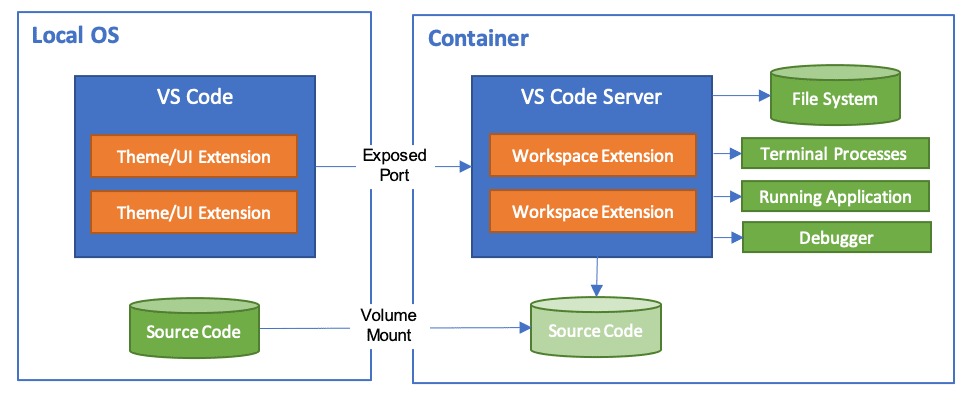
Docker-published ports can stay reachable from outside despite UFW's incoming restrictions. Docker manages its own packet-filtering and NAT rules. Published traffic can be redirected to the container during NAT processing, before it reaches the host INPUT filtering path that ordinary UFW rules use.
See the Docker packet-filtering documentation for the details.
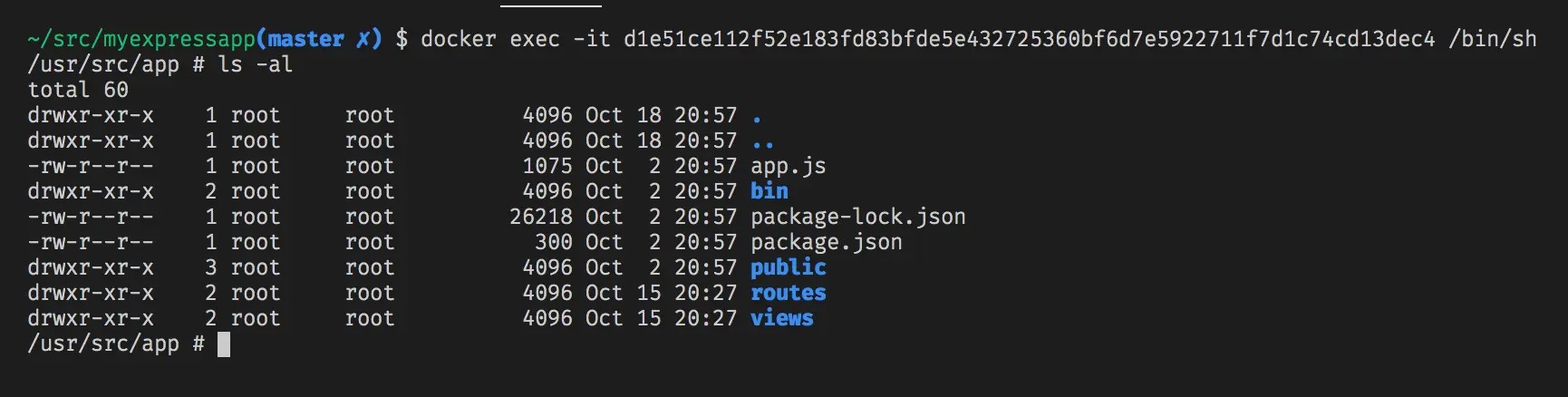
Inspect the host bindings of your running containers:
docker psRead the host-side address and published port. A binding to a public interface or all interfaces is exposed differently than an intentional loopback binding. Test a private service's published port from an outside network. If it's reachable and shouldn't be, investigate the container's published-port policy.
A VPS operator in an r/selfhosted Docker firewall discussion wrote, “Same mistake again. Docker silently bypassing my firewall and exposing my database to the internet.”
Version-specific detail: Docker documents that releases before 28.0.0 had a localhost-publishing exception that let other hosts on the same Layer 2 network reach a port bound to localhost.
Put databases and caches that only other containers use on internal Docker networks. Adding a UFW deny rule blindly or changing Docker's daemon-level firewall handling won't suit every setup, so match the fix to your Docker configuration.
Know which firewall layer controls each connection
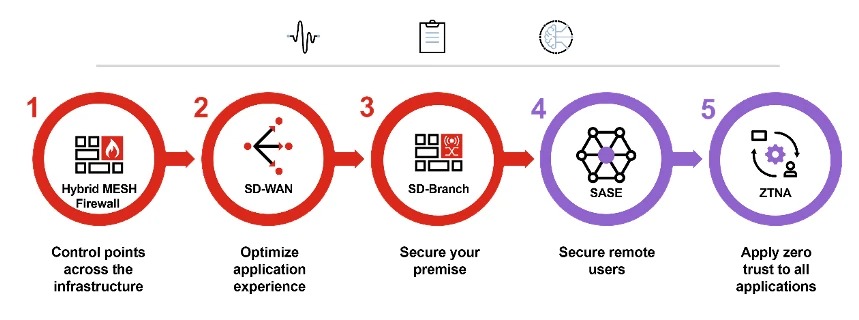
On a hosted VPS, the provider can filter traffic before it reaches Ubuntu. An AWS Security Group or DigitalOcean Cloud Firewall can deny a connection even when UFW has a matching allow rule.
Say UFW allows HTTPS on TCP 443, but the security group attached to your instance permits only SSH. Fix it with an inbound rule at the provider, because another host-side allow rule changes nothing.
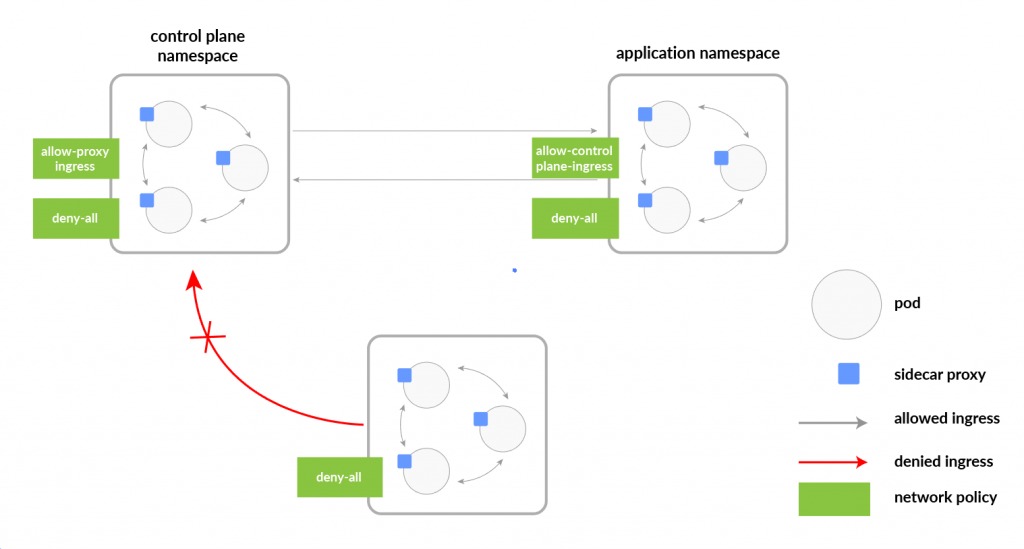
Check the protocol, port, destination, and allowed source in your provider's policy against what you intend.
Fix blocked SSH or an unreachable website
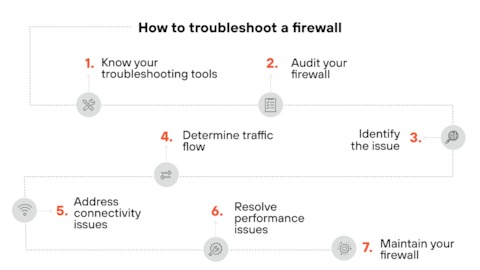
A timeout, a refused TCP connection, and an HTTP error are three different symptoms, and more than one cause can fit each.
| Symptom | Likely cause | Check next |
|---|---|---|
| Fresh SSH connection times out | Filtering or routing before SSH is reached | SSH port and inbound network path |
| SSH connection refused | No listener, or active rejection | SSH daemon and listening address |
| Website won't open a TCP connection | Host or provider filtering, or no listener | Public web port and service state |
| HTTPS fails after connecting | Web server or TLS configuration | HTTPS listener and application setup |
| HTTP 5xx response | Proxy or application failure | Web-service logs and upstream component |
| Private container port is publicly reachable | Published host binding or container filtering | Docker publication and network configuration |
If you lose SSH access, use the provider console or other out-of-band access to inspect the actual listener and find the rule that blocks it. Fix the cause, then run the acceptance checks again.
Avoid a blanket ufw reset while troubleshooting, since it discards your other rules and can change production access.
Change or remove a rule
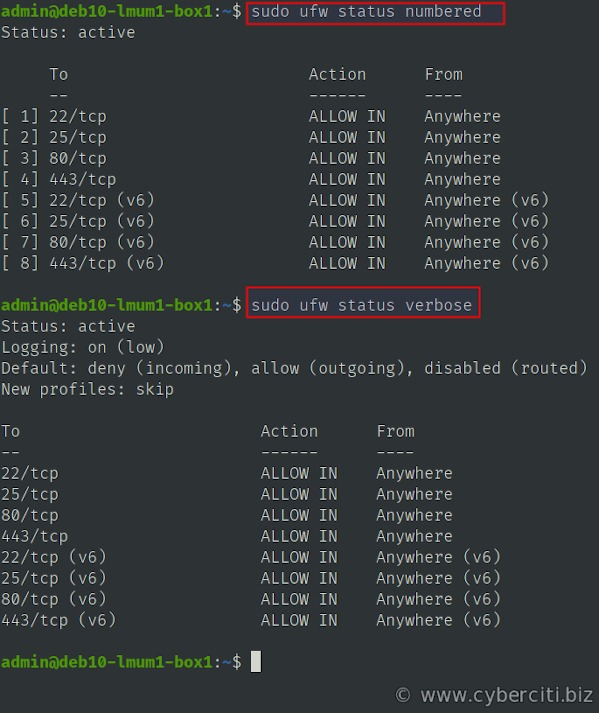
List the rules with numbers to find the obsolete entry, then delete it by number or by matching rule definition:
sudo ufw status numbered
sudo ufw delete NUMBER
sudo ufw delete allow 8080/tcp
Rule numbers shift after a deletion, so refresh the listing before removing another entry. If you're narrowing SSH access, add the replacement SSH rule first.
