On a typical Ubuntu or Debian VPS, log in as a non-root user with a key you've tested, restrict root and password logins, limit network access as far as you reliably can, and keep a tested recovery path. If automation, MFA, SFTP or a private network changes those requirements, adjust the controls first. Then check the effective settings and log in from a fresh session before closing the old one.
If you change SSH authentication or firewall rules on a remote server, your next connection can fail while your current terminal stays open. Plan for that before editing anything.
What a secure SSH setup requires
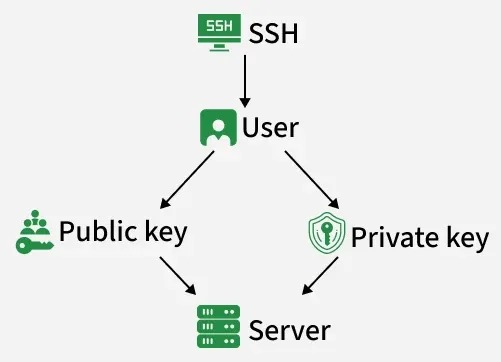
A secure SSH setup has four parts: a verified admin account, deliberate authentication limits, appropriate network exposure, and a recovery path that works if something goes wrong. Your server sets what you do first: a new VPS needs access and recovery set up, a key-only server needs its root and password paths checked, and a custom-port or cloud-managed one needs its listener and config ownership identified.
Check your access and recovery options first
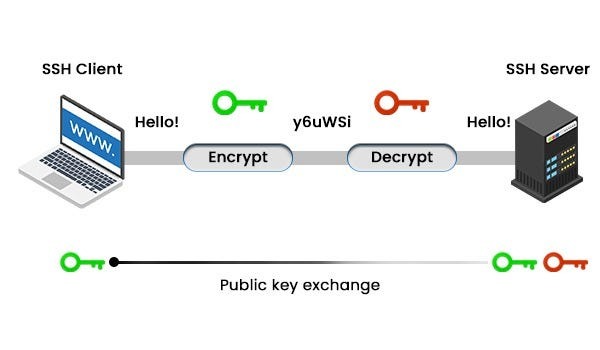
Before you edit OpenSSH, work out how you reach the server and how you'd get back in if another SSH connection failed.
Keep your current admin terminal open. Note the connection details that work now, and keep a copy of any configuration you need to restore.
- Server and account: Hostname or IP address, Linux distribution or cloud image, admin username, and current authentication method.
- Listening port: The TCP port SSH actually uses, including any custom value in place of 22.
- Configuration: The main
sshd_configfile, included snippets, and any SSH settings managed by cloud-init. - Network rules: Your host firewall configuration and the separate firewall or security group the provider controls.
- Service ownership: Whether
ssh.service,ssh.socketor another unit controls the SSH listener. - Recovery: A browser console, serial console, rescue environment or other route that doesn't rely on SSH.
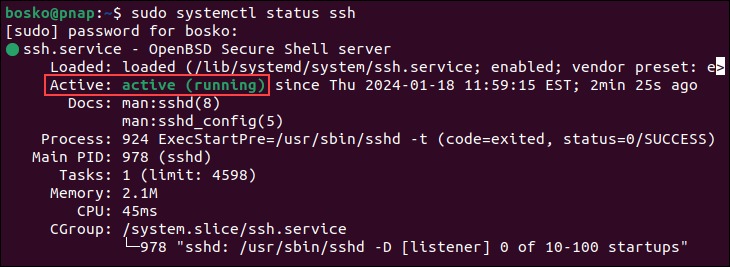
On Ubuntu, these read-only commands are a good starting point:
sudo systemctl status ssh.service ssh.socket
sudo ss -lntp
sudo ufw status numbered
The first command shows the state of ssh.service and ssh.socket. The second lists listening ports with their processes, and the third lists your UFW rules, if UFW is installed.
Keep a recovery path
A provider dashboard can offer a console that works when SSH doesn't. Check that it works for your VPS and that you have the credentials or permissions to regain administration through it.
Without a usable rescue route, disabling your last working authentication or network path risks a serious lockout. Set up another recoverable arrangement before applying such a change.
Back up sshd_config and the files in sshd_config.d first. Write down the original values, the backup location, and how you'd restore them from the provider console or the open session.
Prove a non-root key login works
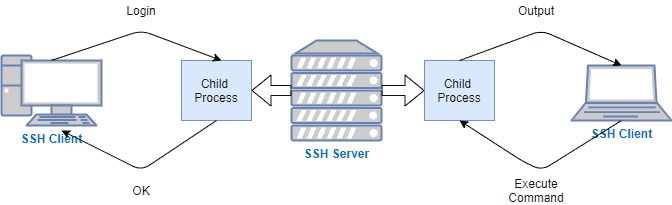
An SSH key can replace direct-root or password administration only when the non-root user can log in on its own and do the privileged work the server needs.
On March 4, 2025, an Ubuntu VPS operator on r/selfhosted described a server that already used SSH keys and Fail2Ban: “I have not changed defaul ssh port and still using „root“ as defaul user.”
That setup still needs a separate admin user with a working key.
Keep each key where it belongs
The private key stays with you on the client. The matching public key is authorized for the server account, in that user's authorized_keys file.
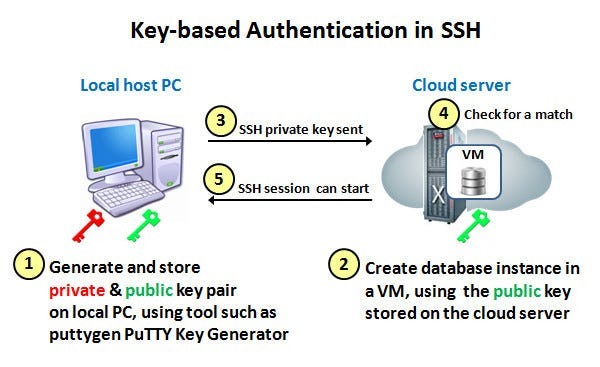
Ubuntu documents this command for generating an Ed25519 key:
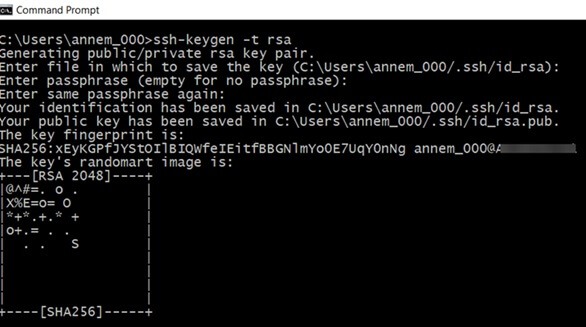
ssh-keygen -t ed25519When you create a new key, choose a different filename if needed so you don't overwrite an existing one. A passphrase on the private key adds protection if the file is ever exposed.
The ssh-copy-id utility can install a public key for an SSH account. A copied key is untested until you log in with it.
Test the account and its sudo rights
Open a new terminal and connect with the non-root account and key. Confirm that you reached the right server and authenticated as the expected user.
Then run a single admin operation with sudo to confirm the account has the permissions it needs. A shell login can succeed even when you can't repair a service or restore the SSH configuration.
If automation or a recovery workflow currently logs in as root over SSH, move it to another method before disabling root login. A separate admin account doesn't require you to make every sudo operation passwordless.
Set authentication and root-login rules
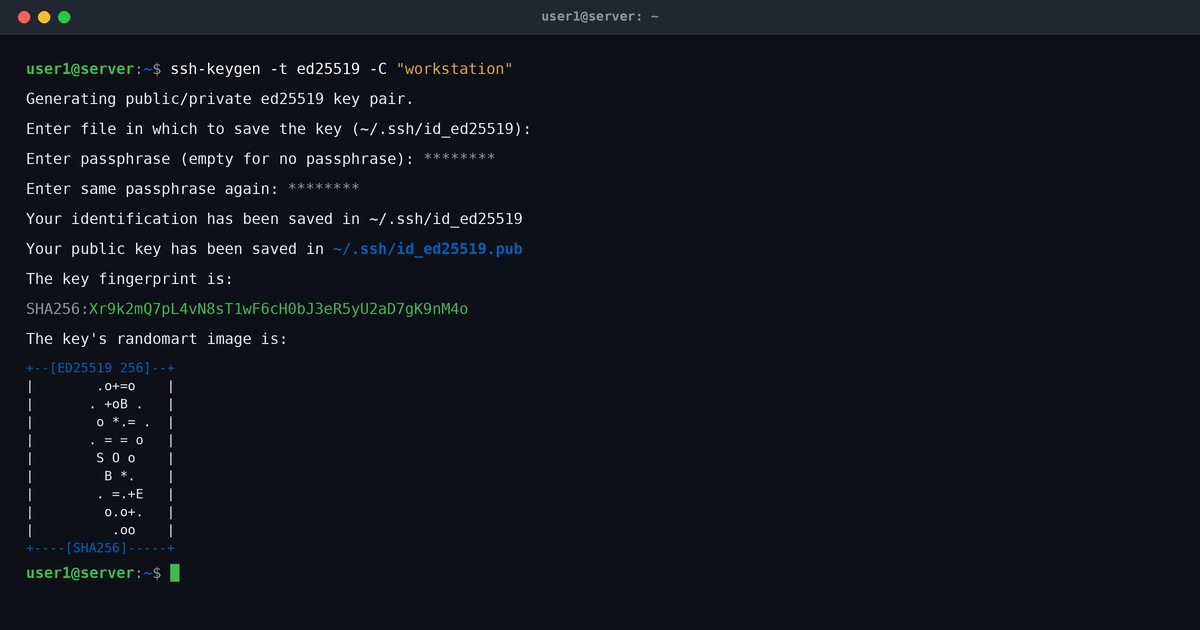
OpenSSH controls public-key login, password login, keyboard-interactive authentication, direct root access and account eligibility through separate settings. Decide the policy for each one before changing anything.
| Directive | Controls | Ordinary key-only policy | Condition |
|---|---|---|---|
PubkeyAuthentication | Public-key login | Enable | The account needs a working authorized key |
PasswordAuthentication | SSH password login | Disable | Other methods need separate evaluation |
KbdInteractiveAuthentication | Keyboard-interactive login | Disable when unused | PAM or MFA can need it |
PermitRootLogin | Direct root SSH login | no | Root-dependent workflows need an alternative |
AuthenticationMethods | Required method combinations | Keep intentional requirements | A later factor can rely on an earlier one |
AllowUsers / AllowGroups | Eligible accounts or groups | Optional restrictions | A wrong identity can lock out admins |
Example for a typical Ubuntu VPS
Once you've tested a non-root key-authenticated admin, and as long as the server needs neither keyboard-interactive MFA nor direct-root automation, these settings give you a standard key-only policy:
PubkeyAuthentication yes
PasswordAuthentication no
KbdInteractiveAuthentication no
PermitRootLogin no
On Ubuntu, where the main /etc/ssh/sshd_config includes /etc/ssh/sshd_config.d/*.conf, look at the existing snippets before choosing where to put the block. A file named /etc/ssh/sshd_config.d/00-local-hardening.conf sorts before 50-cloud-init.conf in that directory.
PasswordAuthentication and KbdInteractiveAuthentication are separate controls. PAM-backed keyboard-interactive authentication can stay active even after you disable ordinary password login.
MFA dependency: Disabling keyboard-interactive authentication can also remove a PAM or multifactor challenge you set up on purpose. If you use MFA, keep the methods it requires.
PermitRootLogin no turns off direct root SSH login. The prohibit-password mode blocks only password and keyboard-interactive root authentication and still allows non-password methods such as public keys.
An AllowUsers or AllowGroups restriction must include every legitimate admin and every service identity that needs access.
Check which SSH settings actually apply
A directive you set in a file you edited can still lose to another setting the daemon reads. OpenSSH can read earlier included configuration and apply connection-specific rules.
On Ubuntu, /etc/ssh/sshd_config has an early Include for files under /etc/ssh/sshd_config.d/. OpenSSH uses the first value it obtains for a directive, so an earlier included setting can win over a later one in the main file.
Cloud-init can also generate SSH-related configuration when the instance initializes. Its ssh_pwauth setting, for example, can affect password authentication without settling every PAM or keyboard-interactive behavior.
Inspect the effective policy
The OpenSSH server can print its effective configuration:
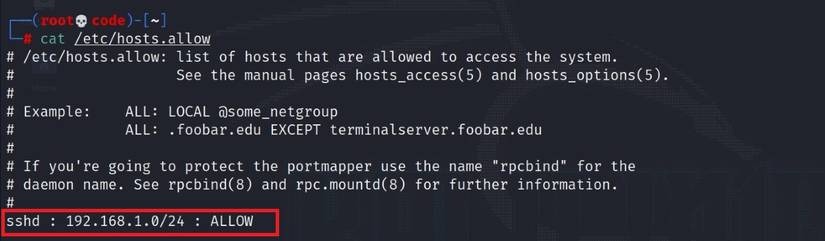
sudo sshd -TIf the login you care about matches a particular account or client address, add a connection context:
sudo sshd -T -C user=ADMIN,addr=CLIENT_IP,host=CLIENT_HOSTReplace the example values with the user and connection attributes you actually use. Match conditions can change the result for that context.
Compare the output with the policy you intended. If they differ, check the included files and cloud-init-generated settings in the order they're evaluated.
Check what owns the listening socket
The daemon's settings and the system component that listens for incoming connections are two different things.
Since Ubuntu 22.10, systemd socket activation has been the default approach. The 24.04 release notes describe a systemd generator that reads /etc/ssh/sshd_config and included snippets and uses them to configure ssh.socket.
With that setup, changing the SSH port means working with the generated socket configuration and the active listener. Your distribution, OpenSSH packaging, cloud image and the service and socket state you observe set the right procedure.
Write down the effective policy and which component owns the listening port.
Decide who can reach SSH
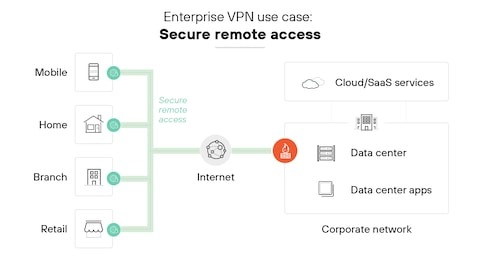
Authentication decides who can log in. Firewall and network controls decide which clients can reach the service. Pick the access model that fits where you administer the server from and which connection paths you can rely on.
| Access model | Who can reach SSH | Prerequisite | Trade-off |
|---|---|---|---|
| Public SSH with key authentication | Any client that can reach the exposed port | Tested authentication and firewall rules | Broad reachability |
| Source-IP allowlist | Clients on approved addresses | Known admin IPs and matching rules | Address changes can cut off access |
| Private network or VPN | Clients with the private access path | A working, maintained private connection | A network or VPN failure can interrupt administration |
A stable office IP makes source restrictions manageable. If you change networks regularly, you need a way to update the permitted addresses. Private-only access is a poor fit when an unavailable VPN would also remove your recovery path.
Match host and provider firewall rules
A VPS can use both a local firewall such as UFW and a provider-managed firewall. AWS EC2 security groups are one example of filtering at the provider layer.
Your policy should cover the real TCP destination port, the permitted admin source networks, host-level rules and provider-level rules. Check IPv4 and IPv6 exposure wherever both are configured.
Port 22 is the conventional SSH destination. A custom port changes the firewall, listener and client settings you need.
Apply changes and test a fresh login
Applying an SSH change safely takes three separate checks: the configuration parses, the running environment uses the settings you intended, and a new legitimate connection works.
Validate and apply the configuration
First run the OpenSSH sanity check:
sudo sshd -tIf validation fails, fix the configuration before applying it to the running service.
On Ubuntu, when ssh.service applies the daemon settings, the documented restart is:
sudo systemctl restart ssh.serviceA port change while ssh.socket owns the listener needs the socket-aware procedure for your installation, because a daemon restart doesn't necessarily update every listening socket.
Test a fresh login
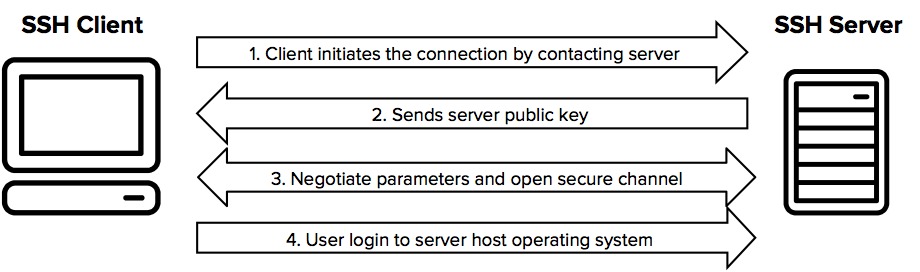
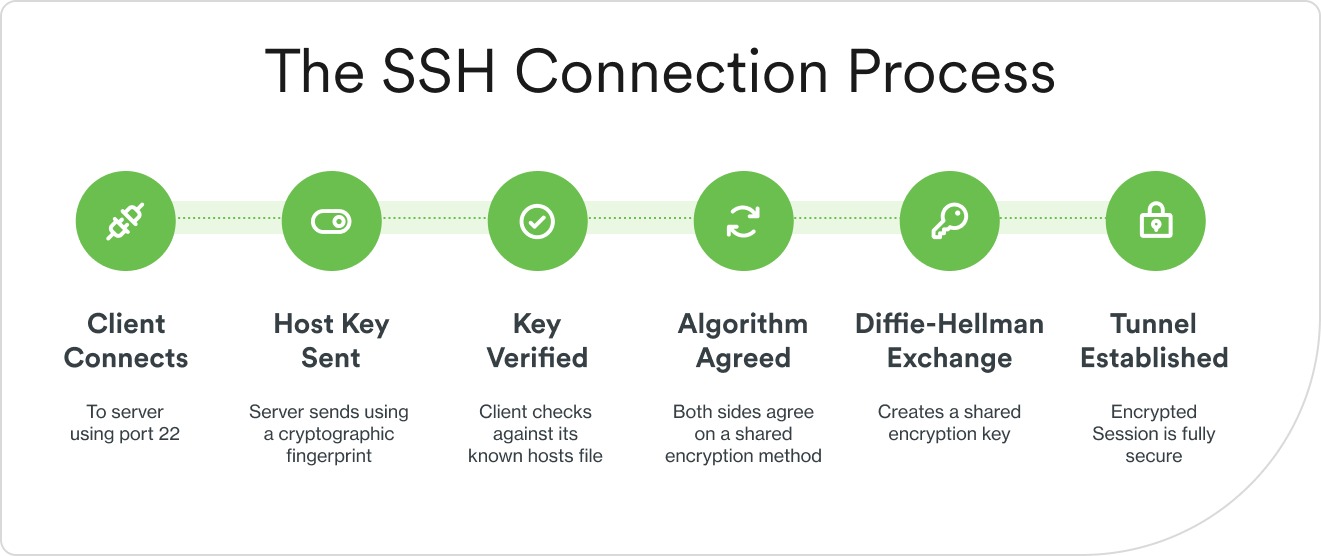
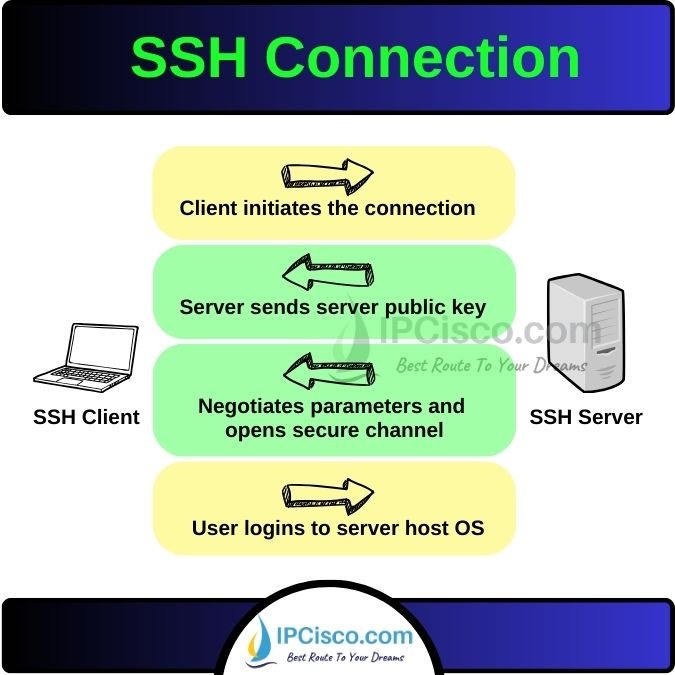
Connect again as the approved non-root user, using the expected host, port and key. Verify the server's host-key identity before accepting an unexpected key, and confirm the new session gives you the admin access you need.
sshd -t validates the configuration and sshd -T reports the interpreted settings. Neither shows that a client can authenticate over the real network path.
Test the disabled methods
Where you've disabled password and keyboard-interactive methods on purpose, a controlled client attempt can show which methods the server offers or accepts for that connection.
With an authorized account, you can ask the client to try those methods without offering a public key:
ssh -p PORT \
  -o PubkeyAuthentication=no \
  -o PreferredAuthentications=password,keyboard-interactive \
  ADMIN@VPS
Replace the placeholders with your authorized test account, port and host.
A failed connection doesn't tell you about every server authentication route. An AuthenticationMethods policy can require a public key before it offers a later factor, and client preferences decide which methods the client tries.
Failed attempts can trigger rate limiting or Fail2Ban rules, and repeated probing from your admin address can make recovery harder.
Acceptance checklist
| Check | Expected result | If it fails |
|---|---|---|
| Configuration sanity | sshd -t passes | Fix the configuration before applying |
| Effective authentication | sshd -T -C values match your policy | Review includes, generated files and Match |
| New login | A fresh non-root key login succeeds | Keep the old connection and restore working access |
| Disabled methods | Effective settings and controlled tests support the restrictions | Investigate that method and context |
| Network reachability | Your source reaches the expected listener through every firewall layer | Fix the listener or the matching rule |
| Recovery readiness | Known-good configuration and fallback access still work | Restore the previous setup before retiring the old session |
Close the old session only after every row passes.
On October 24, 2026, an administrator on r/linuxadmin described a UFW lockout: “Our ssh service was running on a custom port. Guess which port I had forgotten to allow.”
If the new login fails
Use your still-open session. Restore the saved SSH configuration or the affected firewall rule, and apply the restoration through the right service or socket mechanism. If SSH is inaccessible, use the provider console or rescue route. Once access returns, find the failing layer before trying the revised policy again.
Decide which extra controls are worth it
Extra controls are worth adding when they close a specific exposure without breaking legitimate work.
On June 9, 2026, a VPS operator on r/Hosting_World asked: “Is fail2ban still worth running if you've already disabled password auth and changed the default SSH port?”
Both do something on a key-only server. The table shows what each control contributes and the upkeep it needs.
| Optional control | Potential contribution | Operational trade-off |
|---|---|---|
| Fail2Ban | Reacts to repeated failures through configured jails | Needs the right log backend, jail configuration and ban management |
| Nondefault SSH port | Can reduce some unsolicited connection noise | Extra client, firewall and listener configuration |
AllowUsers / AllowGroups | Limits which accounts can log in | Account or group changes can deny legitimate access |
| Forwarding restrictions | Limits selected SSH forwarding functions | Can break tunnels, jump hosts and deployments |
Fail2Ban and port changes
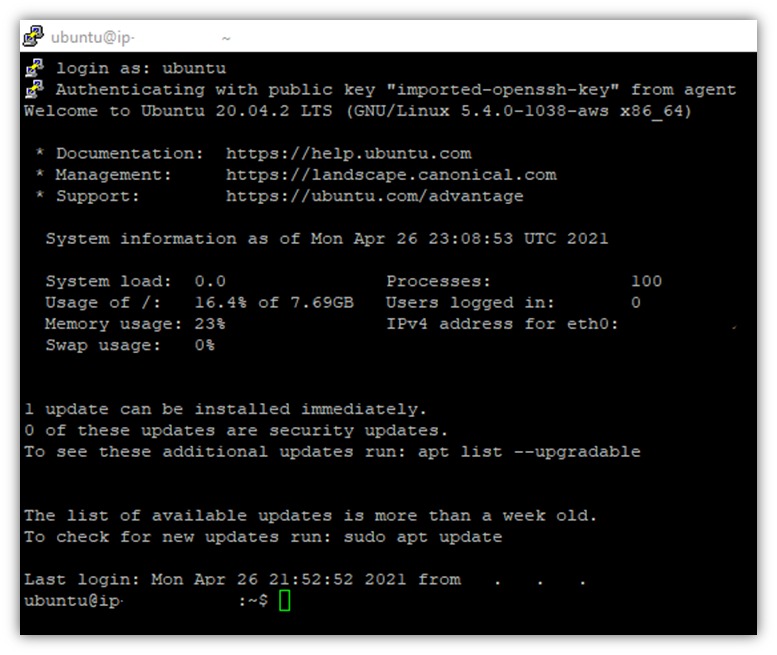
The SSH jail, log source, filter and enforcement action set what Fail2Ban does. You can override settings in jail.local or in files under jail.d/. Your distribution can package different defaults, so having Fail2Ban installed doesn't mean an SSH jail is active.
On a nondefault port the service stays discoverable, and every legitimate client and network rule has to use that port.
Forwarding limits
OpenSSH has controls for TCP, agent and X11 forwarding, including DisableForwarding. Check SFTP account and subsystem requirements separately. Turning off forwarding doesn't secure an account that can run arbitrary shell commands.
Troubleshoot settings, denials and noisy logs
When behavior doesn't match your intended SSH policy, find the failing layer before changing another setting.
- A disabled method still seems available: Check earlier included files, cloud-init-generated settings and
Matchconditions. - Public-key login is refused: Check the account, the authorized public key, ownership and permissions, and account restrictions. Fully troubleshooting
Permission denied (publickey)is a separate task. - The client cannot reach the port: Compare the listener with the host and provider firewall rules and your source address.
- Root login differs from expectations: Check the actual
PermitRootLoginmode and any account-specific policy. - Logs show rejected attempts or Fail2Ban notices: Tell rejected authentication apart from a successful session. Counts of failed attempts or bans alone fall short of showing a completed compromise.
On Ubuntu with the matching systemd service, the journal can help you find SSH service and authentication events:
sudo journalctl -u ssh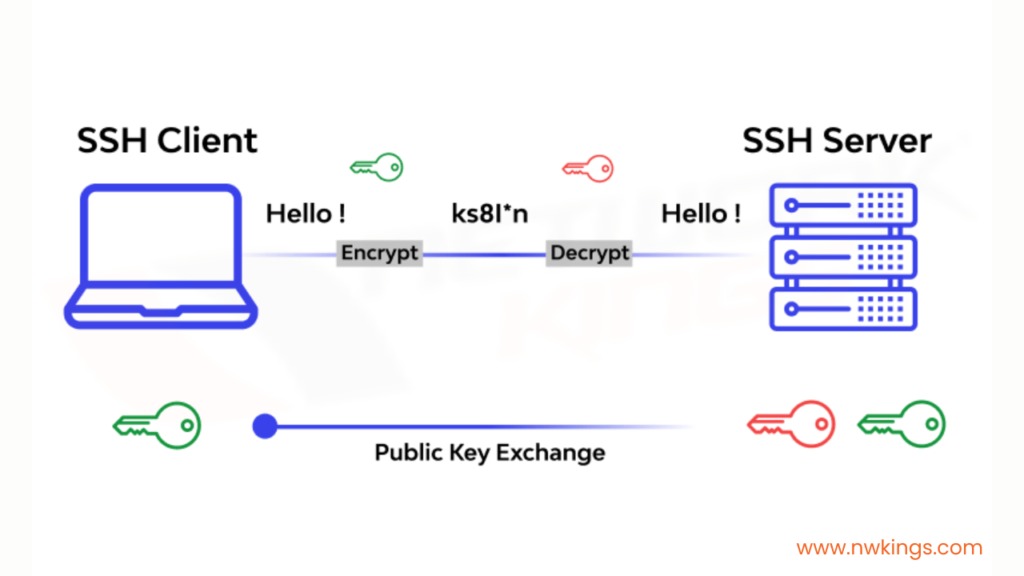
For a reachability problem, the listening socket and firewall information are more useful than authentication messages.
