On a supported Ubuntu release, install Engine, Compose and Buildx from Docker's official APT repository, then verify the daemon with a test container. If the server already runs containers, or your policy requires Ubuntu-managed packages, deal with that before changing the package source. Once the checks pass, set up user access and published ports before running your first application.
Before you install: check Ubuntu and existing Docker
Start by finding your Ubuntu release and checking whether Docker already runs anything you want to keep. A fresh VPS and a server with active containers need different preparation before installing upstream Docker Engine.
The Docker Ubuntu installation guide lists these releases:
| Ubuntu release | Codename |
|---|---|
| 26.10 | Stonking |
| 26.04 LTS | Resolute |
| 24.04 LTS | Noble |
| 22.04 LTS | Jammy |
Listed architectures include amd64 (x86_64), armhf, arm64, s390x and ppc64le. This procedure is for Ubuntu itself. Derivatives such as Linux Mint need a separate compatibility check.
. /etc/os-release
printf '%s\n' "$PRETTY_NAME"
dpkg --print-architecture
Compare the output with the list above. Next, see which Docker-related packages are installed and how Docker got onto the machine:
command -v docker
dpkg -l docker.io docker-compose docker-compose-v2 docker-doc docker-buildx podman-docker containerd runc docker-ce docker-ce-cli 2>/dev/null
If the host uses Snap, check its Docker installation through Snap as well. On a machine in use, write down the containers, volumes, bind mounts and services that use Docker before changing any packages.
An r/docker user moving an Ubuntu Server from Snap to APT in September 2022 said, “Up until now I didn't really know I was running them in snap vs apt.”
Docker flags several packages as conflicts, including docker.io, docker-compose, docker-compose-v2, docker-doc, docker-buildx, podman-docker, containerd and runc. Resolve any that are installed before switching to Docker's upstream package family.
- Fresh or cleared host: If the machine has no workloads to keep, remove only the conflicting packages that are actually installed. If the inspection shows
docker.ioand standalonecontainerd, for example, runsudo apt remove docker.io containerd. Read APT's proposed changes before accepting them. - Occupied host: Stop the migration until you know what uses Docker and have a backup or rollback plan that covers those workloads. Removing packages can interrupt running services, and a copy of
/var/lib/docker/alone isn't a verified backup.
Choose the right installation method
Pick the package source before running any installation command. Docker CE from Docker's repository and Ubuntu's docker.io are separate packaging and update paths.
| Method | Use when | Trade-off |
|---|---|---|
| Official Docker APT repository | Supported Ubuntu host that needs upstream Engine and plugins | Adds Docker's signed third-party repository |
Ubuntu docker.io | Your policy requires distribution-managed packages | Versions and packaging can differ from upstream Docker CE |
Manual Docker .deb files | You can't use the repository and manage packages by hand | You upgrade packages by hand |
| Docker convenience script | Development or test provisioning | Docker doesn't recommend it for production |
The steps below use the official APT route. It installs a matched package family for Engine, CLI, container runtime, Compose and Buildx, and APT handles later updates.
If your policy requires distribution packaging, docker.io is a fine choice.
Set up Docker's official APT repository
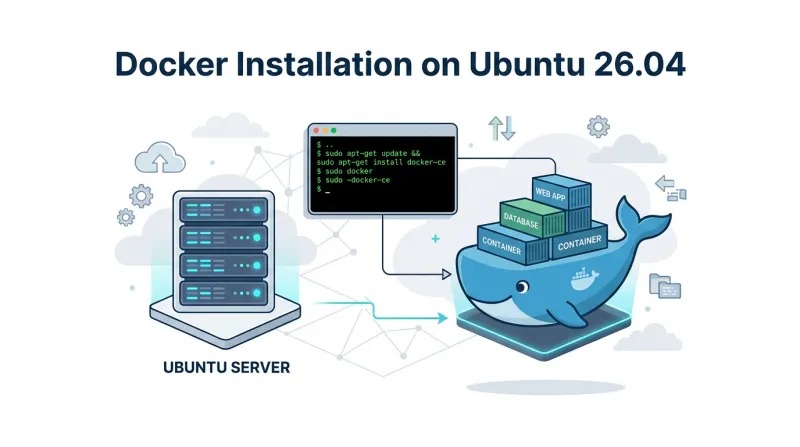
Docker ships its upstream Ubuntu packages through a signed APT source. Before creating it, check for an older Docker repository entry:
grep -Rni 'download.docker.com/linux/ubuntu' /etc/apt/sources.list /etc/apt/sources.list.d 2>/dev/nullOn a fresh system, no match is normal. On an existing installation, compare the entries in .list and .sources files, signing-key settings included, and keep a single definition before adding the new source. An odd filename alone is no reason to delete an entry.
In August 2026, an r/selfhosted user setting up Docker on Ubuntu 26.04 hit conflicting signing-key values and asked, “What do these error messages mean? Should I try another fresh os install?” That was an APT source conflict, so the repository declarations were the place to look.
Install the packages you need to fetch the key:
sudo apt update
sudo apt install ca-certificates curl
Create the keyrings directory and put Docker's signing key in it:
sudo install -m 0755 -d /etc/apt/keyrings
sudo curl -fsSL https://download.docker.com/linux/ubuntu/gpg -o /etc/apt/keyrings/docker.asc
sudo chmod a+r /etc/apt/keyrings/docker.asc
Write Docker's Deb822 source file:
sudo tee /etc/apt/sources.list.d/docker.sources <<EOF
Types: deb
URIs: https://download.docker.com/linux/ubuntu
Suites: $(. /etc/os-release && echo "${UBUNTU_CODENAME:-$VERSION_CODENAME}")
Components: stable
Architectures: $(dpkg --print-architecture)
Signed-By: /etc/apt/keyrings/docker.asc
EOF
Suites takes your Ubuntu codename and Architectures takes your APT architecture. Signed-By points the source at Docker's key.
sudo apt updateThe update has to load the repository metadata cleanly before APT can install Docker packages. If it fails to download, check your access to the repository.
Install Docker Engine, Compose and Buildx
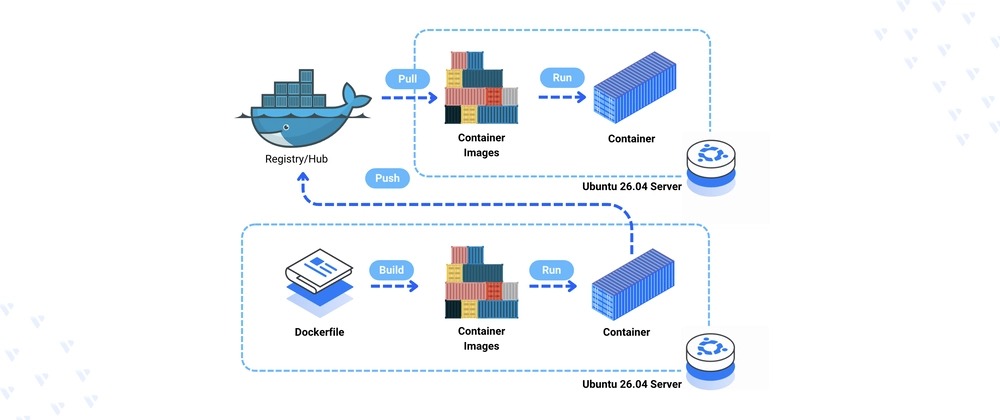
Once the signed repository works and the conflicting packages are gone, install the full upstream package group:
sudo apt install docker-ce docker-ce-cli containerd.io docker-buildx-plugin docker-compose-plugindocker-ce is the Engine, docker-ce-cli is the command-line client, and containerd.io is the matching container runtime. The other two packages add the docker compose and docker buildx plugins.
If APT reports that docker-ce has no installation candidate, look at your repository source and the command you pasted.
Verify that Docker and its plugins work
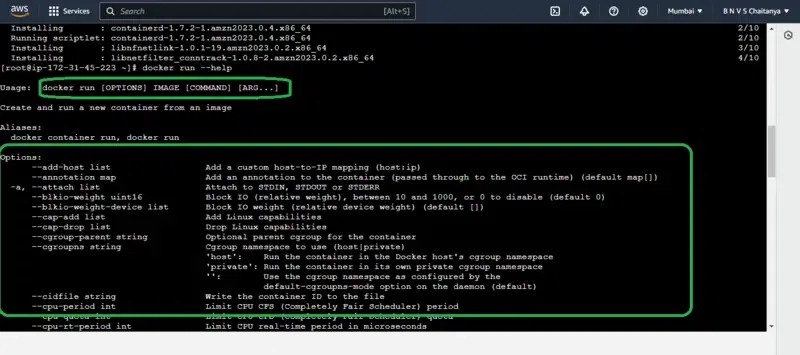
Check the client, the daemon, a test container and the plugins separately.
docker --versionThat confirms the client responds. The daemon runs as a separate service:
sudo systemctl status dockerOn a standard systemd install the service should show as active. If it's inactive and this is the daemon you want to use, start it:
sudo systemctl start dockerThen have the daemon run Docker's test container:
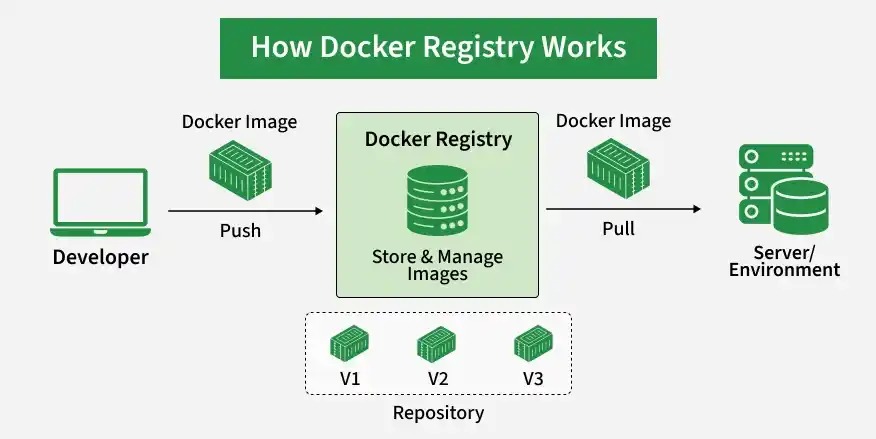
sudo docker run hello-worldA successful run prints Docker's confirmation message and exits. If the image isn't on the machine yet, Docker pulls it from a registry, so a pull failure points to a network or registry problem.
Last, check both plugins:
docker compose version
docker buildx version| Component | Check | What it tells you |
|---|---|---|
| Docker CLI | docker --version | The client runs |
| Daemon | Docker service status | The systemd-managed Engine service is active |
| Container execution | hello-world | The daemon can run a test container |
| Compose | docker compose version | The Compose plugin is available |
| Buildx | docker buildx version | The Buildx plugin is available |
Run Docker with or without sudo
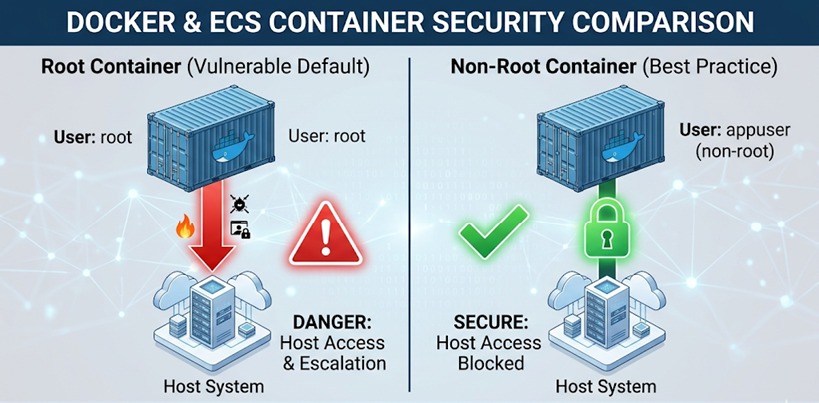
Using sudo for Docker commands is a valid choice on a rootful Engine installation. The daemon listens on a privileged Unix socket, so a permission error without sudo doesn't mean Docker failed to start.
The Docker Linux post-installation guide also covers the optional docker group. Membership gives root-level privileges through the daemon, so add only accounts you trust with that access. Rootless Docker is a third option. It's a separate setup that runs both the daemon and containers without host-root privileges, and it has additional prerequisites.
If you chose the group and it doesn't exist yet, create it:
sudo groupadd dockerIf the group already exists, skip that command. Add your user and refresh the session:
sudo usermod -aG docker "$USER"
newgrp docker
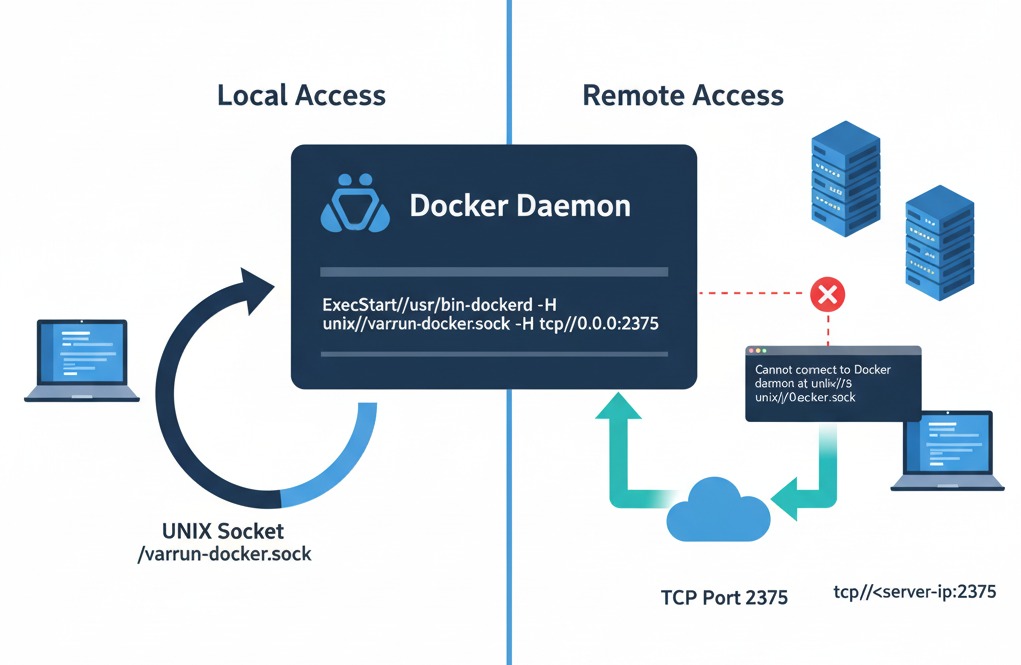
Logging out and back in also applies the new membership. Then run an ordinary Docker command without sudo. Never make /var/run/docker.sock world-writable to get around access controls. Protect remote daemon access with an authenticated method such as SSH or TLS.
Published ports and UFW
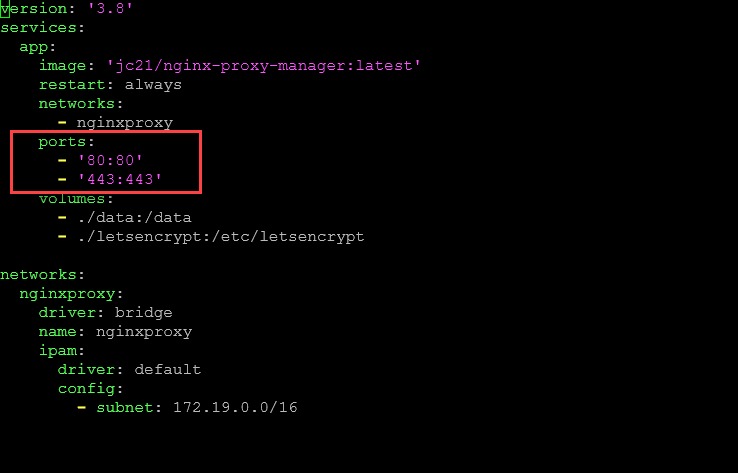
Docker sets up packet-filtering and routing rules for bridge-network traffic and published container ports. With UFW enabled, a container port can still be reachable, because Docker's rules process traffic before the UFW chains you expect to govern it.
The Docker firewall documentation describes this behavior. A public web service and a private administrative interface need different host bindings.
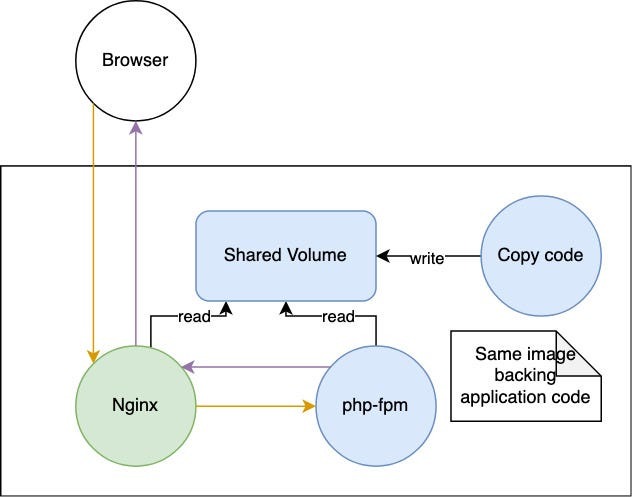
Docker shows two publishing forms for a bridge-network container:
-p 8080:80
-p 127.0.0.1:8080:80
The first publishes container port 80 on host port 8080 on all of the host's network addresses by default. The second binds that host port to loopback, which suits an interface that should stay local. Engine releases older than 28.0.0 had a same-L2-segment exception that allowed neighboring hosts to reach localhost-published ports.
A Debian 12 user on r/selfhosted put it this way in January 2025: “However, I was surprised to see that I could access my running Docker containers on my local home network even though I didnt allow those ports in UFW.”
Before launching a real service, pick the bind address and published port, then test reachability from a network that shouldn't have access.
Fix common Docker installation errors
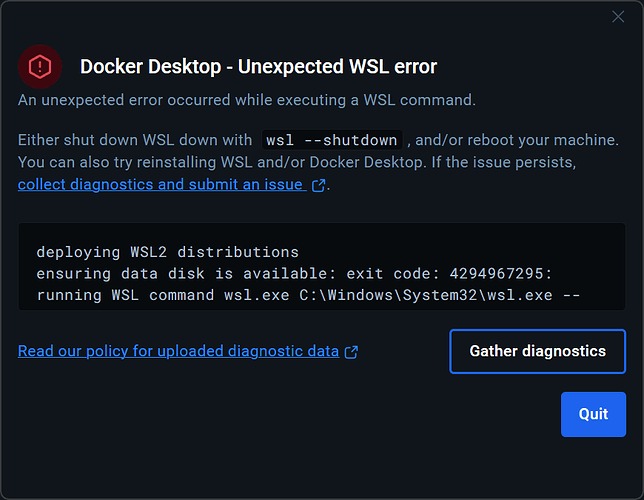
Find the failing layer before touching packages or permissions.
| Error or symptom | First check | Fix |
|---|---|---|
Conflicting values set for option Signed-By | Compare Docker entries in /etc/apt/sources.list and /etc/apt/sources.list.d/ | Keep one definition, as described in the repository section |
Package 'docker-ce' has no installation candidate | apt-cache policy docker-ce shows which version, if any, APT can select from its sources. Also check the Ubuntu codename and the pasted command | Fix the source or command error that stops an upstream candidate from appearing |
Cannot connect to the Docker daemon | Check the Docker service state and the endpoint the CLI uses | Fix the inactive daemon or wrong endpoint that check turns up |
permission denied on /var/run/docker.sock | id -nG and the active session's group membership | Use one of the access methods in the permissions section |
docker compose unavailable | dpkg -l docker-compose-plugin | Install the missing plugin from your chosen package family |
hello-world image download fails | Tell a registry or image pull error apart from a daemon connection error | Check network access to the image registry before changing Engine packages |
Also compare the command you ran with the one in this guide. Accidental duplication or a broken line break can change what the shell runs.
Updates and removal
Docker updates through the package source you chose. Manual .deb packages need manual upgrades. Uninstalling Docker packages doesn't delete /var/lib/docker/ automatically.
