For changes in one Vim buffer, use :s with the narrowest line range that covers the text you mean to change. Add g to change every match on those lines and c to approve each match yourself.
The basic Vim find-and-replace command
In Normal mode, :s/old/new/ replaces the first old on the current line. Press Esc to reach Normal mode, type the command, then press Enter.
Here is the complete form:
:[range]s/pattern/replacement/[flags]The optional range names the lines. The pattern says what to find, the replacement says what to put there, and the flags control how Vim handles each match.
With the cursor on red red, entering :s/red/blue/ changes the line to:
blue redUse /red to find text and :s to change it.
Replace in a range
The range sets which lines Vim examines. The g flag replaces every match on each of those lines. When replacing only part of a file, count the changed lines in the intended range and inspect a line outside that range to confirm it stayed untouched.
| Task | Command |
|---|---|
| Every match on the current line | :s/old/new/g |
| Every match on lines 5 through 10 | :5,10s/old/new/g |
| Every match from the cursor line to the end | :.,$s/old/new/g |
| First match on each line in the buffer | :%s/old/new/ |
| Every match in the buffer | :%s/old/new/g |
Here, . is the current line, $ is the last line, and % is every line in the current buffer. The percent sign does not reach other open buffers or files on disk.
Take a two-line buffer:
old old
old old
With :%s/old/new/, each line loses only its first old:
new old
new old
With :%s/old/new/g, the same input becomes:
new new
new new
These examples assume the gdefault option is off. When it is on, the g flag reverses its per-line behavior.
Replace text in a Visual selection without changing nearby text
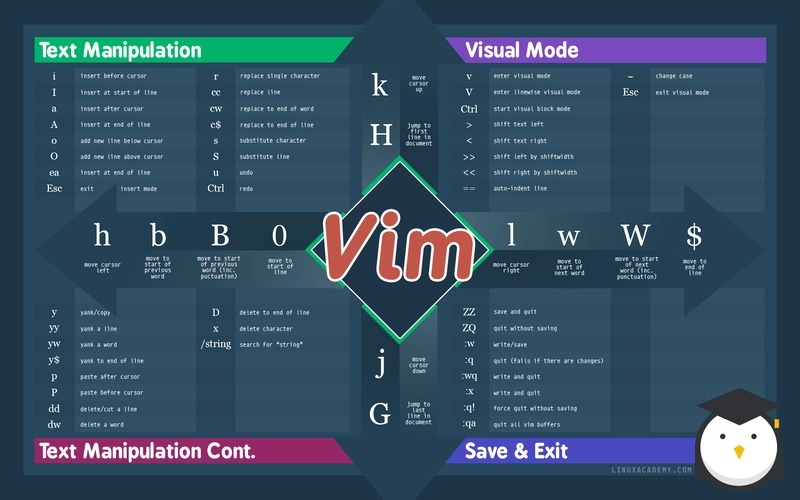
A Visual selection passed to :substitute becomes a range of lines, even when you select only a few characters.
Press v to select characters or V for whole lines. Typing : from Visual mode inserts the selection marks into the command line:
:'<,'>s/old/new/gThat command searches the selected lines, including text outside the selected substring. An r/neovim user wrote: “I know %s/thingToReplace/replacement/g to do replacements but it's global and impacts the whole file.”
Say one line contains:
cat cat catIf you select only the middle cat, the marked-line substitution still changes the other two. The \%V atom tests whether a position is inside the Visual area:
:'<,'>s/\%Vcat/dog/gThe leading \%V tests only where the match starts. If the selection contains just the first character of cat, the pattern still matches and replaces the whole word. For this three-character example, add a second test to require the last character to be selected too:
:'<,'>s/\%Vca\%Vt/dog/gUse the plain marked range for whole selected lines. For character-precise edits, put Visual-position tests at the match boundaries. Longer or multiline patterns need their own boundary placement. The \%V atom is Vim-specific.
Match exact text
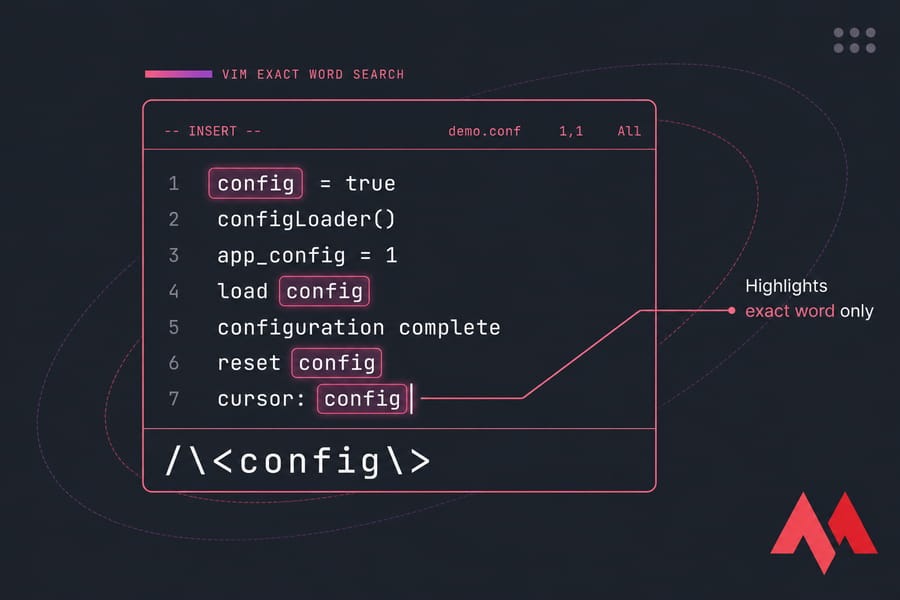
Match complete words
To change the word cat and leave catalog alone, use the word-boundary atoms:
:%s/\<cat\>/dog/gFor the input cat catalog cat, the result is dog catalog dog. The iskeyword option defines what counts as a word character.
Match punctuation literally
In a Vim pattern, an unescaped dot matches any character. Use \. for a literal period, or \V to make most pattern punctuation literal:
:%s/\Vconfig.prod/new-name/gThe dot in config.prod is then plain text. \V mode affects only the search pattern, and the replacement rules and delimiter syntax stay the same.
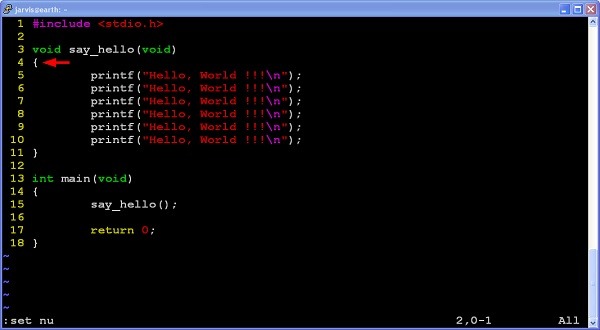
Choose a delimiter for paths
A slash-delimited substitute gets awkward when the replacement contains a Unix path. Use another allowed separator such as # and you don't have to escape the path slashes:
:%s#usrbin#/usr/bin#gThis replaces usrbin with /usr/bin/.
Control case and replacement text
Add i to force case-insensitive matching, or I to force case-sensitive matching:
:%s/cat/dog/gi
:%s/cat/dog/gI
The first command matches capitalization variants and writes the replacement exactly as typed. In the replacement, an unescaped & inserts the matched text.
Count or confirm replacements before accepting them
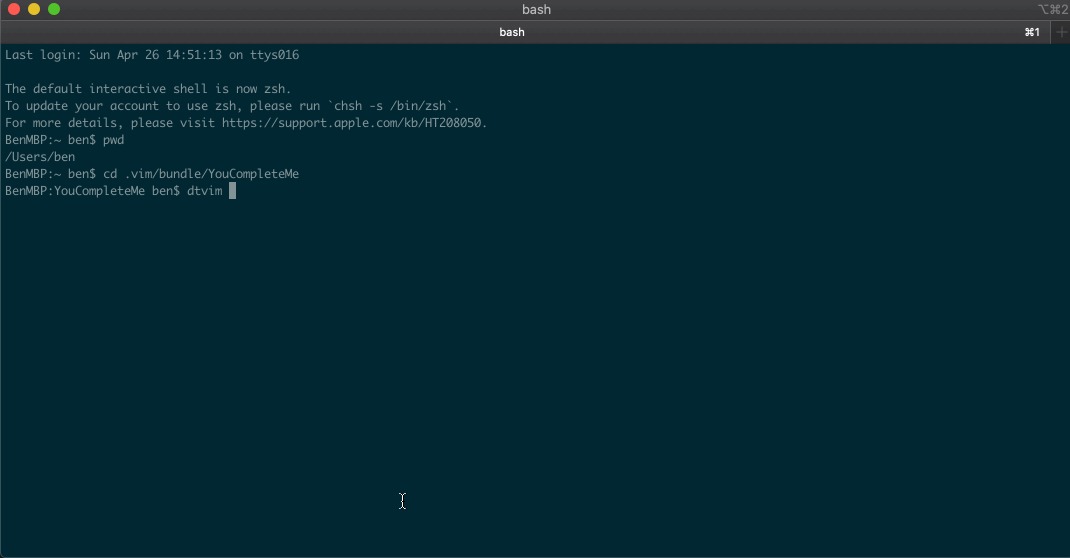
The n flag performs a count-only substitution:
:%s/old/new/gnVim reports how many matches fall in the command's range and changes nothing.
For per-match approval, use c:
:%s/old/new/gc| Key | Meaning |
|---|---|
y | Replace this match |
n | Skip this match |
a | Accept this and all remaining matches |
q | Quit the confirmation sequence |
l | Replace this match and stop |
Suppose a line contains port port and only the first occurrence should become socket. With :%s/port/socket/gc, press y at the first prompt and n at the second. The resulting line is:
socket portPress q to stop the prompts. Replacements you already accepted stay in the buffer.
Replace individual matches with cgn and the dot command
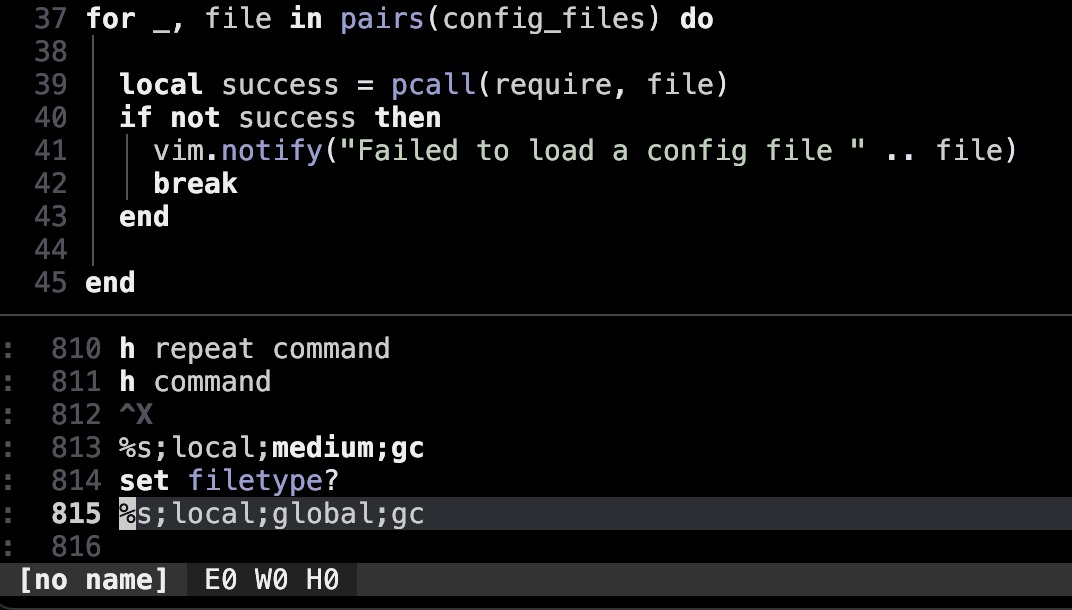
For a handful of scattered changes, cgn saves you from typing a full substitution. An r/vim user wrote: “Right now, I’m using :%s/old/new/gc to do this, but this feels very clunky to write out.” Search for /old and press Enter. Type cgn, enter the new text, and press Esc. Press n to jump to the next match and . to repeat the change. Use a range substitution when many matches get the same change.
Check, undo, save
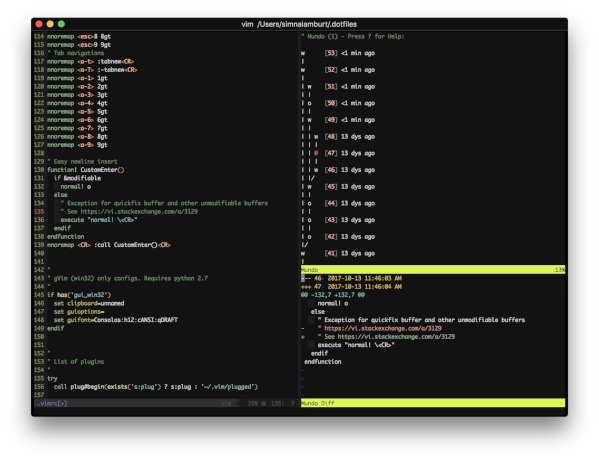
The result appears in the buffer before anything is written to disk.
- Inspect: Compare the edited text with what you intended, including nearby text that should not change.
- Undo or redo: In Normal mode,
ureverses a change andCtrl-rredoes it. Undo grouping decides how much oneureverses. - Write: Use
:wonce the buffer holds the version you want to save.
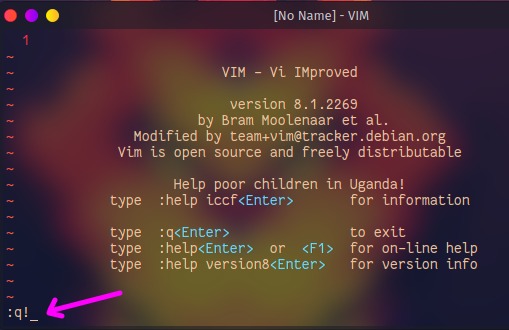
Undo history helps during editing, but after a restart or an external overwrite only the undo information and backups that remain can restore your text. For a WordPress server configuration edit, keep a separate backup or a version-controlled diff so you can restore a saved configuration.
Fix errors
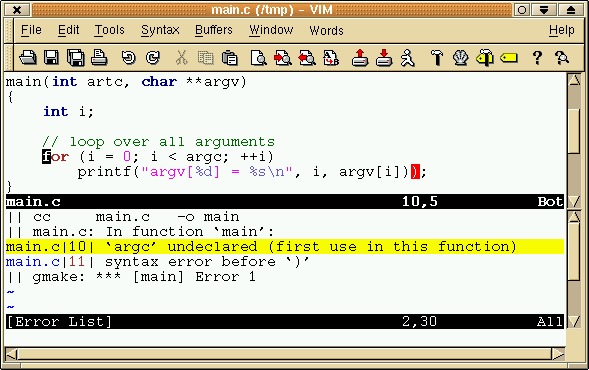
| Symptom | Cause | What to check |
|---|---|---|
| No match found | Wrong range, case, or pattern | Whether the text is inside the range and the case matches |
| Too few or too many changes | Range or g behavior | Line range, flags, and :set gdefault? |
| Part of a longer word changes | Substring or regex match | Word boundaries and punctuation in the search pattern |
E488: Trailing characters during a path substitution (Stack Overflow example) | Slash-delimited command parsed incorrectly | Delimiter placement. Try a separator such as # |
| Pipe-delimited command fails | | is an invalid separator | Use a permitted separator |
The pipe-delimited form below is invalid, and with no previous substitute pattern it produces E33: No previous substitute regular expression:
:s|foo|bar|If the replacement count is off, check gdefault directly:
:set gdefault?For syntax details, see these help entries:
:help :substitute
:help pattern-delimiter
When find and replace needs more than one file
Project-wide changes need a different workflow.
An r/neovim commenter wrote: “Everything falls apart when it comes to multi line/multi file search & replace.”
Vim offers :grep, quickfix lists, argument lists, :cdo, and :cfdo for larger jobs. Select the files yourself and keep a way to inspect and reverse the changes across them. To rename a code symbol by programming-language semantics, use a language-aware rename instead.
