Nano is a practical choice for a quick edit in the Linux terminal. Open the file, type your changes, press Ctrl+O and then Enter to save, and press Ctrl+X to exit.
Type as soon as it opens, use the shortcuts displayed at the bottom of the screen, and write the result to a file when you're ready.
Text you see in Nano reaches the disk only after you save it.
Open Nano and start a text file
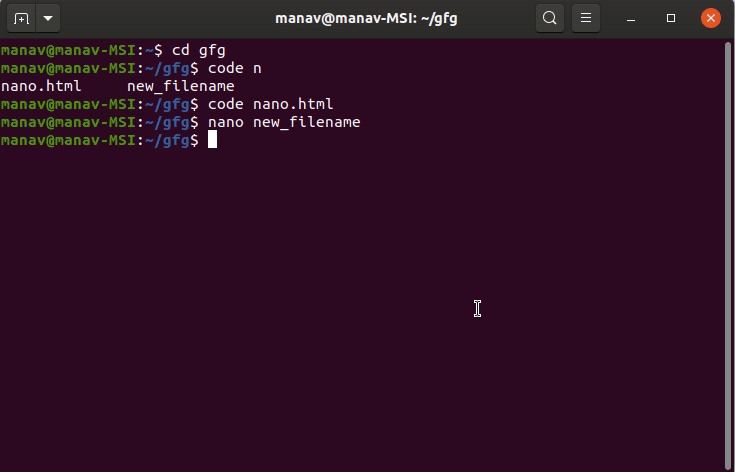
From a terminal, run nano followed by the name or path of the file. Nano opens an existing readable file, or an editable buffer if the filename doesn't exist yet.
Check whether Nano is installed:
nano --versionIt prints the version if Nano is installed. Many Linux systems include it. On minimal installs and container images, install it yourself. You need sudo rights. On Ubuntu or Debian with APT, run sudo apt install nano. On Fedora-family systems with DNF, run sudo dnf install nano.
To practice safely, use an unused filename in your home directory:
nano ~/nano-practice-pg034.txtWhen the editing area appears, type these two lines:
First Nano edit
Check the saved file
Nano is modeless, so typing inserts text with no insert-mode command. Run nano alone and you get an unnamed buffer that asks for a filename at the first save.
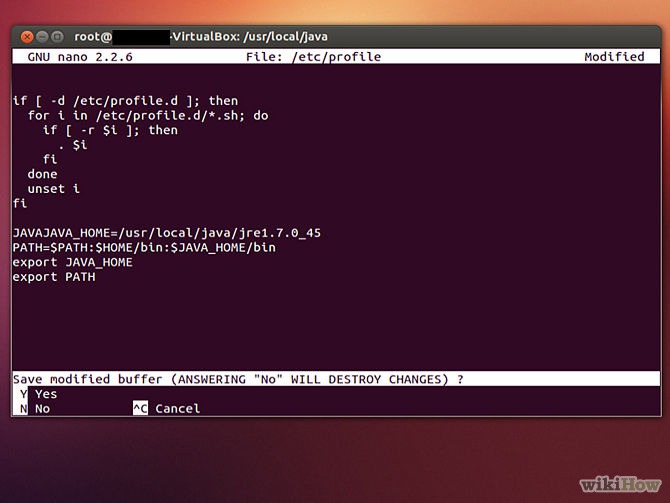
Nano creates the file on disk only when a write succeeds.
Read Nano's screen and keyboard shortcuts
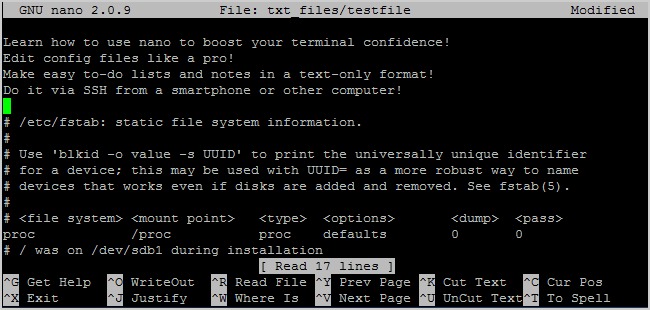
The title bar shows the file or buffer name. The status bar shows messages and prompts, and two help lines at the bottom list the commands. A Modified indicator marks unsaved changes in the buffer. If a terminal shortcut behaves differently than the on-screen hint, check the key convention and your Nano version before assuming the editor is stuck.
Nano shows shortcuts in a compact notation:
| What Nano shows | Press | Meaning |
|---|---|---|
^O | Ctrl+O | Write Out |
^X | Ctrl+X | Exit with standard bindings |
^G | Ctrl+G | Help with standard bindings |
M-6 | Alt+6 | Copy into Nano's cutbuffer |
The caret ^ means Control. The O in ^O is the letter O, never a zero. M- means Meta, which is the Alt key in most terminals. If your terminal intercepts Alt combinations, press Esc, then the key.
A commenter in an r/linuxmasterrace discussion remembers their first run with Nano: “Cue my beginner self trying to type "^ O" literally, having no idea that ^ is the Ctrl key.”
Under the standard layout, Ctrl+G opens Nano's integrated help viewer (see the GNU Nano manual).
Save a file, save as, and exit Nano
To complete the practice exercise:
- Press
Ctrl+Oto open the Write Out filename prompt. - Check that the filename reads
nano-practice-pg034.txtin your home directory, then pressEnter. - After the write succeeds, press
Ctrl+Xto return to the shell.
| What you want | Action | Result |
|---|---|---|
| Save and keep editing | Ctrl+O, confirm filename | Writes the buffer and stays in Nano |
| Save a named buffer directly | Ctrl+S | Writes without the usual filename prompt |
| Save under another name | Ctrl+O, change filename, Enter | Writes to the new path |
| Save pending edits and quit | Ctrl+X, then Y, confirm filename | Writes changes and exits |
| Discard pending edits and quit | Ctrl+X, then N | Exits without writing the edits |
| Cancel an attempted exit | Ctrl+C at the save-choice prompt | Returns to editing |
Exit an unchanged buffer and Nano just closes. Exit with unsaved changes and it asks whether to save. Answer Y and a second prompt asks for the filename.

When you save under a different name, the path you confirm decides where the text goes. Check it before pressing Enter, especially if it already names another file.
Someone on r/linuxquestions who had edited terminal files with Nano for several years wrote: “I've been using just nano for last couple years on linux to edit files in the terminal. It's so simple... I just had to learn to use ctrl-o and crtl-x and that's it.”
Navigate, search, replace, and move text
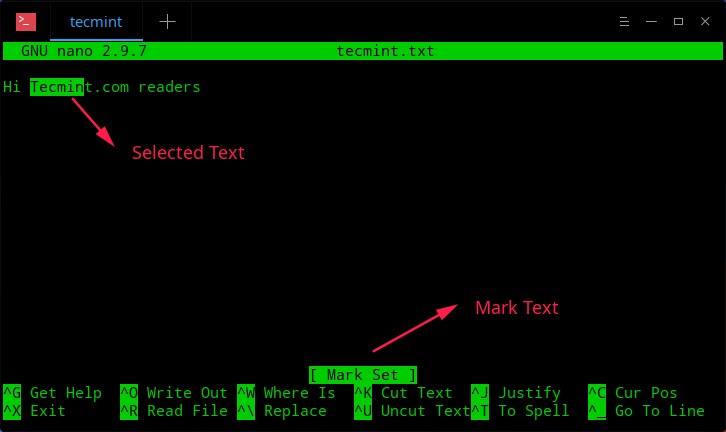
Arrow keys move the cursor. For a small edit, the search, replace, and cut-and-paste shortcuts below are enough.
| Task | Standard shortcut | Effect |
|---|---|---|
| Start of line | Ctrl+A | Moves to the line's beginning |
| End of line | Ctrl+E | Moves to the line's end |
| Go to line | Alt+G | Prompts for a line number |
| Find text | Ctrl+W | Opens a search prompt |
| Replace text | Ctrl+\ | Starts interactive replacement |
| Cut | Ctrl+K | Moves a line or selection to the cutbuffer |
| Copy | Alt+6 | Copies a line or selection to the cutbuffer |
| Paste | Ctrl+U | Inserts text from the cutbuffer |
| Undo | Alt+U | Reverses an edit |
| Redo | Alt+E | Reapplies an undone edit |
Find or replace a phrase
In the practice buffer, press Ctrl+W, type Check the saved file, and press Enter to find it. Press Ctrl+\ for replacement mode, enter the search text and the replacement, then answer Yes, No, All, or Cancel for each match.
Cancel stops further replacements but keeps the ones already made. To reverse those, use undo.
GNU Nano 9.3, announced October 21, 2026, also documents Ctrl+F for forward search. Nano 7 used that key for cursor movement, and Nano 8.0 introduced the search binding.
Cut, copy, and undo
Ctrl+K cuts the current line and Alt+6 copies it. Move the cursor and press Ctrl+U to paste the stored text. To work on part of a line, start a selection with Alt+A or Ctrl+6 and extend it with the cursor keys.
Nano's cutbuffer is separate from the terminal or operating system clipboard. In your practice text, Alt+U undoes your last edit and Alt+E redoes it.
Confirm your changes were saved to disk
After you leave Nano, print the file at the path you saved to:
cat ~/nano-practice-pg034.txtA successful write shows:
First Nano edit
Check the saved file
If the file is missing, check the filename or path you used at Write Out. To see whether the file exists and who owns it, run:
ls -l ~/nano-practice-pg034.txt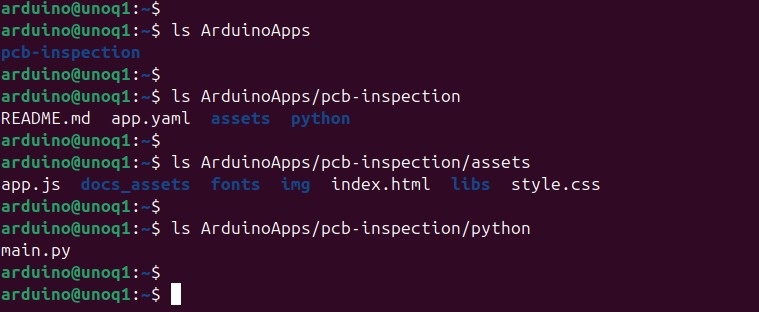
If the file configures a service, run that application's own syntax or configuration check after saving.
Fix save errors and shortcuts that don't work
When a save fails or a shortcut misbehaves, note the exact filename, the editor mode, and the message on the status line.
| Symptom | Cause |
|---|---|
| Permission denied during Write Out | The file or directory isn't writable |
| Changes cannot be made | Nano was started in view mode (look for -v) |
Ctrl+X cuts text | Modern bindings are active (check the footer shortcuts) |
Ctrl+S pauses terminal output | XOFF flow control is being preserved |
:wq does nothing useful | The instructions were written for Vim |
If Nano cannot write the file
To edit a file you need write access to it. To create one you need write access to its folder. /etc/hosts shows the difference: you can read it as an ordinary user, but you can't write to it.
Keep the modified buffer open while you investigate a failed write. If the destination is protected, type a different filename at the Write Out prompt and save a copy in a directory where you have write access.
If you have permission to edit a protected file, use sudoedit. It works on a temporary copy and writes approved changes back. It opens whatever editor your system is set to use, which isn't always Nano. Don't change permissions or run Nano with elevated rights just to get past a refusal.
If shortcuts have been remapped
GNU Nano's optional --modernbindings mode, which you can also start with nano -/, changes several familiar controls:
Ctrl+Xcuts text instead of exiting.Ctrl+Qquits the editor.Ctrl+Oopens a file.Ctrl+Wwrites the file.Ctrl+Grepeats a search, andCtrl+Hopens help where the terminal supports it.
Terminal flow control is a separate issue. Nano's --preserve option leaves XOFF/XON processing for Ctrl+S and Ctrl+Q to the terminal. If output pauses because the terminal received XOFF, Ctrl+Q resumes it. The modern-bindings option overrides --preserve.

In an Ask Ubuntu question, someone editing a configuration file wrote: “I was told to type out the command `:wq` but I do not know where.”
When Nano is the right editor and when it isn't
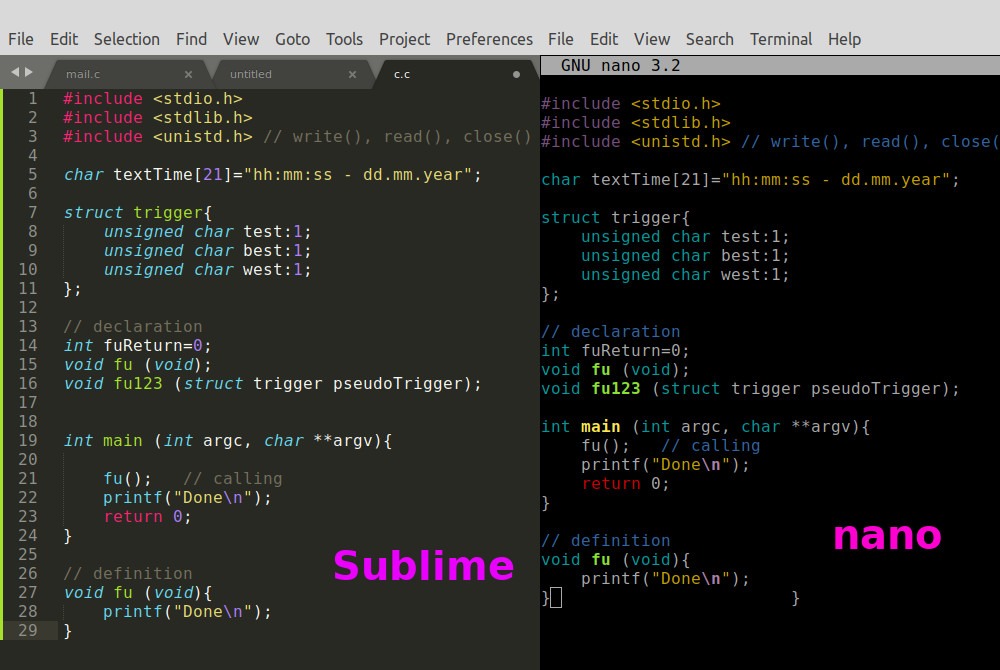
Nano suits quick terminal edits. For larger multi-file programming projects, Vim or an IDE gives you richer navigation tools.
