Use the task table to match a Linux command to your job, understand its options and target, and check the result. If a command can delete or overwrite data, needs higher privileges or differs by distribution, read its full documentation first.
Find a Linux command by what you want to do
Start with the job: locate a file, check disk space, search a log or move a directory. Find your task in the table, then follow the link in the last column. Open the linked guide for caveats, and use the separate cheat sheet when you only need a syntax reminder.
Package management examples use Ubuntu and Debian as the baseline. The Effect labels are our own shorthand.
| What you need to do | Command | Effect | Details |
|---|---|---|---|
| Show my current directory | pwd | Inspect | Files and directories |
| List directory contents | ls | Inspect | Command syntax |
| Change directories | cd | Change shell state | Files and directories |
| Create a directory | mkdir | Modify | Files and directories |
| Copy a file or directory | cp | Modify | Similar commands |
| Move or rename a file | mv | Modify | Files and directories |
| Remove files | rm | Delete | Safety checks |
| Find files by name | find | Inspect. Actions may modify | Similar commands |
| Search text inside files | grep | Inspect | Similar commands |
| Read a long text file | less | Inspect | Search and inspect |
| Read the end of a log | tail | Inspect | Search and inspect |
| Check filesystem free space | df | Inspect | Similar commands |
| Find which directories use space | du | Inspect | Similar commands |
| View running processes | ps | Inspect | Search and inspect |
| Inspect network sockets | ss | Inspect | Search and inspect |
| Work with an archive | tar | Depends on operation | Files and directories |
| Copy or synchronize a tree | rsync | Modify. Some options delete | Similar commands |
| Change access permissions | chmod | Affect security | Safety checks |
| Manage Debian/Ubuntu packages | apt | Modify the system | Distributions |
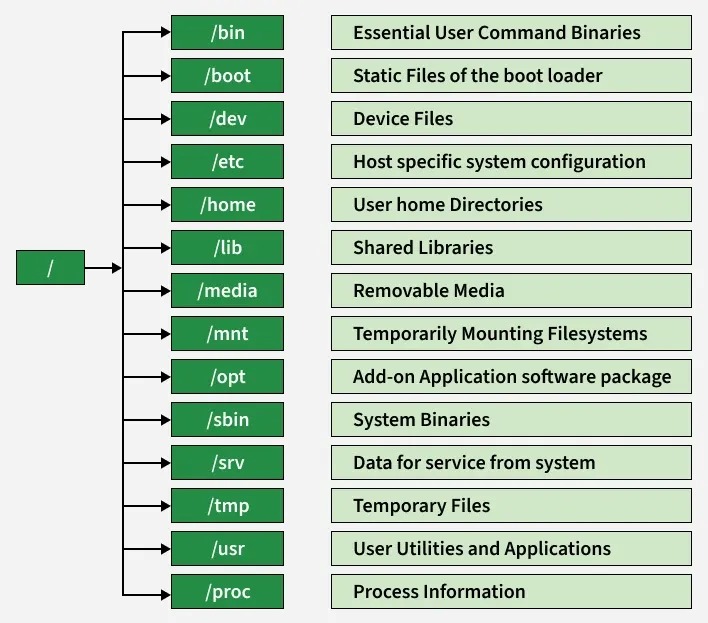
One poster on r/linux4noobs asked: “I was curious if you remember most of the commands for regular maintenance etc.” You don't have to. Look up the task when you need it.
Understand a Linux command before copying it
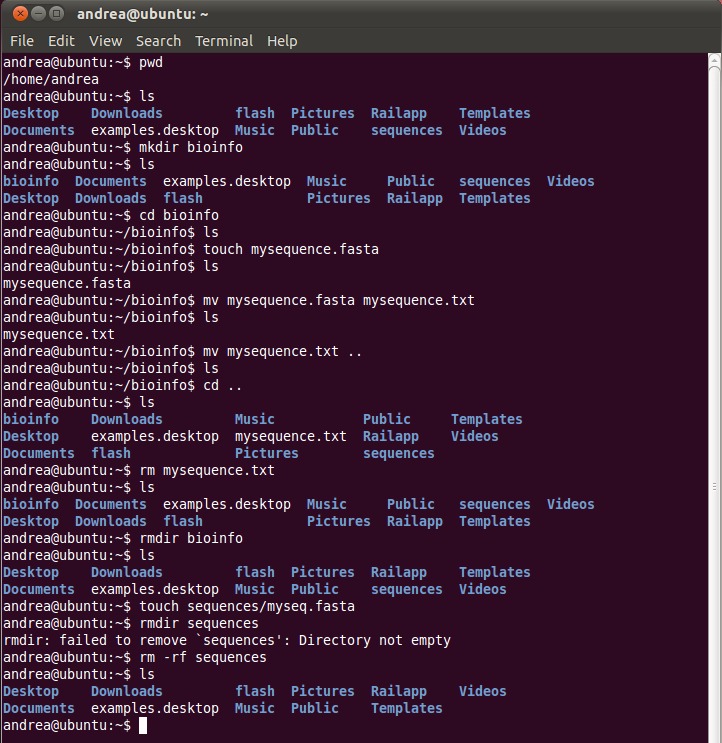
A command line has a command name and, when needed, options and arguments. Read them one at a time to see what an example asks the terminal to do.
After switching from Linux Mint to Windows and later returning to Kubuntu, a poster on r/linux4noobs wrote: “During my entire Linux mint time, I got by googling and copy pasting random commands.”
ls -l /var/logls: the utility that lists directory entries.-l: an option that asks for a long listing format./var/log: the directory argument, an absolute path from the filesystem root.
A template can show <directory> instead. The brackets mark a placeholder, so replace it with your own path before running the command. A leading $ in a transcript stands for the prompt and isn't part of the command.
The shell resolves a relative path such as logs from its working directory. An absolute path begins at the filesystem root. Because of that, the same relative name points somewhere else after you change directories.
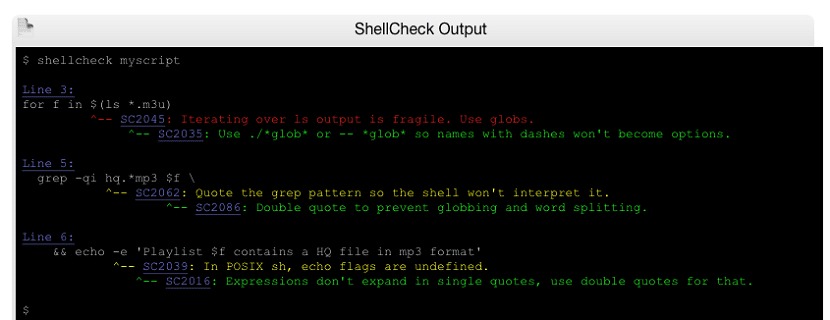
The shell also interprets what you type. An unquoted * can expand to several matching names before an external program receives its arguments, and quoting changes that expansion. The Ubuntu command-line tutorial explains the parsing rules.
Navigate and handle files and directories
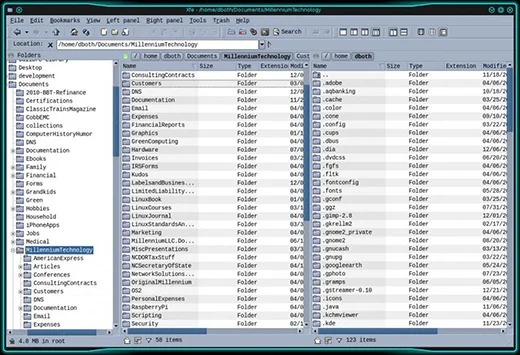
Check which directory your shell is in before working with a file. In Bash, cd changes the working directory and pwd prints it.
pwd
ls
pwd shows where you are. ls lists the entries in that directory. Neither changes anything, and together they help you tell the file you want from a similarly named one elsewhere.
mkdir creates a directory, and mv moves or renames an entry. tar creates archives and rsync transfers file trees, each with its own modes and arguments.
Search text and inspect system state
| Question | Tools |
|---|---|
| Which lines contain the search term? | grep |
| What does a log or text file say? | less, tail |
| Which processes are running? | ps, top |
| How much disk space is involved? | df, du |
| Which sockets are present? | ss |
A matching log line points you to text worth reading. A process listing shows process state at the moment you run it. It won't tell you why a service is failing.
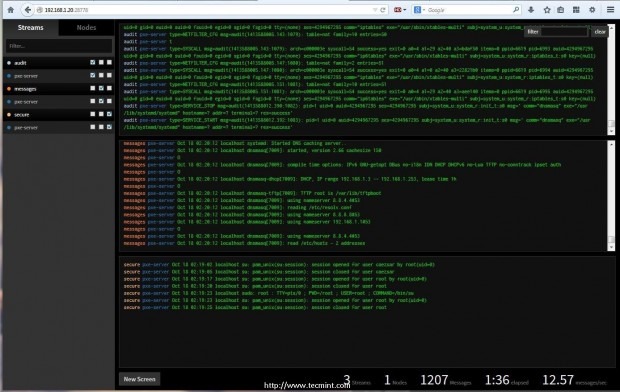
For a large log, tail shows the last lines and less lets you scroll through the whole text.
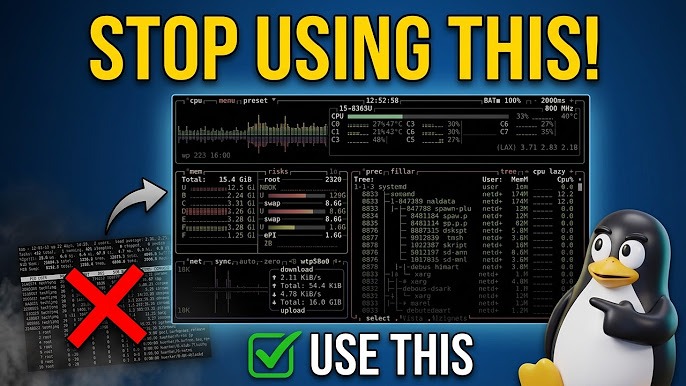
Choose between commands that look alike
| Pair | Choose the first for | Choose the second for |
|---|---|---|
find / grep | Locating filesystem entries | Finding matching text inside files or a text stream |
df / du | Filesystem capacity and free space | Estimated disk usage for paths |
cp / rsync | A straightforward copy | Synchronization, or repeated local or remote transfers |
Find a filename or search the contents of a file?
To locate files ending in .log under your current directory, use GNU find:
find . -name '*.log'Quoting the pattern passes it to find for filename matching. To search sample.log for ERROR and show matching line numbers, use GNU grep:
grep -n 'ERROR' sample.logThis assumes sample.log exists and is readable.
Check the capacity of a filesystem or the size of a directory?
df and du measure different things, so their numbers can differ without anything being wrong.
df -h
du -sh /var/log
In these GNU examples, -h prints human-readable sizes and du -s summarizes the estimated usage of /var/log.
Copy once or synchronize a tree?
With --delete, rsync can remove extraneous files from the receiving directory.
Find commands and syntax with Linux help tools

If you remember the task but not the command name, man -k file searches the installed manual descriptions for file. Once you know the utility, man ls opens its manual page, and many external commands also accept --help. Bash has help cd for its cd builtin. The man(1) reference covers manual lookup and keyword search.
Check risks before running a modifying command
Check the target and effects of any command that changes files or permissions. A familiar command with the wrong path or overly broad options can do something very different from what you meant.
Four GNU rm options show how much the details matter:
-r: removes recursively through directories.-f: ignores nonexistent files and arguments and does not prompt.-i: prompts before every removal.-I: prompts once before a recursive removal or a removal of more than three files.
The GNU rm manual describes these options. Recursive or forced removal can destroy data. A prompt doesn't confirm the path is right, and a backup doesn't guarantee an easy recovery.
A Lubuntu 24.04 user wrote in an r/linux4noobs thread: “I wanted to delete a sub-folder within "/etc/", but accidentally issued the command "sudo rm -r /etc".”
Inspection commands can also modify things. GNU find supports actions such as -delete and -exec, and the full expression determines what happens. Using sudo changes the privileges a command runs with, so decide on it separately. Don't add it by reflex when you hit a permissions error.
Before a destructive command, run a check that changes nothing:
- Identify the target: separate the full path you mean from its parent directory and nearby paths.
- Inspect the scope: list the relevant entries with commands that change nothing.
- Read the effects: look for recursion, overwriting, shell-expanded targets, prompts and privilege changes.
- Stop when unsure: don't run the command until you know exactly what it will do.
Check your Linux distribution, shell, and access level
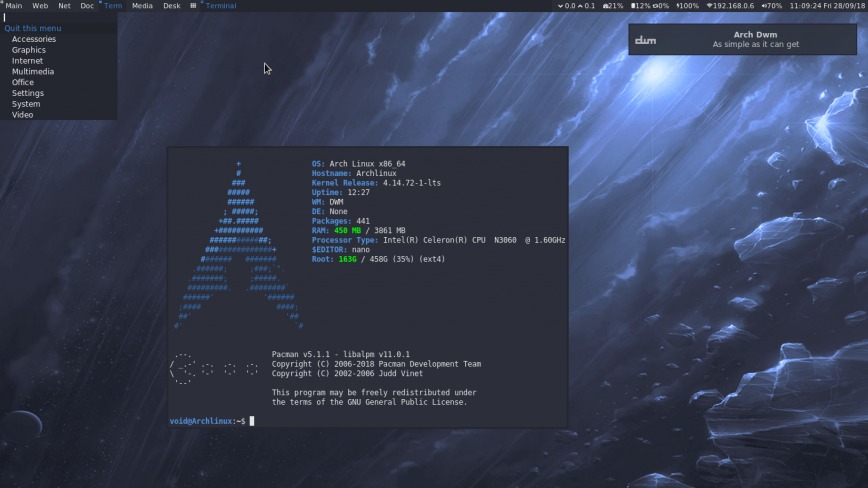
Ubuntu and Debian use apt. Other distribution families use different tools.
| Distribution context | Package manager |
|---|---|
| Debian and Ubuntu | apt |
| Fedora and RHEL-family systems | dnf |
| Alpine Linux | apk |
Bash builtins such as cd are documented and run differently from external GNU programs. A GNU manual doesn't cover every BusyBox or BSD implementation.
On a remote host, your permissions may not match those on your own machine. Find out the distribution, shell and access level before copying commands written for a specific environment.
Check the result
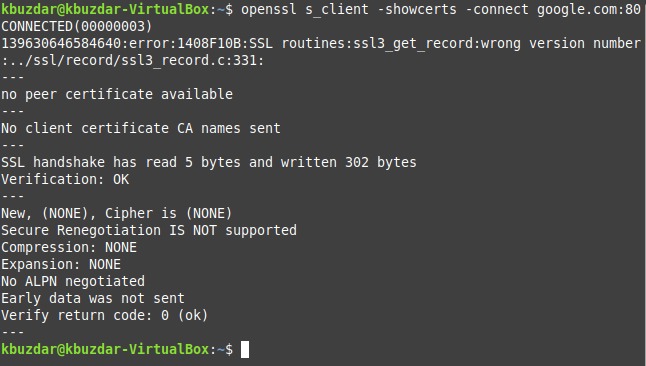
Judge a command by the result you wanted. A listing should show the entries you expected, a text search the matching lines, and a copy the full content at the destination. A command that finishes without errors can still miss the goal.
