When Linux denies access, find out who is asking, which file or directory they want, and which ownership, group, permission, ACL, or sudo rule applies. Make the smallest change that fixes that rule, and leave live permissions alone until you know which rule it is. Groups matter even on a one-user machine, because background services run under separate accounts.
Why groups exist on a personal computer
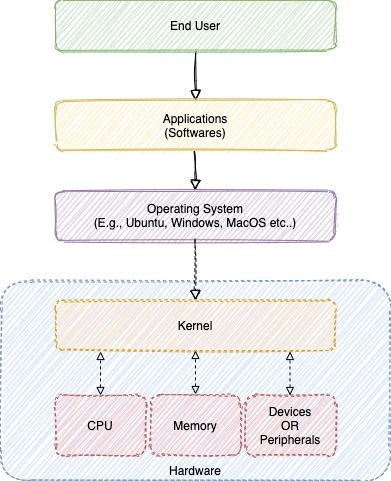
Linux uses accounts and groups to decide what each process can access. That holds even if you're the only person who ever sits at the keyboard.
Your desktop login is one user. A background service can run under another account, with its own access to files and directories. Both run on the same machine, and Linux has to tell their requests apart.
A beginner using Ubuntu 24.04.4 asked on r/linuxquestions: “Everytime I try to look it up, it's just teaching me the syntax to change the groups permissions & location but not why they exist.”
A group gives several accounts access to the same files. Say a media server runs under a dedicated service account while you manage its library through your regular login. Put both accounts in a group that can read the media directory, and every other account keeps its existing restrictions.
Each account has a numeric user ID (UID) and a primary group ID (GID), and it can belong to supplementary groups as well. The numeric IDs tell accounts apart.
A group changes access only when a file or directory has a group permission, ACL entry, or other rule that refers to it. Root is different: it has elevated system privileges and is used for administrative operations.
How Linux picks the permission class
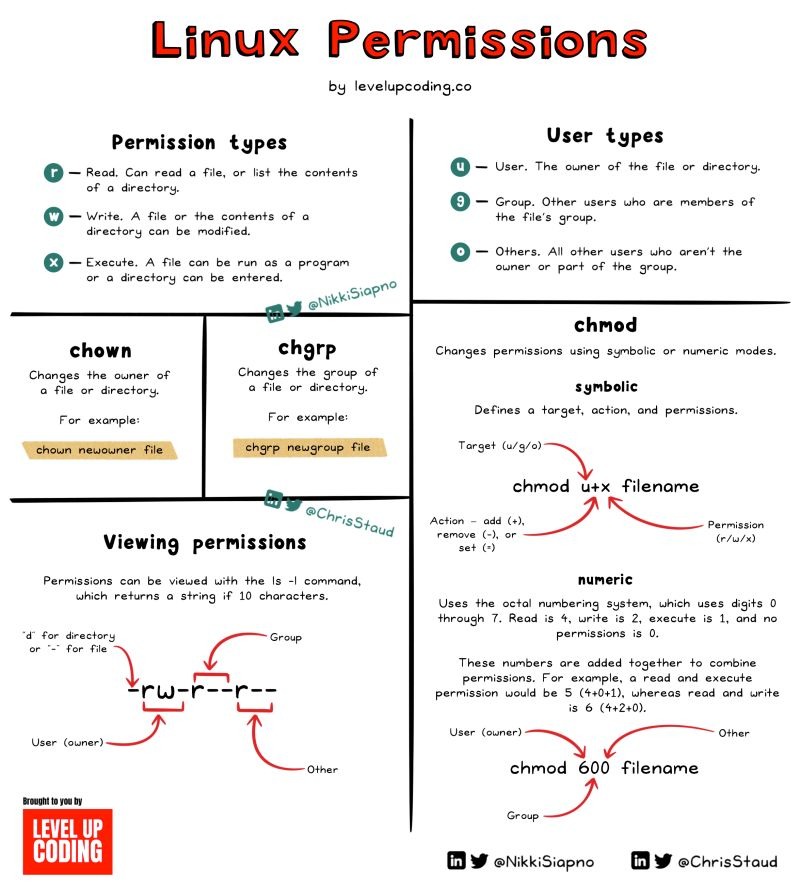
Standard Linux file permissions come down to comparing two things. A process carries user and group credentials. A file has an owning user, an owning group, and permission bits. Change a numeric mode only after you have identified the affected file or directory and its owner.
Here's a sample file listing, with unrelated columns left out:
-rw-r----- 1 alice editors ... report.txt
The first character, -, marks a regular file. The next nine characters form three permission groups:
- rw- r-- ---
  user group others
Here the file belongs to user alice and owning group editors.
| Permission class | Bits shown | Meaning for this file |
|---|---|---|
Owner (u) |
rw- |
The owner can read and write |
Group (g) |
r-- |
Group members can read |
Others (o) |
--- |
No permissions |
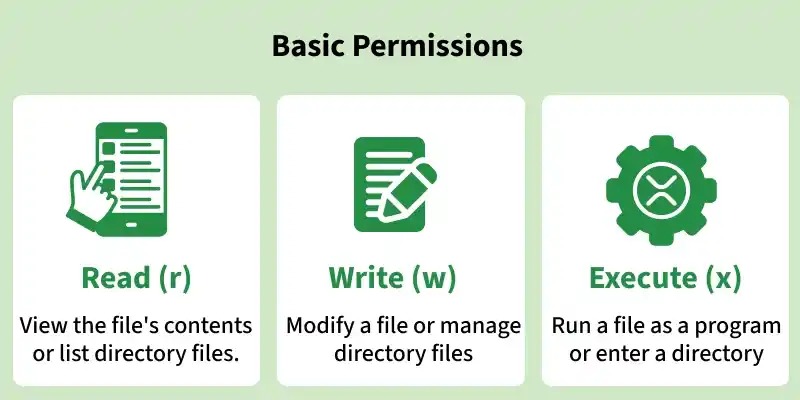
Linux selects the permission class from the process's user and group credentials, and it evaluates the three classes separately. If the process is the file's owner, the owner permissions apply. Otherwise, if it has a matching group, the group permissions apply. If neither matches, the others permissions decide the mode-based result.
In this example, a process running as alice gets the owner permissions. Another user in editors can read the file through the group class. An unrelated user gets nothing through others.
A file's owning group and a user's primary group are separate properties. A file can belong to a group other than its owner's primary group, and a user's supplementary groups can produce a match too.
What changes when an ACL is present?
An access control list, or ACL, can hold entries for named users and groups beyond the usual owner, group, and others classes. When an ACL mask exists, the group triplet that ls -l shows corresponds to that mask. The effective rights of a named-user or group entry can be narrower than the rights written in the entry itself.
What r, w and x mean on files and directories
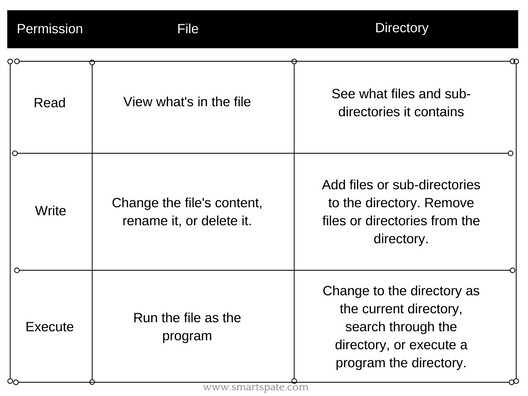
On a regular file, r lets you read the contents, w lets you modify them, and x lets you execute the file when other execution conditions are met.
On a directory, r lists the names inside and x lets you search or traverse to a named entry. The w bit contributes to creating, deleting, or renaming entries, but only when you also have search permission and no other rule blocks it.
To open a file, you need search permission on every parent directory plus the necessary access to the file itself. A readable file stays unreachable behind a directory that blocks search.
Group membership, chmod, chown, or sudo?
In an r/linuxquestions discussion about sharing files, movies, and photos, the poster wrote: “I was thinking of creating one group per each top-level directory (files, movies, photos, etc).”
Separate groups would let a photo-processing service reach a photo directory while limiting its permissions elsewhere. The directory's owning group and access rules must still support that arrangement.
Which tool changes what
| Intended change | Tool |
|---|---|
| Add an account to a shared-access group | Group tools such as usermod |
| Change who owns a file or directory | chown or chgrp |
| Change read, write, or execute rights | chmod |
| Grant rights to specific named users or groups | ACL configuration |
| Allow an administrative command | sudo policy |
| Create a new account | Account-management tools |
Membership and ownership work together. Adding a service account to editors changes that account's group membership. Assigning /srv/shared to editors changes the directory's owning group. You need both for the group-based access to work.
Two easy mistakes
With usermod, -G sets the account's supplementary-group list, and -a appends groups to the existing list. Leave out -a when you only mean to add a group, and any supplementary memberships you didn't list are removed.
Sudo works from its own policy. A distribution can reference a group named sudo or wheel in its configuration, but the active policy can grant privileges through other rules. Listing the members of a group named sudo therefore doesn't show everything an account is authorized to run.
When an ACL makes more sense
Traditional owner, group, and others permissions are simple, and they suit many setups where users share access through a common owning group. An ACL adds options when a named user or group needs rights the three classes can't express conveniently. The trade-off is one more access rule to inspect and maintain.
Permission denied: inspect first
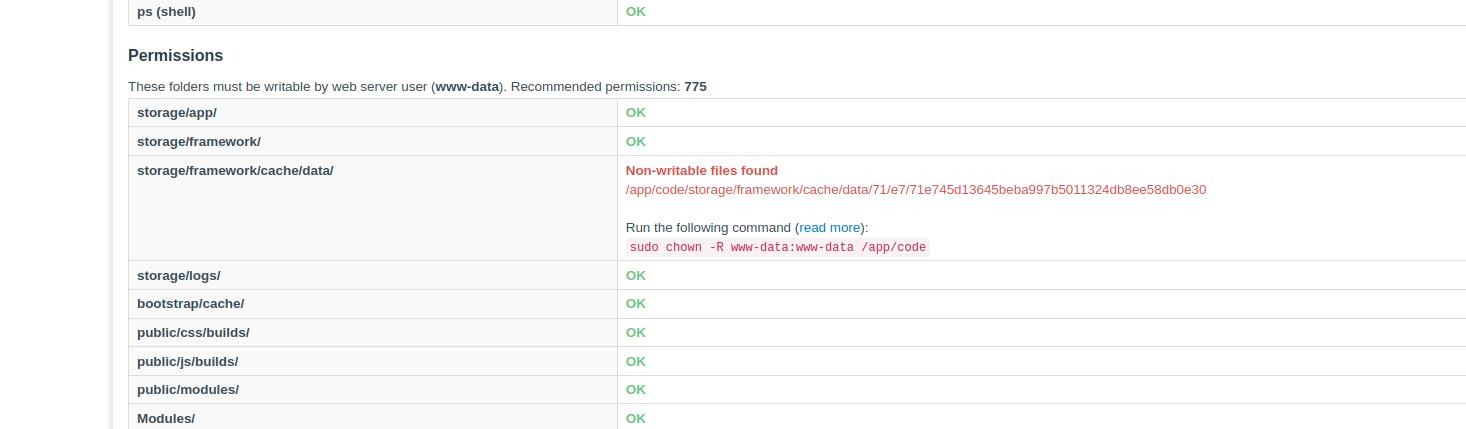
A Permission denied message only tells you that an operation failed. To find the cause, establish who is acting, what operation they requested, and what permissions sit along the path.
Changing permissions before finding the restriction can break working access controls and leave the original failure in place.
Read-only checks
Replace alice, editors, and /srv/shared/report.txt with your own account, group, and path.
| Check | Question answered |
|---|---|
id |
Which user and groups does the current process have? |
id alice |
What user and group information does the system report for alice? |
getent passwd alice |
Does the system recognize the account name? |
getent group editors |
Does the system recognize the group, and what record does it return? |
ls -ld /srv/shared |
Who owns this directory, and what permissions does it show? |
namei -l /srv/shared/report.txt |
What ownership and permissions appear along the path? |
getfacl /srv/shared |
What ACLs apply to the directory, including any default ACL? |
getfacl /srv/shared/report.txt |
What access ACL and effective rights apply to the file? |
sudo -l |
Which privileged commands does the sudo policy allow? |
Run id in the context you want to investigate. In an interactive shell, it reports that shell's credentials. To find a background service's credentials, inspect the context it runs in.
Check the whole path
If the target file looks readable but opening it fails, check the parent directories. Reaching /srv/shared/report.txt means passing through /srv and /srv/shared before the file's own permissions come into play. namei -l lists each component of the path with its ownership and permissions, so you can see where a mode check fails.
Check ACLs and sudo separately
When a named user or group has special rights, inspect the file's access ACL. The effective permissions it reports are what count for the access check.
A directory's default ACL governs files created later. It doesn't change the access ACL of a file that already exists.
If the failed operation is a privileged command, sudo -l lists what the sudo policy allows and can ask you to authenticate. File access is checked separately, against the acting process's credentials and the file's own rules.
If the acting user, path permissions, and ACLs don't explain the denial, something else is involved, such as a security policy, mount behavior, or a service-specific restriction.
Stale groups and new-file permissions
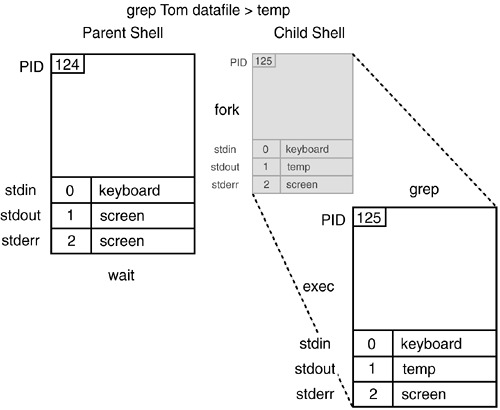
A running process can keep older group credentials, and a new file can get the right owning group without the permission bits you expected.
A running process keeps its old groups
A login session or service process keeps the group credentials it started with, even after the account's supplementary groups change. It needs a new session or a fresh start to see the update. To see the gap, compare id in the running context with id alice.
Setgid and new files
Working with a non-root Docker container, a poster on r/linuxquestions explained: “From what I understand I do this using setgid, and I did set my parent directories to have g=rwx+s.”
A setgid directory makes newly created children inherit its owning group. The permission bits they get come from separate file-creation rules.
The creating process requests a mode. If the parent has no default ACL, the process's umask restricts the requested permission bits. If it has one, the new file inherits an access ACL based on that default and limited by the requested mode, and umask is ignored.
So a new file can land in the expected group and still lack group write permission.
To test a setup like this without risking production data, create a disposable file from a new session. Record its owner, owning group, mode, and ACL.
Choose the next guide without widening access
Once you know what needs to change, use a focused guide that covers the command, its prerequisites, and how to verify the result:
- Creating an account: A Linux user-creation guide.
- Creating groups or changing membership: A group-management guide.
- Changing ownership: A
chownandchgrpguide. - Changing permission bits: A
chmodguide. - Managing privileged commands: A sudo-policy guide.
- Reviewing configured accounts: A user-listing guide.
Why blanket permission fixes backfire
In an r/linux4noobs post about building a server, a beginner reported: “I'm building a server and the instructions say to navigate to a folder and run "sudo chmod -R 777 ./" then run "sudo ./foldername" but my system says "sudo: ./foldername: command not found"”
The -R option applies a change recursively, and a mode of 777 gives read, write, and execute permission bits to owner, group, and others on every affected entry. Used broadly, it can expose access that the original configuration deliberately restricted. The relative path ./ means the current working directory, so where you run it sets what the command covers. A different problem appears when instructions tell you to execute a directory or name a file that doesn't exist. Changing permissions on a directory can't create a missing executable.
Before following a guide that changes anything, pin down the file or directory, the account that needs access, the operation it needs, and how far the change reaches. Afterward, check that the account can do the job and that unrelated access is still restricted.
Explore related guides
- How to Use chmod in Linux Without Breaking File Permissions
- Linux chmod: How to Set File and Directory Permissions Safely
- How to Create a Linux User with adduser or useradd
- How to Give a User Sudo Access Without Getting Locked Out
- Create and Manage Linux Groups Without Breaking Access
- How to List Users in Linux: Accounts, NSS, and Sessions
