On Debian or Ubuntu, use adduser for a regular account you create interactively. Use useradd when you need explicit settings, repeatable provisioning, or your distribution's documented interface. Verify the account's identity, home directory, login shell, and authentication state before granting more access.
adduser vs. useradd: which should you use?
On Debian and Ubuntu, adduser guides you through setup and follows the distribution's account policies. useradd takes options for individual settings and applies local defaults to anything you leave out. Check the available utility on the actual distribution: Debian-family adduser helpers and the lower-level useradd interface do not always choose the same defaults.
| Situation | Command to consider | What to expect |
|---|---|---|
| Personal account created interactively on Debian or Ubuntu | adduser | Guided prompts and local account policy |
| Account with deliberately specified properties | useradd | Your options, system defaults for the rest |
| Repeatable scripted provisioning | useradd | Explicit options, no interactive prompts |
| Rocky Linux or another RHEL-family host | Distribution-documented useradd workflow | Follow your distribution's docs |
| Identity for a background service | System-account options | Shell, home, and runtime needs set by the service |
Don't expect the interactive Debian adduser workflow on every distribution.
One poster in a December 2024 r/linuxquestions discussion about the two commands put it this way: “I ALWAYS get confused and then subtle fury sets in as the user is only partially created and I have to run a bunch of commands to fix everything”.
Before creating the account, check the host and username
Confirm the terminal is on the right machine and that you have root or sudo access.
Identify the operating system, since it decides which account tools and defaults you have:
cat /etc/os-releaseCheck whether the username already exists:
getent passwd exampleuserAny output means the name is already in use in your configured Name Service Switch (NSS) lookup. If it prints nothing, the name is free.
exampleuser is a placeholder. Replace it with your account name in every command below.
Create a regular user with adduser on Debian or Ubuntu
Start the guided setup with:
sudo adduser exampleuseradduser follows local account policy and prompts for the account password and optional information. The home directory, group arrangement, and login shell come from your adduser version and its configuration.
On Debian 13, an example using adduser 3.138 prints fewer informational messages than some older walkthroughs. A quieter session is normal and still means the account was created.
Create a user with useradd and explicit options
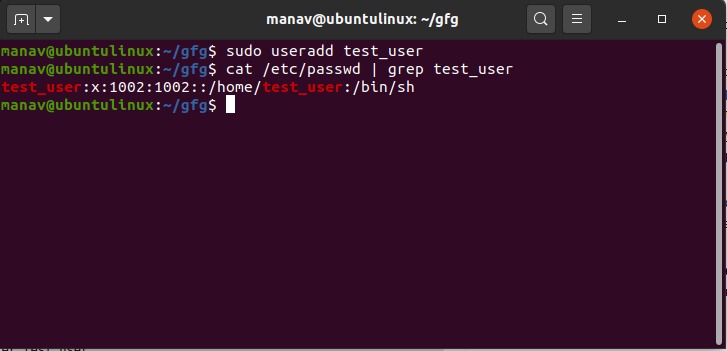
To control a regular account's home creation and login shell yourself, run:
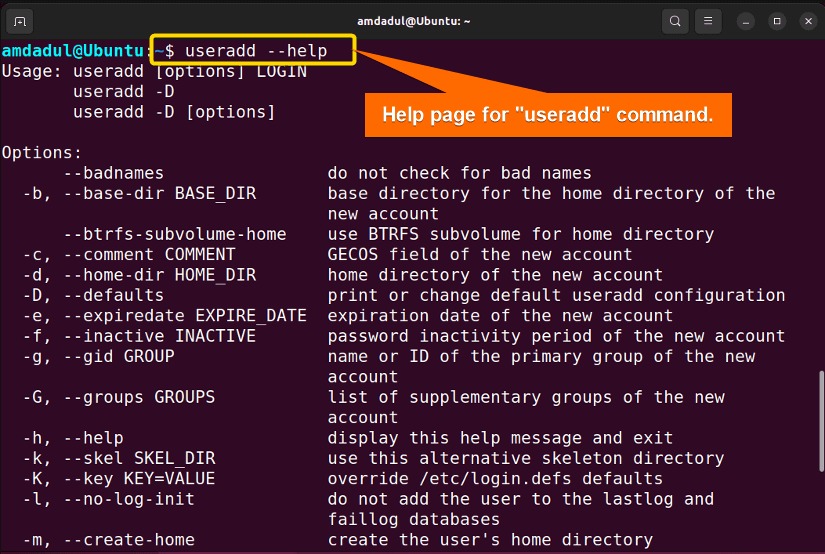
sudo useradd -m -s /bin/bash exampleuser-m requests a home directory and -s /bin/bash records the shell path. The shell must exist on the host. UID allocation, primary-group behavior, and any other property you leave out follow the system's configuration.
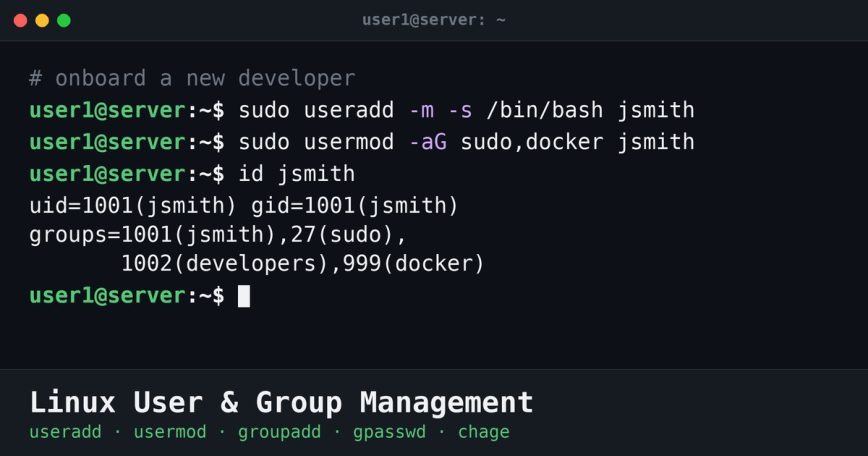
Set a local password as a separate step if the account needs one:
sudo passwd exampleuserpasswd prompts for the password interactively. In automated setups, supply credentials through a secure provisioning method, because a password in a command line or script is exposed.
Use -d to set a custom home path.
What the home and shell options control
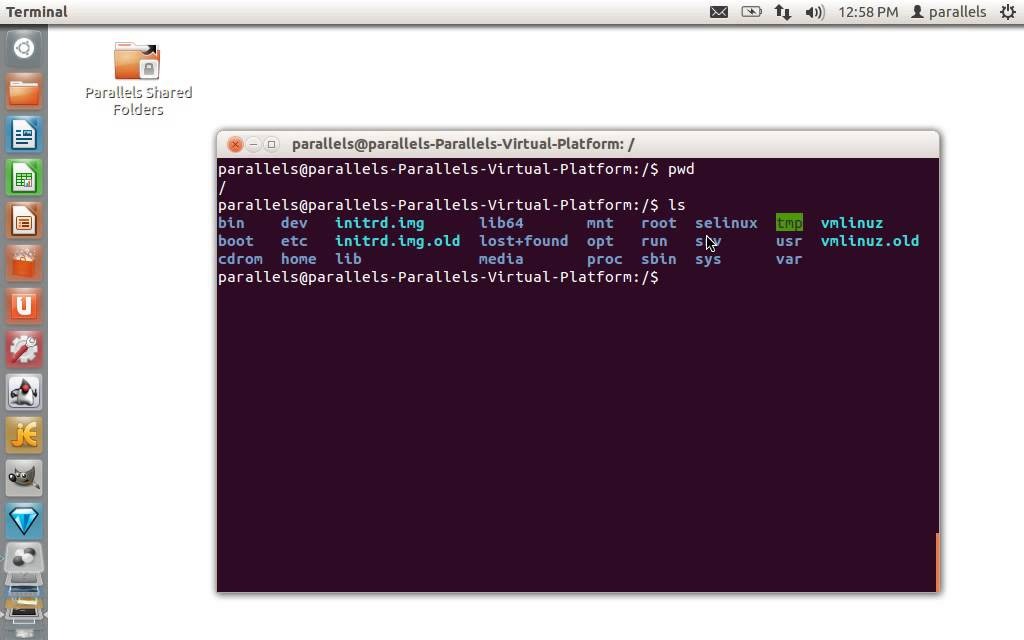
The home path stored in the account record and the directory on disk are separate things. If you omit a flag, your local useradd configuration affects whether the directory is created.
| Option | Account setting | Filesystem effect |
|---|---|---|
-d /chosen/path | Sets the home path | Leaves creation to -m or local policy |
-m | Uses the configured or selected home path | Requests creation of the home directory |
-M | The home path stays recorded | Blocks home-directory creation |
A July 2022 poster in an r/Ubuntu discussion about changing a home directory wrote, “Hello guys, when i create a new user and try to change home directory it does create the user but it's not creating the home directory”.
See the Linux useradd(8) manual for exact option definitions.
When the home directory is created, files from /etc/skel can populate it, depending on local settings. The login shell follows configuration too. -s sets the path you choose. Without it, one creation route can record sh and another Bash.
Check your configured useradd defaults, such as the home base and shell, with:
useradd -DThe output omits some account-creation policy. Settings such as CREATE_HOME are controlled through /etc/login.defs.
Verify the account instead of trusting the success message
| Check | Command | What it shows |
|---|---|---|
| Account record | getent passwd exampleuser | Username, UID, primary GID, home path, shell |
| Identity and groups | id exampleuser | UID, primary and supplementary groups |
| Home directory | ls -ld /actual/home/path | Whether it exists, plus ownership and permissions |
| Password state | sudo passwd -S exampleuser | Password status on systems that support -S |
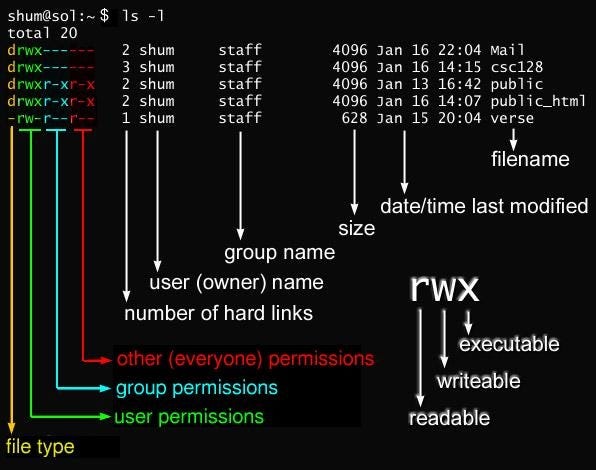
A passwd-style record from getent passwd has colon-separated fields: login name, password placeholder, UID, primary GID, comment, home path, and shell. Read the home path from it before running ls -ld, since custom homes need not be under /home. Because getent uses NSS, the account can come from a source other than the local /etc/passwd file.
A writer in a May 2025 r/Ubuntu post described that mismatch: “I created user using useradd CMD, and it is showing in /etc/passwd but is not showing up inside the home directory”.
Read the password status
On the Linux passwd implementation documented in passwd(1), the second status field from passwd -S is L for a locked password, NP for no password, or P for a usable password. Other implementations format it differently, so check their documentation.
A locked password doesn't disable SSH public-key authentication by itself.
Fix a missing home, unexpected shell, or unavailable login

| Symptom | First cause to investigate | Fix |
|---|---|---|
| Account exists, but its home is missing | Creation flags, home path, local policy | Check for -m, inspect the path, create the directory, set ownership |
| Unexpected login shell | Recorded shell and whether the binary exists | Change the shell with usermod |
| Password login unavailable | Password state and the login method you want | Set a password if you want password login |
| Username already exists | Existing account and its source | Inspect it before changing anything |
Creating a custom home can fail even when you request it, if the parent path or its permissions block it. SELinux context can also affect creation on systems that use it. If the account already holds data, repair it in place and keep its files, ownership and profile setup. Don't erase and recreate it just to fix the path.
To change an account's shell to Bash, make sure Bash exists at that path, then use the -s option documented in usermod(8):
sudo usermod -s /bin/bash exampleuserThat changes the recorded login shell, so use it only when the shell is the problem.
Don't run blanket permission changes such as chmod 777 during these repairs. Broad access adds a security risk and doesn't find the cause.
Service accounts are different from human login accounts
A background service can need its own Linux identity with no ordinary interactive login. useradd has system-account options such as -r for that. Depending on the application, a non-login shell that exists on the host and -M can fit, but neither secures the service. For an identity such as backupsvc, work out the program's home, file ownership and runtime-access needs before picking settings.
Sudo, SSH, and file access come separately
A new account has no admin rights and no special file access. You set those up separately. A regular user gets sudo only through sudo policy and its permitted user or group configuration.
SSH access needs server configuration and a working authentication method. A local lookup that finds the account tells you nothing about remote login.
If the account needs write access to a CSV directory, that directory's ownership, permissions and group membership decide what it can do. Your next tasks are configuring sudo policy, setting up SSH keys, or managing groups and filesystem permissions.
