Create the group with sudo groupadd projectshare, add a user with sudo usermod -aG projectshare alex, and check the result with getent group projectshare and id alex. If alex still gets “permission denied”, the cause is the running session or the file's permissions, so check those before changing membership again.
Which Linux group command do you need?
A Linux group has a name and a numeric group ID (GID). Every account has one primary GID and can also belong to supplementary groups. Creating the group, adding the user, and granting access to a file are three separate steps. The -a in -aG matters: without append, a supplementary-group update can remove memberships you meant to keep.
| Task | Command | What to check |
|---|---|---|
| Find a group | getent group GROUP | The entry shows the group name and GID |
| Create one | groupadd GROUP | getent group GROUP returns the new entry |
| Add a member | usermod -aG GROUP USER | id USER lists the group |
| Remove a member | gpasswd -d USER GROUP | id USER no longer lists the group |
| Use updated membership | New login or newgrp GROUP | id in the affected shell lists the group |
| Rename | groupmod -n NEW OLD | getent group NEW returns the entry |
| Change GID | groupmod -g GID GROUP | getent group GROUP shows the new GID. Check files that carry the old one |
| Delete | groupdel GROUP | getent group GROUP returns no entry |
| Fix denied file access | id, then stat -c '%n %U %G %a' PATH | Retry the failing action |
If membership is already set and access still fails, skip to the “permission denied” diagnosis.
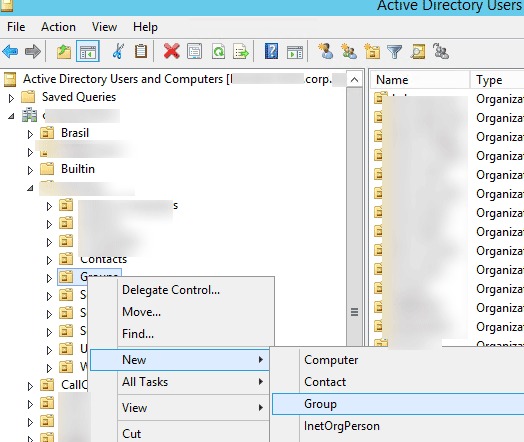
These steps cover local groups only. LDAP, Active Directory, and other central identity sources need their own administration.
The examples use two existing, fictional accounts, alex and sam, and a new group called projectshare. Swap in your own names.
Check whether a group exists and who belongs to it
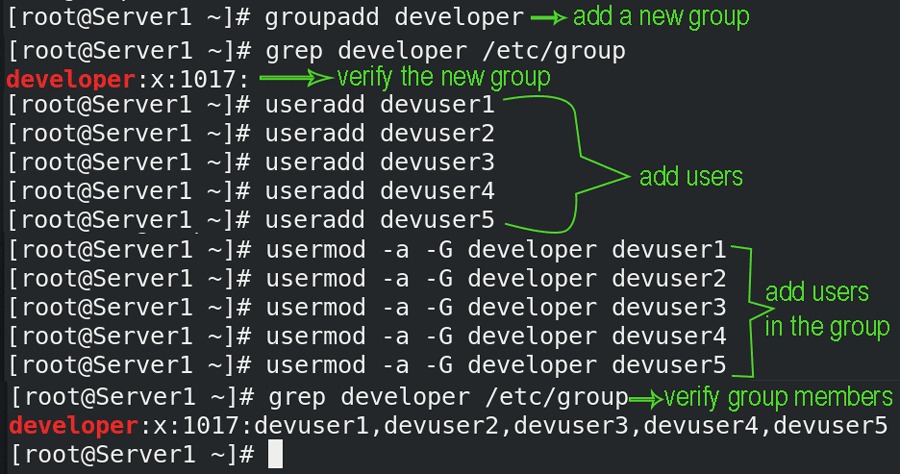
Look up the group and the account before changing anything:
getent group projectshare
id alex
The first command queries the group database through the Name Service Switch (NSS). A local entry in /etc/group has four colon-separated fields:
group_name:password_field:GID:member_listThe second command shows the primary and supplementary groups of alex. To see the primary group's number, check the account record:
getent passwd alexThe fourth colon-separated field of a passwd entry is the numeric primary GID. Compare it with the GID in the group entry. A user whose primary GID matches the group can be missing from the group's member list. Some NSS providers also restrict enumeration (listing all members), so a blank member field is not a full roster.
Create a Linux group
On systems with shadow-utils (the package that supplies groupadd, usermod, and similar tools), groupadd creates a local group. Check that the name is free, then run it as root or with sudo:
sudo groupadd projectshareThe system picks a free group ID. Add -g to request a specific GID or -r to create a system group. Set an ID yourself only when something relies on it.
- For ordinary collaboration, an automatically assigned GID is enough.
- Use a system group when a service's setup instructions ask for one.
- Need a fixed GID? Check it for conflicts, and for existing files or services that depend on it, before picking it.
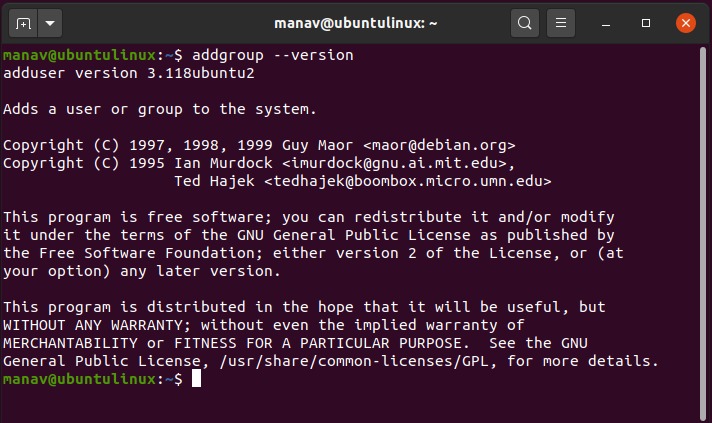
Ubuntu also provides addgroup, with distribution-specific syntax.
Add or remove users without losing other memberships

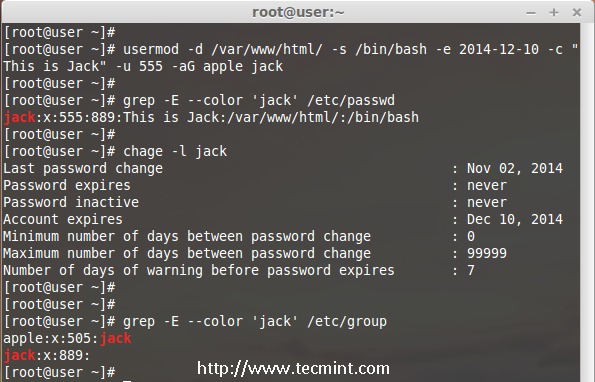
To add one supplementary group to an existing account, use the additive form of usermod:
sudo usermod -aG projectshare alexPrivileged groups: Some groups grant far more than file access. Docker documents that membership in its docker group grants root-level privileges. See Docker Linux post-installation documentation.
| Command form | Effect | Existing supplementary groups | Use when |
|---|---|---|---|
usermod -aG GROUP USER | Adds a supplementary group | Retained | You want to join another group |
usermod -G GROUP USER | Sets the complete supplementary group list | Unlisted groups removed | You want to replace the whole list |
usermod -g GROUP USER | Changes the account's primary group | Not applicable | You want to change the primary GID |
gpasswd is another way to add a member:
sudo gpasswd -a alex projectshareTo remove the account from the group's member list:
sudo gpasswd -d alex projectshareThe argument order is user first, then group. This removes the supplementary entry. The primary GID stays in the account record.
Run id alex again and compare it with the output from earlier.
Make new group membership take effect
An existing process keeps its old group credentials after the account database changes.
In the affected shell, id without a username shows its current groups, while id alex shows the groups configured for the account. If the two outputs differ, the session is stale and another membership edit won't help.
id
id alex
Start a genuinely new login session to pick up the new groups. A new terminal window inside the same desktop login can inherit the old context.
To get a single shell with the new group, run:
newgrp projectsharenewgrp changes the group context of that shell only. Separate running applications and services keep their old credentials.
Rename a group or change its GID safely

Rename a local group with sudo groupmod -n newname projectshare, then run getent group newname to confirm the new name resolves.
groupmod -g changes the group's GID and updates the primary-group references in account records. Files that carry the old numeric GID keep it. Before changing the number, list the files and services that use the group, record the old GID, and plan ownership fixes for the resources that need them.
Delete a group only after checking dependencies
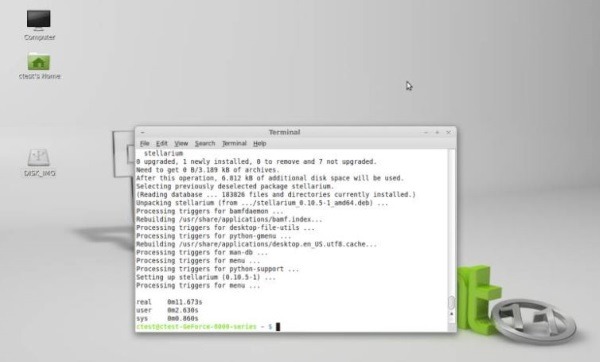
Deleting a group leaves account records and file ownership untouched, and an empty member list is no proof that nothing relies on it. Check these first:
- Accounts whose primary GID identifies this group.
- Files and directories that carry the group's numeric ID.
- Services and shared jobs that rely on the group to reach resources.
Resolve primary-group accounts and file ownership first, then run:
sudo groupdel projectshareFix “permission denied” after adding a user
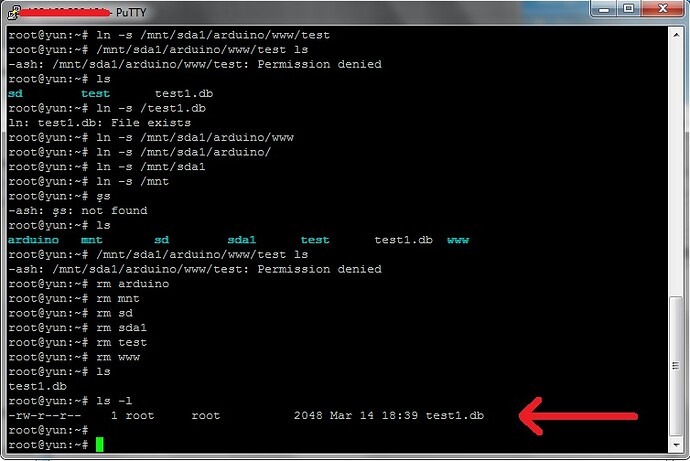
If the group exists and the account is a member, look at the process and at the file. The groups in the process's active credentials, the owner of the file or directory, and the permissions granted for the action you attempt decide access.
| Layer | Question | Evidence | Next step if wrong |
|---|---|---|---|
| Group record | Does the name resolve? | getent group projectshare shows the entry and GID | Create or correct the group entry |
| Account | Does the user hold the group? | id alex lists it | Add the user with usermod -aG |
| Process | Does the affected shell or service carry it? | id run in the affected shell | Start a new login or run newgrp |
| Resource | Can that identity perform the operation? | stat output for the file and its parent directories | Find the missing right: read, write, or search on a directory |
When the first three layers agree, inspect the file or directory. On a system with GNU Coreutils, GNU stat shows the name, owning user, owning group, and numeric permission mode:
stat -c '%n %U %G %a' PATHReplace PATH with the real path. For nested paths, check the parent directories too: a process needs search permission on every directory component to reach a file. The Linux path-resolution manual documents this traversal requirement.
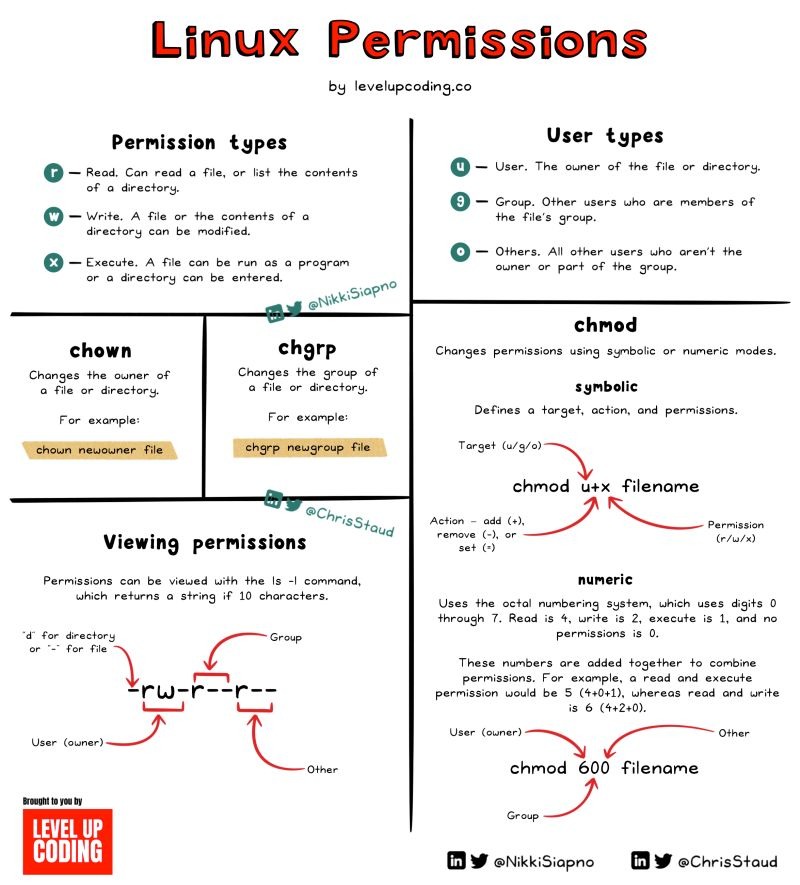
In a Linux Mint thread on r/linux4noobs, someone sharing files between local accounts wrote, “However, I can't edit these files from a different user, because while the folder itself belongs to the group, the file does not…” The folder carries the group but the new file does not, so check the file's group first.
If ownership and mode bits look right, look next at access control lists, other security policies, or restrictions inside the application. Skip blanket recursive changes such as chmod -R 777. They expose unrelated files and leave the cause unfound.
Test a shared directory with two local users
Use a disposable workspace to test how alex and sam collaborate through projectshare. Assume both accounts belong to the group and the test directory has the right group ownership and permissions.
- As each account, try to enter the workspace and its parent path. Run
staton each directory if one fails. A failure here is a missing search right on a directory, and it appears before any file operation starts. - Create:
alexmakes an ordinary test file. Runstat -c '%n %U %G %a' PATHon it to see its group and mode, then check whethersamcan see or read it. - Have
samwrite toalex's test file. Runidinsam's session first to confirm it carriesprojectshare. The file's write permissions and that session's identity decide success. - Last, let
samdelete or rename a test entry. Creating and removing directory entries needs the right permissions on the containing directory, and a sticky directory, which restricts who can delete or rename entries, adds further limits.
A setgid directory (one where new files and subdirectories inherit the directory's group) controls the group on new entries. File creation modes and the umask (the mask that removes permissions from new files) set the permissions on those entries, and any additional security policy can restrict access further. Judge the setup by the operations alex and sam can perform in the directory.
