On Ubuntu or Debian, run sudo usermod -aG sudo USERNAME from an existing administrator account to give an existing user full sudo access. Have that user log in again and test sudo. If the account needs only a few privileged commands, write a restricted rule and validate it.
Keep your admin session open before changing anything
Keep your current administrator connection open while you set up the new account.
On a VPS, leave one SSH session running as the administrator and open a second one for alex. Make sure you have an account with working sudo, a root shell you're authorized to use, or a management channel allowed to repair the policy. Also find out whether your machine or host offers an independent console or recovery tool for the case where new logins fail.
In an April 2024 r/linuxquestions discussion, the poster wrote, “Locked out of root privileges on my only account which was admin.”
Keep the change reversible. Don't change SSH authentication, delete the old administrator, disable root access and edit sudoers in the same operation. An open SSH session helps with some mistakes, but it can't guarantee access after a host or network failure.
Check your Linux setup and decide how much access the user needs
Check which distribution you're on, confirm that alex's account exists, and decide how much privilege it needs. This guide covers existing accounts only. Creating accounts and configuring SSH login are separate jobs.
Default Ubuntu and Debian installs use the sudo group for administrators. RHEL and many Arch setups use wheel under an enabled sudoers policy. Custom installs can change either.
| Situation | Route | What decides it |
|---|---|---|
| Existing Ubuntu or Debian account needs full administration | Add it to sudo | The account will administer the machine broadly |
| Account needs one defined privileged operation | Use a restricted sudoers rule | The job is one defined command |
| Account doesn't exist yet | Create the account first | You can't add a nonexistent account to a group |
Shell reports sudo: command not found | Check the sudo install and your PATH | The shell can't find sudo to run it |
A second VPS administrator needs unrestricted system maintenance. An application account that reloads one service needs far less.
SSH access lets alex open a session. What that session can do with sudo comes from the sudoers policy.
Add an existing Ubuntu user to the sudo group
For full administrative access, run this from your existing administrator session:
sudo usermod -aG sudo USERNAMEReplace USERNAME with the account's real name. For an existing account named alex, the command is:
sudo usermod -aG sudo alexThe -a option appends to the user's supplementary groups, and -G sudo names the group to add. The usermod(8) manual notes that -G without -a replaces the supplementary-group list, which can remove memberships such as adm or docker.
Ubuntu and Debian also offer an alternative:
sudo adduser USERNAME sudoUse either command, not both.
Joining sudo lets alex run administrative commands broadly. The login shell itself doesn't become a root shell. A group change reaches a user's active credentials only after a new login, so sessions that are already open keep their old groups, whether you added a group or removed one.
Use a restricted sudoers rule instead of full admin rights
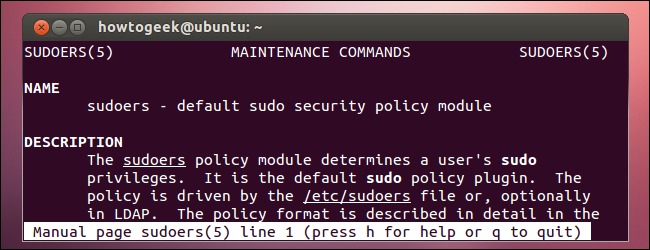
If an account needs one privileged task, give it a command-specific rule. The rule stays narrow only when nothing broader also applies, because a limited rule doesn't cancel a full-access grant from another matching rule or administrative-group membership.
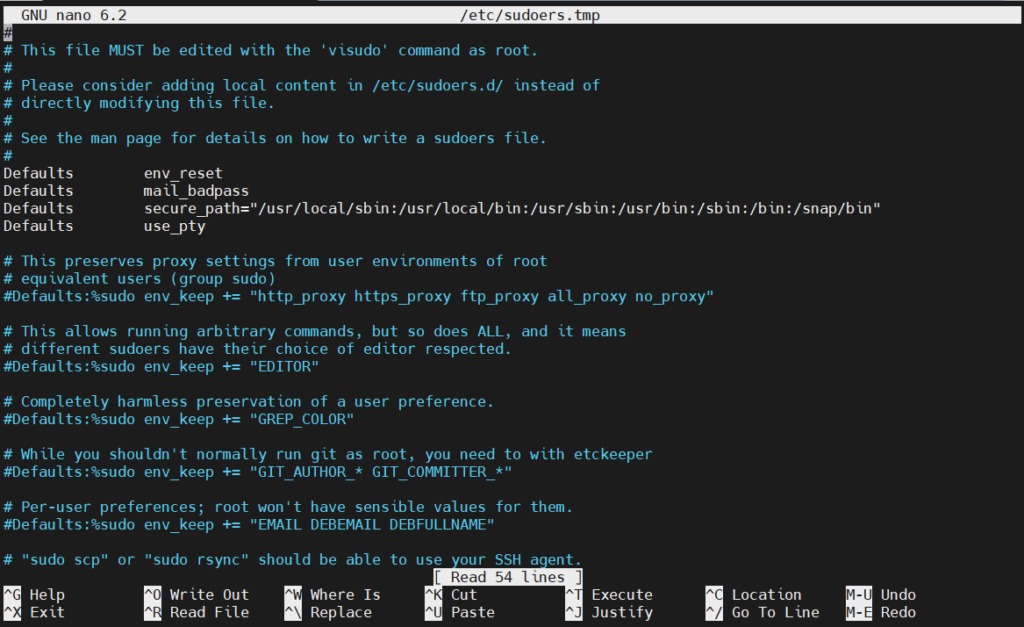
Edit the policy with visudo from an authorized administrator session:
sudo visudoIf your sudoers configuration includes /etc/sudoers.d, you can keep the rule in its own file:
sudo visudo -f /etc/sudoers.d/ACCOUNTReplace ACCOUNT with a descriptive file name. Name it without a period (.) or a trailing tilde (~), because sudo skips those files. After any change, check the syntax:
sudo visudo -cvisudo catches malformed policy. It doesn't prove the account can run its intended command, so test that from the account's own login.
Get the principal right. In traditional sudoers syntax, wheel without a prefix names a user called wheel, and %wheel names the group. In an r/archlinux post from April 2020, the poster wrote, “I have uncommented wheel ALL=(ALL) ALL and save the visudo file as root”.
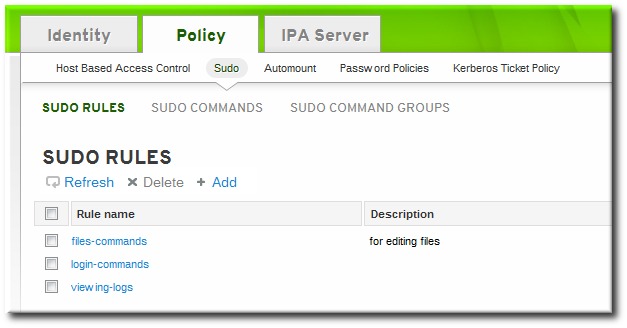
A limited-command example
TecAdmin gives this example rule for an account called tecadmin:
tecadmin ALL=(ALL) NOPASSWD: /usr/bin/systemctl reload apache2.serviceThe rule names the permitted executable and arguments. NOPASSWD only removes the password requirement for matching commands, so the operations the rule authorizes stay the same.
Check what the executable can do, too. Shells, editors, package managers and service-management tools can expose further privileged behavior.
In a real rule, spell out the command path, arguments and run-as identity.
Verify sudo access from a fresh login
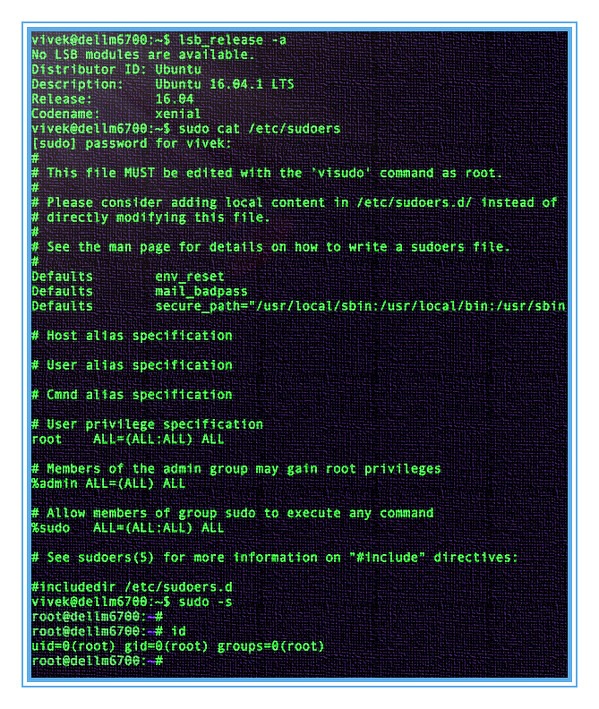
Run these checks in order:
- From your admin session, read the stored groups with
groups USERNAME.id USERNAMEreports identity and group information for the same user. On a full-admin setup,sudoappears in the list. - Log in as alex through SSH or the machine's local login, then run
id. With no username, it describes the identity running the command, which is the new session. - In that same session, list what sudo allows with
sudo -l. - For full access, run a low-impact positive check:
sudo whoami. The command runs as the default target user, root, so the output isroot.
From your admin session you can also inspect the account with sudo -l -U USERNAME, but that doesn't replace the test in alex's own session.
Test a restricted rule in both directions
For the Apache example, the permitted command is:
sudo /usr/bin/systemctl reload apache2.serviceRun it only where a service reload is intended and safe. Then confirm that excluded commands, such as restarting apache2.service, are denied. Inspect the effective policy with sudo -l and run a denial test that disrupts nothing.
When sudo still fails, start with the error message
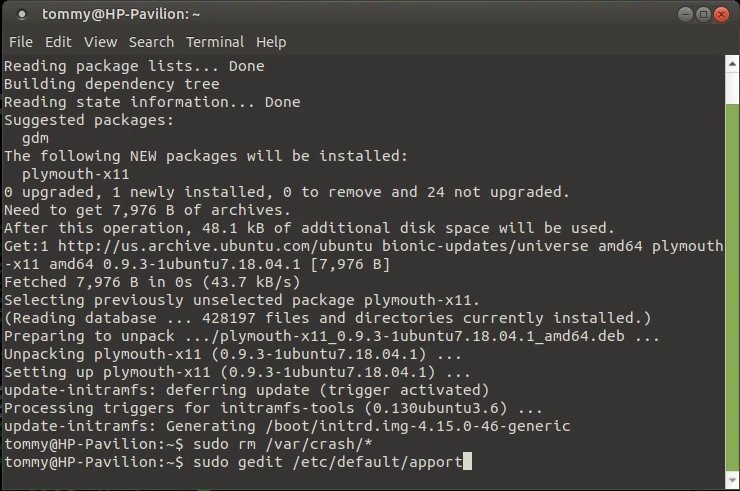
| Symptom | Likely cause | What to do |
|---|---|---|
USERNAME is not in the sudoers file | The user has no sudo grant, directly or through a group | Run groups USERNAME, then sudo -l in a fresh login |
Account lists sudo but gets denied | An old session or a matching policy rule | Log in again, then run id and sudo -l |
sudo: command not found | The executable or package is missing, or PATH doesn't include it | Check whether sudo is installed and on your PATH |
| Sudoers reports a syntax error | The policy file doesn't parse | Run sudo visudo -c, then fix the syntax in the file and any files it includes |
| Authentication fails | Password or authentication configuration | Check the account's password and authentication setup |
Re-running the group command won't repair an invalid policy file or install a missing sudo.
On Arch, an account can belong to wheel while its sudoers rule is disabled. On Debian, a user with an old shell just needs to log in again.
Recover safely if you are already locked out
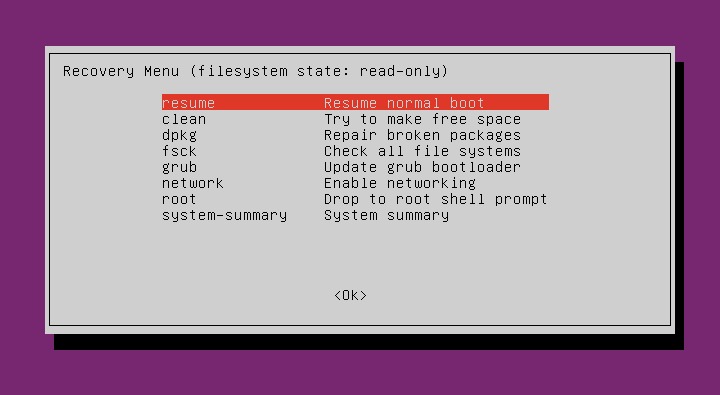
If no login with sudo access is left, your options come down to the administrative access you still legitimately have, on the machine or through its host.
A root shell or administrator connection that's still open can repair the problem without a reboot. Local machines can offer a console or supported operating-system recovery environment, subject to configured credentials, boot protections and disk encryption.
Provider example: DigitalOcean's Recovery Console gives Droplet owners an out-of-band console when the normal SSH route is unavailable. You need suitable password credentials or an authorized provider-supported recovery process to use it. Opening it doesn't give you root by itself.
Other VPS providers offer different management tools and authenticate differently. Use the documented recovery path for your host, then fix the group or policy failure from an authorized session.
If you have neither a route nor a credential, go through the system owner's or hosting provider's approved support process.
Ubuntu 26.04 uses sudo-rs by default
Ubuntu changed its default sudo provider to sudo-rs in 25.10, retained that default in Ubuntu 26.04 LTS, and kept the traditional provider available as sudo.ws. The Ubuntu sudoers-rs manual documents that general wildcard matching inside command arguments is unsupported, with a special final * token for zero or more following arguments. When you adapt a traditional sudoers example, match its syntax to the provider installed on the machine.
Remove old admin access only after the new admin works

Wait until alex passes the fresh-login checks, and make sure you still have a legitimate recovery route before taking anything away.
Some systems deliberately keep a documented emergency administrator. If the old grant is obsolete, remove it as its own change, separate from deleting the account or reconfiguring SSH.
