644 lets the owner read and write and everyone else read. 755 adds execute for all three, which programs need and directories need so people can enter them. 777 gives everyone full access and is too broad as a default, so check the path, the current mode and the account that needs access, then test as that account.
What chmod changes and what to check first
The Linux chmod command changes the permission mode of a file or directory. The mode decides what the owner, the group and everyone else can do with it. Ownership is a separate setting, so a mode change can't fix every permission failure.
The syntax is chmod MODE PATH. The mode says which permissions to set or adjust, and the path names the target. A file's owner, or a process with the right privileges, can change the mode. Inspect the current state first:
ls -l ./notes.txt
ls -ld ./project
stat ./notes.txt
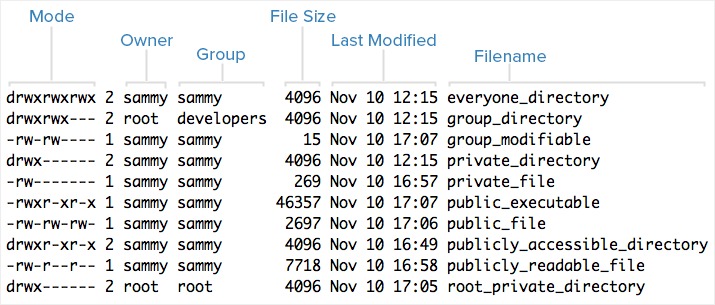
ls -l shows the permission string, owner and group. Add -d to see a directory's own permissions. Without it, ls lists the directory's contents. On Linux, stat adds more metadata, including the mode.
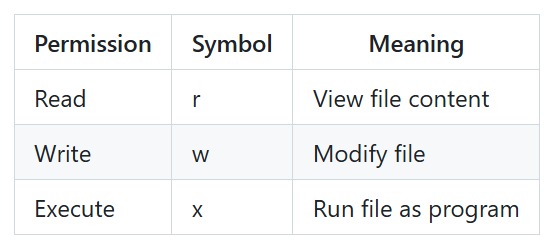
A permission string starts with a file-type character, followed by three sets of r, w and x. The sets apply to the owner, group and others, in that order. Write down the original mode and owner before changing anything, especially on a shared or application-managed path.
When you get a permission-denied error, find out three things: the path, the operation that failed, and the user or process that ran it. Those facts tell you whether a mode change will help.
How numeric and symbolic chmod permissions work
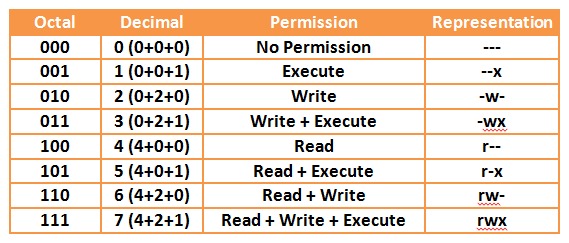
Numeric chmod modes use three octal digits for owner, group, and others. Within each digit, read is worth 4, write is worth 2, and execute is worth 1. Add the values within each class. Read plus write is 4 + 2 = 6, and read-only is 4, so owner 6, group 4 and others 4 gives 644.
| Mode | Owner | Group | Others | Permission string |
|---|---|---|---|---|
644 | Read, write | Read | Read | rw-r--r-- |
755 | Read, write, execute | Read, execute | Read, execute | rwxr-xr-x |
700 | Read, write, execute | None | None | rwx------ |
777 | Read, write, execute | Read, write, execute | Read, write, execute | rwxrwxrwx |
For a document the owner edits and others only read, use:
chmod 644 ./notes.txtUse it only if others should be able to read the file.
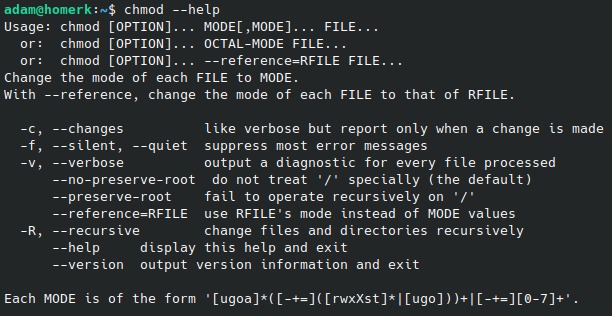
Symbolic notation changes selected bits only. The letters u, g, o and a stand for owner, group, others and all classes. The operators +, - and = add, remove and assign permissions.
chmod u+x ./script.shThat adds the owner's execute bit and leaves every other bit as it was. Special mode bits and other access-control mechanisms exist too, so three digits cover only the ordinary permission bits.
Why files and directories need different permissions
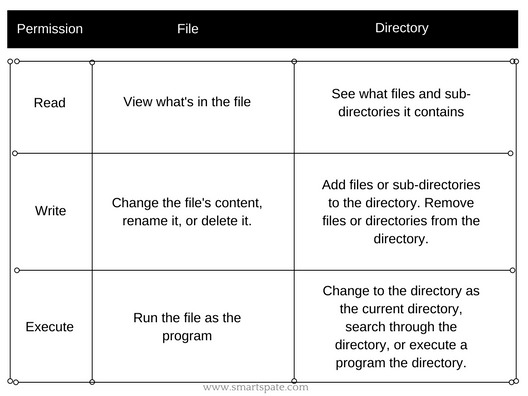
The same letters mean different things on files and directories. On a regular file, r lets you read the contents, w lets you modify them, and x is required to run it as a program or script.
On a directory, r lets you list entry names, x lets you search or traverse entries by name, and w lets you change entries, but only when you also have search access.
Take ./project/report.txt. Its owner can edit the contents, but removing the file requires the right access to ./project, because deletion changes the directory's entries. Sticky-bit rules and other restrictions can add conditions.
This is why a directory can be searchable without being listable, and why giving every regular file an execute bit is unnecessary. When a command fails, identify the operation first:
- Read or edit contents: check the file's permissions and every directory on the path to it.
- Enter a directory or open a known path: check search permission on each directory along the path.
- List filenames: check the directory's read and search access.
- Create, rename, or remove an entry: check the containing directory and any further restrictions.
Choose a mode for the job: 644, 755, 700, or something else
Pick the mode from the access the task needs. List the users or processes that must read, modify, execute or traverse the target, then choose the narrowest permission set that covers them. A 644 regular file is readable but not executable, whereas 755 adds execute permission.
| Use case | Mode | What it allows | Confirm first |
|---|---|---|---|
| Owner-edited, generally readable document | 644 | Owner can write. Group and others can read | Should other users be allowed to read it? |
| Directory that others need to traverse | 755 | Owner can change entries. Others can list and traverse | Should those other users see the directory's names? |
| Private owner-controlled directory | 700 | Access is limited to the owner | Does another account or service need access? |
| Executable that others must run | 755 | Owner can modify it. Group and others can read and execute | Should those users run it, and can they reach the file? |
700 suits a private directory when the owner is the only account that needs access. It blocks a service running under a different identity.
Use recursive chmod only after checking the target
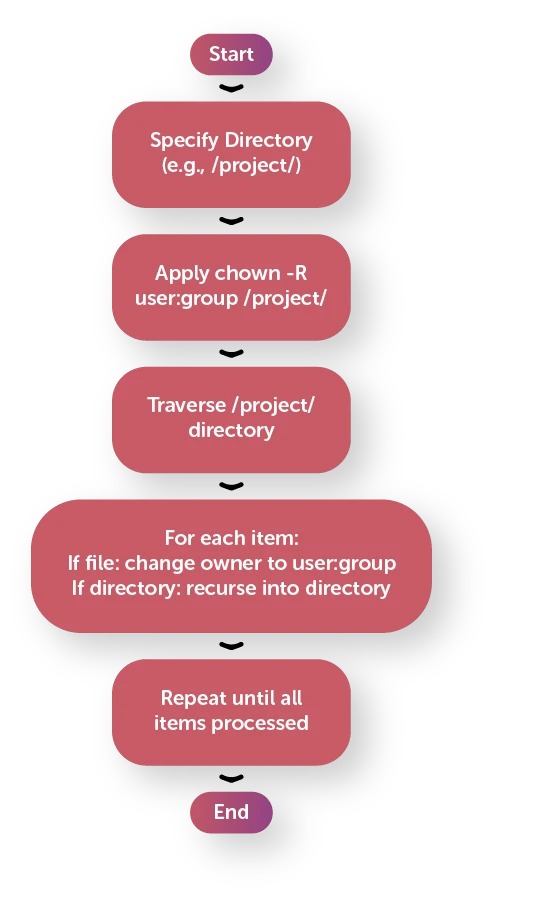
The -R option applies chmod to a directory and everything beneath it. A wrong target changes every descendant, and one permission pattern rarely suits both files and directories.
A server-installation thread on r/linux4noobs includes this line: “I'm building a server and the instructions say to navigate to a folder and run "sudo chmod -R 777 ./"” In that command, ./ means the current directory, while / means the filesystem root.
Inspect the target before running anything recursive:
pwd
ls -ld ./project
find ./project -print
These show the current directory, the target's metadata and every path beneath it. Confirm that the tree you see is the one your chmod command names.
To add owner read/write access and directory traversal while keeping the executable status of regular files, GNU chmod supports a conditional symbolic form:
chmod -R u+rwX ./projectCapital X adds execute or search permission to directories and to files that already have execute for at least one class. Lowercase x would add the bit to the selected class on every affected entry. This example changes owner permissions only and leaves other classes and ownership alone.
Don't run privileged recursive commands on application or system directories you don't know.
When the problem is ownership, not chmod
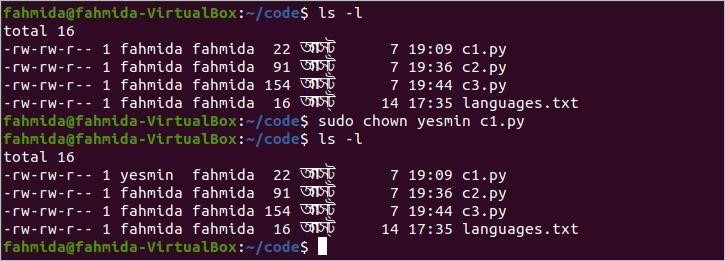
Linux checks permission bits against the identity that requests access. A process counts as the file owner, a member of the owning group, or another user. A mode that lets the owner write can still exclude the account running the application.
Another r/linux4noobs thread reads: “Then just messing around I run sudo chmod -R 700 /var/www/html/example/ and I lose all rights”
The poster's setup was Ubuntu 20.04 with a Laravel deployment. The quoted command alone doesn't show why access was lost. You would also need the user, the owner and the permissions along the path.
Compare the identity that needs access with the owner, group and permissions of the path:
id
ls -ld ./project
namei -l ./project/report.txt
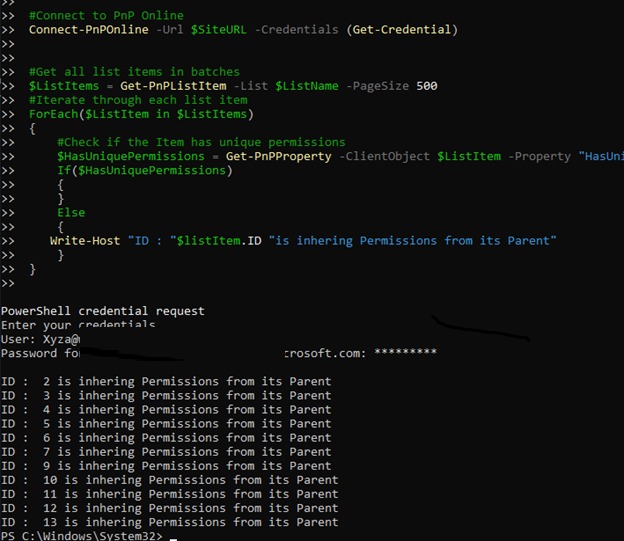
id shows your account and its groups. ls -ld shows the directory's owner and group. On Linux systems with namei, namei -l shows permission and ownership information along the path. For a service, find out which identity its process runs under before deciding which class needs access.
chown changes ownership, and its consequences differ from those of chmod. Change ownership only after you know which account the deployment needs. A mode change alone can leave the real mismatch in place.
Why “permission denied” can persist after chmod
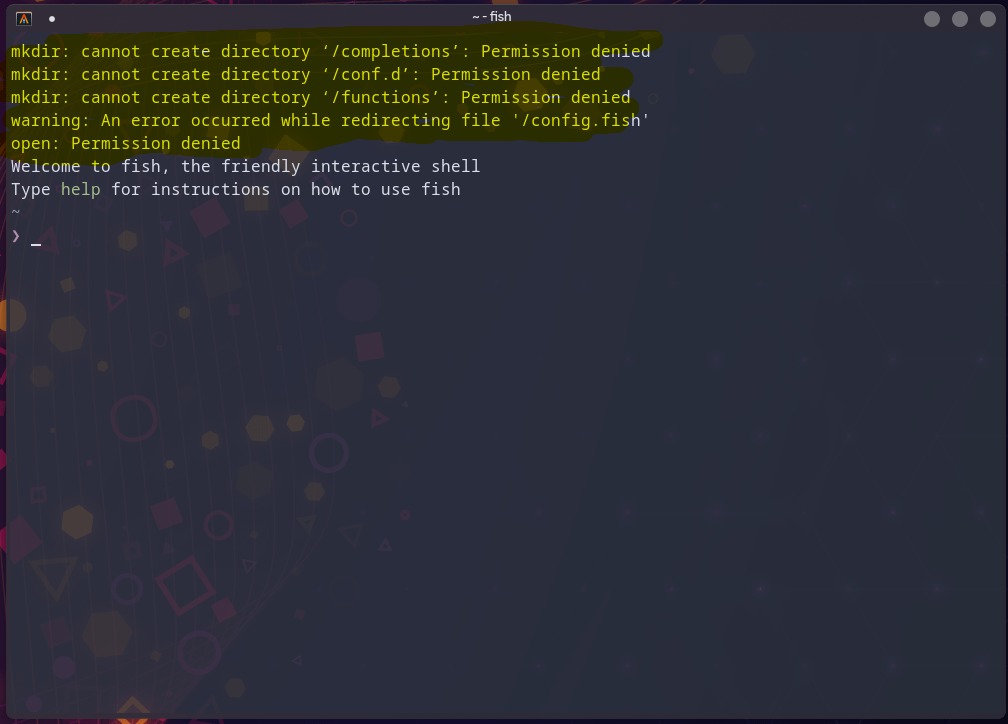
A correct-looking mode is only one part of an access check. If the operation still fails, check the containing directory, then work through the controls listed below.
A support post on r/Wordpress describes an upload failure: “I have a problem when I try to upload photos to the site it says "unable to write to the directory"” The failure persisted despite a broad directory-permission change, so ask which process performs the upload and which directory it must modify.
The hosting environment and the accounts involved determine WordPress permissions, and its official administration guidance treats ownership and file access as configuration-specific concerns.
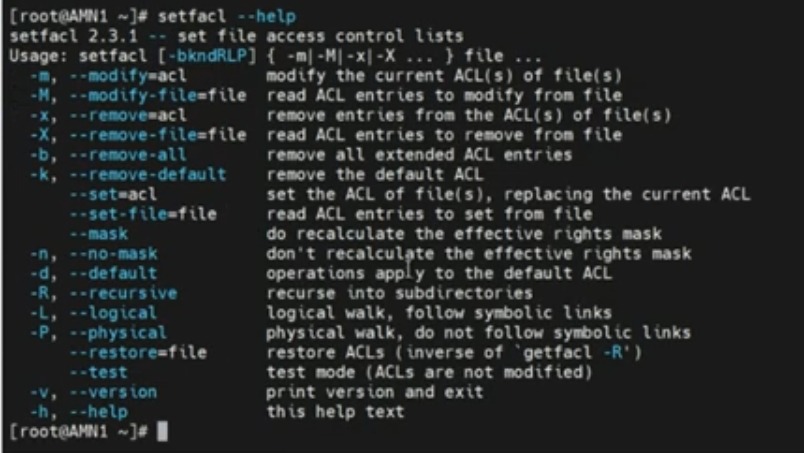
Once the mode, path and identity check out, look at these controls if your environment uses them:
- Access control lists: run
getfacl, where available, to see ACL entries and masks. - Filesystem and mount behavior: use a tool such as
findmntto see the mount and its options. - Application or security policy: read the application and system logs for a denial that the mode bits don't explain.
Is chmod 777 ever a good idea?
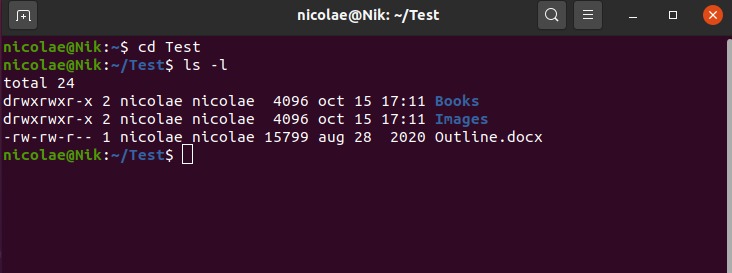
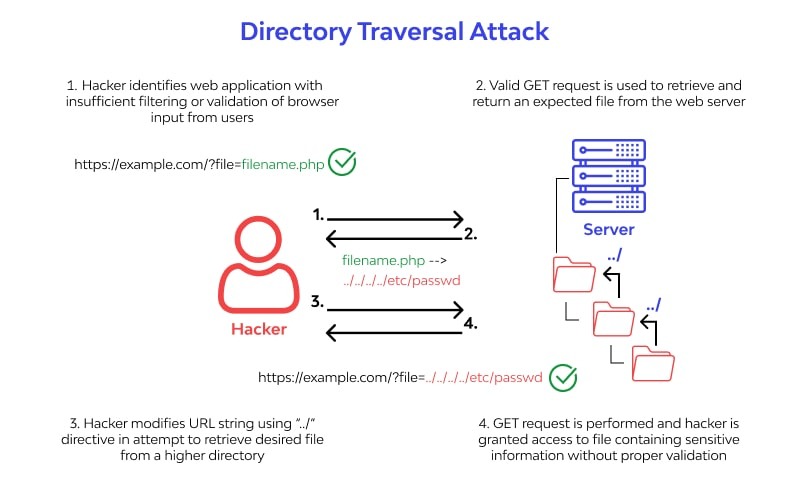
chmod 777 gives read, write and execute permissions to the owner, group and others. As a default for shared directories, application files and production deployments, it is far too broad: other users can change content wherever other access conditions allow it. It is not a remote exploit by itself, and it does not override other access controls. Before accepting a proposed 777, ask whether users in the others class really need write access.
Verify the change and recover if you changed too much
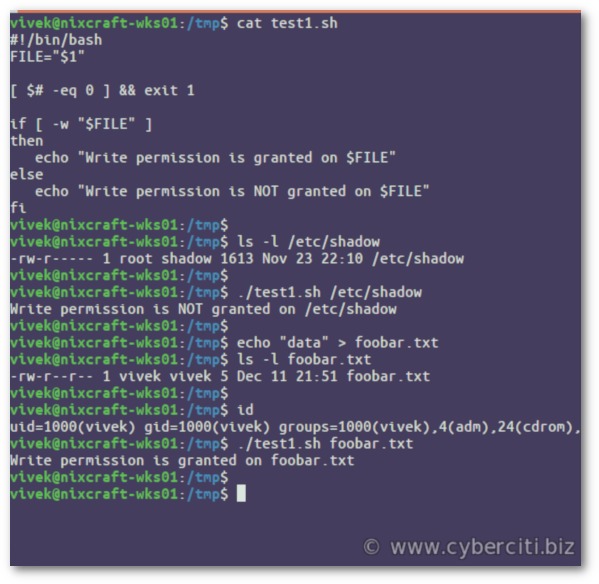
After the change, inspect the resulting mode and rerun the operation that failed. Compare the new permissions with the mode you recorded earlier.
ls -l ./notes.txt
stat ./notes.txt
stat -c '%a %U %G' ./notes.txt
With GNU stat on Linux, the formatted command prints the octal mode, owner name and group name.
For a document the owner edits, confirm that account can open and modify it. For a directory a service writes to, confirm the service's process can create the entry it needs in the right location.
If you changed the wrong tree, stop running broad permission commands. List the affected paths and restore their modes from known-good records, backups, package information, or system and application guidance.
An r/nairobitechies poster described an accidental recursive change at the system root: “I ran accidentally thinking I'm altering permissions on the current working directory.” A system tree contains files and directories with different permission requirements, and no single reset command can reconstruct every path's correct previous mode.
