Use chmod when a file or directory needs different mode bits: a symbolic operation such as chmod u+x ./demo/script.sh changes one permission and leaves the rest alone, while a numeric mode sets the full owner, group and others pattern at once. If ownership, an ACL or a mount restriction is what blocks access, fix that first. Inspect the target, change only what you need and test as the user who needs access.
What chmod changes and how to check a file's current mode
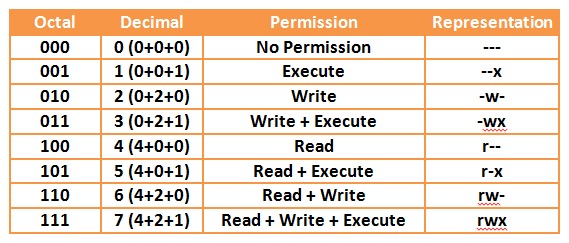
The chmod command changes the mode bits on files and directories. The syntax is:
chmod [OPTION]... MODE FILE...MODE describes the change and FILE names the target. chmod never touches ownership, so the owning user and group stay the same. Check the current mode, owner and group before picking a command, and save the output as your recovery record if a later change goes wrong. These examples follow GNU/Linux behavior, and macOS or BSD can differ.
ls -ld ./demo/report.txt
stat -c '%a %A %U:%G %n' ./demo/report.txt
When the target is a directory, ls -ld reports on the directory itself, not its contents. The GNU stat format prints numeric permissions, symbolic permissions, owner, group and name, in that order.
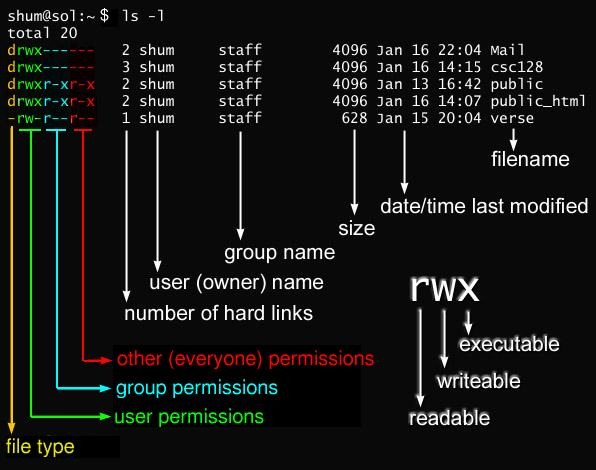
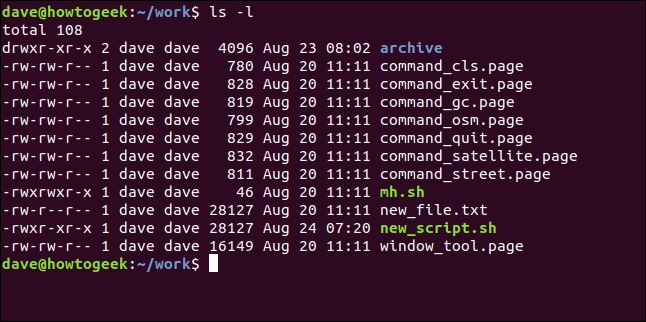
Say a sample file report.txt, owned by alex in group editors, shows -rw-r--r--. The leading dash marks a regular file. The owner has read and write bits, and group and others have read only, so the numeric mode is 644.
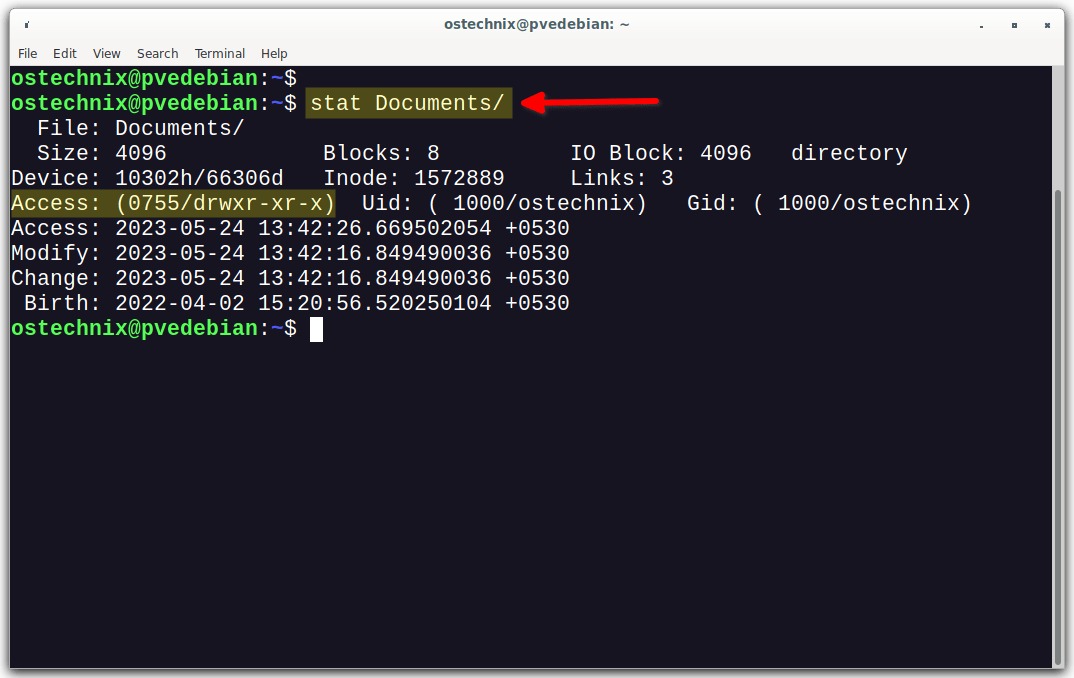
A directory showing drwxr-xr-x has mode 755. The d marks the object type, and the next nine characters form three permission groups.
Choose symbolic or numeric chmod for a specific change
Change selected rights with symbols
The class letters are u (owner), g (owning group), o (others) and a (all classes). Permissions use r for read, w for write and x for execute. The operators +, - and = add, remove or set the permissions for the chosen class.
To add execute permission for the owner of a sample script:
chmod u+x ./demo/script.shTo let the owning group write to a document:
chmod g+w ./demo/report.txtBoth commands leave every other permission bit as it was. u=rw sets the owner's rights to read and write, while u+x adds a single bit.
Set a complete mode with octal digits
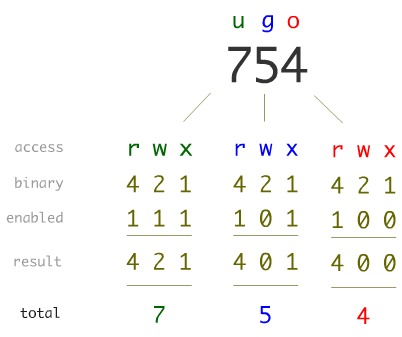
Each permission class gets a number: read is 4, write is 2, execute is 1. Add up what the class needs, then write the owner, group and others digits in that order. For 755, the owner gets 7 = 4 + 2 + 1, and the group and others each get 5 = 4 + 1.
chmod 755 ./demo/script.shThat sets rwxr-xr-x, group and others included, so it overwrites whatever permissions the file had before. If you only want the owner to run a trusted script, u+x makes the narrower change, provided the environment allows execution.
Why directory permissions differ from file permissions
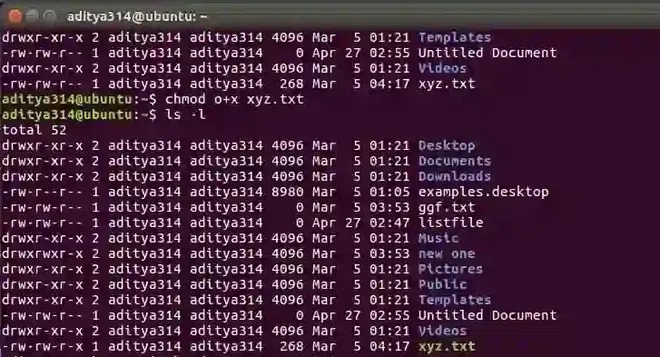
Execute permission on a directory means search or traversal access. It decides whether a pathname can be followed through the directory to reach an entry by name.
| Permission | Regular file | Directory |
|---|---|---|
r | Read file contents | Read directory entries or names |
w | Write file data | Modify directory entries. Needs search access too |
x | Execute the file if the environment allows it | Search or traverse names inside the directory |
Take a directory with mode 644, shown as drw-r--r--. No class has the search bit, so users can read the entry names but can't look the entries up by path. Even a readable file inside it is unreachable that way. Ancestor directories need search access too.
Find the directory that blocks the path
namei lists the permissions and ownership of every component along a path:
namei -l /path/to/target
Deleting or renaming an entry requires permission to modify the directory that contains it, which means write and search access. Sticky bits, ACLs and other filesystem policy can add restrictions. A file's own write bit covers a different operation: changing its data.
The system checks the calling user as owner, group or others, and ACL entries can alter that result.
Which common chmod modes fit, and when 777 is the wrong choice
| Mode | Owner / group / others | Use | Works when |
|---|---|---|---|
600 | rw- / --- / --- | Private regular data file | The application accesses it as the owner or with privileges |
640 | rw- / r-- / --- | Group-readable document | Group ownership and membership match the intended readers |
644 | rw- / r-- / r-- | Broadly readable, nonsecret data file | Nobody needs to execute it directly |
700 | rwx / --- / --- | Private directory | Only the owner needs access |
750 | rwx / r-x / --- | Directory shared with a group | The group assignment and ancestor traversal are correct |
755 | rwx / r-x / r-x | Directory accessible to nonowners | Broad listing and traversal are intended |
777 | rwx / rwx / rwx | Full permissions for every class | All users get write access |
For a team document, 640 fits a designated reading group and keeps other accounts out, while 644 lets everyone read it.
Mode 777 gives every class write permission. On an ordinary application path, that lets any user change files or delete names wherever the directory allows it. A shared working directory needs correct group ownership, group inheritance or an ACL to support collaboration.
Shared temporary directories are the exception. They pair broad write permissions with a sticky bit that restricts who can delete or rename entries.
Use chmod recursively without damaging a tree
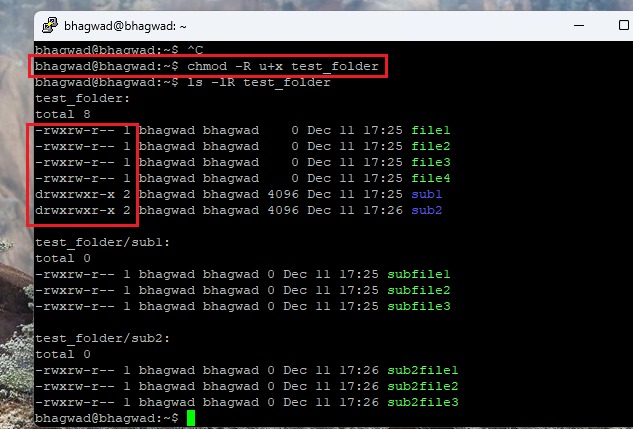
GNU chmod -R applies a mode change to a directory and everything under it. It fits trees that really need the same kind of change. Applying one mode recursively to an entire tree can make ordinary files executable or directories inaccessible. Inspect file and directory types before acting in bulk.
After a permissions mistake in Downloads, one user in an r/linux4noobs discussion reported, “And now my downloads folder shows empty”.
Preview the target before changing it
In an isolated sample tree, list the selected paths first:
find -H ./test-tree -printGNU find -H lists the tree and follows a directory symlink given as the starting path, which matches how GNU chmod -R treats that operand by default. Check that the tree holds the objects you expect.
Choose lowercase x or conditional uppercase X
Lowercase x requests the execute/search bit for the selected class. GNU's uppercase X adds it only if the target is a directory, or a regular file that already has an execute bit for at least one class. The GNU Coreutils conditional executability manual documents this distinction.
For a tree whose owner/group policy calls for group read, write and conditional search/execute access:
chmod -R g+rwX ./test-treeThe command covers the directory itself and everything under it. It grants group write on every path it touches, so make sure the group and the path scope are the ones you mean.
Measured outcome on a mixed test tree
The test ran on a disposable tree under /tmp with GNU Coreutils 9.7. It began with two directories, one executable script and one text file, and each operation was applied to a separately restored copy of the same baseline.
| Object | Original | After g+rwX | After a-x |
|---|---|---|---|
| Parent directory | 755 | 775 | 644 |
| Subdirectory | 755 | 775 | 644 |
| Executable script | 755 | 775 | 644 |
| Text file | 644 | 664 | 644 |
Conditional X kept the text file non-executable, while a-x removed search access from both directories.
Separate files and directories when their requirements differ
For a different isolated tree where directories need 750 and all ordinary files need 640, select them separately:
find ./test-tree -type d -exec chmod 750 {} +
find ./test-tree -type f -exec chmod 640 {} +
These assignments remove execute rights from every regular file, scripts included, so a tree with programs that must run directly needs a different file policy. A uniform numeric reset erases meaningful differences among descendants.
When chmod still fails or access is still denied
First work out which operation failed: the chmod command itself, or a later attempt to open, modify or execute the target.
| Observed problem | Cause | What to check |
|---|---|---|
chmod is rejected | The caller doesn't own the object or lacks privilege | Check who owns the file and which account ran chmod |
| Changing the mode is refused | Read-only filesystem or immutable attribute | Check the mount and the filesystem attributes |
File has x but will not execute | Mount has noexec, or another execution constraint | Check the mount and the execution environment |
| Mode changes but access still fails | Wrong service identity, group, ACL or restrictive ancestor | Check the process's credentials and the access layer that applies |
| External-drive task fails in one context | Different process account or filesystem behavior | Compare the process account and the target mount |
If chmod itself fails, note the exact error message and which account ran it. Adding sudo by habit can make a wrong change bigger, and it can't override a read-only mount by changing mode bits.
When chmod succeeds but the program still can't work
The program can run as a service user whose permissions differ from your shell's. An ACL, a restrictive ancestor directory or a mount option can block it too.
An r/linuxmint discussion about automated downloads to an external drive includes this question: “I thought sudo chmod 777 /media/robert/Expansion1 would change permissions to let everyone have full access, but it didn't, or did I misread something?” That chmod 777 changed only the named directory and left the modes of existing files inside it alone. To diagnose the failure, check which user runs the automated task and where it actually writes.
If your system supports ACLs, check them with:
getfacl ./demo/report.txtTo see which filesystem holds the target:
findmnt -T ./demo/report.txtfindmnt shows the mounted filesystem and its mount options. A noexec mount blocks direct execution despite an execute bit, and a read-only mount blocks writes and mode changes. Ownership changes belong to chown, and immutable attributes or other policy layers need their own diagnostics.
Verify the permission change for the intended user
- Compare the new mode, owner and group with your recorded baseline:
stat -c '%a %A %U:%G %n' ./demo/script.sh - If you ran
chmod u+x ./demo/script.sh, confirm the owner's execute bit is set and the other classes still have the permissions you want. - Run
./demo/script.shas the account that should execute it, on a mount that allows execution. A successful test from another account doesn't prove the intended user has access. - If the application still fails, go back to the table in the troubleshooting section.
Recover after an accidental chmod change
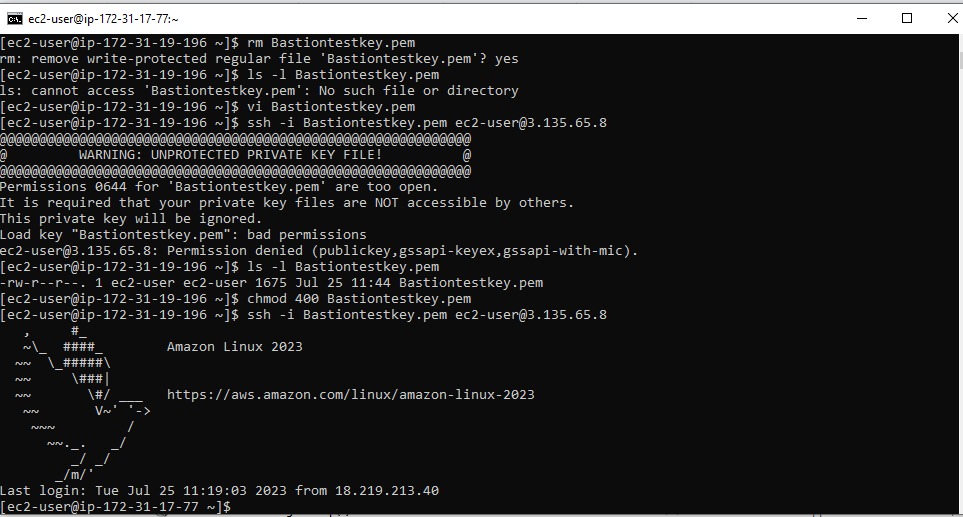
A broad chmod can overwrite different permission patterns across a whole tree, and chmod keeps no history of the old modes. To restore them accurately, you need the baseline you saved earlier, a metadata-preserving backup or trusted application configuration.
A recursive 777 change during a system rebuild left one user in an r/archlinux discussion asking, “How do I get my files back to default permissions?” The right old mode differs for each file and follows what the original configuration required.
Restore a known permission state
If you know a sample file had mode 640, restore that one file:
chmod 640 ./demo/report.txtIn a mixed tree, use saved per-path modes or authoritative metadata for each affected object. If a parent directory lost its search bit, restoring just enough access to reach the damaged descendants can take administrative access.

When the old mode is unknown
Find the expected access policy before changing more paths. A trustworthy backup, package documentation, the application owner or an administrator can tell you. Resetting the whole tree to one mode can't bring back original modes that varied from file to file. Mode restoration alone also can't rebuild ownership, ACLs or special bits if those need repair too.
Special bits, symlinks and umask
The usual three digits cover owner, group and others permissions. The setuid, setgid and sticky bits are additional mode bits, each with its own role.
Setuid changes the effective user identity when its executable runs. Setgid does the same for the group and, on directories, controls group inheritance for new entries. The sticky bit restricts who can remove or rename entries in shared directories.
Numeric assignment and directory special bits
On GNU chmod, ordinary numeric modes such as 755 or 0755 preserve a directory's setuid and setgid bits. Forms such as 00755 or =755 explicitly clear them. This GNU rule covers directories only. It doesn't mean every special bit is preserved or handled the same way.
For a group-collaboration directory that relies on setgid inheritance, check its current mode with ls -ld or stat before changing it.
Symbolic links and new-file defaults
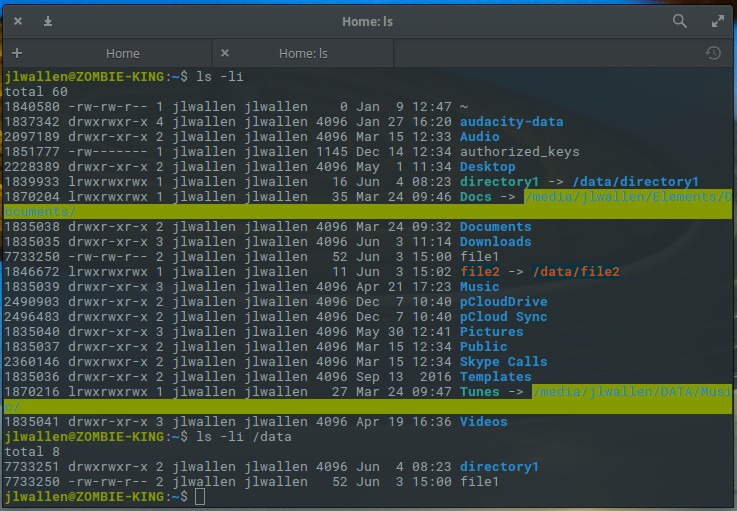
GNU chmod follows different rules for a symbolic link passed directly as an operand and for links met during recursive traversal. Given a link operand, it changes the file the link points to. The link's own displayed mode isn't an access policy you set the way you do for a regular file.
umask affects the initial permissions of new objects, while chmod changes the mode of an existing one.
