Use an existing Ubuntu repository when it has the package you need. Otherwise add only a PPA or third-party source that its publisher supports for your Ubuntu release, with signing trust scoped to that source, and leave any untrusted or incompatible source disabled. Identify your Ubuntu release and active source files first, then check the candidate version before installing.
APT repositories decide which software archives Ubuntu can use. A repository definition, the package metadata APT has downloaded, and the software already installed on your machine are three separate things.
Where Ubuntu stores its APT repositories
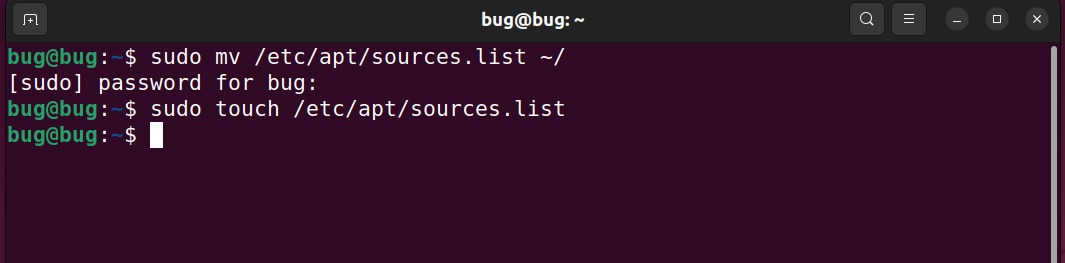
Ubuntu reads repository definitions from source files. Start by identifying your release, then find the files on your system.
Check the release:
cat /etc/os-releaseLook for VERSION_ID and VERSION_CODENAME.
On a standard Ubuntu 24.04 LTS installation, the default Ubuntu archives are configured in /etc/apt/sources.list.d/ubuntu.sources. Ubuntu also supports the older one-line format found in /etc/apt/sources.list and files ending in .list.
| Path or filename | Format | What you may find |
|---|---|---|
/etc/apt/sources.list |
One-line | Traditional archive entries |
/etc/apt/sources.list.d/*.list |
One-line | Additional or legacy third-party sources |
/etc/apt/sources.list.d/*.sources |
Deb822 | Repository definitions using named fields |
/etc/apt/sources.list.d/ubuntu.sources |
Deb822 | The usual default Ubuntu archive file on standard recent installations |
A Deb822 file can contain several stanzas, and you can disable one stanza while the file stays in place. The Ubuntu APT sources manual covers both formats.
Find the files your installation uses
List the source directory:
ls /etc/apt/sources.list.d/If ubuntu.sources is present, inspect it:
cat /etc/apt/sources.list.d/ubuntu.sourcesAlso open /etc/apt/sources.list if your installation uses it. For the entry you plan to change, note its repository URI, suite, and components. Copy that file before editing it.
A Raspberry Pi 4 user running Ubuntu 25.10 posted on r/linuxquestions: “If I do and apt update it finds nothing. I Beleive a list of repos should be in /etc/apt/sources.list.d/ubuntu.sources, but there is no such file.”
Treat the expected filename as a starting clue.
Commands such as apt list --installed answer a different question: which packages are installed.
Decide whether you need another repository
Choose a repository based on the package you need, the publisher behind it, and the Ubuntu release it supports. When an official Ubuntu archive provides the package or version you need, start there.
Ubuntu archive components include main and universe. A Launchpad Personal Package Archive (PPA) is a third-party source hosted through Launchpad. An independent software publisher can run its own archive with its own URI, suites, components, and signing instructions.
| Source | When to choose it | What must match | Main trade-off |
|---|---|---|---|
| Official Ubuntu archive | A suitable package is available in a configured Ubuntu component | Ubuntu release and enabled component | The available version may differ from a publisher's offering |
| Launchpad PPA | A particular PPA offers the package or version required | Supported Ubuntu suite and package availability | You accept an additional package publisher |
| Vendor archive | The software publisher distributes packages through its own repository | Publisher's suite, architecture, repository instructions, and signing key | Updates and maintenance depend on that publisher |
A newer version offers no guarantee that it works on your system.
Before adding a third-party source, run the package-candidate check to see whether your enabled Ubuntu components already offer a suitable version.

Before accepting a third-party publisher, confirm who it is, check that it supports your installed release and architecture, and find out which packages it supplies. A repository built for another suite can bring in incompatible packages or fail when APT requests its metadata.
APT verifies signed repository metadata against the trust you have configured. A valid signature proves who signed the repository. It says nothing about whether the software is safe or well maintained.
Add a PPA or third-party repository safely
A Launchpad PPA and an independent vendor archive are set up differently. Use the PPA utility for a supported PPA. For an independent archive, use the publisher's source definition and signing key.
Placeholders in this section (PUBLISHER/ARCHIVE, the example address, suite, component, and keyring name) stand for real values you must take from a verified publisher that supports your Ubuntu release.
Add a Launchpad PPA
If add-apt-repository is unavailable, install software-properties-common from your working Ubuntu archives first.
On Ubuntu 24.04, the add-apt-repository manual lists the explicit -P option for PPAs:
sudo add-apt-repository -P ppa:PUBLISHER/ARCHIVEOther versions of the utility also accept the familiar positional ppa: syntax.
The 24.04 utility's options include --dry-run, -L, -P, and --remove. Run add-apt-repository --help to see the options on your machine.
Add a vendor repository with Deb822
Put a vendor's Deb822 definition in its own .sources file under /etc/apt/sources.list.d/.
Here is a schematic example:
Types: deb
URIs: https://REPOSITORY.example/...
Suites: <SUPPORTED_SUITE>
Components: <PUBLISHER_COMPONENT>
Signed-By: /etc/apt/keyrings/publisher.gpg
Types sets the package-index type, and URIs points to the archive. Suites and Components select the publisher's distribution and component names. Signed-By names the key or keyring that authenticates this source.
Keep the signing key tied to its source
Ubuntu's APT documentation puts administrator-managed keys in /etc/apt/keyrings/ and package-managed keyrings in /usr/share/keyrings/. APT's _apt user must be able to read any keyring you reference.
The extension tells you the key format: .asc for ASCII-armored keys, .gpg for unarmored keys.
Get the key through the publisher's own procedure and compare its fingerprint with a trusted publisher reference. The Signed-By entry then ties that source to the right signing identity.
The older apt-key add method is deprecated. Ubuntu's third-party repository guidance explains why additional archives need carefully scoped trust.
If a signature fails or a Release file is missing, do not set trusted=yes, enable unauthenticated packages, or import an unidentified key globally. Fix the publisher, metadata, or key problem first.
Verify APT's sources and package candidates
After you change a source, run these three steps in order.
-
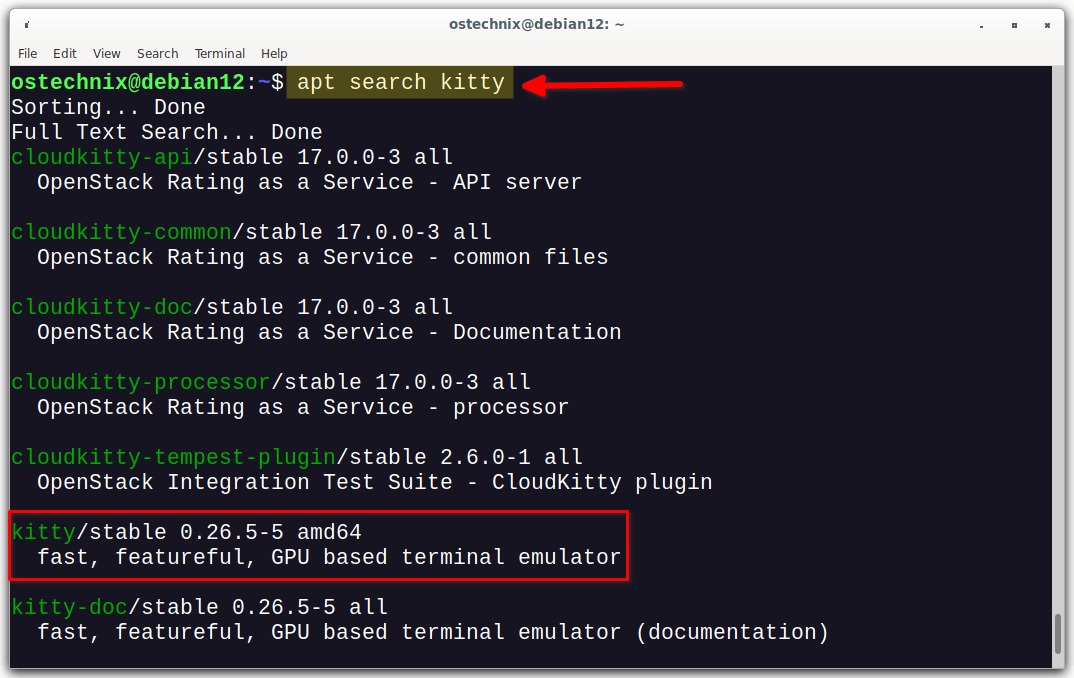
Refresh the package metadata. This installs no upgrades. Look in the output for the archive you added and for any fatal signing, suite, or Release-file error:
sudo apt update -
List the repositories. The output shows the priority of each one:
apt-cache policy -
Check the target package. Replace
PACKAGEwith its name, then read the installed and candidate versions and their origins:apt-cache policy PACKAGE
If the expected package or origin is missing, stop and investigate the source before installing anything. Check which repository file declares the source and which key file its Signed-By setting names. Removing just one side can leave misleading repository errors.
Disable or remove a source and understand package rollback
Disabling a repository, removing its definition, and changing software installed from it are three separate operations. Decide which one you need before touching the configuration.
| Goal | Source configuration | Installed packages | What happens next |
|---|---|---|---|
| Disable temporarily | Set Enabled: no or comment out the line |
Existing versions stay installed | Re-enable the entry later |
| Remove permanently | Delete the definition, or --remove a PPA |
Existing versions stay installed | Clean up related settings separately |
| Roll back third-party packages | Run a separate package operation | Versions can downgrade or be removed | Dependencies and available versions decide the result |
Disable only the affected entry
In a Deb822 stanza, disable an entry with:
Enabled: noIn a one-line .list file, comment out the deb line you want to disable.
To remove a PPA, use:
sudo add-apt-repository --remove ppa:PUBLISHER/ARCHIVE
On r/linux4noobs, one user's failed repair attempt started like this: “a few days ago i made the mistake of removing all the repositories in the sources list because i could not update.”
Retire related repository configuration carefully
A third-party repository can leave more than its .sources or .list definition behind. It can also have a dedicated preferences file under /etc/apt/preferences.d/ and a separate signing-key file.
When you retire a source for good, find those files and check whether another active repository still uses them. Remove only files dedicated to the retired source, and review a shared keyring or preferences rule on its own.
Because ppa-purge also acts on installed packages, its purge or downgrade can change or remove other packages. Review the proposed transaction before running it.
Fix repository errors without resetting all sources
Start with the exact error message and the archive URI APT was trying to reach.
| Error or symptom | Possible explanation | First targeted check |
|---|---|---|
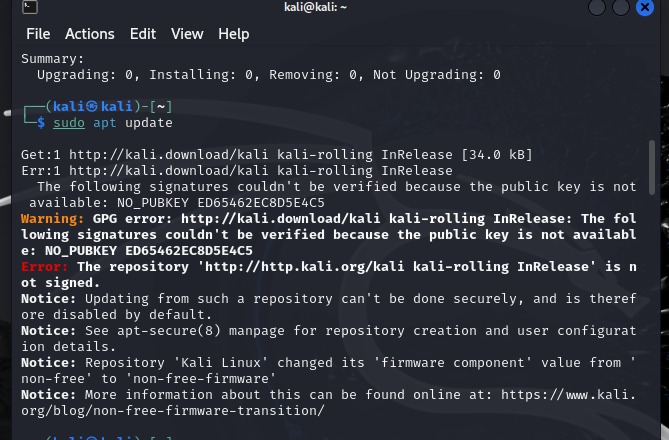
NO_PUBKEY or signature failure |
Missing, incorrect, or inaccessible signing key | Compare Signed-By with the verified publisher key |
| No Release file | Unsupported suite, wrong URI, or missing archive metadata | Compare the suite and URI with the publisher's archive |
Conflicting values set for option Signed-By |
Overlapping definitions with inconsistent key settings | Inspect matching .list and .sources entries |
| Duplicate source warning | Repeated repository definitions | Compare URI, suite, components, and active entries |
| HTTP 404 or download failure | Invalid mirror path, unsupported suite, remote archive issue, or connectivity failure | Find the failing URL and the expected metadata path |
| Expected source file missing | Different layout, deleted file, or incomplete configuration | Inspect the actual source inventory and any saved configuration |
A repository error names the failed operation more precisely than a graphical updater's summary does.

An r/Ubuntu user on an Ubuntu 26.04.1 laptop got an updater error: “it couldn't download repository information and to check my internet connection.” The case involved a mirror-related HTTP 404.
When an expected definition has disappeared, restore it from a saved copy or from verified Ubuntu or publisher instructions.
After upgrading Ubuntu, check which sources are still enabled
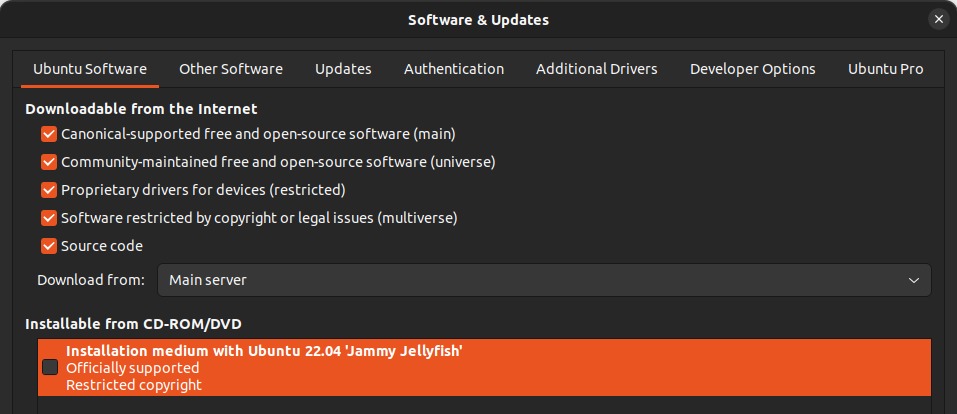
An Ubuntu release upgrade can disable third-party repositories and leave their source files on disk, so a leftover file after the upgrade says nothing about whether APT uses it.
The Ubuntu release-upgrade guide explains how upgrades handle third-party sources.
After a release change, each source is in one of three states:
- Absent source: the previous definition is gone from its expected location.
- Present but disabled: the definition remains, but the entry is inactive.
- Enabled but unusable: the archive does not supply suitable metadata for the new release or cannot be reached.

After upgrading Ubuntu 24.10 to 25.04, an r/Ubuntu user wrote that “all my previous sources in /etc/apt/sources.list.d/ are intact”.
For each third-party entry, check whether it is enabled and which suite it references. Compare that suite with what the publisher supports for your new release and architecture, and re-enable the source only if they match.
If the previous archive served only the old Ubuntu suite, you need a new publisher-supported definition. Run the candidate check again to see what APT would select.
