Run cat /etc/os-release on either Ubuntu or Debian to see the installed distribution and release. On Debian, /etc/debian_version adds the point release or a development-branch label. If the reported values disagree, find out what each one describes before following release-specific instructions or changing repositories.
Check the Ubuntu or Debian version with /etc/os-release
Open a terminal on the machine, or connect to the server over SSH, and run:
cat /etc/os-releaseAn Ubuntu 26.04 machine prints lines like these:
ID=ubuntu
VERSION_ID="26.04"
The output is a list of KEY=value lines. It works the same on a desktop and on a headless VPS, and you don't need sudo or extra packages.
Read ID and VERSION_ID first. PRETTY_NAME gives a readable description.
Per the os-release specification, the system reads /etc/os-release first and falls back to /usr/lib/os-release if it's missing. It never merges the two files.
What the version, codename, and distribution fields mean
These values come from Ubuntu 26.04 and Debian 13 systems.
| Field | Ubuntu example | Debian example | What it identifies |
|---|---|---|---|
ID | ubuntu | debian | Installed distribution |
PRETTY_NAME | Ubuntu 26.04 LTS | Debian GNU/Linux 13 (trixie) | Human-readable release |
VERSION_ID | 26.04 | 13 | Distribution release identifier |
VERSION_CODENAME | resolute | trixie | Release codename |
ID_LIKE | debian | Not shown | Related distribution family, when reported |
DEBIAN_VERSION_FULL | Not shown | 13.7 | Debian-specific full version, when supplied |
Ubuntu reports ID=ubuntu together with ID_LIKE=debian. You're running Ubuntu. The second line only names its relationship to Debian, so follow Ubuntu-specific package and server instructions.
Software documentation names a VERSION_ID, and some repository instructions use the VERSION_CODENAME. The os-release specification makes both fields optional, and DEBIAN_VERSION_FULL is a Debian-specific extension, so some systems won't show them.
When you ask for support, include ID, VERSION_ID and VERSION_CODENAME. Add PRETTY_NAME if you want a readable line.
Other ways to check your Ubuntu version
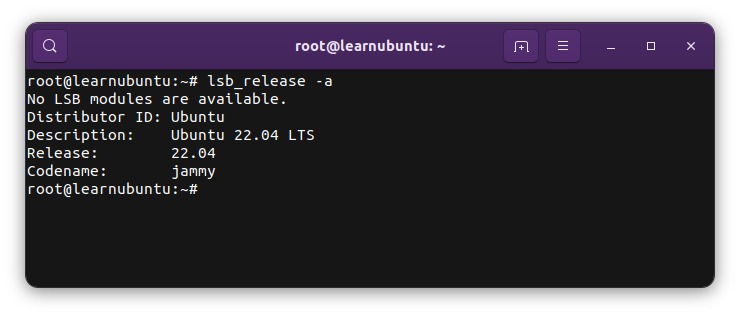
If lsb_release is installed, it prints Ubuntu release details with labels:
lsb_release -aOn Ubuntu 26.04 the output reads:
Distributor ID: Ubuntu
Description: Ubuntu 26.04 LTS
Release: 26.04
Codename: resolute
Add a flag when you need a single field:
lsb_release -d: Description, such as the friendly Ubuntu release name.- Release number: Run
lsb_release -r(-vis for LSB information). lsb_release -c: Release codename with its label.lsb_release -cs: Short codename without the label.
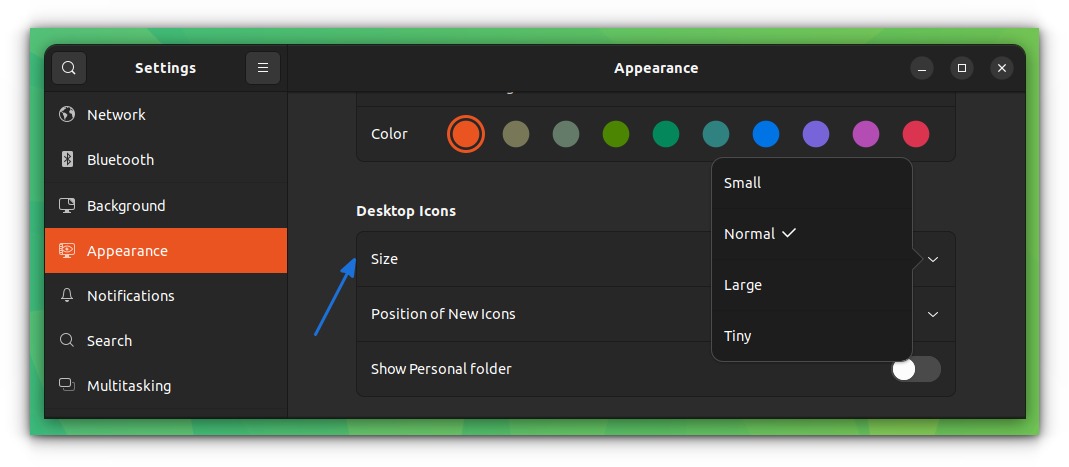
On Ubuntu GNOME, open Settings → System → About and read the Operating System entry. Older Ubuntu versions and other desktop environments can put it elsewhere. hostnamectl shows the operating system along with the hostname, architecture and kernel.
Minimal images and containers can lack lsb_release or hostnamectl.
Check Debian's major version, point release, and codename
Debian numbers a release twice: the major version (13) and the point release (13.7).
To read the Debian version string directly, run:
cat /etc/debian_versionOn Debian 13.7 it prints:
13.7Debian published 13.7 on September 12, 2026, with corrections to the existing major release. A Debian 13 machine can sit at an earlier point release even after a newer one is out.

On Debian Testing or Unstable, the file can hold a development-branch label instead of a number. Compare it with VERSION_ID, the codename and any DEBIAN_VERSION_FULL. If the file shows a branch name, note it exactly as printed.
Which version-check command should you use?
| Need | Method | Environment | Useful result |
|---|---|---|---|
| Installed distribution and release | cat /etc/os-release | Ubuntu or Debian terminal | OS identity and release metadata |
| Friendly release summary | lsb_release -a | Utility installed | Description, number and codename |
| Debian point-release detail | cat /etc/debian_version | Debian | Point-release or branch string |
| Graphical Ubuntu version | Settings → System → About | Ubuntu GNOME desktop | Displayed operating-system version |
| OS with other host details | hostnamectl | Supported system environment | OS, hostname, kernel, architecture |
| Running kernel only | uname -r | Linux terminal | Kernel release |
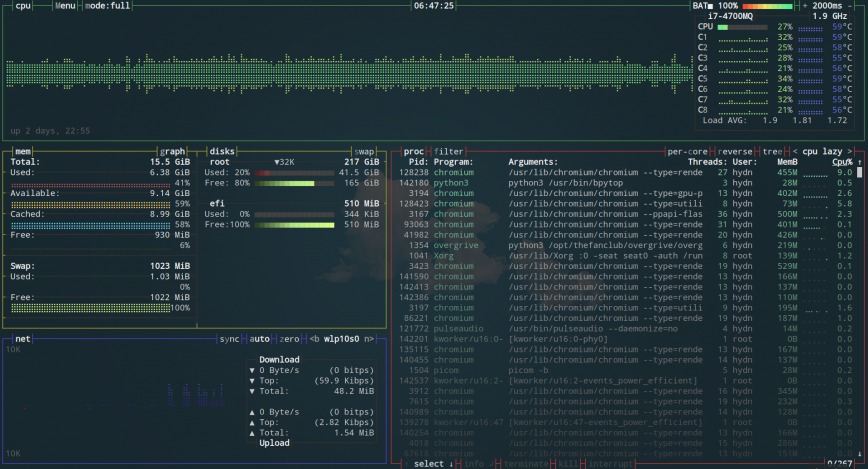
A commenter in r/debian asked about a missing helper utility: “Is there an EASIER way to tell what version of debian I am on?” There is. The names cause part of the confusion: lsb_release is the executable and lsb-release is the package. /etc/os-release gives you the answer without installing it.
What to do when a command is missing or different tools disagree

If you see bash: lsb_release: command not found, the shell can't find the utility. Run cat /etc/os-release instead.
When two programs show different versions, find out which program printed each value.
Fastfetch, for example, can show an unexpected release name after Debian suite changes.
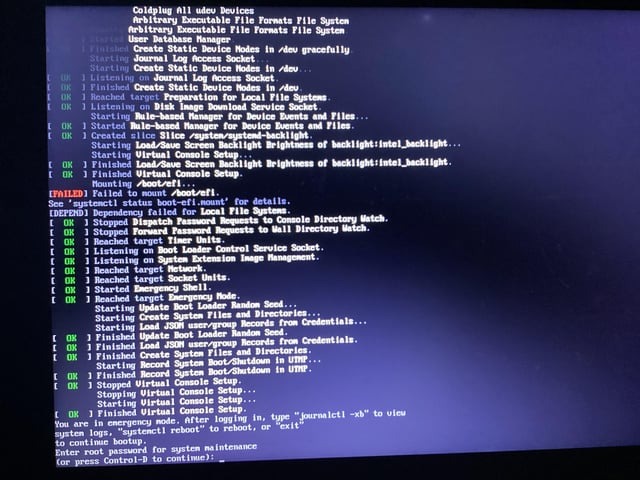
An old release name after an upgrade doesn't tell you whether the upgrade worked. Note which program shows it and the exact label. If you're on a Debian development branch, check your APT sources next.
Why Debian Testing or Unstable can show Forky/Sid
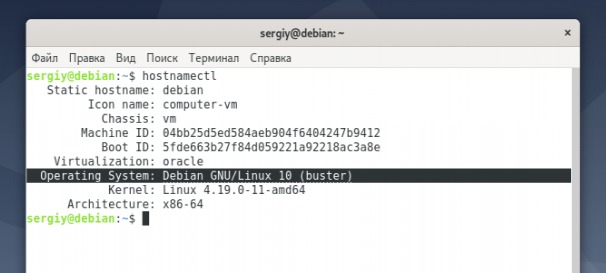
Debian development installs can show a release name that overlaps more than one suite. Stable is 13 (trixie), Testing is forky and Unstable is sid.
After moving a Debian 13 virtual machine to Testing, a poster in r/debian wrote, “All seems to have worked well, but I noticed that the system identifies itself as "Forky/Sid" (according to /etc/os-release).” The name comes from the installed release metadata. APT source entries show which suite is configured.
The base-files package supplies the release files. In development branches, its shared or transitioning metadata can produce an overlapping label.
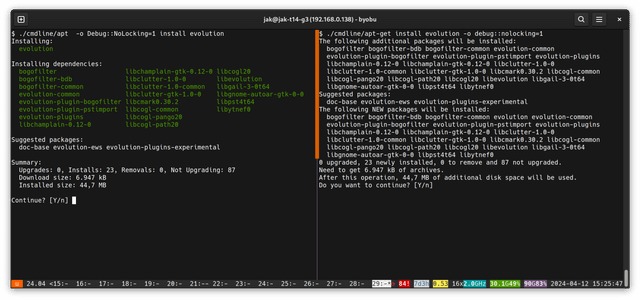
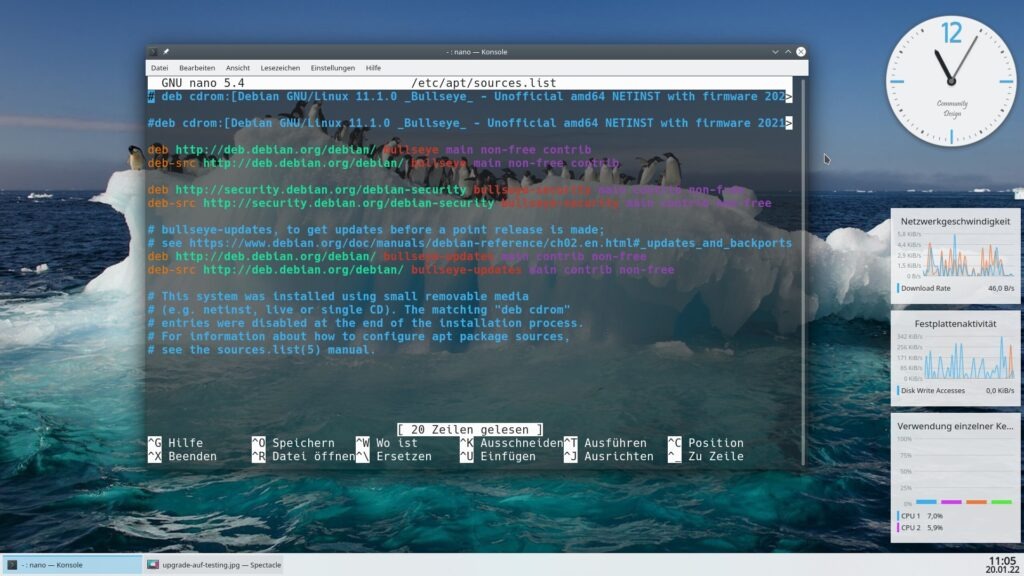
To check your suite, read /etc/apt/sources.list and any .list or .sources files under /etc/apt/sources.list.d/. In a traditional deb line, the suite comes right after the repository URI. In a deb822 .sources file, look at the Suites: field. The Debian APT sources.list(5) manual defines both layouts.
A source entry set to testing follows the moving Testing suite. One that names forky stays on that codename through Debian's future release transitions. The Debian Testing documentation explains the difference.
Linux kernel version versus Ubuntu or Debian release

Run uname -r for the running kernel release. It's a separate value from the distribution version in /etc/os-release. An Ubuntu 26.04 system, for example, can show kernel 7.0.0-14-generic next to OS release 26.04. In a container, /etc/os-release describes the container's userspace, while the kernel belongs to the host.
Use the version you found to choose the right instructions
Installation guides name a supported system by distribution, release number or codename. A guide for Ubuntu 26.04 and resolute covers that release. Debian 13 and trixie is a different environment.
| Distribution | Published event | Release date |
|---|---|---|
| Ubuntu 26.10, Stonking Stingray | Interim release | October 15, 2026 |
| Ubuntu 26.04.1 LTS, Resolute Raccoon | LTS point update | August 27, 2026 |
| Debian 13.7, Trixie | Stable point release | September 12, 2026 |
The dates come from the Ubuntu release list and Debian release information. An announcement records what was published. Your local files report what your machine has installed.
Ubuntu 26.04 LTS belongs to the LTS line, for which Ubuntu documents five years of standard maintenance. Interim releases such as Ubuntu 26.10 have nine months of maintenance.
Match your ID, release number and codename to the software's supported environments.
