Run ssh username@host, adding -i /path/to/key to use a specific key file and -p with the port number if the server uses a different one. Check the host-key fingerprint the first time you connect. Once you're in, whoami and hostname show which account and machine you reached, and exit logs you out.
SSH (Secure Shell) gives you an encrypted connection to a remote computer. For Linux administration, that means you open a shell on the server from your own Windows, macOS, or Linux machine.
What you need before connecting
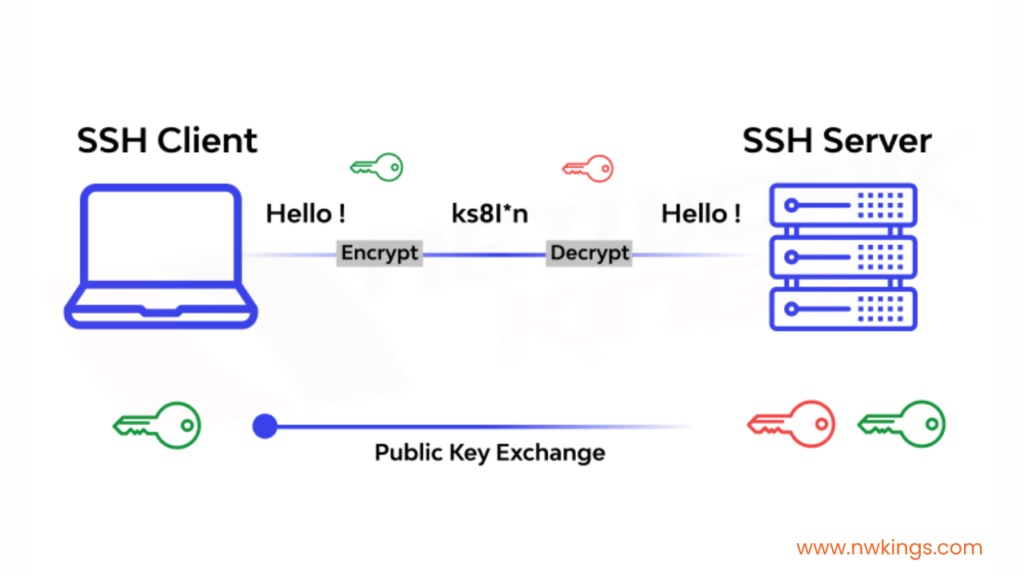
Know which machine you're reaching and which account you'll log in with. Your server dashboard, hosting provider or administrator should give you these details.
| Required detail | What to get |
|---|---|
| Hostname or IP address | The server's domain name or IP address |
| Remote username | The Linux account on the server you log in as |
| SSH port | Usually TCP 22, unless the server uses another one |
| Authentication | A password if the server accepts one, or an SSH key it recognizes |
| Network access | Direct reach to the server, or a route through a private network |
The username belongs to the remote machine, so your Windows or Mac account name won't work. Cloud images ship with different initial usernames, and root isn't a universal login.
Your computer needs an SSH client. The server needs a running SSH service, such as OpenSSH's sshd, listening on the right port. A working SSH client says nothing about whether the server's SSH service is running.
After reinstalling OpenSSH and changing firewall rules, a poster on r/Ubuntu ended with “Edit: i used the wrong IP…” (r/Ubuntu thread).
Open an SSH client on Windows, macOS, or Linux
On Windows 10 or 11, open PowerShell or Windows Terminal and run ssh -V to see whether the OpenSSH client is installed. Some installations need you to enable or install the client feature first. On macOS, open Terminal. On Linux, use any terminal and run the same version check if you're unsure.
PuTTY is another terminal-based SSH client.
Run the command
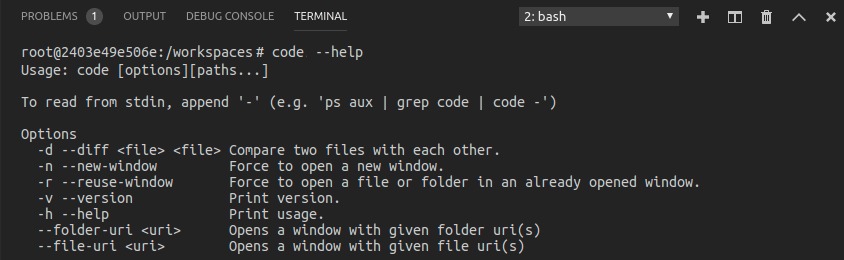
The basic OpenSSH command takes two things after ssh: the username on the remote Linux machine and the address of the server.
ssh [email protected]
Here, alice is an example remote account and server.example.com is a placeholder hostname. Replace both with your server's values. The @ separates the username from the hostname.
Pick the command for your setup
| Connection situation | Example command |
|---|---|
| Standard connection | ssh [email protected] |
| Server listening on another port | ssh -p 2222 [email protected] |
| Explicit local private key | ssh -i /path/to/private_key [email protected] |
| Private key and alternate port | ssh -i /path/to/private_key -p 2222 [email protected] |
Port 2222 is just an example. It works only if the server listens on that port and the network allows the connection.
The -i option points to an SSH identity file on your computer, such as a private key. If the private key file isn't available, you can point it at a public-key file instead, and OpenSSH uses the matching private key held by ssh-agent. Neither case has anything to do with the server's authorized_keys file.
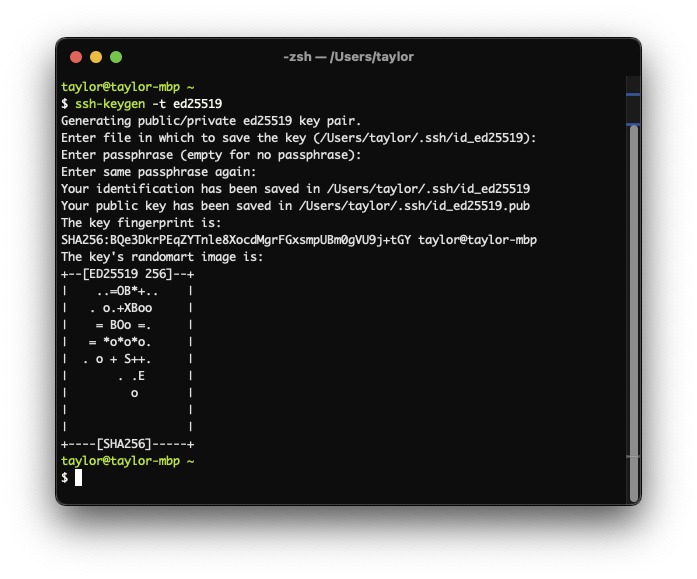
You can skip -i if your client already picks the right key. If it doesn't, skipping it fails, as one r/linux4noobs user found: “However if I don't use -i I get Permission Denied (publickey) message.” (r/linux4noobs thread).
For repeated connections, an SSH client configuration file can store the account, host, port and key settings.
Check the host key on first connect
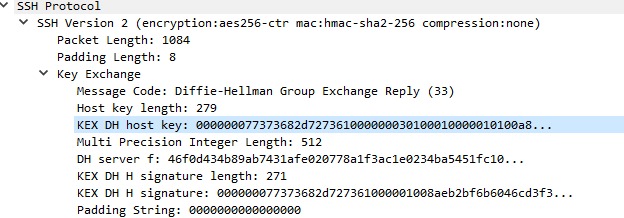
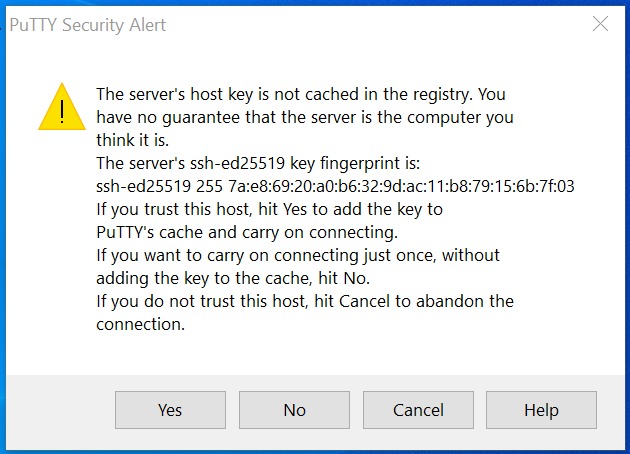
The first time you contact a server, your client shows an authenticity prompt with the server's host-key fingerprint.
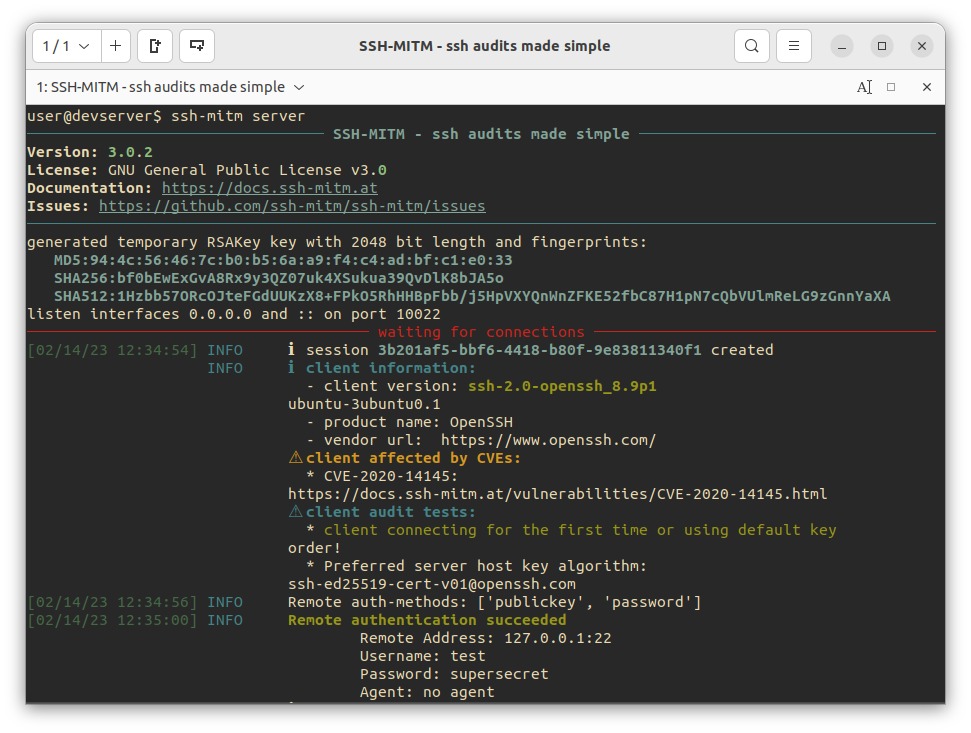
The host key identifies the server. Your user key is a separate thing: it lets the remote account recognize you. Logging in successfully doesn't prove you reached the right server.
Compare the fingerprint with a trusted source
Compare the fingerprint your client shows with the real host-key fingerprint, which you get separately from a trusted administrator, an authenticated management console or verified infrastructure documentation. The KIT OpenSSH client guide explains the trust process in more detail.
If the values match, accept the host key. OpenSSH then remembers it in your local known_hosts file.
A changed host-key warning needs investigation. A server rebuild or admin change can replace a host key, but the warning can also mean you've reached the wrong machine. Confirm the new fingerprint independently before updating local trust.
If you have no trusted fingerprint or confirmation from an administrator, stop here. Disabling host-key checks or deleting the old known_hosts entry still leaves the new server's identity unverified.
Enter your password or key passphrase
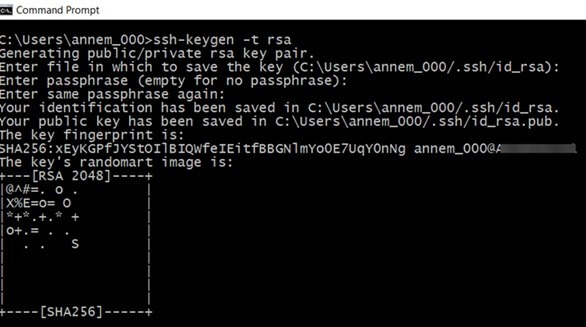
- Remote account password: If the server allows password login, the client asks for the password of the Linux user you named.
- Private-key passphrase: If your local private key is encrypted, the client asks for its passphrase to unlock it.
A key-only server never asks for an account password. Terminals hide characters while you type a password. Type it and press Enter.
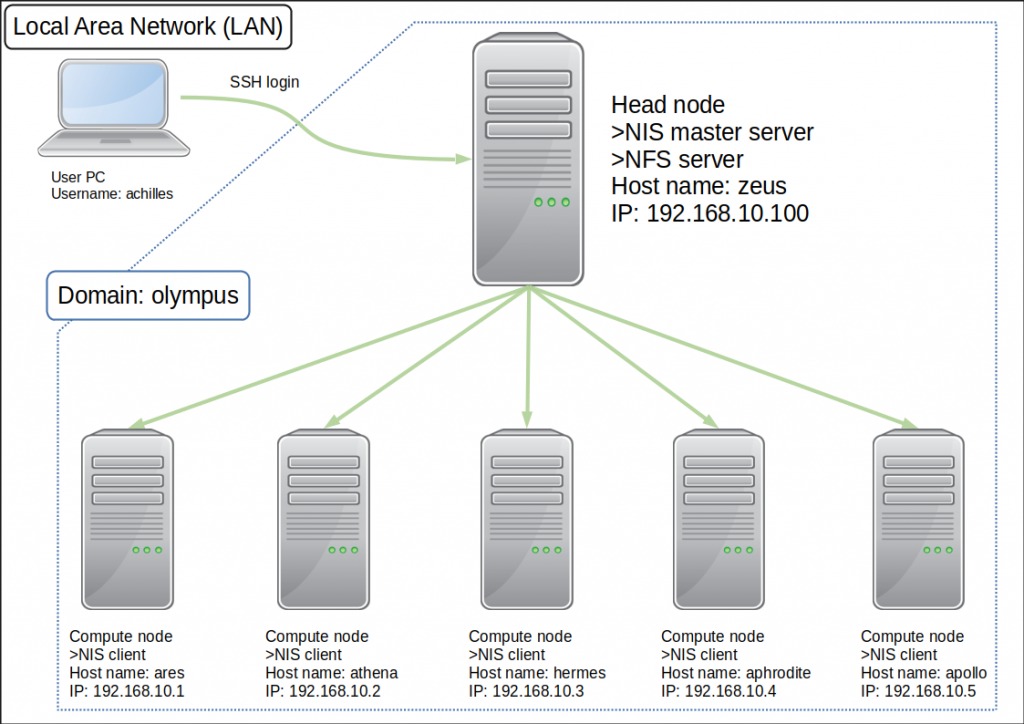
On a VPS set up for public-key authentication, the matching public key is registered with the remote account, and your private key stays on your computer. Never post your password or private key when you ask for help online.
Confirm where you are, then log out
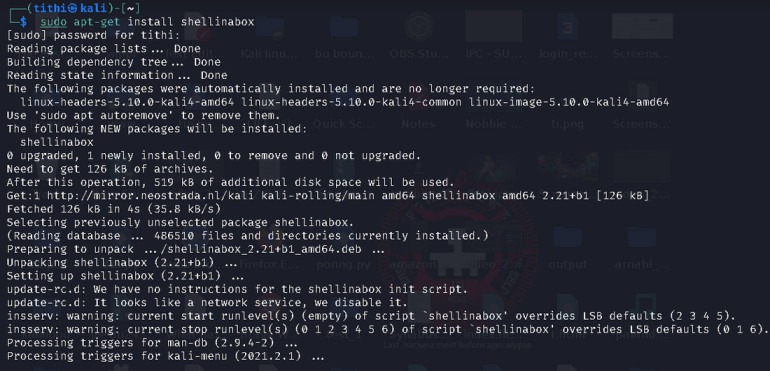
Once you're logged in, run whoami and hostname to see which account and machine you reached, and compare them with what you expected. pwd shows your remote working directory. Type exit to close the session. The server keeps running.
If SSH fails, read the error first
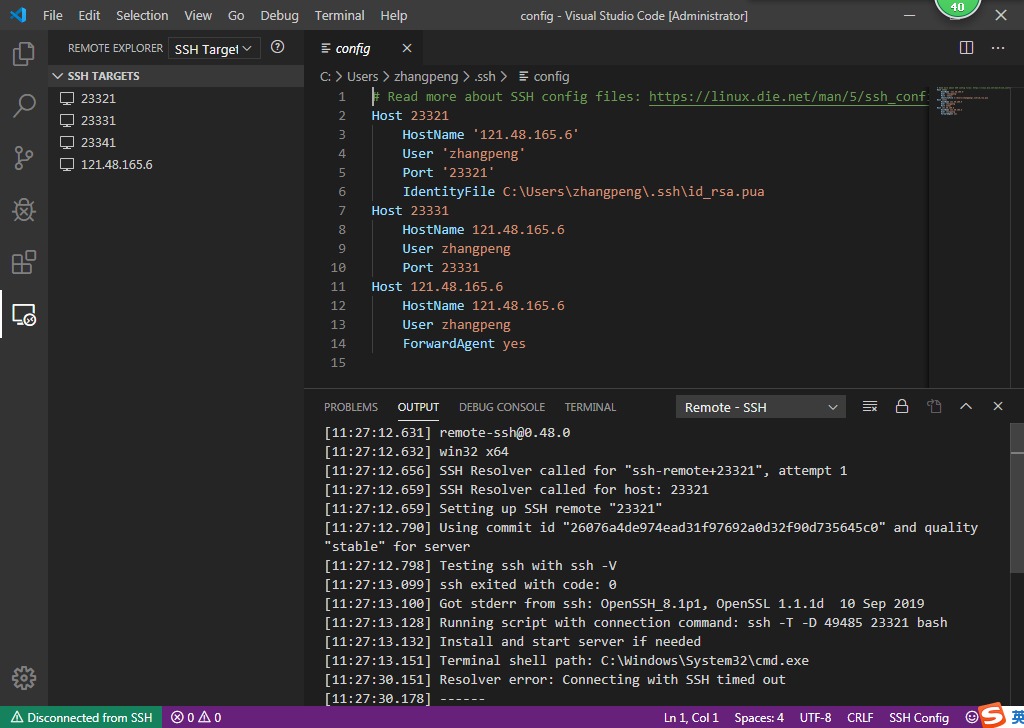
SSH can fail at four points: the hostname lookup, the network, the SSH service on the server, and your login. Read the error text before changing anything.
| Error or symptom | Likely cause | First check |
|---|---|---|
Could not resolve hostname |
Hostname typo or DNS lookup | Check the hostname for typos and see whether it resolves |
Connection timed out |
Network route, filtering, wrong address or port | Check the address, your route to the server and the TCP port |
Connection refused |
No SSH service on that host or port, or an active rejection | Check that the host runs an SSH service on the port you used |
Permission denied (publickey) |
Wrong remote account or a key the server doesn't accept | Check the username, the key your client offers and the public key registered on the server |
Too many authentication failures |
Your client or agent offers too many keys | Look at which keys the client tries |
REMOTE HOST IDENTIFICATION HAS CHANGED |
The host's identity differs from the one you trusted before | Stop. Don't connect until you know why the key changed |
A timeout or refusal means your connection isn't reaching the SSH service. A public-key denial points to your login: the client offered a key the server didn't accept, or it found no key to offer.
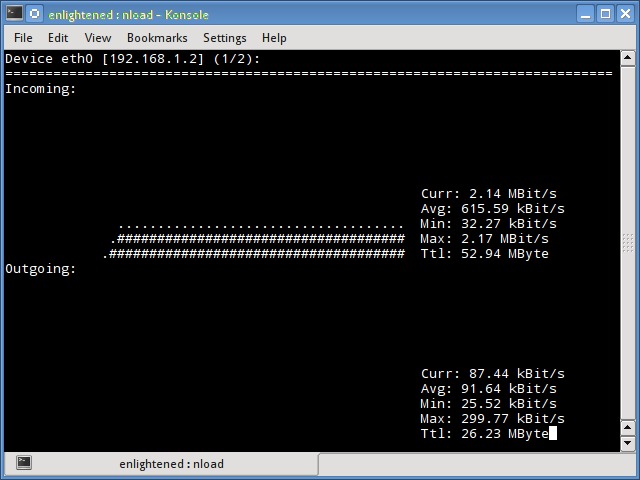
Failed pings confuse many people. One r/Ubuntu user setting up a server on a local network wrote: “I’m having issues ssh ing into the server, i can’t even ping it.” (r/Ubuntu thread).
Ping uses ICMP, which a network can filter separately from TCP, so a failed ping doesn't tell you whether the SSH port is open.
If the error still isn't clear, run ssh -v with the same destination and options.
Private networks, VMs, and headless servers
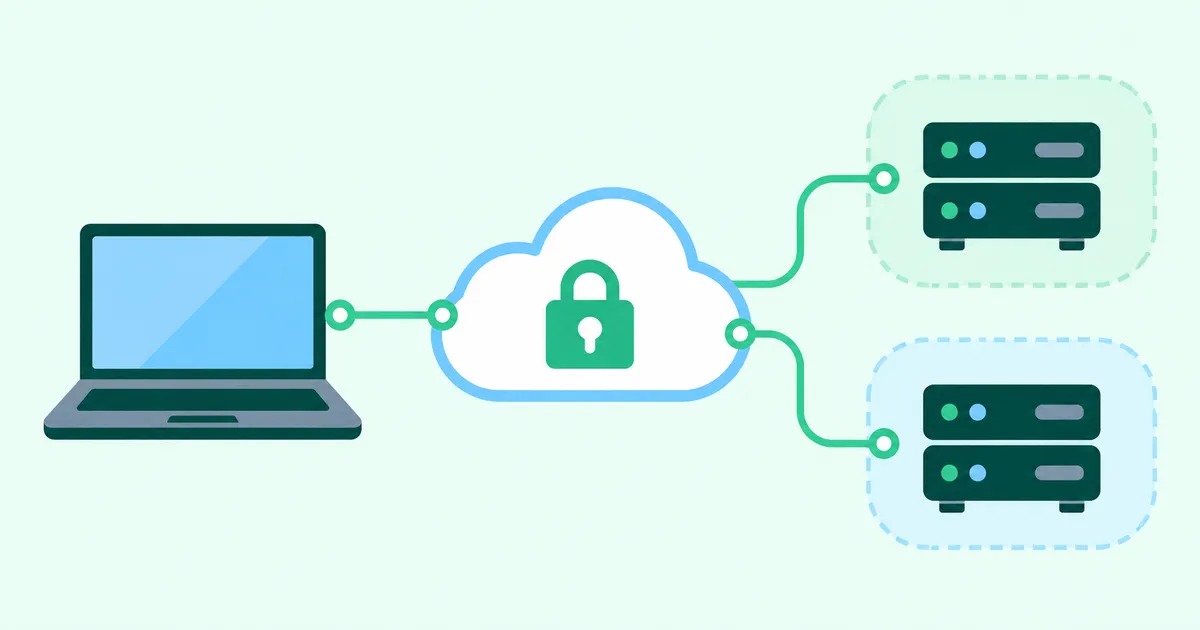
Even a correct command fails without a network path to the server's SSH service.
Public and private destinations
A server with a public SSH address accepts connections over the internet, as long as its access rules allow them.
A private-only machine, such as a home server on a private LAN address, needs access to that network, a VPN, a supported private-network route or a bastion host. For a home server, check whether your computer is inside the LAN. For a cloud instance, look up the provider's documented private-access method.
Virtual machines and headless computers
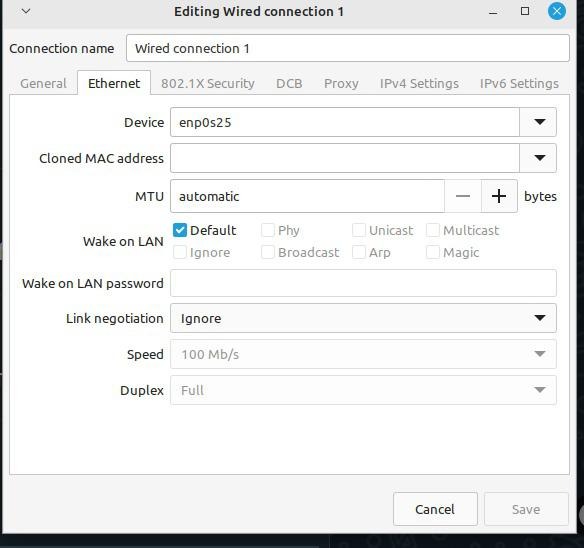
Whether a VM is reachable comes down to whether it uses NAT or a bridged interface and how the host and guest interfaces are configured.
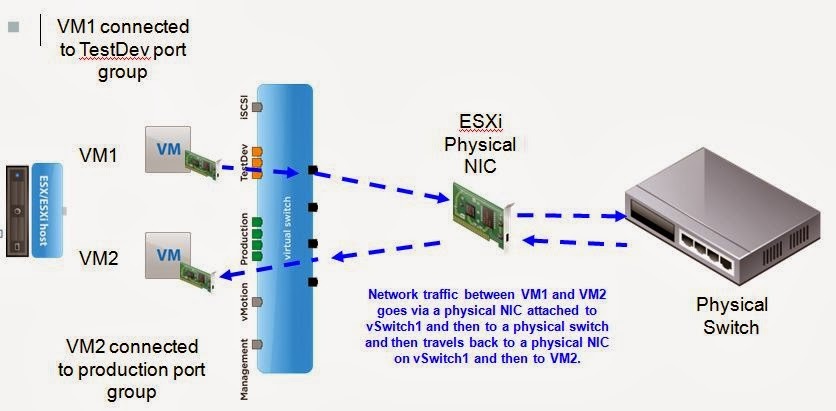
Two VMs on different physical computers need extra network configuration, even with SSH installed on both.
A headless Linux system runs without a permanently attached monitor. SSH doesn't need a graphical desktop login, only a running service and a working network.
