If you connect to the same server regularly, add a profile for it in ~/.ssh/config. It saves the connection details, including which key to use, so you type one short name. For a one-off connection or an app that doesn't read OpenSSH config, pass the options directly, and check any new alias with ssh -G before connecting.
Create a reusable SSH host alias
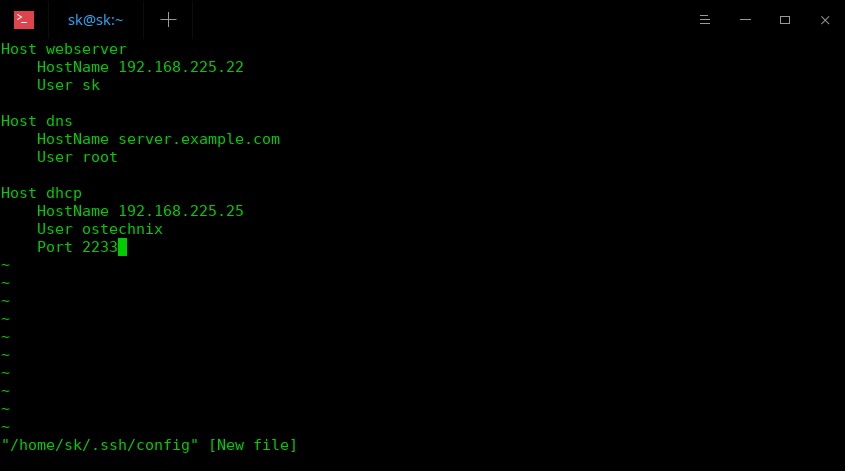
An SSH host alias gives a connection a short name. When you use that name, the OpenSSH client reads the matching profile.
A Windows 11 PowerShell user in r/homelab found the old way tedious: “it's a mess to keep track of those stupid "ssh user@ip" commands”.
Here is a minimal client profile:
Host workbox
    HostName 192.0.2.10
    User deploy
    Port 22
Host is the name you type. The other lines say where to connect (HostName, Port) and which account to use (User).
With the profile saved, ssh [email protected] -p 22 becomes:
ssh workboxThe address 192.0.2.10 is reserved for documentation, and deploy is an invented account. Replace both, and the port, with details for a real system that already permits your access.
Find the SSH client config file
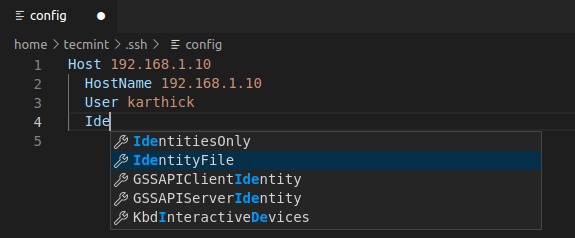
On Linux and other Unix-like systems, your per-user client file is ~/.ssh/config. System-wide client defaults live in /etc/ssh/ssh_config. The similarly named sshd_config controls the server daemon, so host aliases belong in the client file.
If the user file is missing, create it with restricted access by running this under the account that will use SSH:
mkdir -p ~/.ssh && chmod 700 ~/.ssh && touch ~/.ssh/config && chmod 600 ~/.ssh/configOn Windows, Microsoft OpenSSH reads %userprofile%\.ssh\config. Other SSH applications can store their settings elsewhere.
Understand how Host blocks and defaults are applied
OpenSSH can apply settings from several matching Host blocks. For most options, it uses the first value it finds, so specific profiles go before broad defaults.
Host workbox
    HostName 192.0.2.10
    User deploy

Host *
    User general
    Port 22
Both blocks match workbox. The first sets User deploy. The later Host * adds Port 22 because the first block left the port unset. Put the wildcard block first, and its User general wins.
Matching continues past the first block. Command-line options override your user configuration, which overrides the system-wide client file.
Included configuration files
Include lets you split a growing configuration into several files. OpenSSH accepts file patterns and processes the matches in lexical order, so a simple setup can begin like this:
Include ~/.ssh/conf.d/*.confAn early included file can set an option before a later declaration does.
Select the right SSH key for each host
IdentityFile names a local key that SSH should consider for a host.
A Proxmox user managing Debian VMs described a problem in r/homelab: “Typically, I find using a filename (besides the one ssh-keygen generates, like id_ed25519) results in failure too.” Custom names work. SSH only needs the correct path and a key the server accepts.
Host workbox
    HostName 192.0.2.10
    User deploy
    IdentityFile ~/.ssh/id_ed25519_work
    IdentitiesOnly yes
An SSH agent can hold other keys too. IdentitiesOnly yes limits agent-offered keys to the ones you configured.
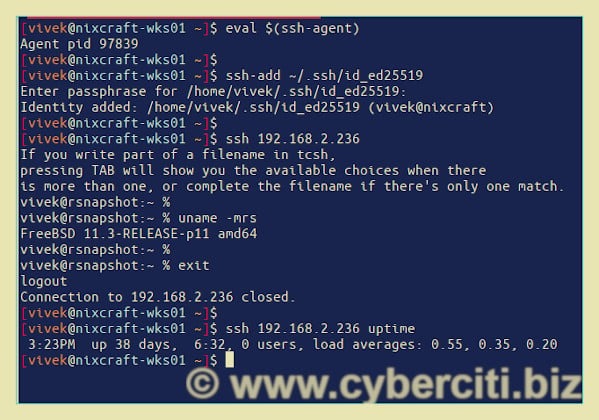
Unlike most options, IdentityFile accumulates. Every matching block can add a key, even with IdentitiesOnly yes. The server must also authorize the public key for the account you request.
Use separate SSH profiles for Git accounts

Separate SSH aliases let one computer pick different keys for accounts on the same Git-hosting domain. GitHub documents this approach for multiple accounts.
Host github-personal
    HostName github.com
    User git
    IdentityFile ~/.ssh/id_ed25519_personal
    IdentitiesOnly yes

Host github-work
    HostName github.com
    User git
    IdentityFile ~/.ssh/id_ed25519_work
    IdentitiesOnly yes
Both aliases point to github.com, but each names a different key file. The user git is the SSH transport user, not your GitHub account name.
A Git remote has to use github-personal or github-work for the matching alias to apply. For example, git@github-work:OWNER/REPOSITORY.git selects the work profile. Replace OWNER/REPOSITORY with the real repository path. Adding the aliases does not change remote URLs already stored in your repositories.
Git's includeIf as an alternative
One r/git participant suggested a different route: “A better alternative is to use IncludeIf settings in git config.”
Git's includeIf applies repository-specific settings such as user.name and user.email. It can also set core.sshCommand, which selects the SSH command Git uses for transport, including one with a specific key. SSH host aliases are a separate way to define connection profiles.
Configure a jump host with ProxyJump
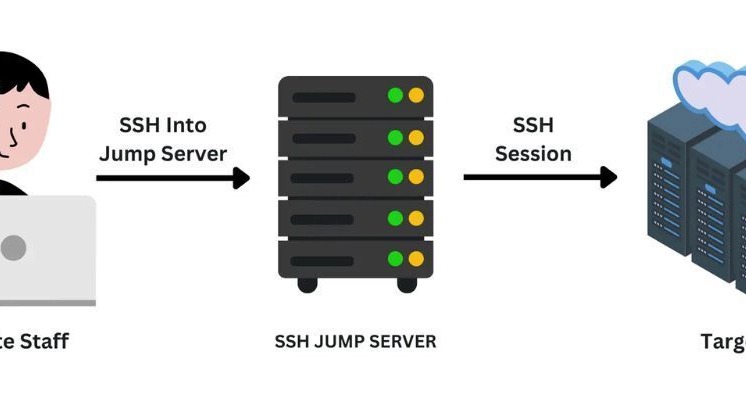
ProxyJump sends an SSH connection through an intermediate host, called a bastion, to reach a destination behind it. The bastion and the destination can use different accounts and different private keys.
Host jump
    HostName 203.0.113.5
    User jumpuser
    IdentityFile ~/.ssh/id_ed25519_jump

Host private-app
    HostName 192.0.2.55
    User admin
    IdentityFile ~/.ssh/id_ed25519_private
    ProxyJump jump
Here, jump is the intermediate server you can reach directly. private-app is the final destination, routed through the jump alias.
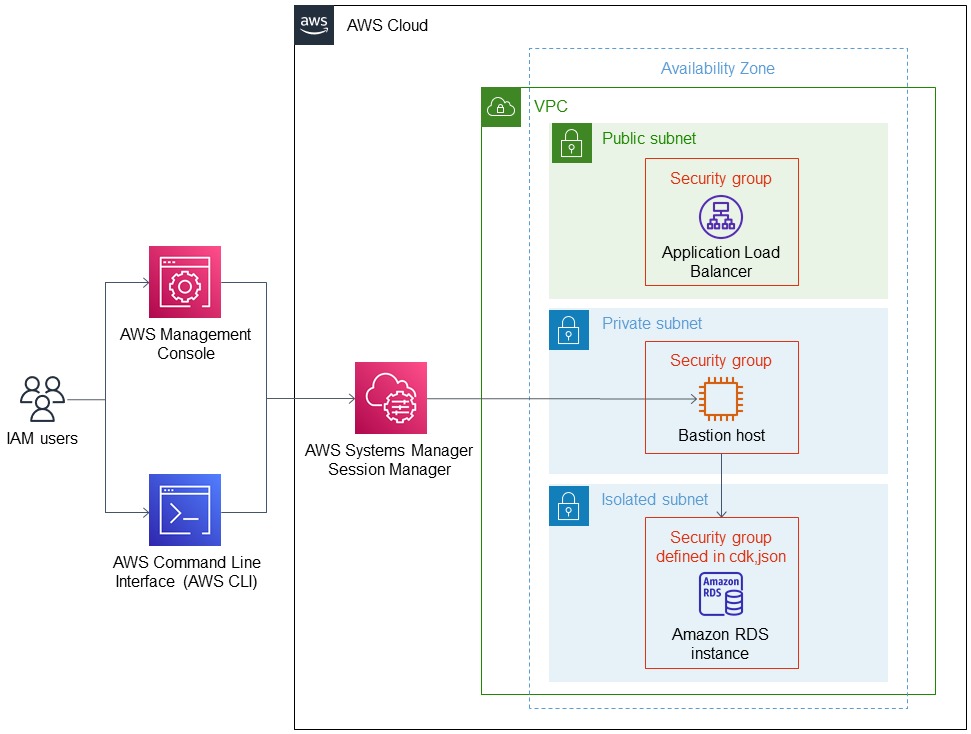
Your client needs a permitted path to the bastion. The bastion must reach the destination.
Oracle Linux documents ProxyJump for access through a bastion.
Forwarding an SSH agent can expose signing capability when an untrusted remote environment can reach the forwarded socket. Keep global agent forwarding off unless a specific workflow requires it.
Inspect the effective SSH settings
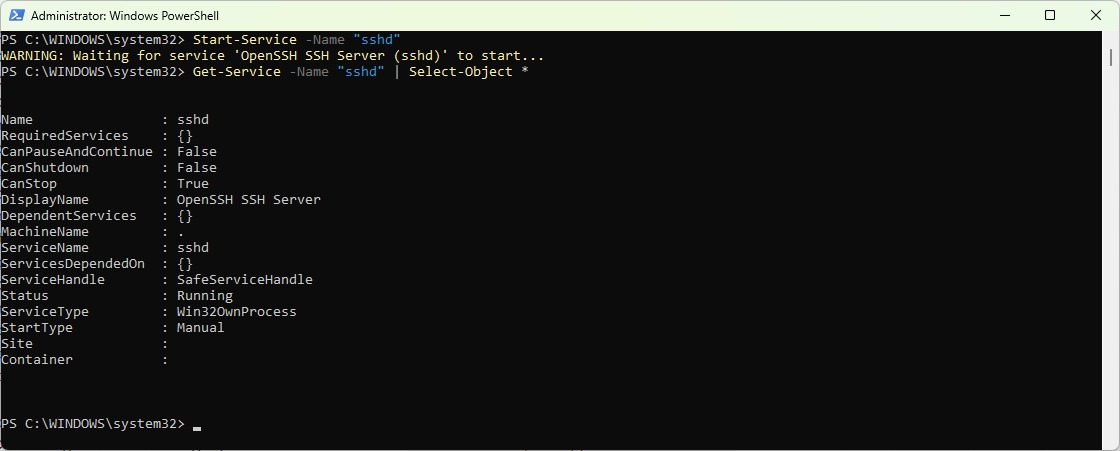
The OpenSSH ssh(1) manual documents ssh -G, which prints the processed client settings for a destination and exits. It applies the matching rules locally, with no remote login attempt.
ssh -G workboxTo see which configuration files SSH reads and which rules match, add verbose output:
ssh -v -G workboxCheck the fields against your profile:
| Output field | What it reveals |
|---|---|
hostname | Actual destination |
user | Requested remote account |
port | Destination port |
identityfile | Configured identity paths |
proxyjump | Configured intermediate route |
Troubleshoot settings and SSH connection failures
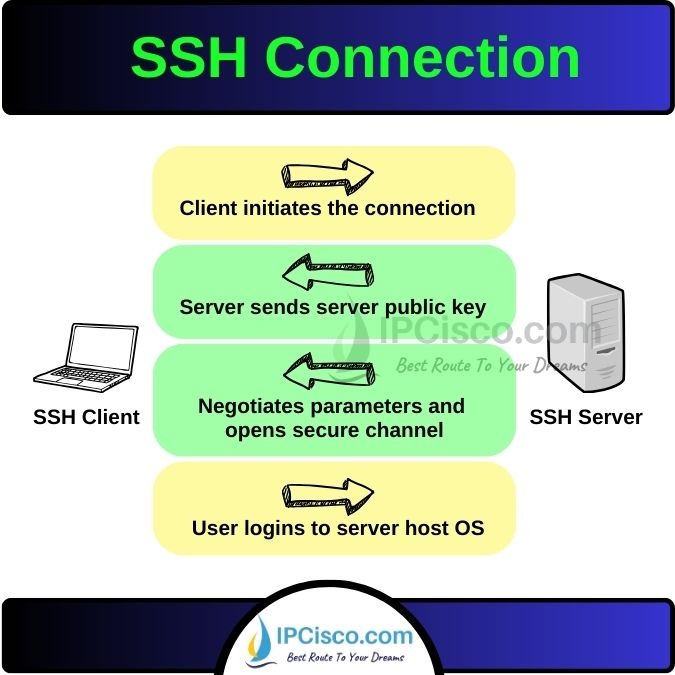
When the settings look right but the connection still fails, ssh -v reports what happens during the real attempt:
ssh -v workbox| Symptom | Likely layer | Next investigation |
|---|---|---|
| Wrong hostname, user, or port | Client configuration | Matching host blocks and precedence |
| Expected key never offered | Key selection | IdentityFile paths and the agent |
| Key offered but rejected | Remote authorization | Whether the public key is authorized for the account, and server policy |
| Connection refused or timed out | Network or service | Reachability of the destination port and the jump route |
| Changed server host key | Server identity | Expected host identity through a trusted channel |
Permission denied (publickey) has several causes. In the trace, check whether SSH offered your key at all.
Use an alternate configuration to isolate settings
-F selects a different client configuration file. It also skips the default system-wide client configuration, so this comparison changes both sources:
ssh -F /path/to/alternate_config workboxThe alternate file must define workbox for the alias to work. On OpenSSH versions that support the none value, this skips configuration files entirely:
ssh -F none 192.0.2.10Use a real hostname or address when you skip the files that define your aliases. These commands attempt a connection. Before sharing verbose output, remove anything sensitive, such as account details and local file paths.
Keep client profiles secure and manageable
Give aliases descriptive names and delete entries you no longer use. If you copy the file to another machine, check the key paths. The file can point to private keys that do not exist there. Each computer needs its own valid path.
Preserve host-key verification
StrictHostKeyChecking controls how OpenSSH handles server host keys. The accept-new setting accepts new host keys and rejects changed ones. Setting it to no weakens those protections.
If a known host presents a changed key, confirm the server's identity with a trusted administrator or another established channel. Don't suppress the warning just to get connected again.
