Use ssh-copy-id when you can already authenticate to the server: install the intended public key, then test the matching private key in a new SSH connection before changing any login settings. If you have no working SSH login, install the public key through an authorized console or recovery path instead. If your private key has a passphrase, you'll still enter it after the server stops asking for the account password.
What ssh-copy-id does and when it can work
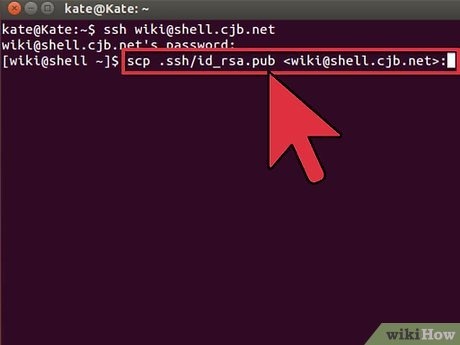
ssh-copy-id installs an SSH public key for a remote account. On a typical Linux server, it adds the key to that user's ~/.ssh/authorized_keys file. The matching private key stays on your computer. Treat key generation, public-key installation, and a successful test login as three separate checkpoints.
The utility connects over SSH with a method the server already accepts, either the account password or a private key that's already authorized. That access lets it install an additional public key for the account.
| Current access to the server | Can ssh-copy-id work? | Method |
|---|---|---|
| The target account accepts an SSH password | Yes | Authenticate and install the public key |
| An existing SSH private key authenticates | Yes | Use that authorized connection to install another key |
| No available SSH authentication method works | No ordinary installation route | Use an authorized console or recovery method |
A home-server owner on r/linux4noobs asked, “I've read that this prevents brute force attacks and exposure from a password leak, but couldn't someone just use ssh-copy-id and add their key with a password?” Not without logging in first, since the connecting user must satisfy the server's existing authentication policy.
The OpenSSH ssh-copy-id manual describes the standard installation mechanism. A server can also be configured to accept public keys from a location other than the usual authorized_keys file.
Check the local key pair before installing anything
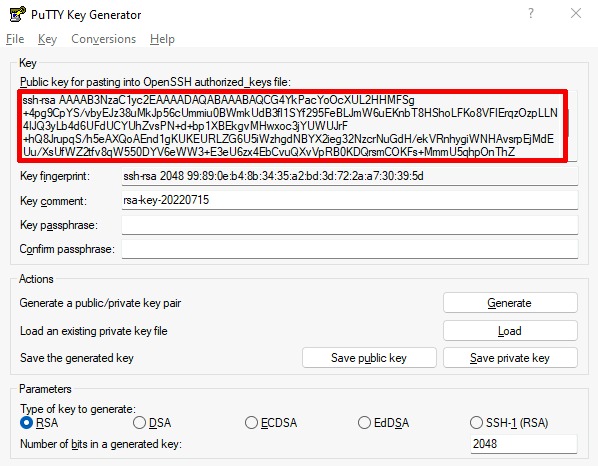
A typical Ed25519 pair uses these paths:
| File or path | Purpose | Location |
|---|---|---|
~/.ssh/id_ed25519.pub | Public key to authorize | Local client before installation |
~/.ssh/id_ed25519 | Matching private key | Local client |
~/.ssh/authorized_keys | List of authorized public keys | Remote Linux user's account |
Check that the local files exist:
ls -l ~/.ssh/id_ed25519 ~/.ssh/id_ed25519.pubIf you already have a suitable pair, use it. If not, Ubuntu documents creating an Ed25519 key with:
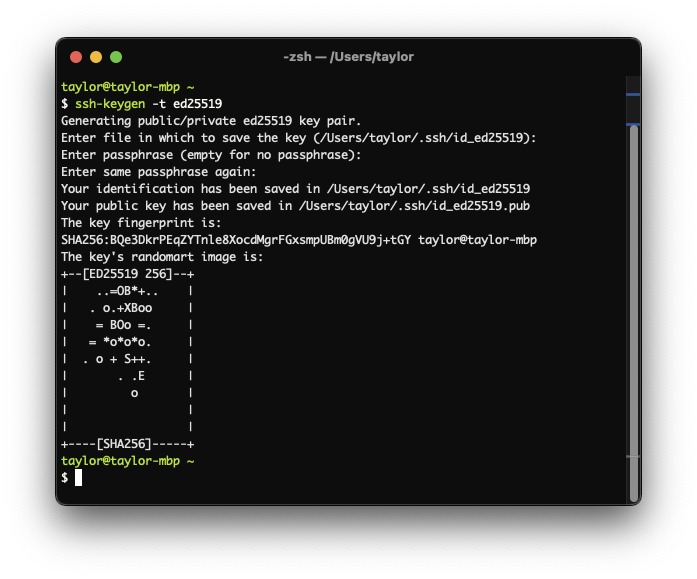
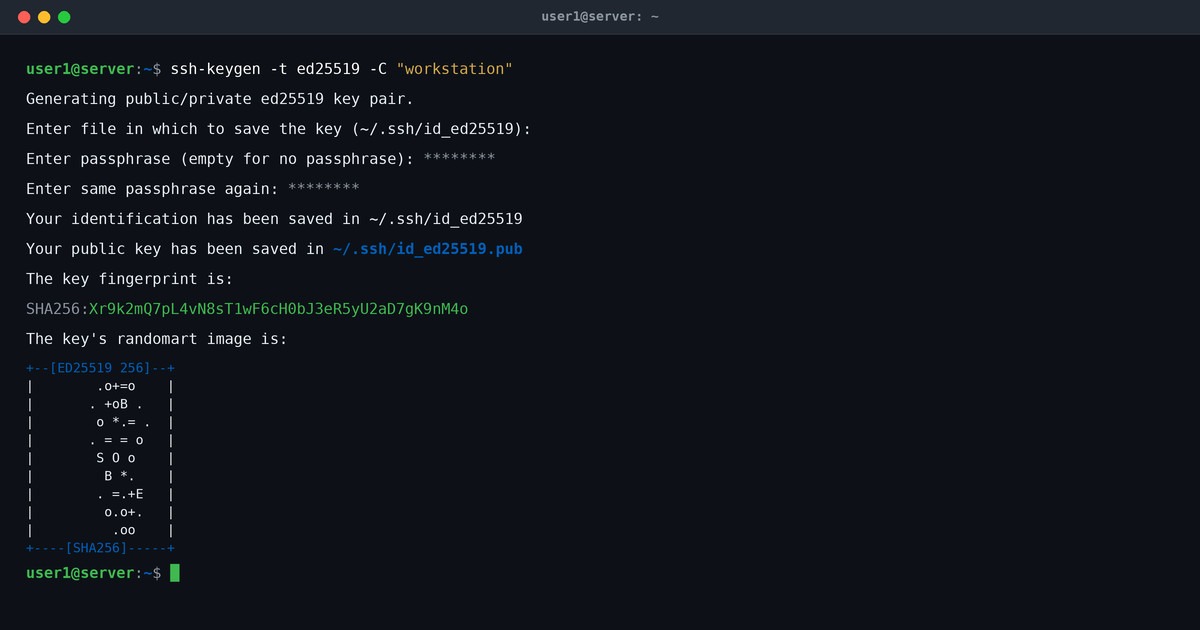
ssh-keygen -t ed25519ssh-keygen asks where to save the key. If a private key already sits at the proposed path, choose a different filename. An overwrite replaces credentials that other servers can rely on.
Your client can have several identities loaded in ssh-agent. List their fingerprints with:
ssh-add -lTo show the public keys the agent holds, use:
ssh-add -LThis matters because ssh-copy-id without -i can pick up keys from the agent. Naming the file with -i tells it which key to install.
Never paste the private key into an authorized-key file or send it to the server.
Install the public key with ssh-copy-id
Run the command on your client and name the Linux account that should accept the key.
Basic syntax:
ssh-copy-id [email protected]To select a particular key, give its public file:
ssh-copy-id -i ~/.ssh/id_ed25519.pub [email protected]Here, user is the remote account and server.example.com is an example hostname. Replace both with your own.
ssh-copy-id first checks which of your keys the server already accepts. It then installs the rest using an authentication method the server permits. If password login is enabled, it asks for the remote account password.
On the first connection, SSH shows the server's host-key fingerprint. Compare it with a trusted record of that host before accepting it. The host key is separate from your public key.
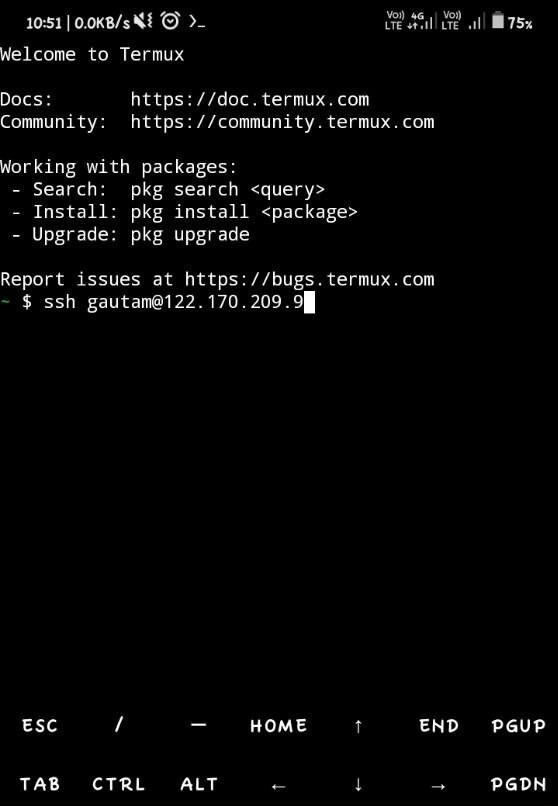
A successful run prints a line beginning:
Number of key(s) added:That line means the utility installed the public key for the account you named. If the server already accepts the key, nothing new is installed.
Specify the right key, remote user, and SSH port
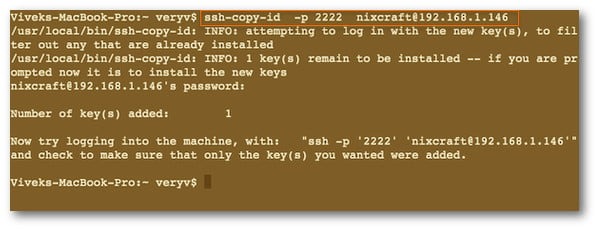
| Option | Effect | Useful situation |
|---|---|---|
-i ~/.ssh/id_ed25519.pub | Selects the public key to install | Several available identities |
-p 2222 | Connects to the specified remote port | SSH listener uses a custom port |
-n | Prints the keys it would install, without installing them | Previewing which key is selected |
-f | Skips the existing-key check | Specialized use. Adds duplicate entries if the key is already installed |
For a server listening on port 2222, combine the key, port and account:
ssh-copy-id -i ~/.ssh/id_ed25519.pub -p 2222 [email protected]Port 22 is the SSH default and 2222 is just an example, so use the port your server actually listens on.
To see which public key would be installed, use the dry-run option:
ssh-copy-id -n -i ~/.ssh/id_ed25519.pub [email protected]The dry run installs nothing, but it still opens SSH connections while it checks keys.
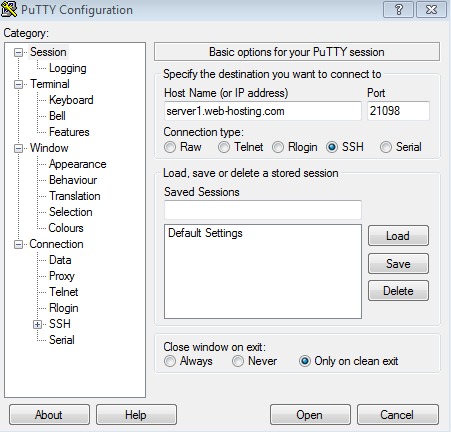
Pick the remote username on purpose. Authorizing deploy doesn't authorize ubuntu or root. Your ~/.ssh/config can also supply the hostname, account, port and identity files.
A Windows OpenSSH client connecting to a Linux server follows the same Linux account rules. It can lack the Unix ssh-copy-id utility, but the public key still goes into the Linux account's authorized-key configuration. Windows Server has separate authorization conventions.
Verify that the intended private key actually authenticates
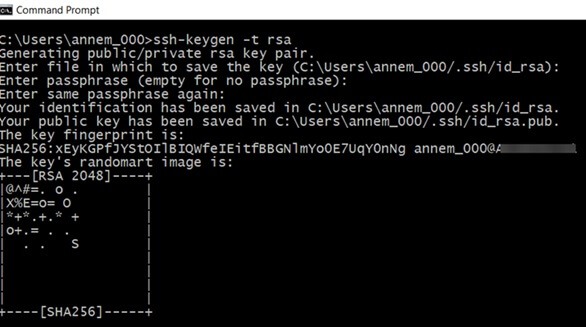
Open a new SSH connection that uses public-key authentication and names the private key matching the public key you installed.
ssh -vv \
  -o PreferredAuthentications=publickey \
  -o IdentitiesOnly=yes \
  -i ~/.ssh/id_ed25519 \
  [email protected]
Use the matching port if your server doesn't listen on 22. Here -i takes the private key, id_ed25519. During installation, ssh-copy-id -i took the public file, id_ed25519.pub.
PreferredAuthentications=publickey selects public-key authentication. IdentitiesOnly=yes restricts the client to configured identities. If your config has several IdentityFile entries, it tries each one. The verbose output lists the keys offered during the connection.
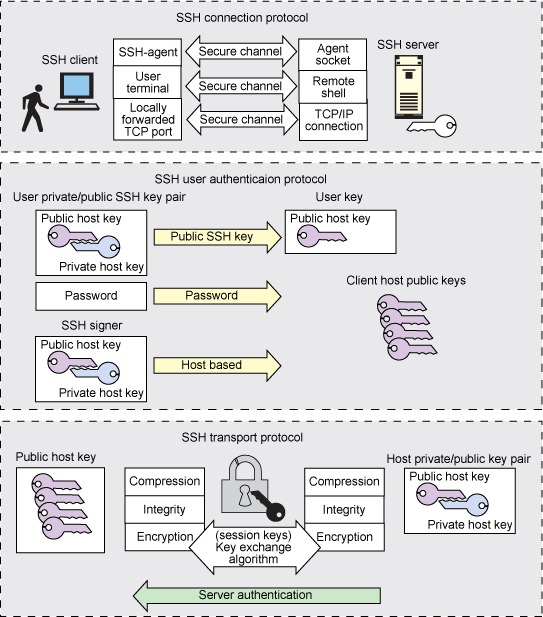
Look for an Offering public key: line that names your key, followed by Server accepts key: and a successful-authentication message.
If a different configured identity logs you in, you've shown that public-key login works, but not that the server accepted the new key.
You can also see this prompt:
Enter passphrase for key ...The passphrase unlocks the encrypted private key on your computer.
Can a server accept a public key and still require another authentication step?Yes. OpenSSH's
AuthenticationMethodssetting can require more than one method. The server accepts the public key as one factor, then waits for the rest.
When ssh-copy-id fails to log in or write the key
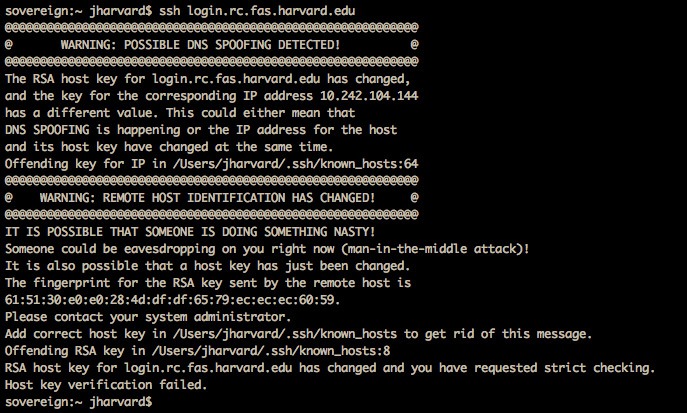
A failed attempt breaks at one of two points: SSH can't log in, or the authenticated account can't write the key.
The initial login is rejected
A user copying keys between servers wrote on r/linuxquestions: “I keep receiving this error while trying to copy my ssh keys between my servers.”
The username, the credentials you give and the server's account policy decide whether the connection is allowed. A server can block root SSH login through PermitRootLogin. A rejected password can also have other causes, so the error alone doesn't tell you which rule applied.
SSH authenticates, but the remote write fails
If the login works, the account can still fail to create or update its .ssh directory or authorized-key file. Ownership, restrictive directory access, filesystem conditions or insufficient storage can block the write.
Examine the error at the stage where it occurs, and read the server logs if you have access. If you installed the key earlier, run the login test before trying again to see whether the server already accepts it.
If the key is installed but SSH still asks for an account password
If the public key is in the account's authorization file but SSH still asks for a password, compare the key your client offers with the keys and rules the account accepts.
A user working with two RHEL 8 virtual machines described the problem on r/linuxquestions: “I have 2 vm's (RHEL8) on fedora , I have generated they keys using ssh_keygen and copied it using ssh_copyid. But i am still prompted for a password”
| Client or server evidence | Inspect | Likely cause |
|---|---|---|
| The intended key is never offered | Client identity selection and host configuration | The client chose another identity |
| The intended key is offered but rejected | Remote username, accepted-key path, file ownership and modes | The server doesn't authorize that key for the target account |
| The server accepts the key but login stays incomplete | AuthenticationMethods and account rules | Another required factor hasn't completed |
| The expected authorized-key file is ignored | AuthorizedKeysFile, StrictModes, and applicable Match rules | Server policy changes the accepted location or conditions |
While diagnosing, keep the host, username, port and key settings from your public-key test. Its -vv output shows which identity was offered, and changing those settings can hide the original failure.
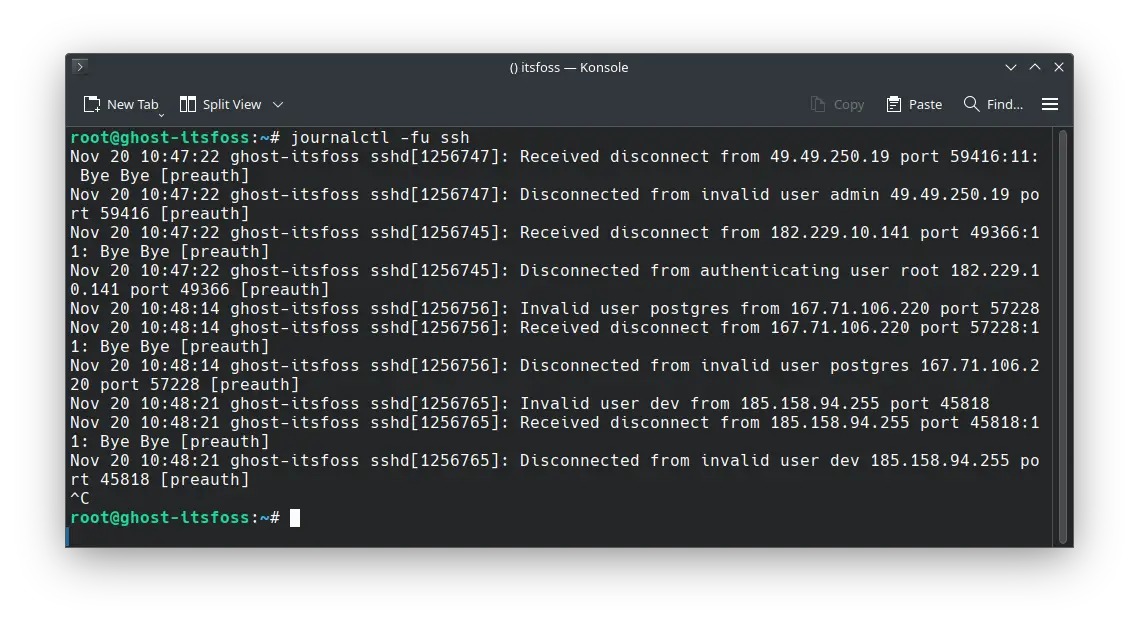
On an Ubuntu server where you have administrative access, read the SSH service messages with:
sudo journalctl -fu ssh.serviceMatch each log event to your connection attempt. Other Linux distributions use different logging services and names.
The SSH daemon also enforces PubkeyAuthentication and account-specific rules, and file ownership and modes must let it use the authorized-key path. Avoid blanket chmod 777 changes, which weaken access controls.
If Permission denied (publickey) persists, a dedicated SSH authorization diagnostic is the next step.
When the command appears to hang or cannot reach the server
If ssh-copy-id hangs, it has stalled before installing the key. Run an ordinary verbose connection to the same host and port, such as ssh -v -p 2222 [email protected] for a server on port 2222. The output separates DNS resolution failure, connection refusal, timeout and an interactive authentication wait. Silence alone doesn't point to one cause.
Alternatives when ssh-copy-id is missing or no login method works
Manual installation when SSH login already works
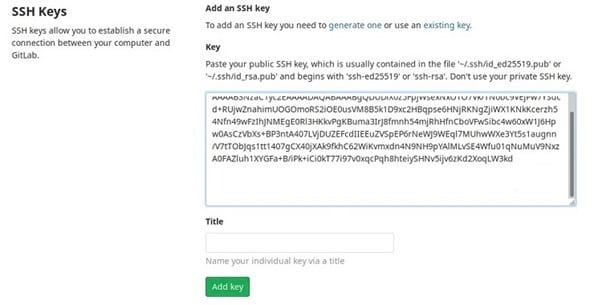
If your client lacks the utility but you have an authorized SSH shell on the Linux server, append the public key yourself. Run this from a Unix shell on the computer holding the public key:
cat ~/.ssh/id_ed25519.pub | ssh [email protected] \
  "mkdir -p ~/.ssh && chmod 700 ~/.ssh && \
  cat >> ~/.ssh/authorized_keys && chmod 600 ~/.ssh/authorized_keys"
The local cat reads the public file. SSH carries the text over an authenticated connection, and the remote command appends it to the user's authorized_keys file. The >> operator keeps existing entries, and the chmod commands set restrictive modes on the .ssh directory and key file.
This assumes a normal writable home directory and the usual authorized-key path. The right remote account, correct ownership and the effective SSH daemon configuration still decide whether the new key works.
Use an authorized recovery channel when SSH cannot authenticate
When the server accepts none of your SSH credentials, install the public key through another legitimate administration route, such as a hosting-provider console or another out-of-band recovery environment with access to the server's filesystem.
DigitalOcean documents adding a public key to an existing Droplet through its Recovery Console when ordinary SSH access isn't available. Your hosting provider and account permissions decide which recovery features you get.
In Windows PowerShell, display your public key with Get-Content $HOME\.ssh\id_ed25519.pub. Copy the whole line and append it to ~/.ssh/authorized_keys from an authorized shell on the Linux server, keeping the existing entries.
After key login works: keep a safe recovery path
Once the new key works, make sure you have a way back in before changing password authentication or root-login settings. A server managed entirely over SSH locks you out if you remove its last working credential or its effective authentication policy changes unexpectedly.
Write down the working administrative account, the key that reaches it and any alternative access method. On supported cloud infrastructure, a provider console can give you a recovery route. Elsewhere, another authorized administrator or an accepted key can do the same job.
When you replace a credential, keep the old access until you've verified the new one separately. AWS's EC2 key-replacement procedure follows that order: it adds the new public key through an authorized route and confirms it before the old one is removed.
Separate keys keep credentials clearly divided between servers, while a shared client key means fewer credentials to manage. Your account policy, device control and the damage a single compromised private key would cause decide which fits.
