When SSH reports Permission denied (publickey), find where authentication stopped before changing keys, permissions, or server settings. If SSH never tried the intended key, fix client identity selection, and if the server rejected an offered key, check the remote account and its authorization rules. If you are locked out completely, use a console or ask an administrator, and prove any repair with a fresh SSH login before closing a working session.
What “Permission denied (publickey)” means
Permission denied (publickey) means the connection reached user authentication and authentication for the requested account failed. The methods in parentheses list what was available at that point. Even (publickey,password) tells you nothing about why your key failed. Start with the client's verbose trace, then match the failed attempt to the server's authentication log.
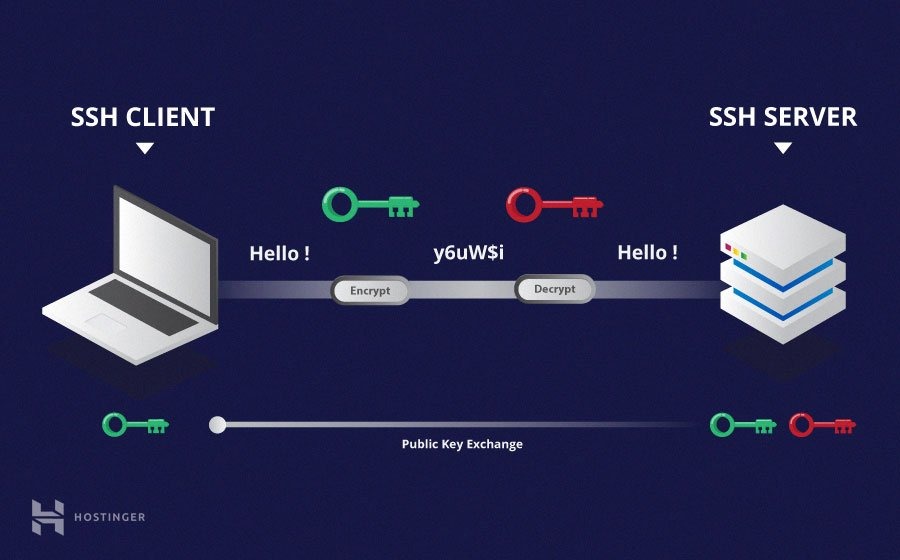
Your client holds the private key that proves your identity. The server checks the matching public key against the account. A separate host key proves the server's identity.
Connection refused, a timeout, and REMOTE HOST IDENTIFICATION HAS CHANGED happen at other stages and need their own diagnosis.
Find the failed authentication step with ssh -vvv
Start with verbose client output. It shows which identities OpenSSH considers and how far authentication gets. Run this on your local computer with the account and host from the failed connection:
ssh -vvv user@hostIf the server uses another SSH port, add -p PORT. Read the identity and authentication messages near the end of the trace.
| Output or observation | Meaning | Next step |
|---|---|---|
| The intended identity appears in no attempted-identity message | The client did not try that identity | Check client key selection and configuration |
Trying private key: ... | The client is loading or using that private-key file. The lines after it show the result | Check local access to the key file and the signing messages that follow |
Offering public key: ..., then another Authentications that can continue: publickey without key acceptance | The server did not accept the offered key | Check the remote account and server authorization |
Server accepts key: ..., but authentication still fails | The server recognized the proposed key | Check signing and authentication policy |
Server log: Authentication refused: bad ownership or modes | A server-side filesystem check failed | Check the directory and file path named in the log |
Authenticated to ... using "publickey" | Public-key authentication succeeded | Confirm you landed in the right account |
OpenSSH can log Trying private key and go straight to signing, so Offering public key can be absent from the trace. Read the lines that follow before deciding whether the identity was used or why authentication failed.
An Ubuntu home-server operator on r/homelab reports the symptom like this: “However whenever I run user@ip no matter the key I use, it will not ssh in, only giving "Permission denied (publickey)"”
A repeated Authentications that can continue line means authentication did not complete. The server's logs give the specific refusal reason. Redact hostnames and account details before posting a trace on a public forum.
If SSH never tries the intended key, fix client identity selection
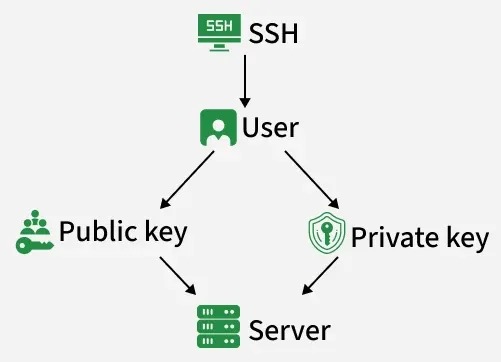
Your computer can hold a usable private key while the connection uses another identity or account.
A home-server user on r/linux4noobs ran into this: “If I use ssh -i and specify the key to use I am able to connect to the server. However if I don't use -i I get Permission Denied (publickey) message.”
On your local computer, run the connection with the intended private-key file:
ssh -i /path/to/private_key user@hostIf that works, print the settings your normal command uses:
ssh -G user@hostIn the output, check user, hostname, port, identityfile, and identitiesonly. OpenSSH applies the relevant Host and Match rules to these values.
Name the key in your local ~/.ssh/config
If the server's key has a nonstandard filename, add an entry to ~/.ssh/config that names the identity and the remote account:
Host work-vps
HostName host
User user
IdentityFile ~/.ssh/work_server_ed25519
IdentitiesOnly yes
Replace the hostname, username, and key path with your own values. IdentitiesOnly yes limits OpenSSH to the configured identities, including configured certificate identities.
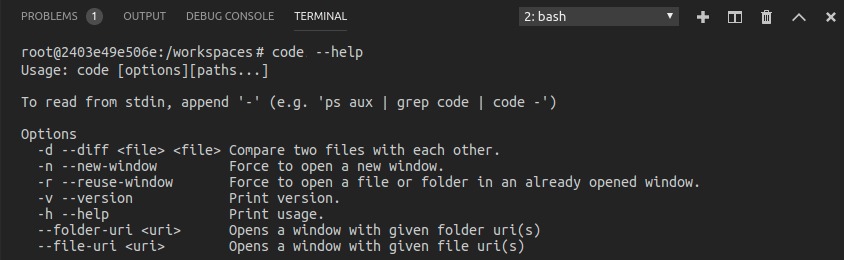
If you use an SSH agent, list its identities on your local computer:
ssh-add -lThe fingerprints can explain why SSH attempts a different key. A direct -i connection with a usable private key works without an agent. A missing file, a wrong path, or a private key whose permissions the client rejects must be fixed on the client first.
These examples use the OpenSSH client.
If the server rejects an attempted key, check the account, key and file access
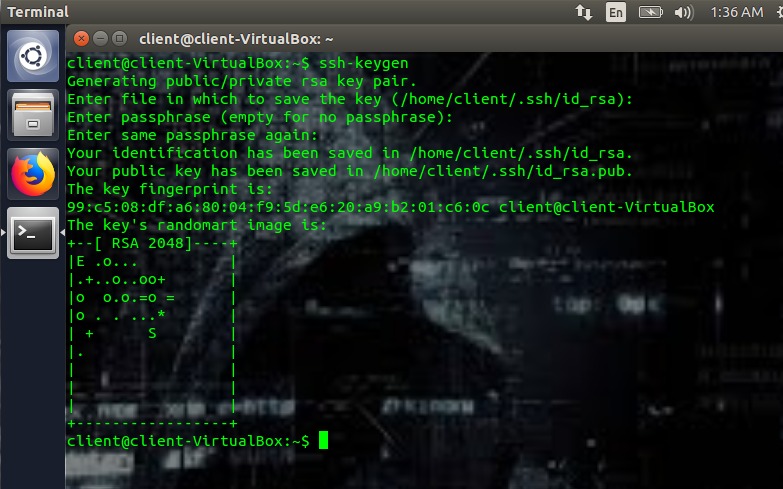
The server must authorize the attempted public key for the specific remote account. A key authorized for admin does not give access to user.
The checks below need a working admin session, another account with suitable privileges, or a recovery console. First find the account's actual home directory and configured authorization source. Typical path:
/home/user/.ssh/authorized_keysCompare the intended public key
On your local client, print the fingerprint of the public key that matches your private identity:
ssh-keygen -lf /path/to/public_key.pubOn the server, compare that fingerprint or the key itself with the entries in the account's authorized-key file.
A match tells you the pair is the right one. The server still applies account authorization and its effective policy before it allows a login. Keep private-key contents off public websites and out of files meant for public keys.
Check ownership and permissions
On the server, look at the path before changing anything:
ls -ld /home/user /home/user/.ssh /home/user/.ssh/authorized_keysIf namei is installed, it shows the whole directory chain:
namei -l /home/user/.ssh/authorized_keys
| Location | Restrictive example | What matters |
|---|---|---|
| Local private key | 600 or 400 | Other users must not have access to the private key |
| Remote account home | No universal octal mode | Ownership and writability along the whole path |
Remote .ssh directory | 700 | Ownership and directory permissions for the account |
Remote authorized_keys | 600 | Ownership, access restrictions, and a usable file |
A server log line such as Authentication refused: bad ownership or modes for directory /home/user points at the home directory. Fixing authorized_keys alone leaves that problem in place.
With StrictModes enabled, OpenSSH checks filesystem safety before it accepts file-based authorization. Fix only the owner or mode the evidence names. Never disable StrictModes, run chmod 777, or apply blanket recursive ownership changes to a production home directory.
If the public key is missing, add it through a working admin channel and keep the existing valid entries.
Check the server logs and effective sshd rules when the files look correct
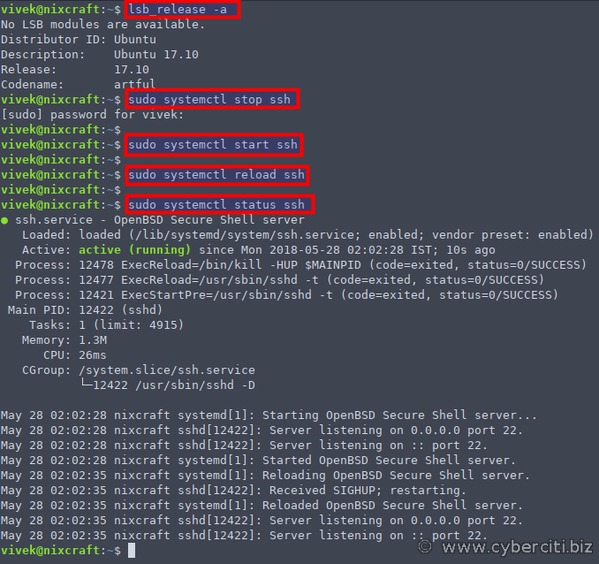
The daemon can read a different authorized-key path than the one you expect. Included configuration files, Match rules, and external key lookups decide what the server uses for a given login.
An Ubuntu admin on r/linux4noobs traced it to a forgotten file: “Problem solved, turns out i've forgot about a single small sub-config placed in sshd_config.d that had precisely one command - pointing to admins authorized_keys file.”
Read the effective daemon configuration
From an admin shell, check the configuration syntax:
sudo sshd -tThen print the settings the server applies to the failing connection, if your OpenSSH version supports it:
sudo sshd -T -C user=user,addr=CLIENT_SOURCE_IP,host=CLIENT_HOSTNAMEUse the remote username you requested, the connecting client's actual source IP address, and the client's source hostname when it matters. The host value takes the client's hostname, so do not enter the destination server's name there.
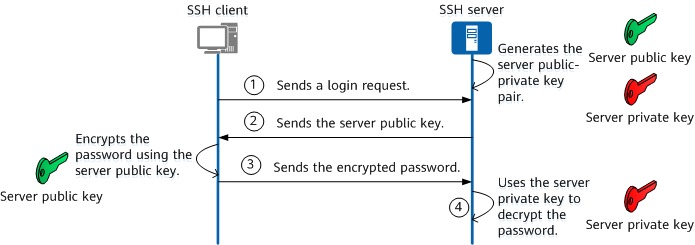
These directives matter most:
AuthorizedKeysFile: Sets the public-key file paths the daemon reads for an account.AuthorizedKeysCommand: Looks up keys through a configured external command.PubkeyAuthentication: Turns public-key authentication on or off for the applicable rules.IncludeandMatch: Bring in additional files or apply connection-specific conditions.AllowUsersandAllowGroups: Limit which accounts can log in.AuthenticationMethods: Can require a sequence of successful authentication methods.
The OpenSSH server configuration manual documents these directives and their scopes.
Read the server's refusal message
The server's authentication log holds clues the client debug output lacks. Unit names differ by distribution, so try one of these:
sudo journalctl -u sshsudo journalctl -u sshdSome systems write authentication messages to /var/log/auth.log, and others use a different destination. Find the entry that matches the failed connection and remote account.
If the log names the wrong authorized-key file, trace it to its configuration source. If it names an unsafe directory, fix the path it reports. Also check SELinux labels, key-algorithm policy, and network-mounted home directories when the log points to them.
Before changing the live daemon, keep a recovery route open and save the prior configuration. Do not restart the SSH service as a first diagnostic step.
When the server accepts the key but authentication still fails

Server accepts key means the server recognized the proposed identity. The client must still produce a valid private-key signature, and the server can require further authentication under its configured policy.
Example output:
debug1: Server accepts key: ...The lines after it decide the case: signing messages, agent errors, failed access to the private key, or further authentication requests.
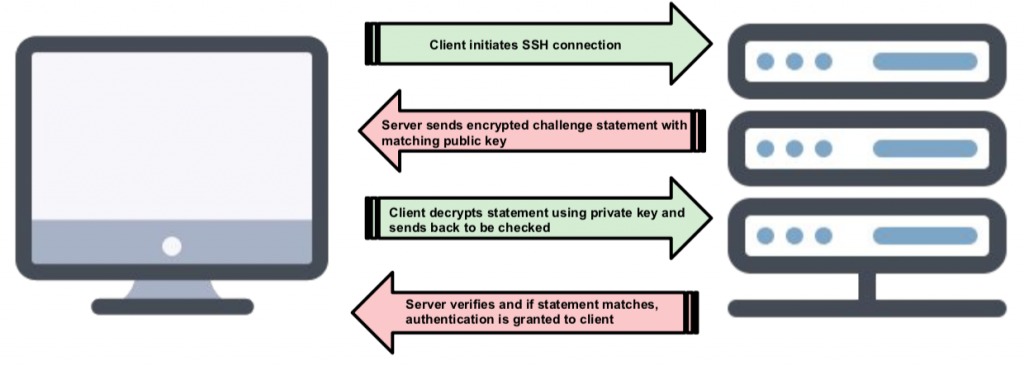
The agent can lack access to the signing identity. A passphrase-protected or hardware-backed key can also wait on an operation the client has not completed.
If you're completely locked out, recover access through a console or an administrator
Without a usable administrative connection, you can't repair server-side files over SSH.
Deleting the local key folder locked out one junior administrator on r/linuxadmin: “I had the access to the server until I accidentally deleted the ssh folder on my machine. Now I can't access the server, it's responding Permission denied (PublicKey)”
Your options come down to who controls the machine and what other access exists.
| Remaining access | Recovery route |
|---|---|
| A working SSH session is already open | Use it to repair the affected account or identity |
| Another administrative account works | Use its privileges to find the problem and restore access |
| A provider or virtual-machine console is usable | Follow its documented credential or account-recovery procedure |
| A team administrator manages the host | Ask them to restore the account's authorization |
| No administrative route is available | Escalate to the system owner or provider. You can't change server files yourself |
DigitalOcean documents a Recovery Console for Droplets. Its procedure requires a running Droplet and a working root password. Without those, look at the provider's password-reset or other recovery procedures.
Once you have a console or admin session, restore the matching public key, correct the authorization path, or use a provider-supported account reset, depending on the cause.
ssh-copy-id installs a public key by authenticating to the destination over SSH, so it cannot repair a machine that has no usable SSH authentication path.
Never send a private key to an unknown recovery site, overwrite unrelated authorized keys, or bypass access controls to regain entry.
Cloud-specific exceptions: AWS EC2, Google Cloud OS Login, and Azure
A cloud VM can authorize SSH through instance key settings, local key files, metadata, or an identity-management service. Find out which method your VM uses before changing the Linux account's files.
| Platform | Authentication distinction | First control point | Official documentation |
|---|---|---|---|
| AWS EC2 | The instance key and the AMI-defined login account both affect SSH authentication | Find the AMI's actual username and the matching instance key | AWS EC2 authentication guidance |
| Google Cloud Compute Engine | Metadata-managed keys and OS Login use different authorization paths | Check whether OS Login is enabled, then review the matching identity/IAM or metadata settings | Google Cloud SSH troubleshooting |
| Azure Linux VM | Local SSH keys and Microsoft Entra ID login have different requirements | Identify the login mode; Entra-based SSH needs the Virtual Machine Administrator Login or Virtual Machine User Login role | Microsoft Entra SSH login guide |
For an OS Login-managed user on a Google Cloud VM, SSH authorization runs through OS Login identity and IAM permissions, so editing a local authorized_keys file will not restore that user's access. Local accounts with usernames and UIDs separate from OS Login users can still use their own authorized_keys files under Google's documented conditions. On an Azure VM with Entra authentication, the assigned VM login role can decide whether you get in.
Azure documents recovery mechanisms including Run Command, Serial Console, and VMAccessForLinux. The environment and your account privileges decide their availability.
Verify the fix before closing your working session

The repair is done when a separate SSH connection authenticates as the intended account through the method that originally failed. A console session or a login as a different user does not count.
Keep your working session open and start a fresh connection from the client or deployment environment that had the problem. If your normal workflow uses the host alias from the config example above, test that alias:
ssh work-vpsAfter the login succeeds, confirm that the remote account and its permissions match what you intended.