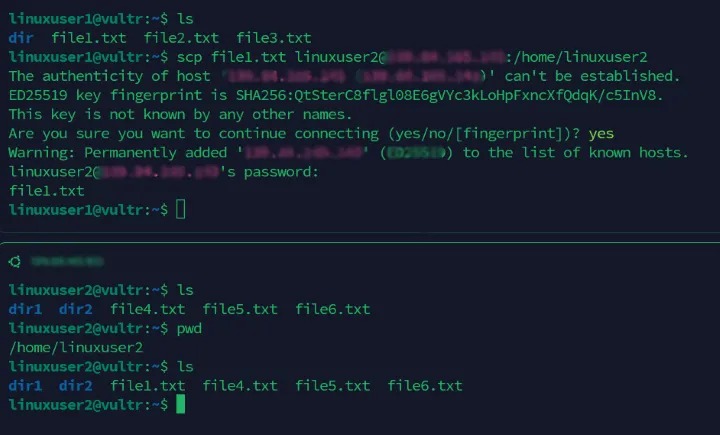
Use scp for a one-time file or directory transfer when you have SSH access to the remote machine. Put the source first and the destination second, then check that the file arrived. Use -r for directories, -P for a custom SSH port, and -i to select a private-key file.
scp ./report.txt [email protected]:/home/alice/reports/To download a file, reverse the direction:
scp [email protected]:/var/log/example.log ./SCP syntax
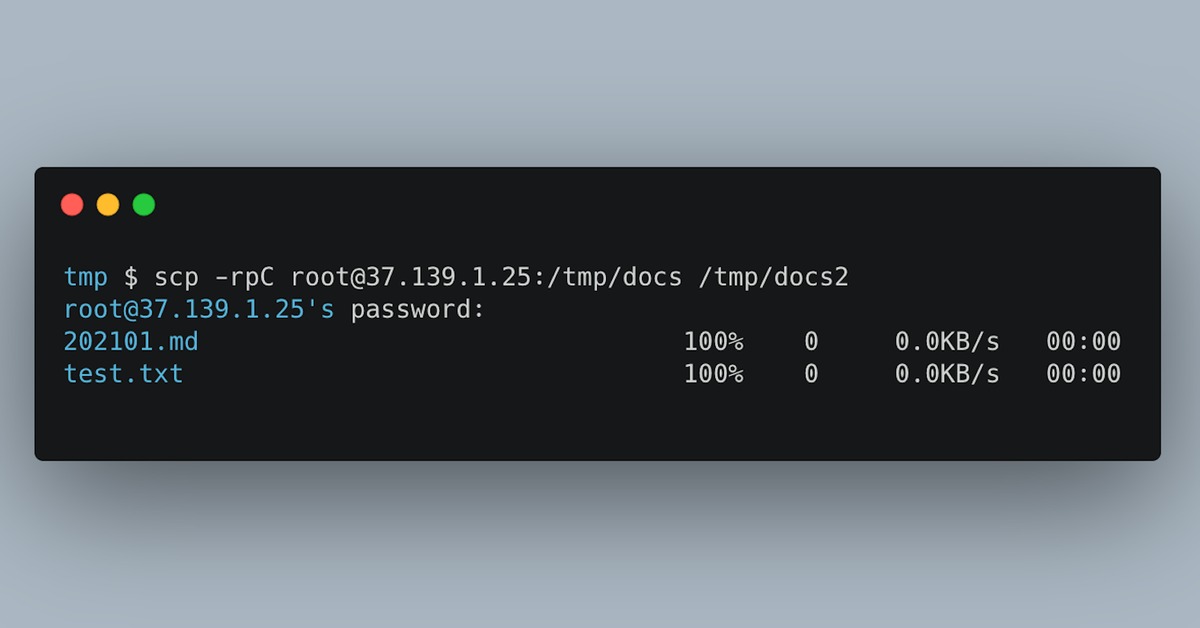
SCP takes two arguments: the file or directory you want to copy and the place you want the copy to go.
scp [options] source destinationA local path points to the machine you run the command on. A remote path adds a host and a colon:
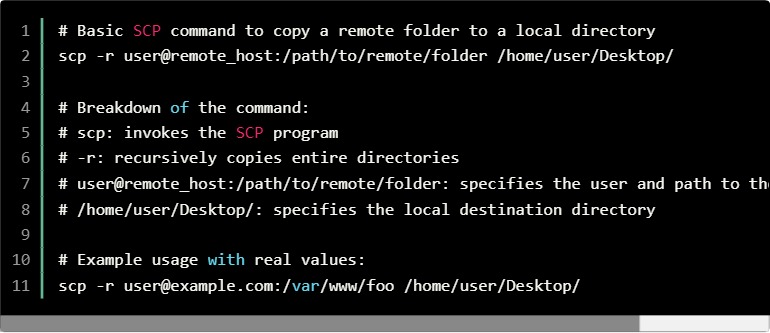
[user@]host:[path]In the upload command from the short answer, ./report.txt is a file in your current local directory. alice is the SSH account, server.example.com is the remote host, and /home/alice/reports/ is the destination directory on that host.
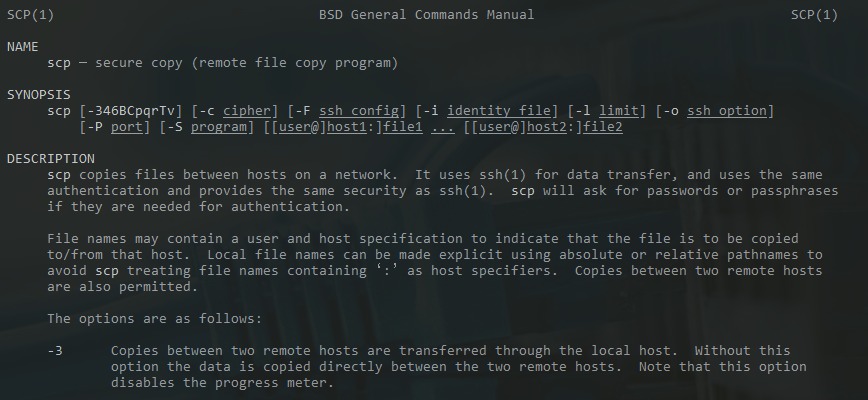
SCP authenticates and transfers over SSH, so the remote account must accept your SSH login and have the filesystem access the copy needs.
Directories and server-to-server copies
The two commands in the short answer move one file in each direction.
To copy a directory, add -r:
scp -r ./site-assets [email protected]:/home/alice/uploads/Symlinks in recursive copies: scp -r follows symbolic links it meets while traversing a directory. If site-assets contains a symlink to another directory, SCP copies the contents of that directory too. Check the directory structure before copying.
The destination can also name a file. Set the final argument to /home/alice/reports/quarterly.txt and the copy arrives under that name. If that file already exists, SCP overwrites its contents, so choose the name with care.
Remote-to-remote copies
SCP also accepts a remote source and a remote destination:
scp [email protected]:/home/alice/report.txt [email protected]:/home/bob/reports/In current OpenSSH, remote-to-remote transfers pass through the local client by default. The -R option instead initiates the copy from the source host toward the destination. That direct route requires the source host to authenticate to the destination without an interactive password prompt.
SFTP by default, legacy mode on request
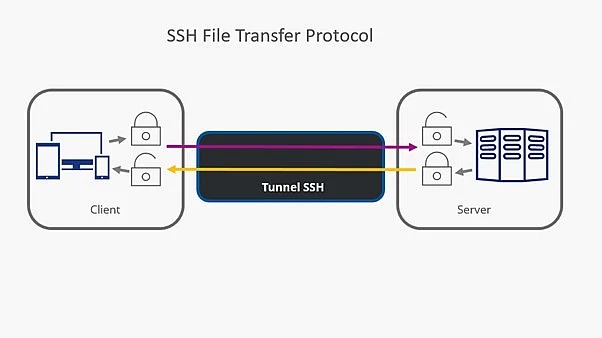
OpenSSH 9.0 and later use the SFTP protocol by default for the scp command. SSH still provides the encrypted connection and authentication.
The -O option requests the legacy SCP protocol. It covers compatibility cases, such as some older servers and remote-shell filename behavior. Legacy SCP uses a remote shell to interpret filenames, so its quoting and wildcard rules differ from those of SFTP-based SCP. When an older command example fails, check your client version and the server's protocol support before switching to legacy mode.
Remote paths and spaces in filenames
A working SSH connection can still send your file to the wrong place if the remote path is incomplete or gets interpreted differently than you expect. Start with the real directory and filename, including capitalization and spaces.
Compare these two remote paths:
[email protected]:/home/alice/reports/report.txt
[email protected]:reports/report.txt
The first is absolute. The second is relative and starts in the remote account's home directory.
Spaces in remote paths
With a modern OpenSSH client on the default SFTP transport, put the entire remote argument in quotes:
scp "[email protected]:/home/alice/Project Files/report.txt" ./The example names a remote directory called Project Files. Your shell strips the quotes and passes the space to SCP as part of the path. Older examples that add remote-shell escaping were written for legacy mode.
A user on r/linuxquestions described the difficulty this way: “I believe my issue is coming from the fact that there is a space in a directory name in the file path.”
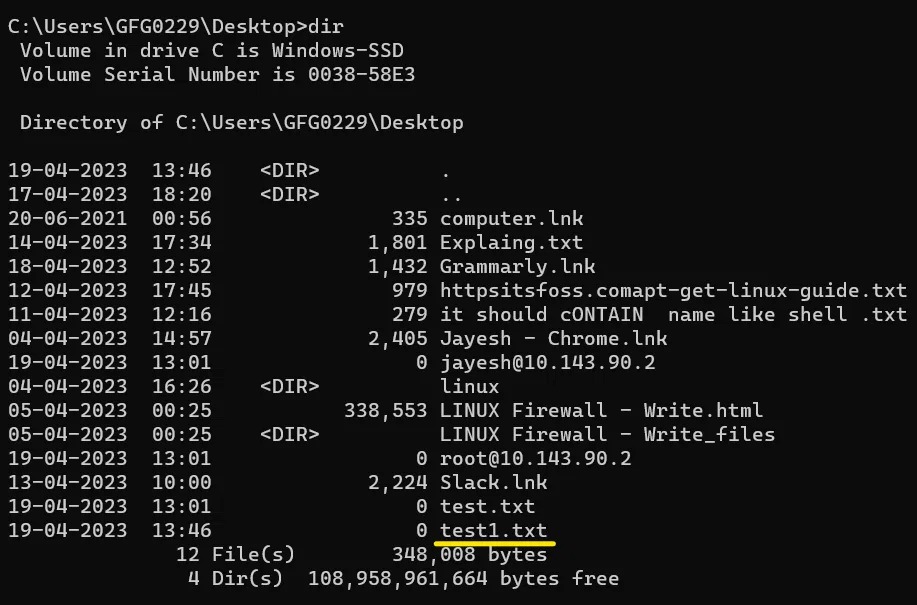
The destination name matters too. An existing directory, an explicit filename, and a path that doesn't exist yet each give a different result. When SCP says a path is missing, check the whole remote argument, including the parent directory, before changing permissions or transfer options.
Ports, keys, and other options
SCP takes SSH connection options directly. Use uppercase -P to select a port and -i to select an SSH identity file.
For a server listening on port 2222:
scp -P 2222 ./report.txt [email protected]:/home/alice/reports/For a specific private-key file:
scp -i ~/.ssh/id_ed25519 ./report.txt [email protected]:/home/alice/reports/| Option | Meaning | When it helps |
|---|---|---|
-P |
SSH port | The server doesn't use the default port |
-p |
Preserve modification times, access times, and mode bits | You need to keep file metadata |
-i |
Identity file | You want a particular SSH private key |
-v |
Verbose diagnostics | An SSH connection or login fails and you need details |
-J |
Jump host | The target is reachable only through an intermediate SSH host |
-C |
Compression | You want compression on the SSH connection |
-l |
Bandwidth limit | You need to cap the transfer's bandwidth |
Capitalization matters. In scp, -P selects the port and -p preserves file metadata. The ssh command uses lowercase -p for its port.
That difference prompted a question on r/linuxadmin: “Is there an actual reason for the port option with ssh and scp command is respectively -P and -p ?”
You can also define hosts, ports, and identities in your SSH configuration to shorten your commands.
Did the file arrive intact?
For a low-risk log download, opening the local file is enough. For nginx.conf or release.tar.gz, check the exact path and compare content before using the copy.
Exit status
Take an upload of report.txt:
scp ./report.txt [email protected]:/home/alice/reports/
echo $?
Run echo $? immediately after SCP, in the same shell. Exit status 0 means SCP finished without errors. It can't tell you whether you named the right file.
Check the destination
Use SSH to inspect the exact remote filename:
ssh [email protected] 'ls -l /home/alice/reports/report.txt'The output shows whether that path is accessible and lists the file's metadata, including its size. Compare the name and size with the file you meant to send.
Compare SHA-256 digests
If both machines have sha256sum, hash the local file and the named remote copy:
sha256sum ./report.txt
ssh [email protected] 'sha256sum /home/alice/reports/report.txt'
Compare the two hexadecimal values. If the SHA-256 digests match, the files are identical.

Fixing SCP errors
Start by working out which layer failed.
A user uploading a file to a web server posted their command on r/linuxquestions, then wrote: “But I get an scp: /public_html: Permission denied error when I run the above command.”
| Symptom | First check | Next action |
|---|---|---|
| Connection refused or timeout | Host address, SSH port, and server reachability | Run ssh -v with the same host and port |
| Authentication or public-key failure | Username, identity file, and SSH diagnostic output | Run ssh -v, read which authentication methods it tries, then fix the credentials or authorized-key setup |
| No such file or directory | Exact source path and existing destination parent | Run ls -ld on the destination parent over SSH, then correct the path |
| Permission denied on destination | Path traversal, directory creation rights, and existing-file write access | Run id and ls -ld over SSH, then use a directory your account can write to |
Test the connection
For a connection or authentication problem, run SSH with verbose output:
ssh -v [email protected]If the server uses port 2222, SSH takes the port as lowercase -p:
ssh -v -p 2222 [email protected]Verbose output shows which authentication methods and connection settings SSH tries. Read it together with the actual error message.
Check directory permissions
If SSH login works but the upload fails, inspect the target directory and its parent:
ssh [email protected] 'id; ls -ld /home/alice /home/alice/reports'id shows the remote account's identity and groups. ls -ld shows each directory's ownership and permission bits. To create a file, your account needs search permission on every directory in the path and write permission on the target directory. Your access to that file, how the transfer replaces it, and any extra filesystem controls decide whether overwriting works.
A directory can exist and still be inaccessible to your account, so check each component of the path.
Permission fix: Don't use chmod 777 or indiscriminate sudo to get SCP working. Upload with the right account, to a directory it can write to, or make the smallest permission change your server administrator approves.
For the /public_html error above, find the real path to the site's document directory and the account that is allowed to upload there.
SCP, SFTP, rsync, or a backup tool?
SCP handles a known source and destination with little setup beyond working SSH access.
An administrator discussing scripted copies on r/linuxadmin asked: “Should i just give up and use a proper backup software ?”
| Task | Tool to consider | Reason |
|---|---|---|
| Copy a file or directory once, such as downloading one log for inspection | SCP | Direct source-to-destination transfer over SSH |
| Browse remote directories and transfer files interactively | SFTP | Interactive remote filesystem navigation |
| Repeat or incrementally synchronize transfers, such as keeping a working directory in sync across repeated deployments | rsync | Built for synchronization, with incremental transfer options |
| Retain versions and recover from data loss, such as protecting databases and shared files against deletion or corruption | Dedicated backup tooling | Retention policies, recovery procedures, and restore testing |
