Use OpenSSH SFTP for interactive file transfers over SSH, and rsync for repeated incremental syncing when the server supports it. Connect with sftp user@host, adding the right SSH key and port when the server requires them, and transfer files with put and get at the sftp> prompt. Then check the transferred file.
When SFTP is the right file-transfer tool
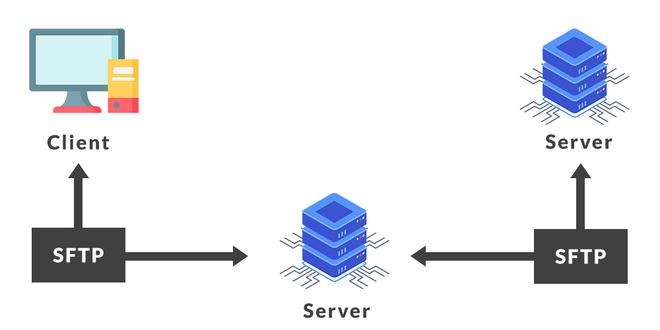
SFTP suits transfers through an SSH account where you also want to look around the server's directories. Verify both the remote working directory and the destination filename after each transfer.
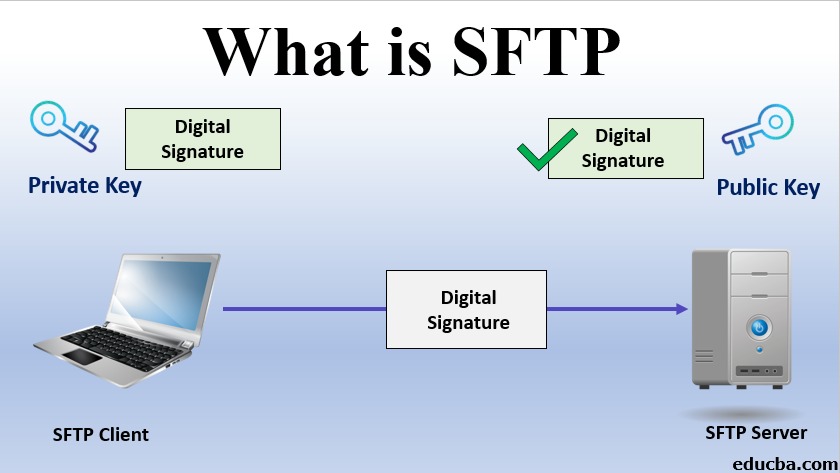
SFTP stands for SSH File Transfer Protocol, and its transfers run over encrypted SSH.
| Tool | Best fit | Condition that matters |
|---|---|---|
sftp | Interactive uploads, downloads, and remote browsing | Works for accounts that have SFTP access but no interactive shell |
scp | Direct command-line copies | One command with a source and a destination, no interactive browsing |
rsync over SSH | Repeated synchronization of changing directory trees | Needs rsync on the remote side |
A hosting provider can give you an SFTP account for website uploads. Such an account can have no shell access, which rules out remote rsync. For an occasional copy from a shell, scp is simpler. Since OpenSSH 9.0, scp uses SFTP as its default transfer protocol, so the interface is the main difference.
Connect to an SFTP server and check the host
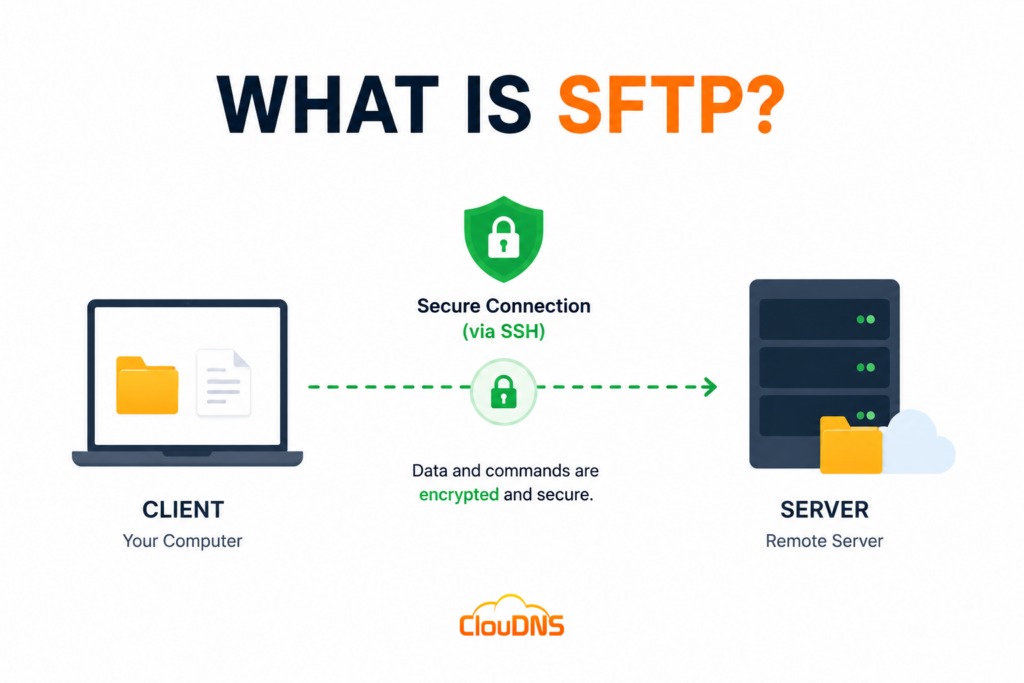
Start the client from a Linux terminal with the account name and server address:
sftp [email protected]SSH uses port 22 by default. If your service uses port 2222, pass uppercase -P:
sftp -P 2222 [email protected]On sftp, capital -P selects the port. Lowercase -p preserves file times and modes. The separate ssh command uses lowercase -p for its port.
Verify the server's host key
The first connection shows the server's host-key fingerprint. That key identifies the server, and your client stores trusted ones in known_hosts. Confirm the fingerprint with your administrator or provisioning channel before accepting it.
If a host key you already trusted changes, find out whether the server rotated it legitimately before updating the record. An unexpected change can also mean you have reached the wrong server. Don't disable host-key checks or wipe known_hosts to silence the warning.
AWS Transfer Family documents how changing an SFTP server host key can interrupt clients that remember the previous one.
Timeouts and refused connections
One r/HomeNetworking user setting up SFTPGo on Windows could connect from some networks but not others. The only message was “Host connection timed out”, with no descriptive error.
For a timeout, check the hostname, the assigned port, the network route, and the firewall path. A refusal means the endpoint is reachable but the SSH listener is down or refusing connections.
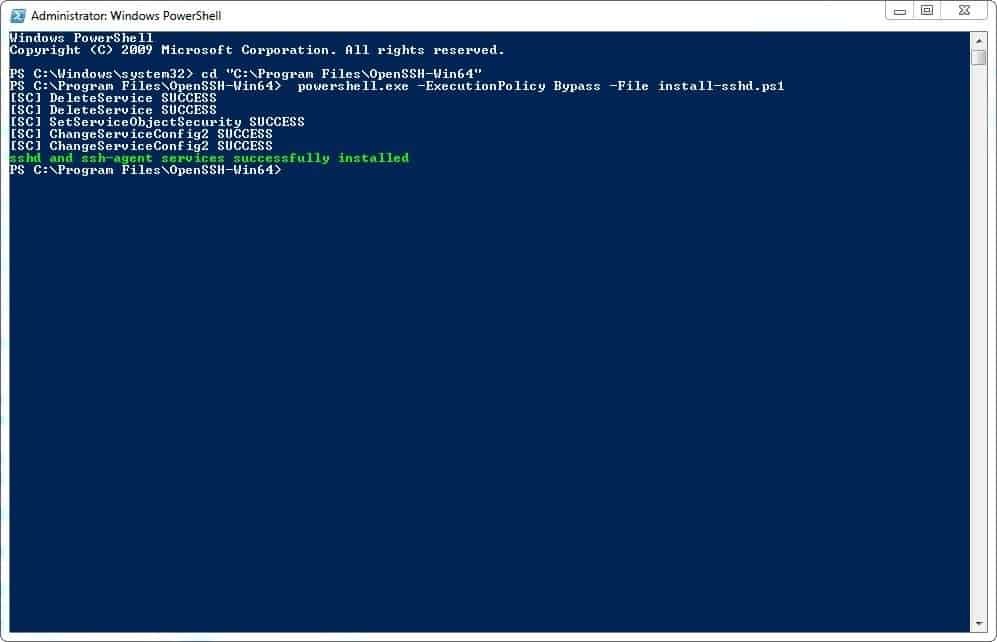
SSH authentication can succeed while the SFTP subsystem fails to start. In that case the server admin needs to check the subsystem and the account policy.
Sign in with an SSH private key
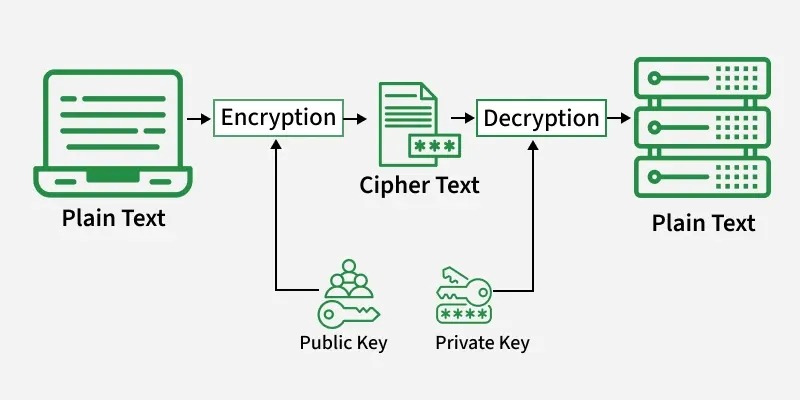
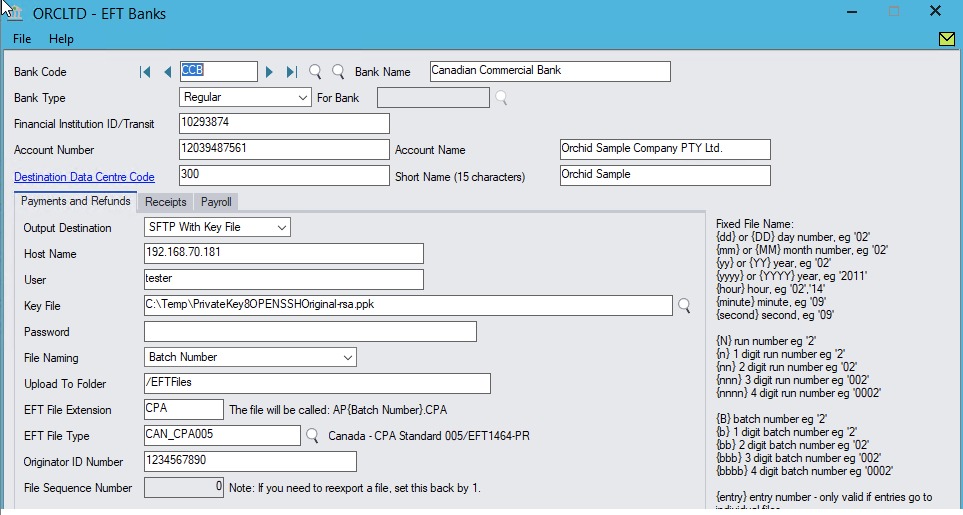
When the server requires public-key authentication, pass -i on the command line to select the private key file on your computer:
sftp -i ~/.ssh/id_ed25519 [email protected]A provider can give you a file ending in .pem. If it holds a supported SSH private key for your account, you can use it the same way:
sftp -i ~/keys/site.pem -P 2222 [email protected]The extension says nothing about the key's format.
An r/Ubuntu user hit Permission denied (publickey) while uploading a PHP file to a server that required a .pem key for login.
Which key does what?
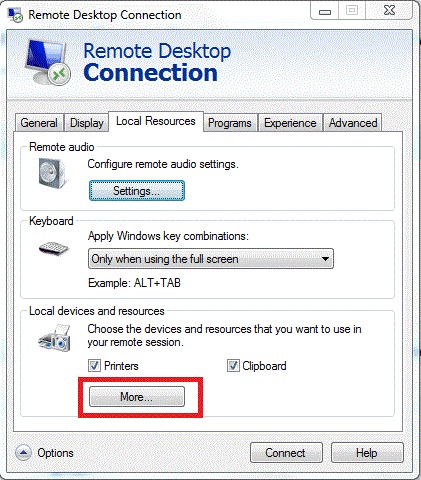
Your private key identifies you to the SSH server, which accepts the matching public key for your account. The server's host key identifies the server to you.
Permission denied (publickey) means SSH has not authenticated your account. Check these:
- Identity file: Check that the private key you named exists on your machine and has strict file permissions.
- Username: Use the login name of the account the server holds your public key for.
- Authorization: Ask the server admin to confirm that your public key is accepted for that account.
- Client output: Add
-vto see which key your client offers and how authentication proceeds.
sftp -v -i ~/.ssh/id_ed25519 [email protected]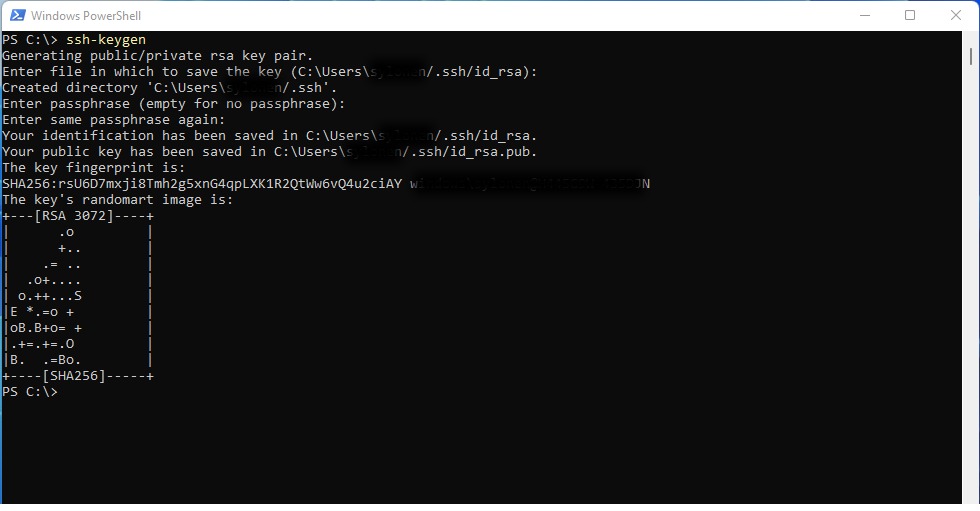
The -v output covers the client side. The server's decision shows up only in its logs, so ask an admin to read them. For connections you reuse, put the host alias, key file, account name, and port in ~/.ssh/config.
Keep local and remote directories straight
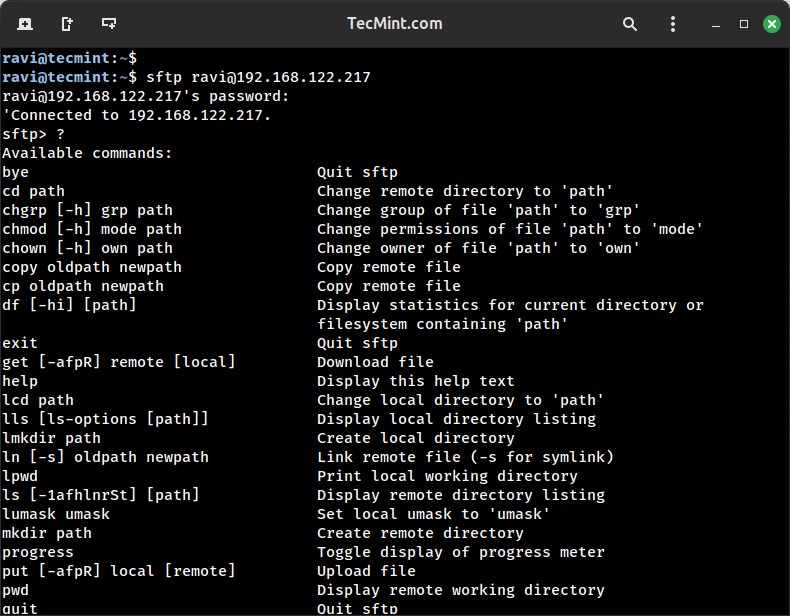
At the sftp> prompt, the client tracks a local and a remote working directory. Commands with an l prefix work on your local computer.
| Operation | Remote side | Local side |
|---|---|---|
| Show current directory | pwd | lpwd |
| List files | ls | lls |
| Change directory | cd DIRECTORY | lcd DIRECTORY |
Say your file sits in ~/Downloads on your laptop and the server accepts uploads in /uploads:
sftp> lcd ~/Downloads
sftp> cd /uploads
sftp> lpwd
sftp> pwd
The last two commands print the local and remote locations. Relative paths resolve against the matching working directory. Full destination paths keep a file from landing in the wrong place.
Upload and download individual files
At sftp>, put copies a local file to the server and get copies a remote file to your computer.
sftp> put report.csv
sftp> get backup.zip
The general forms are:
put LOCAL_PATH [REMOTE_PATH]
get REMOTE_PATH [LOCAL_PATH]
Without a destination, the client uses the current working directory and the source filename. If you know both paths, give them in full:
sftp> put ~/Downloads/report.csv /uploads/report.csv
sftp> get /reports/log.txt ~/Downloads/log.txt
Filenames with spaces or special characters need quoting or escaping, especially when a name can be read as a glob pattern or as several arguments:
sftp> put "my report.csv"Give a transferred copy another name
Name the destination file anything you like:
sftp> put ~/Downloads/report.csv /uploads/report-final.csvOrdinary OpenSSH transfers (not resumed ones) replace an existing file at the destination path when permissions allow. To keep the old copy, pick a different destination filename or save the copy elsewhere first.
Retrieve one known file from the shell
If you know the remote file path, you can pass it in the startup command:
sftp [email protected]:/reports/log.txtThe client downloads that file to your local working directory.
Copy multiple files or a whole directory
Multiple matching files
The pattern *.txt matches files in the remote directory for get and in the local directory for put:
sftp> get *.txt
sftp> put *.txt
With several matching files and an explicit destination, the destination must be a directory.
Recursive directory copies
The OpenSSH SFTP manual documents uppercase -R for recursive transfers at the prompt:
sftp> get -R reports
sftp> put -R assets| Where the option appears | Documented form | Meaning |
|---|---|---|
At the sftp> prompt | get -R DIR, put -R DIR | Recursively transfer a directory |
When starting sftp from the shell | sftp -r ... | Recursive transfer for the whole session |
When starting sftp from the shell | sftp -R NUMBER ... | Number of outstanding transfer requests |
Some tutorials show lowercase -r at the prompt. Use -R as documented, and check help or man sftp if your client behaves differently.
Recursive transfers don't follow symbolic links into their targets, so symlinked directories need their own transfer.
Resume an interrupted SFTP transfer safely
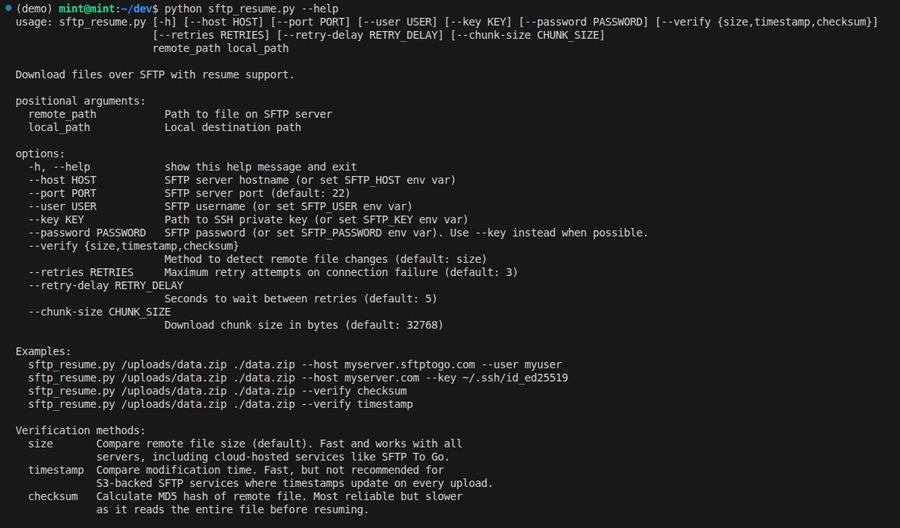
If a download stops midway, resume it with reget. Use reput for an interrupted upload:
sftp> reget remote-large.tar.gz
sftp> reput large-backup.tar.gz
Resume only if the source file is unchanged and the partial copy came from it, since a mismatch produces corrupted output. Otherwise start a fresh transfer and keep your original. Resuming doesn't compare checksums.
Fix “Permission Denied” after SFTP connects
If you reach sftp> but can't upload, check the destination directory and what your account is allowed to do there. Login worked. The filesystem decides whether your account can create or modify files.
In one r/Ubuntu thread, an administrator reported that the account john could connect over SFTP but couldn't upload a file. The directory ACL entry was rw-, and the replies focused on the missing execute/search permission that directory access needs.
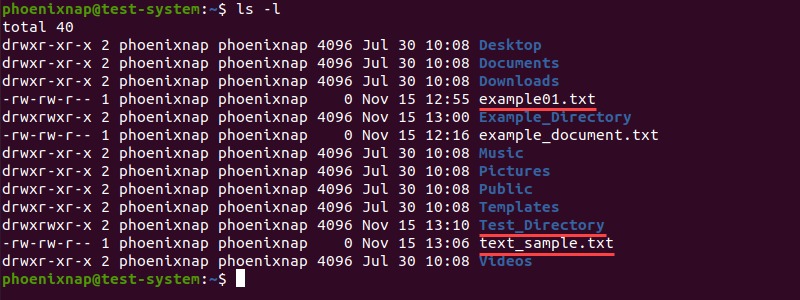
Creating a file in a Unix directory requires write permission on the destination directory and search/execute permission along the whole path.
Match the symptom to the failing operation
| Symptom after connecting | Possible source | Next check |
|---|---|---|
Permission denied on creation or upload | Directory mode, effective ACL, ownership, or policy | Run ls -l on the destination directory |
No such file | Missing path, or a path outside the exposed directory tree | Check that the path exists inside the tree your account can see |
File transfer failed | Access, quota, storage, or another server-side condition | Check storage and quota on the destination, then ask the admin for logs |
Check filesystem capacity when supported
OpenSSH documents an interactive df command, which works only on servers that support the [email protected] extension:
sftp> df /uploadsIf df isn't supported, that tells you nothing about remaining space. Per-account quotas need an admin to check.
Understand restricted SFTP directories
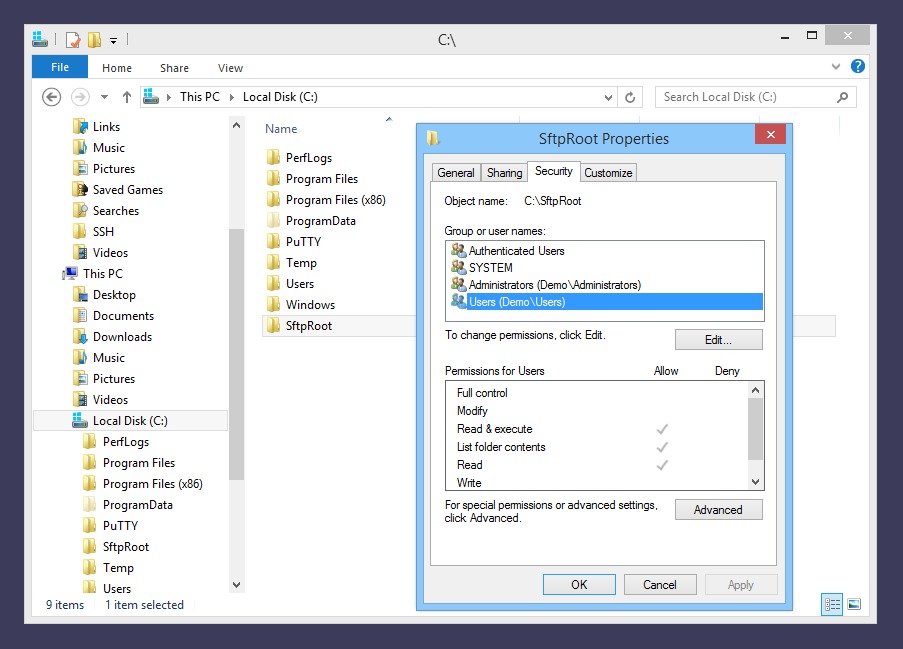
An SFTP account restricted by a chroot sees a root directory that maps to a different directory on the host machine, so /uploads is resolved inside the view the server exposes. In an OpenSSH chroot setup, every component of the ChrootDirectory path must be owned by root and must not be group- or world-writable. An account can be allowed to browse the chroot root and upload only into a child directory such as /uploads.
Don't make the chroot root writable by the upload account, and don't run a blanket chmod 777. Fix the specific target directory or policy through the server admin.
Automate a transfer with SFTP batch mode
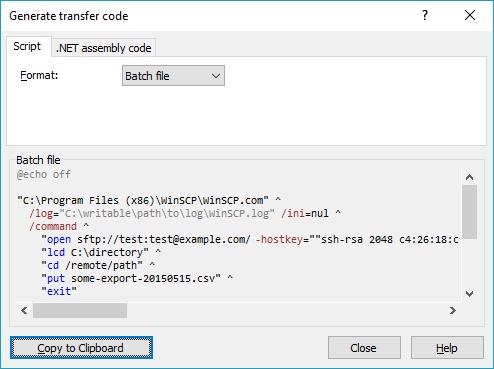
OpenSSH SFTP reads commands from a text file when you pass -b. It suits repeatable transfers with prepared paths and credentials.
Put these commands in commands.sftp:
cd /uploads
put /home/me/reports/daily.csv
bye
Run that file from the Linux shell:
sftp -b commands.sftp -i ~/.ssh/id_ed25519 [email protected]The batch file holds bare SFTP commands with no sftp> prefix. The -b and -i options belong on the shell command line.
Let failed jobs report failure
OpenSSH batch mode stops when put, get, cd, or ls fails. A leading - on a batch-file command suppresses termination for that failure, so use it only when continuing is intentional.
To act on the exit status in Bash:
if sftp -b commands.sftp -i ~/.ssh/id_ed25519 [email protected]; then
    echo "SFTP batch completed"
else
    echo "SFTP batch failed" >&2
    exit 1
fi
An unattended batch needs working noninteractive key authentication and an already trusted host key before it runs. Any password, passphrase, or host-key prompt stops it.
Capture the output in your job or scheduler so you can see which operation failed.
Verify the transfer and close the session
After a transfer, look at the destination. List the remote copy after an upload and the local copy after a download:
sftp> ls /uploads/report.csv
sftp> lls ~/Downloads/log.txt
Check the location, filename, and file properties against what you meant to send. A different size shows a clear problem, but a matching size doesn't prove the contents are identical.
Check important files with a checksum
For an important backup or any file where integrity matters, calculate a checksum independently on the source and the destination and compare them. SHA-256 works.
On a Linux shell with access to the file:
sha256sum ~/Downloads/report.csvCompare the result with the digest of the remote file, calculated through a remote shell or your provider's checksum tool. The sftp> prompt has no universal sha256sum command, and restricted accounts can have no shell access.
When you finish, close the session:
sftp> byeexit also leaves the SFTP client.
