Run the tests from the machine where the failure happens. Check the route, ping, DNS and the real connection one by one, fix what fails, then repeat the original request.
A Linux machine can reply to ping and still fail to load a website. Another machine can browse fine while its ICMP probes to a public address go unanswered.
Start with the symptom and choose the next test
To find the cause, you need to know which request failed, where it ran and at what stage it stopped. Write that down first: the affected machine, the destination and application, and the exact error with its timing. For example: “Ubuntu workstation; HTTPS request to a named server; connection times out intermittently.” If the request goes through a VPN, note that too.
| What fails or looks wrong | First check | Where to look next |
|---|---|---|
| Interface appears disconnected or has no address | ip -br link, ip -br addr | Local interface configuration |
| Traffic uses an unexpected network or VPN | ip route get | Source address and outgoing interface |
| Numeric-IP ping fails but browsing works | ping -c 4 | ICMP versus application traffic |
| Traceroute displays unanswered hops | traceroute, then compare later hops and the destination | Silent hops and filtering |
| Hostname lookups or DNS queries disagree | getent ahosts, dig | Which resolver is used |
| Browser or package request fails despite ping replies | curl -v | Where the request fails: DNS, TCP, TLS or HTTP |
| Service works locally but remote clients fail | ss -lnt | Bind address and incoming path |
| IPv4 and IPv6 behave differently | ping -4, ping -6 | Address family and endpoint |

Where you test matters. A VPS making a successful outbound request uses a different path from a laptop trying to reach a service on that VPS.
Check the network interface, IP address, and route
Check that Linux has an interface and an address, then see which interface and source address the kernel picks for your destination.
ip -br link
ip -br addr
ip route get 1.1.1.1
Replace the example IP, hostname and URL in these commands with your real destination.
The first command lists interface states. The second lists assigned addresses. An enabled interface can still have no working physical or wireless link, and an address offers no guarantee of a path to every destination.
The route lookup shows which interface and source address the kernel would pick for 1.1.1.1. An unexpected VPN interface or source address tells you where to look next.
The destination, source address, policy rules and network namespace determine the route. ip route get works out that choice without sending a packet to the destination, so it says nothing about remote delivery or the return path.
Test ICMP reachability with ping and read the result narrowly
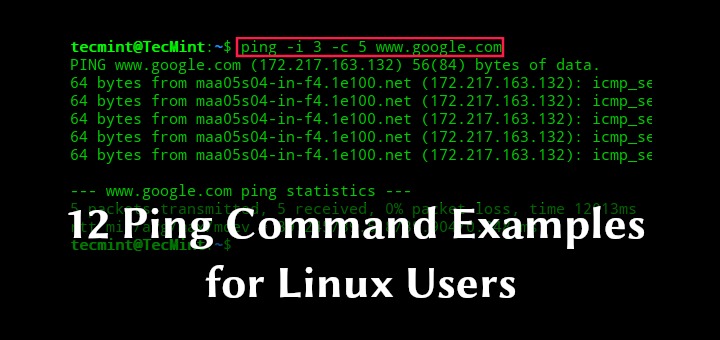
ping sends ICMP Echo probes and reports the replies. Ping a numeric address so hostname resolution isn't involved:
ping -c 4 1.1.1.1-c 4 sends four probes. Replies and loss tell you about ICMP to that address at that moment, and nothing more.
One poster on r/linux4noobs described the problem like this: “im trying to ping 1.1.1.1 and 8.8.8.8, but both are getting me 100% packet loss, until a ctrl+c. though, i can still access the internet, which is strange.”
Networks can filter, rate-limit or deprioritize ICMP Echo while still forwarding application connections. So 100% Echo loss to an address doesn't mean its HTTPS service or other internet access is down. A reply means ICMP reaches that address.
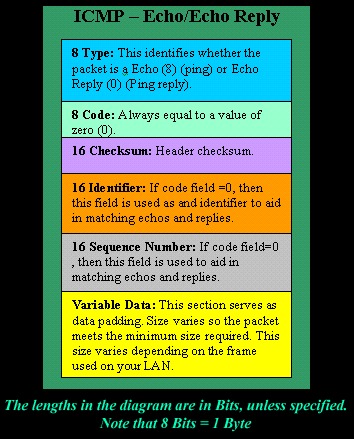
If the complaint is about a website or download, test the HTTP(S) request itself.
Trace the path without blaming every silent hop
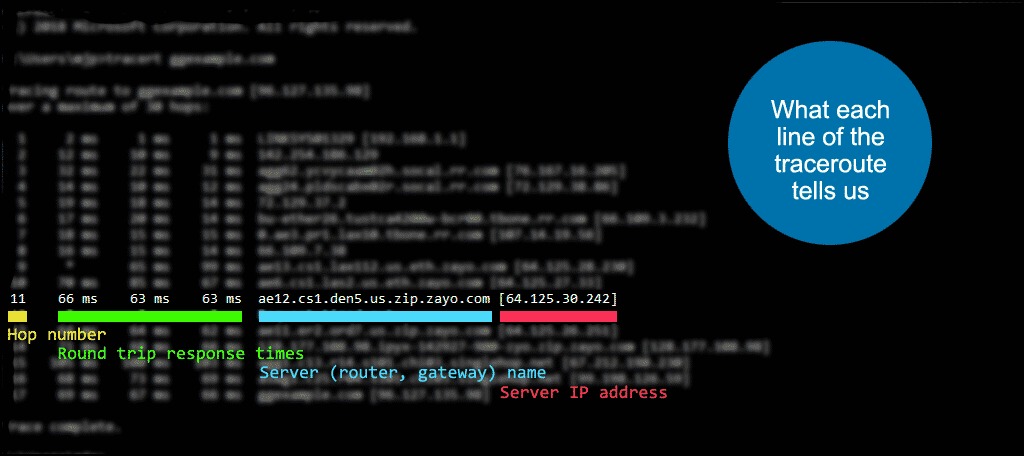
Run traceroute against your destination. Use mtr instead if it's installed and you need repeated probes.
traceroute 1.1.1.1Traceroute changes the hop limit. An intermediate * * * can be filtering or rate limiting, and if later hops or the destination respond, traffic continued past the silent hop. If the usual probes are filtered, Linux traceroute also offers ICMP (-I) and TCP (-T) methods.
Compare system name resolution with direct DNS queries
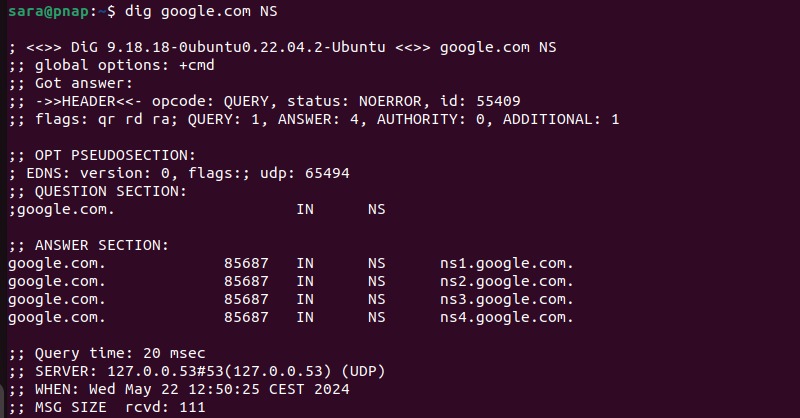
Linux name resolution takes different paths depending on the program and system configuration. Compare the system's own lookup with a DNS query aimed at a server you pick.
Start with the system lookup through the Name Service Switch (NSS):
getent ahosts example.comgetent uses the configured NSS sources, which can include the hosts file as well as DNS. If the system runs systemd-resolved, these two commands show its DNS configuration and run a lookup through it:
resolvectl status
resolvectl query example.com
To compare against direct DNS queries, use:
dig example.com
dig @8.8.8.8 example.com
The second command sends the query straight to 8.8.8.8. Use that public server only as a comparison point.
| Observed difference | Useful next investigation |
|---|---|
getent fails. Direct dig succeeds | NSS configuration and the system's name-service path |
Default dig fails, dig @SERVER succeeds | The default resolver, its upstream servers and link settings |
| Name resolves. Connection still fails | The returned address, the IP family used and the connection stage |
| Host lookup succeeds. Container lookup fails | The container's own resolver and network settings |
An r/Ubuntu user put it this way: “But I am confused why this happened suddenly in the fist place when everything was running fine.” Their dig @8.8.8.8 google.com query succeeded while dig google.com failed. The setup was Ubuntu 26.04 with Pi-hole, AdGuard DNS and the systemd stub address 127.0.0.53.
Inside a company network or VPN, names can come from private DNS or split-horizon rules.
Test the real connection with curl
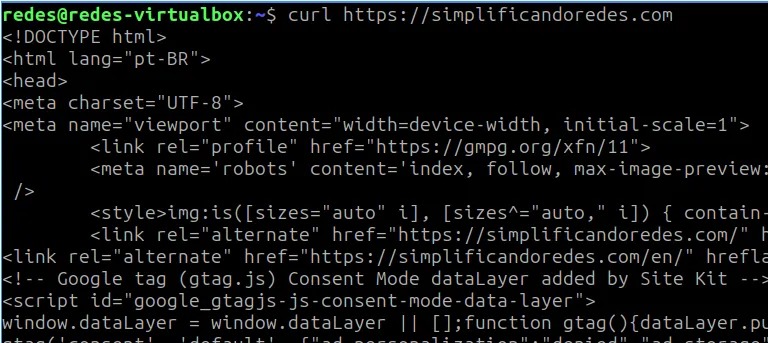
For an HTTP or HTTPS failure, curl -v shows more than ping does. Test the affected URL:
curl -v https://example.comVerbose output shows the addresses curl tries (Trying) and whether a connection was established (Connected to).
A wired Ubuntu 24.04/XFCE user on Ubuntu Community Discourse reported: “I can’t surf the internet or install packages via my package manager. But I CAN ping google.com.”
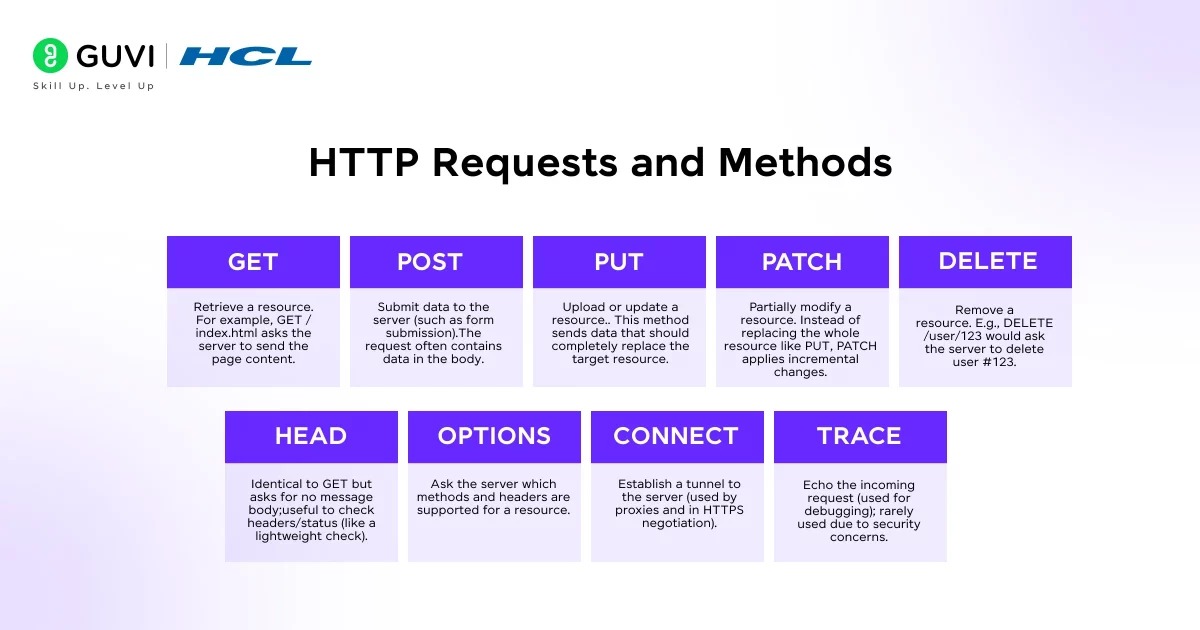
Read the error and the connection stage
The official libcurl error-code documentation separates these common categories:
| Error code | Reported failure | What to inspect |
|---|---|---|
6 | Could not resolve host | Hostname resolution for this request |
7 | Failed to connect to host or proxy | Attempted endpoint, service and path |
28 | Operation timed out | The stage that ran out of time |
After the connection, TLS messages and the HTTP status show where a failure happens. An HTTP error response still means an HTTP exchange took place.
The result applies to that URL and curl's own settings. A browser or package manager can use a different proxy or certificate setup. Verbose logs can expose request headers or other sensitive details, so remove secrets before sharing them.
To test a specific address, curl --resolve maps a hostname and port to a known IP while the HTTPS request keeps the URL hostname.
Check listeners and IPv4 vs IPv6
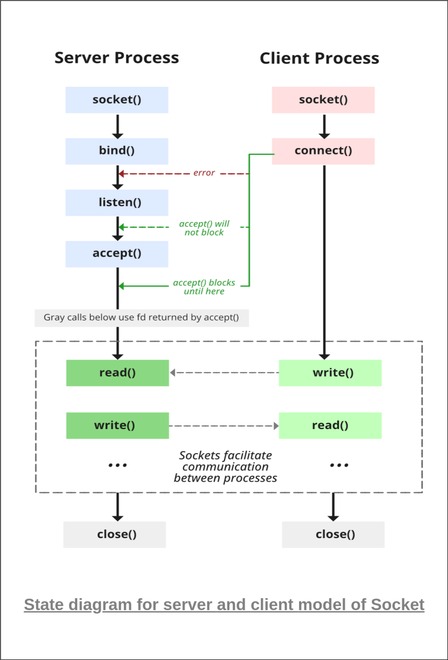
If a service works on its own host but remote clients can't connect, check the listening address and port on the service host:
ss -lntThe command lists local listening TCP sockets in numeric form. A service bound to 127.0.0.1 listens on IPv4 loopback, so a remote client can't contact it directly through the server's LAN or public IP. A bind to an external-facing address can allow inbound connections. Even then, a firewall, cloud rule or NAT can still block it.
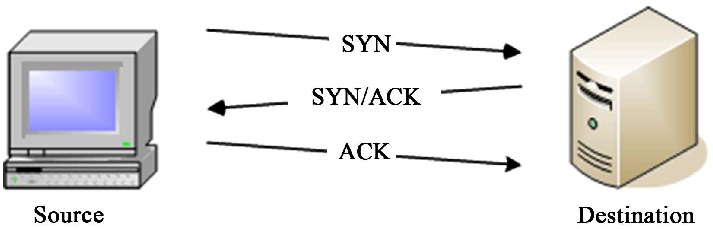
Compare the address and port the client tries with the one the service listens on.
When IPv4 and IPv6 disagree
A hostname with both A and AAAA records can return different IPv4 and IPv6 addresses, and an application can attempt to reach them through different paths. Compare the two address families explicitly:
ping -4 -c 4 example.com
ping -6 -c 4 example.com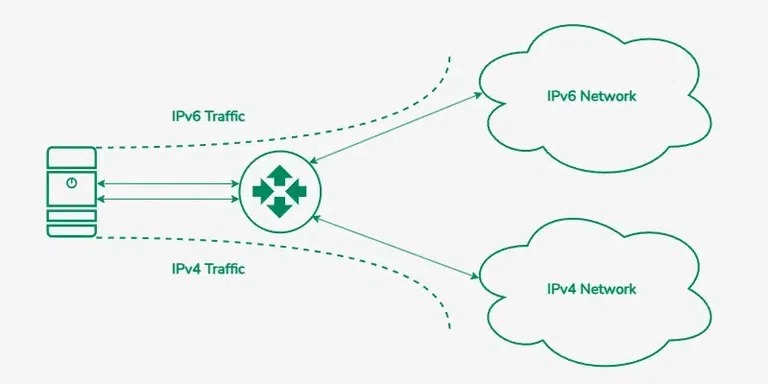
For SSH, treat transport errors such as a timeout or connection refusal separately from Permission denied (publickey). That one is an authentication failure that happens after the connection reaches that stage.
Verify the fix and avoid cutting off remote access
Protect remote access. Before changing live networking on a VPS, secure an independent recovery method. A provider console or another tested management path can give you access if SSH is interrupted.
DigitalOcean documents a console-based recovery path for its environment.

Confirm the fix
- Name the cause. Pick the route, resolver, listener, service or firewall rule your tests point to.
- Plan the rollback. Write down the change you intend to make and how to restore the previous configuration.
- Change only that component. Follow its system-specific procedure. Skip broad network resets, and don't disable protections without evidence.
- Retest the original request. Use the same machine, endpoint and application conditions, and compare the result with your incident note.
- Watch for recurrence. One successful attempt between episodes doesn't prove the problem is gone. Keep testing over the period when the failure appears.
