Set an environment variable where the program that needs it will receive it. Use a command-specific assignment for one run, export for children of the current Bash shell, or the right startup, cron, or service configuration for future launches. For PATH, keep the existing directories, choose the search order deliberately, and test the result the way the program launches.
A variable can look right in your terminal and vanish when the same program starts somewhere else. The cause is who launched the program.
Where to set a variable
| Program | How it starts | When the value applies |
|---|---|---|
| One command | NAME=value command | That run only |
| Commands started by this Bash | export NAME=value | Child processes started afterward |
| Future Bash terminal or login | Startup file matching the shell mode | New sessions that read that file |
| Scheduled job | Crontab or job-owned configuration | When cron launches the job |
| systemd-managed program | Service or manager configuration | When the manager launches the program |
Identify the target program, its user account, and the launcher that starts it. Then pick the narrowest row that covers your real use. PATH adds a second decision, because directory order can change which executable runs.
What Bash exports and what it doesn't
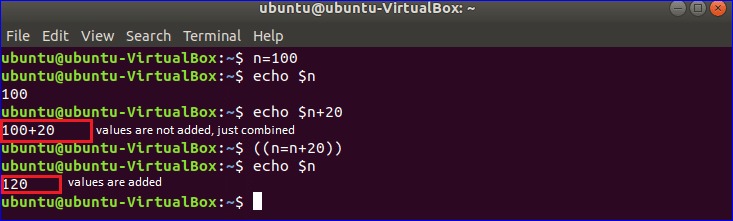
A value you assign in Bash starts as a shell variable. Mark it with export and every program you run afterward gets it in its environment.
Try this in a throwaway Bash session with a harmless variable:
unset DEMO_VAR
DEMO_VAR=local
bash -c 'printf "child=[%s]\n" "${DEMO_VAR-unset}"'
The variable was never exported, so the child prints:
child=[unset]The parent shell holds the variable, but the child never received it. Now export it:
export DEMO_VAR
bash -c 'printf "child=[%s]\n" "$DEMO_VAR"'
This time the child prints:
child=[local]The child inherits the value at startup. Changes the child makes later don't reach its parent.
To set a value for one command only, write:
APP_MODE=staging bash -c 'printf "%s\n" "$APP_MODE"'The command sees APP_MODE=staging, and your shell keeps nothing. export only affects programs this shell starts afterward. It saves nothing for future sessions and doesn't change processes that are already running.
Add a directory to PATH without replacing the rest
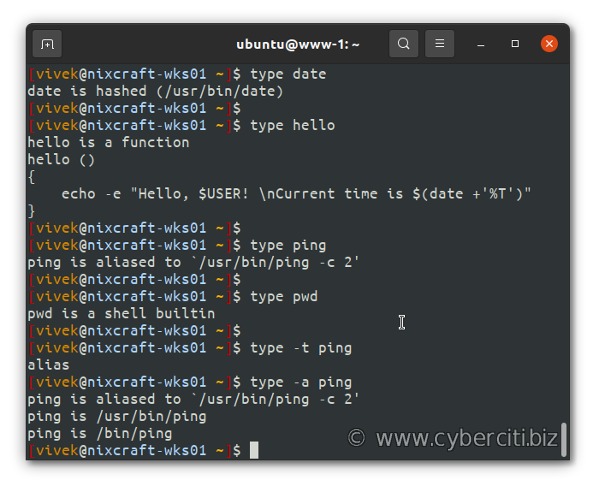
PATH is a colon-separated list of directories. Bash searches them in order when you run a command by name. Put a directory first and its matching executable takes precedence. Put it last and existing matches keep their priority.
Say you installed a CLI tool in $HOME/.local/bin. Check the current value first:
printf '%s\n' "$PATH"To put your directory first:
export PATH="$HOME/.local/bin:$PATH"To let existing directories win on overlapping names, append it instead:
export PATH="$PATH:$HOME/.local/bin"Both forms keep the existing entries. Don't put an untrusted, writable directory first: another executable could be picked instead of the one you meant.
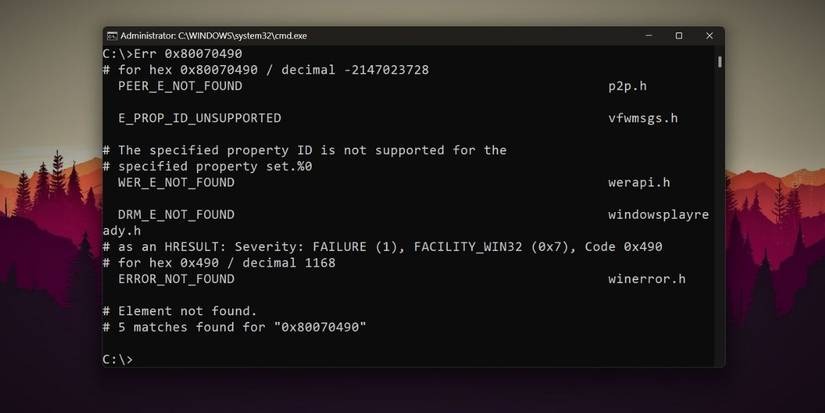
Check which command Bash resolves after the change:
command -v toolname
type -a toolname
Replace toolname with your command. The first line shows the match Bash uses. The second can list further matches. A PATH entry is only a directory, and it has to contain the executable.
Keep empty entries out of PATH. On Linux, an empty entry adds the current working directory to the executable search.
Setting variables in Bash startup files
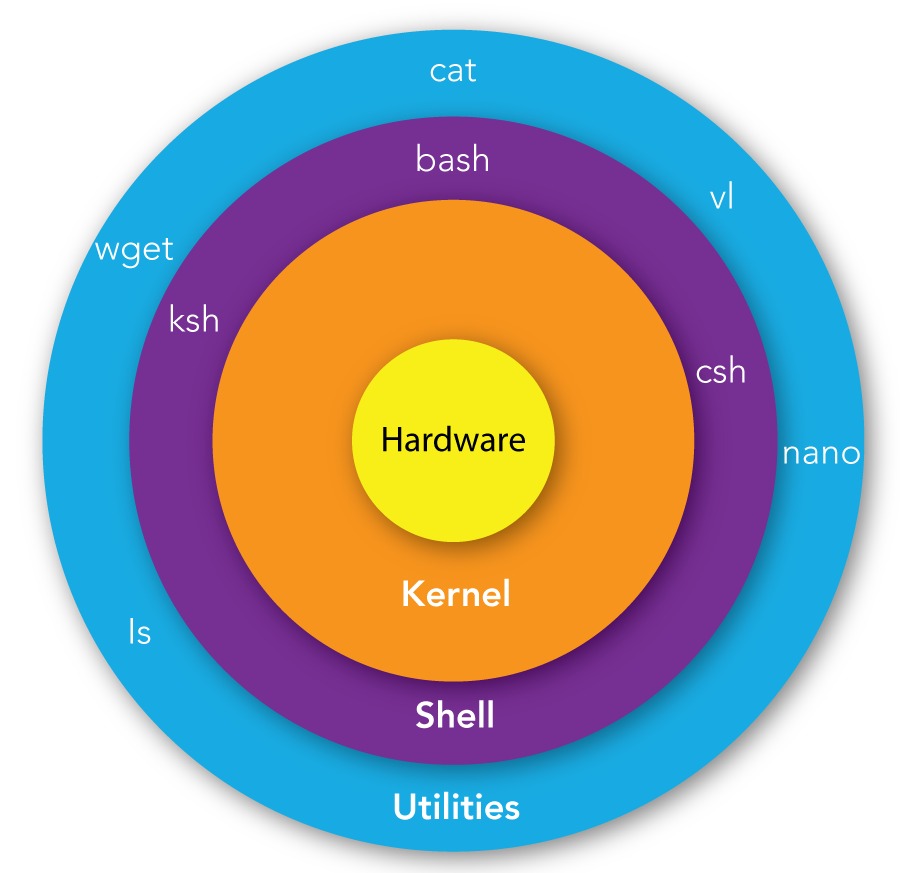
Persistent Bash settings take effect when a new shell reads its startup file. Login mode and interactive mode decide which files Bash reads.
| Bash launch | Startup behavior | Deciding detail |
|---|---|---|
| Interactive non-login | Normally reads ~/.bashrc | The shell must start in that mode |
| Interactive login | Reads system login setup, then the first readable user file among ~/.bash_profile, ~/.bash_login, and ~/.profile | It doesn't read all three user files |
| Non-interactive | Follows separate rules, including BASH_ENV when it applies | Don't assume ~/.bashrc loads |
The GNU Bash startup-file documentation covers these modes and their special cases. A login file can load ~/.bashrc explicitly, but only if it contains that line. So a terminal running interactive non-login Bash and an SSH session running login Bash can get different values.
For a PATH setting that applies to your user, put one assignment in the file your shell reads:
export PATH="$HOME/.local/bin:$PATH"Back up the file before editing it. If you put the same line in several files and one loads another, you get duplicate entries.
If you edited ~/.bashrc, check its syntax:
bash -n ~/.bashrcA passing check prints nothing, and it doesn't show that a new session will read the file. source ~/.bashrc applies the file to your current shell.
Where /etc/environment fits
On systems that use the PAM environment module, /etc/environment supplies simple NAME=VALUE entries during session setup. It's plain data with its own parsing rules, not a Bash script. The PAM environment manual also separates it from /etc/security/pam_env.conf, which uses a different format.
Don't put Bash logic in it, and don't expect source /etc/environment in one terminal to update other processes.
Verify the variable where the application runs
Test through the same launcher and user account as the application that needs the value. For a harmless setting such as APP_MODE=staging, run printenv APP_MODE from a test process started the same way, or use the application's own startup diagnostic. A GUI application can get a different environment than a program started in your terminal. Print only the variable you're checking. Printing the whole environment into logs or bug reports can expose credentials.
Why cron and systemd don't use your terminal settings
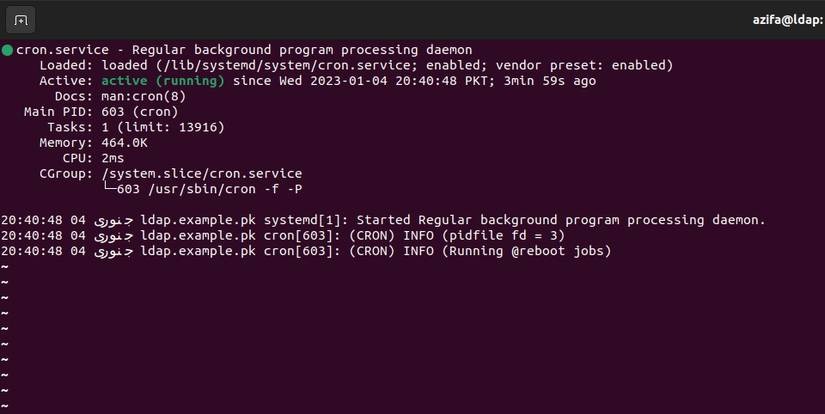
Cron and systemd build their own environments for the programs they launch. A variable you export in your interactive terminal doesn't carry over to those jobs.
A poster in r/linuxquestions wrote: “It would be nice to load whatever I have from .bashrc directly into cron.”
Cron: configure the scheduled job
Crontabs accept variable assignment lines. For a nonsecret demo value, it can contain:
APP_MODE=stagingThis line sets the value for every job in that crontab. Cron runs commands with /bin/sh by default, so don't count on your Bash startup files.
systemd: configure the service
A systemd unit can set a nonsecret value in its service configuration:
[Service]
Environment=APP_MODE=staging
Put that snippet in a unit or drop-in file. It isn't a complete unit, and adding it doesn't reload or restart a running service. systemd also provides EnvironmentFile=, which has its own parsing rules.
The separate environment.d mechanism applies to the systemd user manager and the services it manages.
Don't store credentials in service environment directives. For secrets, use the service manager's own credential mechanisms.
Recover when a PATH edit breaks your commands
A broken PATH can make familiar utilities seem to vanish from your shell. Restore enough command access to fix the faulty configuration before opening another session that loads it.
In a December 12, 2020 post on r/bash, a user described what a mistaken PATH edit did: “‘ls’ doesn't work. ‘vim’ doesn't work.”
For example, this assignment leaves the dollar-sign expressions as literal text:
export PATH='$HOME/.local/bin:$PATH'Single quotes block the expansions. Replacing the whole PATH with one unsuitable directory causes a similar lookup failure.
Recover access without a saved PATH
Bash's command builtin with -p uses a default search path for standard utilities. Try a harmless one:
command -p lsIf it works, use it while you repair the startup file. Say ~/.bash_profile introduced the error and vi is in the standard search path:
command -p vi ~/.bash_profileRemove or fix the bad assignment in the editor. You can also bypass the broken lookup with the absolute path of an installed editor. Both routes depend on what's installed, and command -p doesn't find every optional program.
If you saved a known-good value in SAVED_PATH, restore it in the affected shell:
export PATH="$SAVED_PATH"Do this only if SAVED_PATH holds a known working value. Without one, don't guess a supposedly universal PATH such as /bin:/usr/bin. The directories you need depend on the system.
After you fix the startup file, open a fresh Bash session of the same type and confirm that standard commands resolve normally.
Troubleshoot a missing or wrong variable
Find the first point where the program loses the variable, gets a different value, or resolves the wrong executable.
| Symptom | Likely cause | Fix |
|---|---|---|
| Absent in the current Bash | Never assigned, or unset | Assign it in the current shell |
| Visible in Bash, missing in a new child process | Variable wasn't exported | Run export NAME |
| Works until you start an independent new session | Startup initialization didn't run | Put the setting in the startup file that session reads |
| One Bash launch works, another fails | Different login or interactive mode | Put the setting in a file that mode reads |
| Terminal works, cron job fails | Cron's environment differs | Set the variable in the crontab |
| Terminal works, managed service fails | The manager supplies a different environment | Set it in the systemd unit or manager configuration |
| Wrong executable selected, or none found | PATH directories or search order | Correct the PATH entries or their order |
| Value is present, but the program fails | Wrong resource, permission, or application requirement | Check what the application itself requires |
A visible variable shows only what that process received. It doesn't show that the directory exists, that its files are accessible, or that the application recognizes the value.