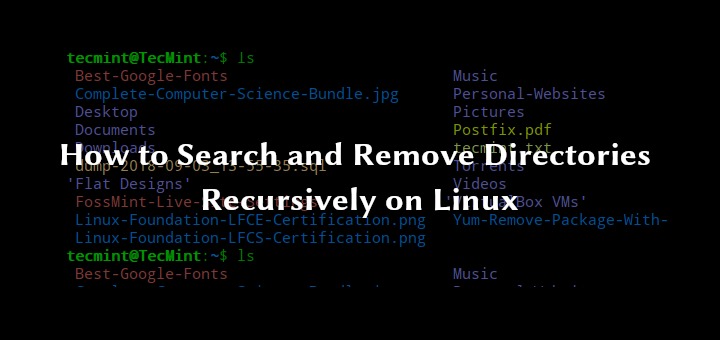
Use rm for specific files and rm -r only when you want a whole directory tree gone. Check the exact target first, then verify the result afterward. For an empty directory use rmdir (-f doesn't enable recursion), and if the path is uncertain or you want an easy way back, move the item aside or use Trash instead.
The rm command deletes the files and directories you name. The path you type, how the shell reads it, and your options decide what it removes. A command can run cleanly and still delete something you never meant to touch.
How to remove files and directories with rm
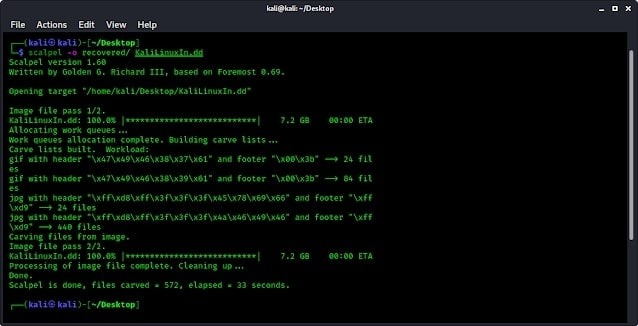
Give rm the path of a file. For a directory that has contents, use recursive removal.
rm [options] file...In a disposable test directory, removing a single file takes one command:
rm sample.txt| Target | Command | What happens |
|---|---|---|
| One test file | rm sample.txt | Removes the named file |
| Several known files | rm file1.txt file2.txt | Removes each named file |
| Empty directory | rmdir emptydir | Removes the directory if empty |
| Directory with contents | rm -r nonempty | Removes the directory and its contents recursively |
A plain rm nonempty fails because the target is a directory. In a GNU Coreutils rm 9.7 test it returned status 1 with Is a directory and left the directory in place.
The rm options that change recursion and prompts
| Option | Effect |
|---|---|
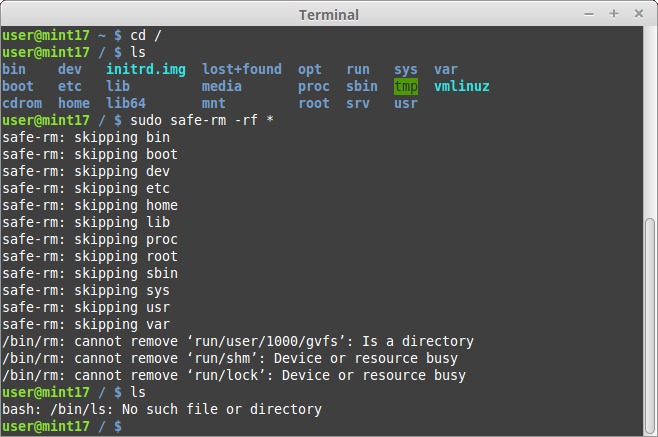
-r or -R | Removes a directory tree recursively. Doesn't ask for confirmation by itself. |
-f | Ignores nonexistent arguments and suppresses all prompts. |
-i | Asks for confirmation before each removal. |
-I | Asks once if you pass more than three arguments or remove recursively. Doesn't prompt for a smaller nonrecursive selection. |
In rm -rf, -r supplies the recursion and -f supplies the force behavior.
rm -Ir nonempty asks once before removing the directory recursively. The GNU Coreutils rm manual lists the exact conditions.
A confirmation prompt lets you say no. It can't tell you whether the path you typed is the one you meant.
Check your target path before deleting anything
Check which directory you're in and look at the entry itself before removing anything valuable. Listing some other directory doesn't change where a relative path points. If the path looks wrong, stop at a read-only listing of the parent and the expanded target. Don't test a questionable deletion by adding force or recursion.
Say you're in the parent directory of a test folder named sandbox. It holds discard.txt, which you want gone, and keep.txt, which must stay.
sandbox/
    discard.txt
    keep.txt
Check where you are and inspect the entries:
pwd
ls -ld -- ./sandbox ./sandbox/discard.txt ./sandbox/keep.txt
ls -la -- ./sandbox
One Lubuntu 24.04 user described the cost of a wrong path in an August 2026 r/linux4noobs thread: “I wanted to delete a sub-folder within "/etc/", but accidentally issued the command "sudo rm -r /etc".”
When a script keeps a filename in a variable, quote the expansion. Spaces and wildcard characters in the value then stay part of one argument:
target="./sandbox/discard.txt"
ls -ld -- "$target"
Why wildcards can target more or less than you expect

In Bash, an unquoted pattern is expanded before rm runs, so a single * can turn into many file arguments.
./* matches entries in the current directory. ~/* matches entries in your home directory. Mixing them up is most dangerous with a recursive command.
The same mix-up appears in an April 2022 r/linux4noobs discussion: “While trying to delete a directory and its content I wrote 'rm -rf ~/*' instead of 'rm -rf ./*'.”
Preview the names before using a wildcard
Take a folder with a visible file and a hidden one:
outer/
    visible.txt
    .secret
With default Bash settings, this preview lists outer/visible.txt:
printf '%s\n' outer/*A plain * skips .secret under those settings. The dotglob option makes patterns match leading-dot filenames. With nullglob, a pattern with no matches disappears. With failglob, it triggers an expansion error and the command doesn't run. A quoted pattern is passed as literal characters, with no expansion.
GNU root preservation refuses recursive removal of / itself. The wildcard /* expands to separate entries under the root, and root preservation doesn't make those safe.
Never use an uncontrolled root-level wildcard as a deletion shortcut.
Does GNUrmhave a dry-run option?GNU
rmhas no standard--simulateoption.rm --simulate nonemptyfails with an unrecognized-option error and leaves the directory intact.
Remove tricky filenames without broadening the target
- Leading dash:
rm -- -dashremoves the file named-dash. The--ends option parsing, so a name that begins with-isn't read as an option. - Spaces: quote names that contain spaces so each stays one argument.
- Directory symlinks: removing a directory symlink without a trailing slash removes the link and keeps the directory it points to, along with its file.
- Mounts: a recursive removal can pass through mounted filesystems. GNU
--one-file-systemlimits some of that.
Verify the result of an rm command
Check the path you removed and a nearby entry you meant to keep. A silent command or a zero exit status tells you rm finished. It doesn't tell you the right file went.
Back to the sandbox example. Stay in its parent directory and remove only the file you picked earlier:
rm -- ./sandbox/discard.txtThen check both names:
ls -ld -- ./sandbox/discard.txt
ls -ld -- ./sandbox/keep.txt
The first lookup should report discard.txt missing, and the second should still find keep.txt.
If you answer n at the rm -Ir nonempty prompt, rm still exits with status 0 and the directory stays.
Troubleshoot rm errors without guessing at sudo
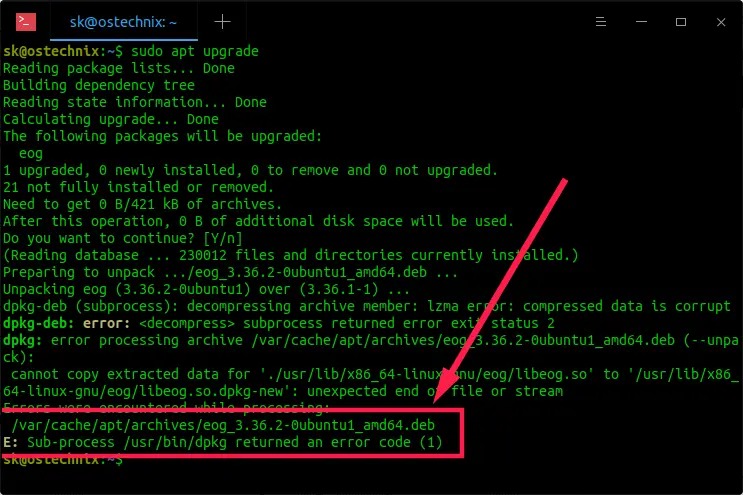
Read the error before changing flags or using sudo.
| Error | Cause | What to check |
|---|---|---|
Is a directory | The target is a directory and recursion wasn't requested | Whether you really want its contents gone |
Permission denied | Access rules on the parent directory or a related location block the removal | The parent directory's permissions and your access to it |
No such file or directory | The path doesn't exist in the resolved location | The spelling, and what the argument resolves to |
Read-only file system | The filesystem is mounted or running read-only | The filesystem's state, before you attempt anything else |
Operation not permitted | Sticky-directory restrictions, immutable attributes or another filesystem rule may apply | Which restriction applies to the entry or its parent directory |
Whether you can remove a file depends on the rules of its parent directory. The file's own permission bits don't settle it. GNU -f can't override those rules, and sudo doesn't fix every filesystem restriction.
A Pop!_OS user cleaning up an application by hand in a special FUSE/Flatpak portal location hit this error in an October 2022 r/linux4noobs thread: “rm: cannot remove 'org.openrgb.OpenRGB': Permission denied”.
When rmdir, mv, Trash, or find makes more sense
| Approach | Best for | Limit |
|---|---|---|
rm | Removing selected named files or directory trees you're sure about | No built-in undo or desktop Trash transfer |
rmdir | Removing empty directories | Refuses a populated directory |
| Move or rename | Holding a project aside while you decide whether to delete it | The data still exists, so it isn't a backup |
| Desktop Trash | Deleting through a desktop or Trash utility that can restore | Availability and behavior depend on the tool |
find | Selecting files by name, type or other conditions | -delete is destructive and action order matters |
If you could need the project again, move it instead (see the guide to moving files).
To select files by condition across a tree, use the dedicated Linux find guide. Secure erasure of stored content is a separate job that rm isn't built for.
What to do if you removed the wrong files

If you've deleted something important, avoid further writes or experiments on the affected storage. Deleting a file doesn't wipe its data blocks right away, and recovery turns on the filesystem, later writes and any backup or snapshot.
Check whether an existing backup or snapshot covers what's missing. A Timeshift snapshot, for example, may cover some system data without containing every personal file. To restore a copy, follow the backup and restore workflow.
