Use GNU find to locate files or directories by name or filesystem attributes. Start in the smallest directory that should contain them, add the filters you need, and check the results before acting on them. If you need to search inside files, consult a filename index, or choose a path interactively, another tool fits better.
Find a file by name
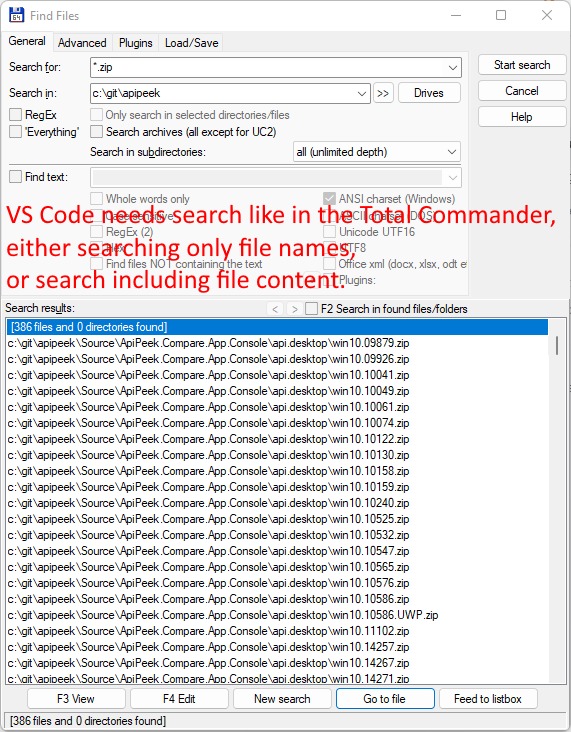
Run find . -type f -name 'report.txt' to look for a regular file named report.txt in your current directory and its subdirectories. The . is the current directory, -type f selects regular files, and -name matches the filename. To look for files with a given extension, use a quoted wildcard such as '*.log'.
Match names, paths, extensions, and file types
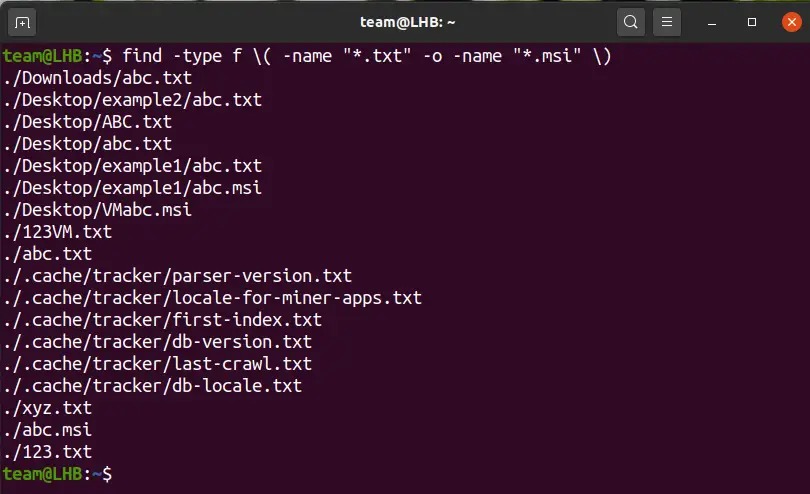
GNU find matches filenames with shell-style wildcard patterns, called globs. The -name test checks the basename, which is the last component of a path. Regular expressions use a different syntax and a different matching mechanism.
To find regular files ending in .mp4, run:
find . -type f -name '*.mp4'The asterisk matches any sequence of characters before .mp4. Quote the pattern so your shell passes the asterisk to find unchanged. Unquoted, it can expand against files in the current directory first.
For -name, the ending pattern is '*.mp4', and an expression with regex anchors such as '^.*\.mp4$' is treated as a glob. A poster in an r/bash discussion about selecting .mp4 files described a failed attempt: "This one did NOT work. But I would've preferred to use it, since it didn't need a wildcard; I knew that all the files I wanted to delete indeed ended with .mp4, didn't merely include it."
| Search task | Example |
|---|---|
| Ignore filename case | find . -type f -iname 'report.txt' |
| Find log files | find /var/log -type f -name '*.log' |
| Find directories named cache | find . -type d -name 'cache' |
| Match a path through a logs directory | find . -type f -path '*/logs/*.log' |
| Find symbolic links | find . -type l -print |
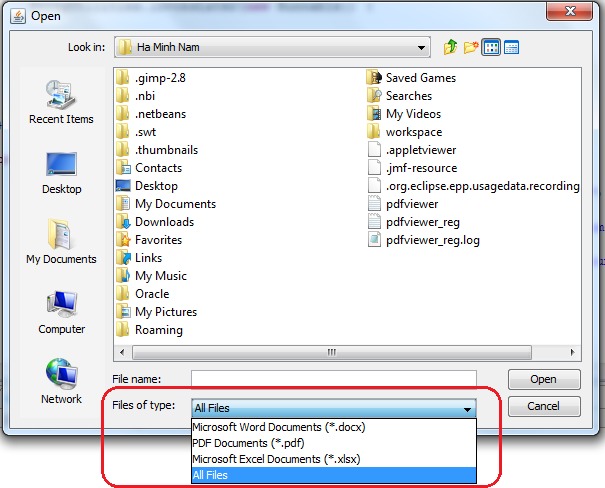
Say a project contains app/logs/error.log and app/archive/error.log. The basename match '*.log' selects both. The path test '*/logs/*.log' adds the directory, which narrows the match to the logs folder when the same filename appears in several places.
-type filters by kind: f is a regular file, d a directory, and l a symbolic link under the default link policy. Use -iname when you're unsure of the capitalization, then check whether the extra matches belong in your result.
Choose where find searches
find only searches the directory you give it. If the file is somewhere else, even a perfect pattern returns nothing.
- Current directory:
.searches from the directory your terminal is in. - Home directory:
"$HOME"searches everything under your home directory. - Specific directory: a path such as
/var/logor a project folder limits the search to that location. - Filesystem root:
/starts a broad search. Use it only when the file could be outside any narrower tree. It takes longer and produces more permission errors, and it can reach unusual filesystems.
An r/LinuxTeck poster described the failure this way: "Embarrassing but true, I was using find with the wrong path the whole time." Check your starting directory before rewriting your pattern. To see where your terminal is working, run:
pwdFor a known project, start at its parent directory to avoid scanning unrelated files.
Limit search depth
GNU find descends into every subdirectory by default. Add -maxdepth to limit how many levels it goes down:
find . -maxdepth 1 -type f -printThis selects regular files directly in the current directory and skips files in its subdirectories. The related -mindepth option sets the minimum depth at which tests and actions apply.
Find files by size or modification time
Modification-time filters
To find regular text files modified less than 60 minutes ago, use:
find . -type f -name '*.txt' -mmin -60 -print-mmin tests how many minutes ago a file's content last changed. GNU -mtime counts that age in 24-hour periods, with documented rounding behavior. So -mtime 1 means an elapsed-age range, not a calendar day such as yesterday.
File-size filters
To find regular files above a +10M threshold:
find . -type f -size +10M -printIn GNU find, uppercase M means units of 1,048,576 bytes, or one mebibyte. The size test rounds up to the chosen unit before it compares.
+n: values greater thann.-n: values less thann.n: exactlynunits, after rounding.
If a file near your threshold is missing, compare its size or timestamp with the unit and range in the expression.
Exclude directories and limit unnecessary traversal
GNU -prune stops find from descending into selected directories. Use it to skip generated or vendored subtrees in a project.
To find .txt files while skipping every directory named node_modules, use:
find . -type d -name node_modules -prune -o -type f -name '*.txt' -printThe expression has two branches. The left one matches a node_modules directory and prunes it. -o means OR, so the right branch runs for everything the left one didn't match, and it prints the regular .txt files.
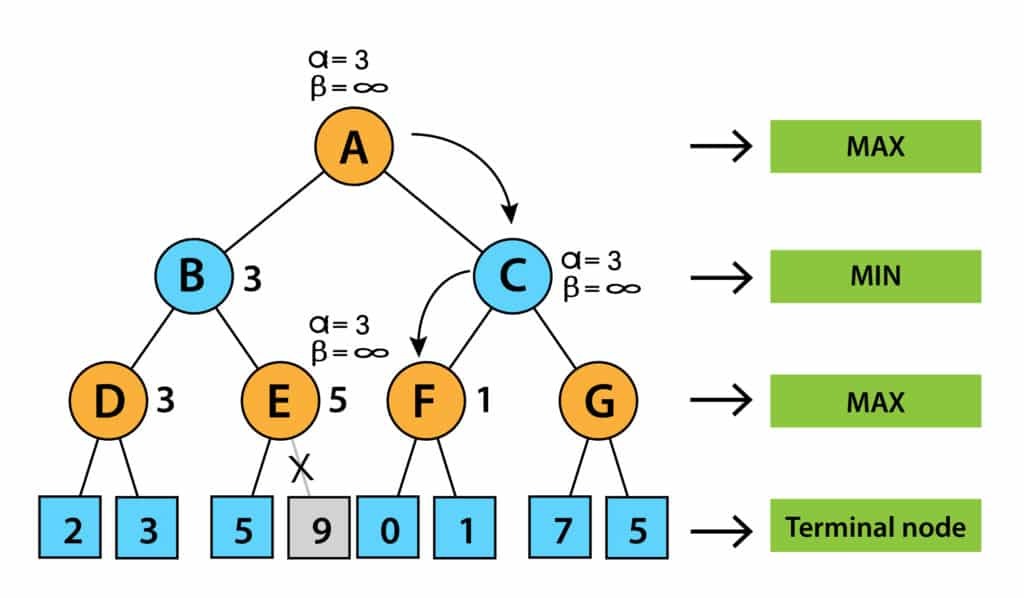
Pruning changes which directories find explores. Filtering a finished list of paths would still scan the unwanted subtrees and only hide their output.
-xdev also stops find from descending into directories on other filesystems.
Check hidden files and symbolic links
GNU find reaches files inside hidden directories without an extra switch, as long as you can access them and they sit under your starting directory.
Symbolic links behave differently. With the default -P behavior, GNU find doesn't descend into a directory just because a symlink points to it.
Take this layout:
project/
├── .hidden/
│   └── settings.conf
├── config/
│   └── app.conf
└── linked-config -> config/
A normal search from project/ finds both files in the real directories, including .hidden. To follow a symlink to a directory, GNU find supports -L:
find -L . -type f -name '*.conf' -print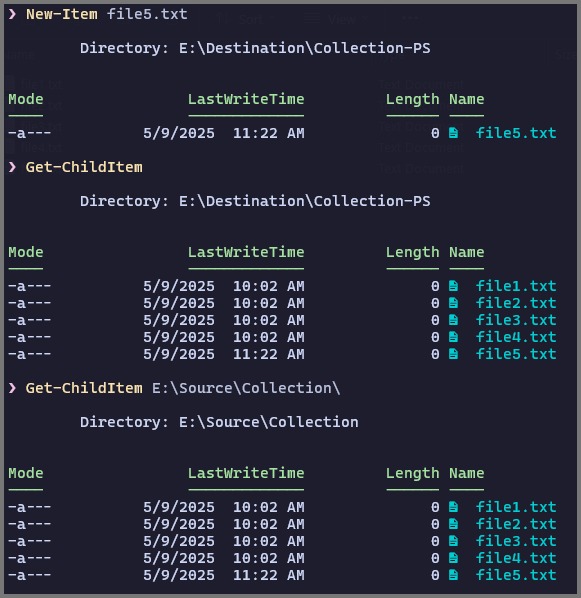
Put -L before the starting directory. Following directory links can reach extra locations and can enter symbolic-link loops.
To check whether a directory is a link, run:
ls -ld linked-configThe GNU find(1) manual documents the link policies and their effects on traversal and file-type tests.
Why does find return nothing or show permission errors?
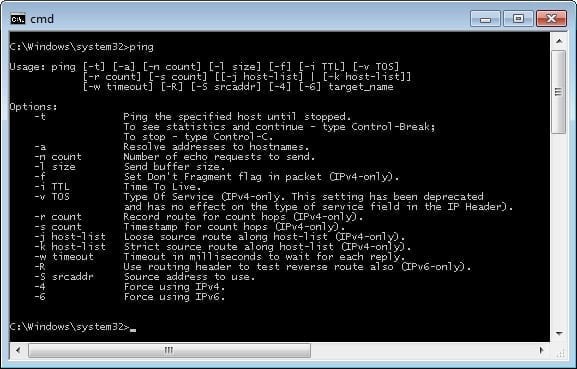
Empty output means nothing matched. Check the starting directory first, then each filter. A missing match can come from a starting directory that was too narrow, a name test that didn't match, or permissions that blocked traversal.
| Symptom | Cause | What to check |
|---|---|---|
| Known file is missing | Wrong starting directory | Current directory and the file's parent |
| Too few matches | Case, type, size, or time filter | Which test excludes the file |
| Nested files disappear | Depth limit or pruned directory | -maxdepth and pruning branches |
| Files under a linked directory are missing | Symbolic-link policy | Whether the directory is a link, and whether you need -L |
| Permission errors appear | Inaccessible directories or files | Standard error and exit status |
Work through a missing-file example
Say you expect report.txt somewhere in your home directory, but you start with:
find "$HOME/Documents" -type f -name 'report.txt'That command can't see "$HOME/Projects". Widen the starting directory and keep the name test as it is:
find "$HOME" -type f -name 'report.txt'If it shows up now, your first search started in the wrong place. If the wider search is still empty, remove the other restrictive tests one at a time. A size or time condition, for example, can exclude a file whose name is correct.
Read errors before interpreting the result
GNU find writes diagnostic messages to standard error. Check the exit status right after the search:
find "$HOME/Documents" -type f -name 'report.txt'
printf 'Exit status: %s\n' "$?"
$? holds the status of the most recent command, so the status-printing command must come right after find, with nothing in between. A nonzero status means errors occurred. The paths find printed are still valid matches.
Searching the whole system with sudo doesn't guarantee a clean run either. A poster in r/linux4noobs wrote: "So sometimes when I run something in entire system as sudo, I still see “permission denied”"
2>/dev/null only hides the standard-error messages and doesn't change what find can access. Keep the messages visible while you decide whether the directory tree was actually searched.
Inspect and process the files you find
Run -print first and read the list before handing the paths to another command:
find . -type f -name '*.txt' -printPlain -print output is fine for reading in a terminal. Linux filenames can contain spaces and newlines, so line-separated output isn't a reliable format for other programs.
A shell loop like for f in $(find ...) can split one filename into several words. When another command consumes the matches, pass them in a way that keeps each path intact.
Pass matches directly with -exec
To list the matching text files:
find . -type f -name '*.txt' -exec ls -ld -- {} +-exec: runs an external command on the matched paths.{}: marks where the paths go.+: lets GNUfindbatch many paths into one command run.ls -ld --: shows information about the given paths, using GNUlssyntax.
This passes the paths as arguments without shell word splitting. On directory trees that other users can modify while the command runs, -exec still has pathname-resolution race risks. GNU documents -execdir as a safer alternative there, with its own command-search-path requirements.
Use NUL-delimited output with a compatible consumer
-print0 in GNU find separates pathnames with NUL characters. GNU xargs -0 reads that format and keeps each path whole, even when names contain spaces or newlines.
find . -type f -name '*.txt' -print0 |
  xargs -0 -r ls -ld --
-0 selects NUL-delimited input, and -r stops xargs from running the command when there are no matching paths. The -- option belongs to GNU ls, so any other command uses its own argument syntax.
In Bash, a pipeline reports the exit status of xargs by default. Run set -o pipefail first if you also need a failure in find to show in the pipeline's status.
Keep deletion outside the discovery step
Do not append -delete to a working prune-and-print expression to turn it into a deletion command. In GNU find, -delete implies depth-first traversal through -depth, which defeats the usual exclusion behavior of -prune.
When to use grep, locate, or another search tool
| Your task | Tool to consider |
|---|---|
| Find entries by name, type, size, or age | find |
| Search text inside files | grep or ripgrep |
| Look up a filename in an index | locate |
| Use an alternative filename-search interface | fd |
| Choose a path interactively | fzf |
Finding .log files is a job for find. Searching them for ERROR is a job for grep or ripgrep. Some document formats need text extraction or a format-specific tool before their contents can be searched.
locate reads filenames from an existing index instead of scanning the live tree on every lookup. The index can lag behind filesystem changes. which and whereis find commands and executables, a narrower job than finding arbitrary files.