For an ordinary one-way copy or update, use rsync -av SOURCE/ DEST/ to place the contents of the source directory directly in the destination. Add --delete only when destination-only files should disappear. For older versions, use a backup process whose restores you have tested.
Decide what you want the destination to contain afterward. A command that copies every file successfully can still leave you with an extra directory level, unwanted cached data, or a mirror that removes files you meant to keep.
Copy, update, or mirror?
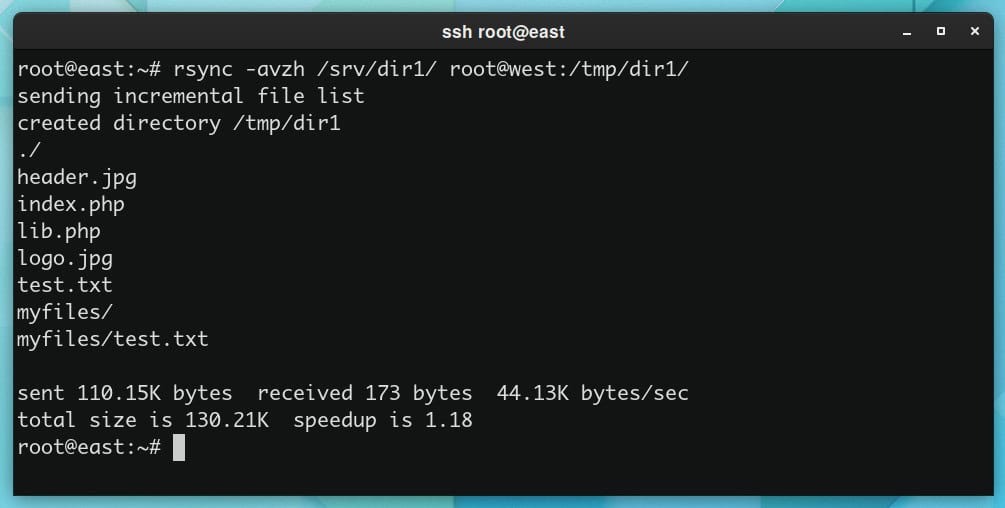
Rsync covers two jobs: copying or updating files, and maintaining a mirror. Recovering an earlier version is a different job that needs a backup process.
| Your goal | Destination behavior | What to run |
|---|---|---|
| Copy or update files | Copies new and changed files. Leaves destination-only files in place | rsync -av SOURCE/ DEST/ |
| Mirror the selected tree | Updates selected files and removes receiver-only files within synchronized directories | rsync -av --delete SOURCE/ DEST/ |
| Recover an earlier version | Requires retained recovery history | Separate backup and restore workflow |
Say you copy a photo directory to a second drive. A photo that's gone from the source but still on the second drive stays there after an ordinary update.
A deployed static site works the other way. If you remove an old asset from the source, you don't want it staying on the server, so you want a mirror.
By default, rsync compares file size and modification time to decide what needs updating, so a repeated transfer doesn't resend unchanged files.
Basic syntax and prerequisites
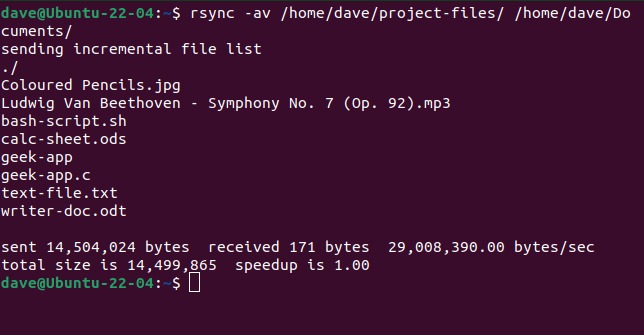
The basic syntax puts options before the source and destination:
rsync [OPTIONS] SOURCE DESTINATIONA local copy takes two filesystem paths. When a server is involved, the remote path looks like USER@HOST:/path/. The source supplies the files and the destination receives them.
For example:
rsync -av ~/source/ ~/destination/Here -a turns on archive mode, which copies recursively and preserves common file attributes, and -v makes the output verbose.
To copy one file into an existing, writable destination directory:
rsync -a ~/notes.txt ~/archive/The result is ~/archive/notes.txt.
Check the installed program with:
rsync --versionIf rsync is missing, install it with your package manager. On Ubuntu and Debian:
sudo apt install rsyncOn Fedora and related distributions that use DNF:
sudo dnf install rsyncYou need a readable source and a writable destination. Quote paths that contain spaces so the shell treats each path as one argument.
The trailing slash decides where the files land
A trailing slash on the source directory changes the resulting structure when the destination is an existing directory. src/ copies the contents of src. src copies the directory itself, so it appears as a named entry in the destination.
Suppose the original files are:
src/
├── index.html
└── cache/
    └── temp.log

dst/
dst2/
Run the first command (-i itemizes each change):
rsync -ai src/ dst/The destination contains the source directory's contents:
dst/
├── index.html
└── cache/
    └── temp.log
Now remove the slash from the source and use a different existing destination:
rsync -ai src dst2/Now the receiving directory contains a new src directory:
dst2/
└── src/
    ├── index.html
    └── cache/
        └── temp.log
The itemized output includes cd+++++++++ src/, which marks the newly created directory.
The distinction matters when you move a whole disk or copy a website into its document root. A Linux Mint user moving data from NTFS to ext4 ran into it and wrote in an r/linux4noobs discussion:
“Additionally, I notice it's attempting to create a "2TB/1" directory, when my intent is for it to place the -contents- of 1 into 2TB directly, without creating an additional directory within.”
The examples assume the destination already exists as a directory. If it doesn't exist, or if you name an individual file, the path behavior changes.
Local copies, uploads, and downloads
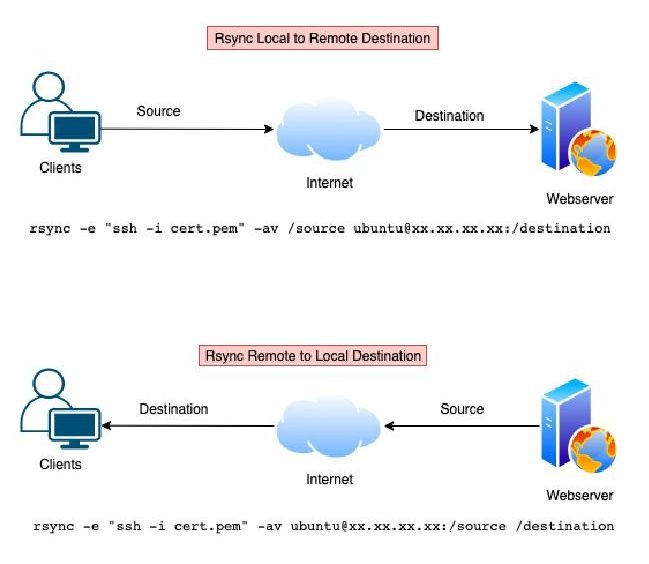
Rsync copies between directories on one machine, or between your machine and a remote server. The position of the remote path sets the direction.
| Task | Command | Source |
|---|---|---|
| Copy locally | rsync -av ~/site/ ~/site-copy/ | Local ~/site/ |
| Upload to server | rsync -av ~/site/ [email protected]:/srv/site/ | Local ~/site/ |
| Download from server | rsync -av [email protected]:/srv/site/ ~/site-download/ | Remote /srv/site/ |
Swap in your own user, host and paths.
A single colon in HOST:path means remote-shell transport, usually SSH. A double colon (HOST::MODULE) or an rsync:// address means a connection to an rsync daemon, which needs different configuration.
If SSH listens on a custom port, pass it through the remote-shell option:
rsync -av -e 'ssh -p 2222' ~/site/ [email protected]:/srv/site/Before a remote transfer, check that the host is reachable, SSH login works, you can read or write the target path, and rsync is installed on the remote side. Also check which side is the source.
You can't name two remote hosts in a single ordinary rsync command. It works locally or between your machine and one remote host.
Exclude patterns match paths inside the source root
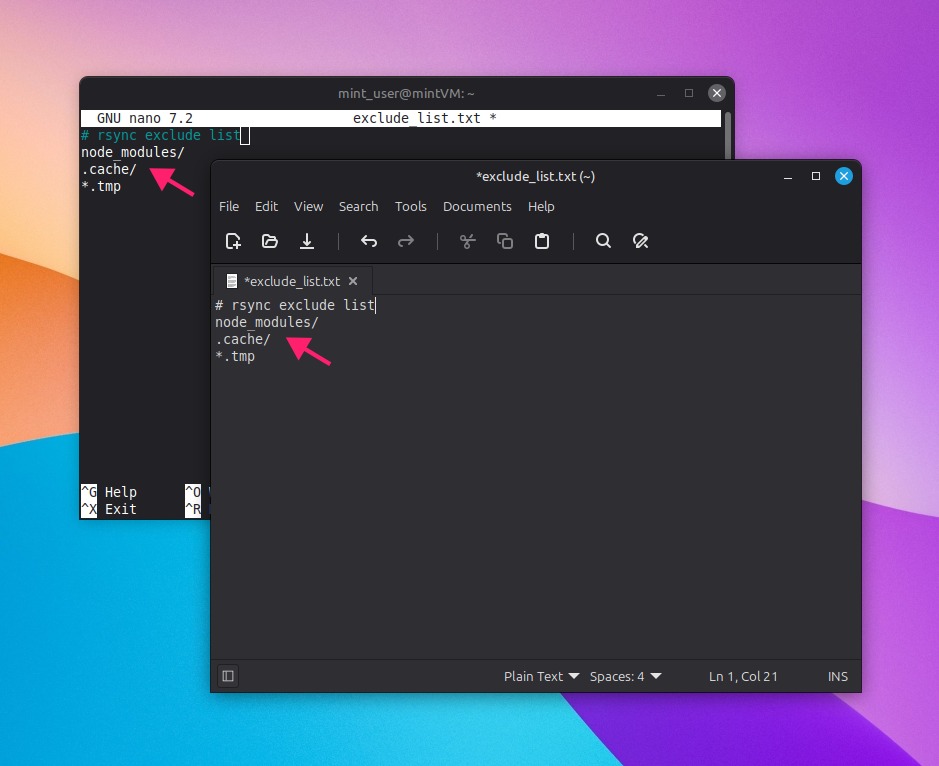
For a simple directory:
src/
├── index.html
└── cache/
    └── temp.log
This command skips the cache directory:
rsync -av --exclude='cache/' src/ dst/The destination ends up with index.html and no cache/.
Take these files:
/mnt/disk13/
└── backups_array/
    └── cache_appdata/
        └── plex/
With /mnt/disk13/ as the source, the path inside it is backups_array/cache_appdata/plex/. The matching command:
rsync -av \
  --exclude='backups_array/cache_appdata/plex/' \
  /mnt/disk13/ /mnt/backup/
A leading / in an rsync filter pattern anchors it to the transfer root.
A homelab owner copying a disk to a mounted share described the problem in an r/linuxquestions thread:
“rsync seems to completely ignore the exclude portion of this command however, and keeps trying to copy over the /plex folder and everything inside of it.”
When a pattern seems to be ignored like this, compare it with the path inside the selected source root and check that the matching files disappear from the proposed transfer list. Repeat --exclude for additional paths. Ordinary exclude rules also protect matching receiver-side items from deletion during a mirror, and the special --delete-excluded option changes that.
Dry runs show what rsync plans to change
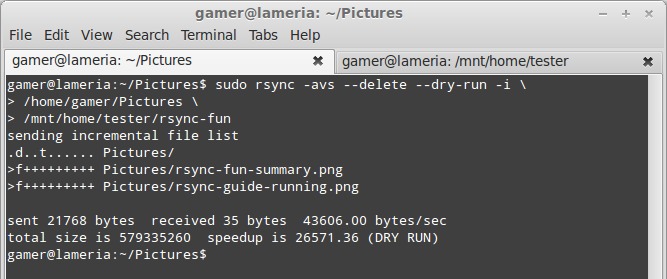
Use --dry-run to see a proposed transfer without changing any files. Add --itemize-changes to see what rsync would create, update, or remove. Before removing the dry-run flag, compare the destination paths in the preview with your intended directory tree. A misplaced source slash can create an unexpected extra level.
The short forms are -n and -i. With archive mode:
rsync -ain src/ dst/If you're planning a mirror, include the deletion option in the preview as well:
rsync -ain --delete src/ dst/The upstream rsync manual documents both options and explains the itemized output.
| Example output | Meaning |
|---|---|
>f+++++++++ index.html | A new regular file is to be transferred |
cd+++++++++ src/ | A directory is to be created |
*deleting extra.txt | An extra receiver-side file is scheduled for deletion |
On rsync 3.4.1, the preview prints *deleting extra.txt and the file stays in place, because a dry run writes nothing.
The preview reflects the file state at the moment you run it. If source files, mounts, or destination contents change before the real run, the outcome changes too.
Use --delete only for a mirror
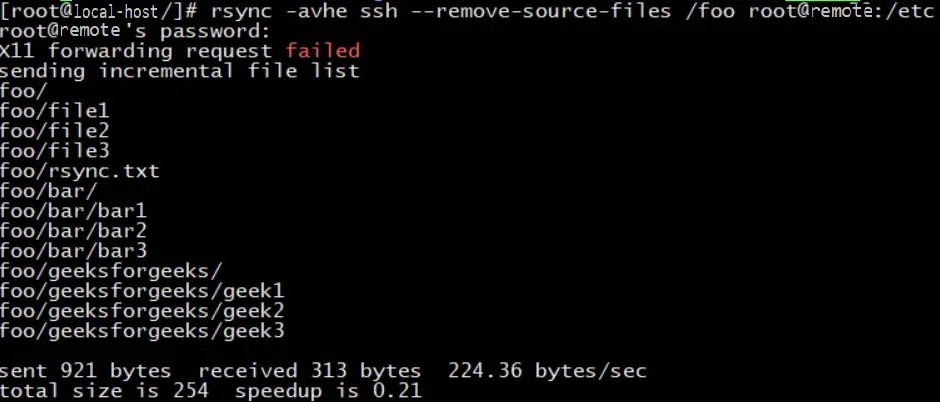
--delete removes extra files on the receiving side within the directories being synchronized. Use it when the destination has to match the source tree and its extra files are no longer wanted.
Without deletion, a destination-only extra.txt stays in place:
rsync -av src/ dst/With a mirror, rsync removes that file:
rsync -av --delete src/ dst/--delete does not delete the source after transfer. --remove-source-files is a separate option with different semantics.
Before enabling deletion: Make sure the files that exist only at the destination are disposable. A wrong source directory, an unexpectedly empty source tree, or a changed mount state can turn a mirror into a destructive operation.
Progress display and interrupted transfers
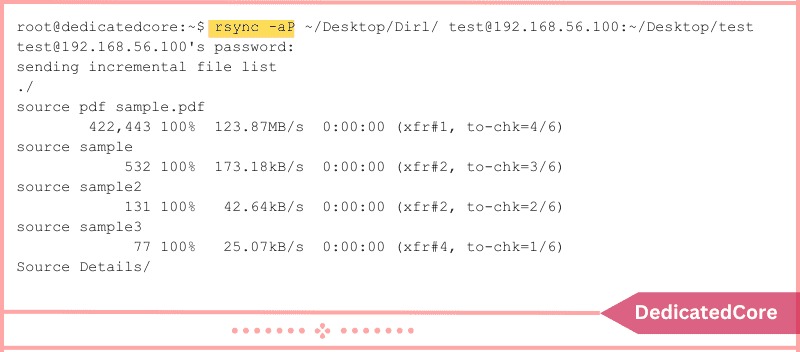
For a long transfer, -P combines two options:
-P = --partial --progress--progress shows progress for each file. --partial keeps incomplete transfer data if the operation is interrupted.
A remote transfer with those options:
rsync -avP ~/large-files/ [email protected]:/srv/archive/For one overall progress indicator instead of per-file updates:
rsync -av --info=progress2 ~/large-files/ ~/archive/--info=progress2 shows progress for the whole transfer job on versions that support it. --partial-dir keeps unfinished transfer data separate from completed destination filenames.
A user moving a large file over a slow connection posted this in an r/unix discussion:
“I have spent the better part of a day transferring a file over a slow connection. It hanged at 95%.”
If the first run didn't keep a usable partial file, adding -P to the next run won't bring it back. A rerun skips files that already completed unchanged.
File attributes and permission errors
Archive mode asks for recursive copying plus several kinds of Unix metadata preservation. It expands to:
-a = -r -l -p -t -g -o -DThose options cover recursion, symbolic links, permissions, modification times, group, owner, and device and special files.
Archive mode doesn't include these:
-Hpreserves hard-link relationships when that distinction matters.-Arequests ACL preservation.-Xrequests extended-attribute preservation.
A regular home-directory copy needs only archive mode. A system migration has stricter metadata requirements, especially for files tied to ownership or filesystem-specific attributes.
The receiving account's privileges and the destination filesystem decide which attributes get applied. As an ordinary user, you can't count on recreating every original owner or group.
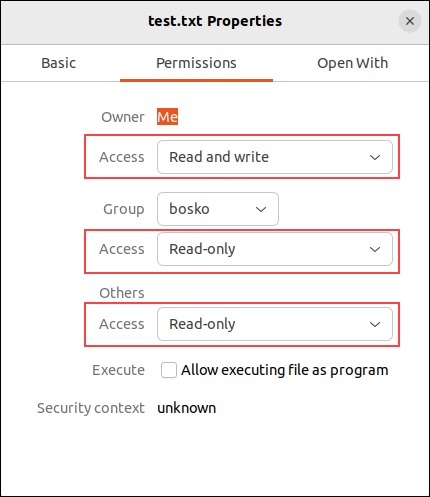
A Permission denied (13) error is a different problem from a wrongly nested folder. Typical causes are an account without access to the source, a destination directory that blocks the required writes, or a mounted filesystem that restricts access.
Check which user you're running as, whether you can read the source, who owns the destination and what its directory permissions are, and what the filesystem supports. Then fix the specific access problem with the least privilege that works.
Result verification and common failures
Check a finished run against the destination you wanted. The exit status tells you whether rsync reported success, and only the files show whether you got the result you were after.
Right after an interactive rsync command, read its exit status with:
echo $?A status of 0 means success. In a script, save rsync's status before another command overwrites the shell's last exit code.
Then look at the destination: the nesting, a few important files, and any paths that should be gone.
When the files haven't changed, a second run produces no itemized changes and exits with status 0.
If you worry that content changed without the default check noticing, --checksum compares content checksums before transfer instead. It means substantially more file reads.
When both copies are on the same machine, you can compare their SHA-256 digests:
sha256sum src/index.html dst/index.htmlMatching digests on the two lines mean those files are byte-identical.
Common symptoms and what they point to
| Symptom or status | Probable cause | Next check |
|---|---|---|
Permission denied (13) | Account or filesystem access | Check permissions on the source and destination |
| Remote rsync command unavailable | Missing or inaccessible remote executable | Check that rsync is installed on the remote host |
| SSH connection or authentication error | Host reachability or credentials | Test the SSH login by itself |
Exit code 23 | Partial transfer due to error | Read the file errors rsync reported |
Exit code 24 | Source files vanished during transfer | Find out which files changed during the run |
A mirror is not a recovery plan

A plain rsync mirror follows the source exactly, so an accidental deletion or a damaged file gets copied to the destination too. Live databases, including those used by WordPress, need application-consistent capture.
