Use GNU tar to archive ordinary Linux files: create the tarball, list its stored paths, extract it where you want it, and verify the result. Extract an unfamiliar archive into a private empty directory first, and do the same when the destination holds valuable data. To recover a running application, use a dedicated backup and restore workflow.
What does the tar command do?
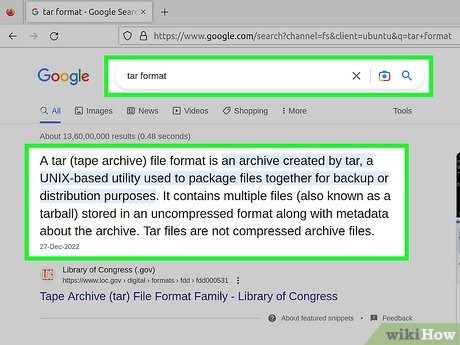
GNU tar packs files, their stored paths, and metadata into one archive. A .tar file is uncompressed. A .tar.gz adds gzip compression. The extension alone doesn't tell you what the archive contains. A reader on r/linuxquestions summed up the common confusion: “So a .tar is basically a Linux-flavored .zip, yeah?” The stored path decides where each file ends up. A member stored as project/docs/guide.txt extracts into a project/docs/ folder inside your destination.
Which tar command and compression flag should you use?
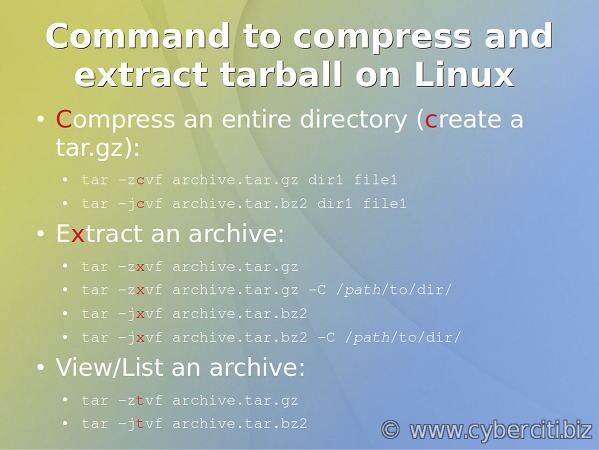
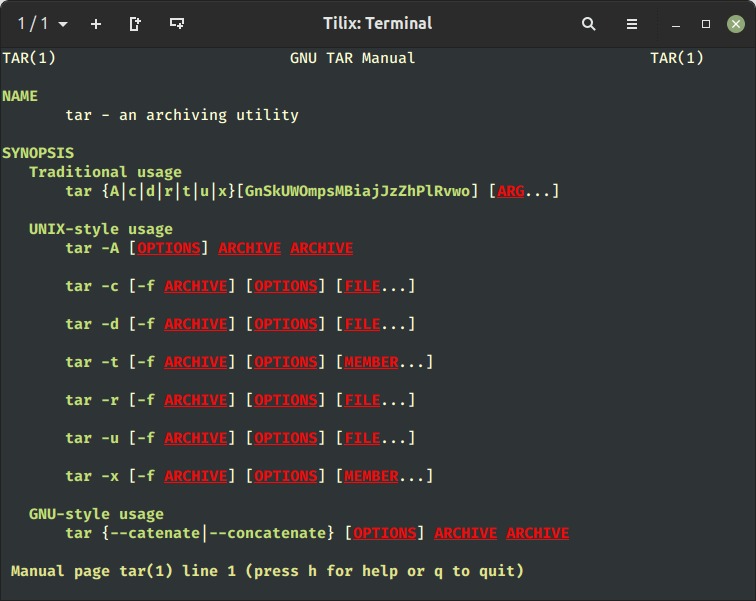
Use -c to create an archive, -t to list it, and -x to extract it. The dedicated extraction and tar.gz creation guides handle the longer, task-specific workflows.
| Operation | Option | What it does | Example |
|---|---|---|---|
| Create | -c | Writes selected files or directories into an archive | tar -cf archive.tar project/ |
| List | -t | Shows stored member names | tar -tf archive.tar |
| Extract | -x | Unpacks the members | tar -xf archive.tar |
The -f option names the archive file. Add -v for verbose output.
Pick a format the receiving system can read and has the compressor for.
| Archive extension | Compression | Creation options | Example |
|---|---|---|---|
.tar | None | -cf | tar -cf archive.tar project/ |
.tar.gz, .tgz | gzip | -czf | tar -czf archive.tar.gz project/ |
.tar.bz2 | bzip2 | -cjf | tar -cjf archive.tar.bz2 project/ |
.tar.xz | xz | -cJf | tar -cJf archive.tar.xz project/ |
Case matters: lowercase -j selects bzip2, and uppercase -J selects xz.
GNU tar detects common compression formats on its own when it reads a regular archive file. These commands work on a gzip tarball without -z:
tar -tf archive.tar.gz
tar -xf archive.tar.gz
Streams, including some standard-input workflows, may need an explicit decompression option.
How to create a tar archive with the paths you want
The source argument you give tar decides which files go in and how their paths are stored.
/tmp/tar-demo/
└── project/
    ├── README.md
    ├── .secret
    ├── docs/
    │   └── guide.txt
    └── notes 2026.txt
Build this disposable demo in a Linux terminal:
mkdir -p /tmp/tar-demo/project/docs

printf '%s\n' 'Project readme' \
  > /tmp/tar-demo/project/README.md

printf '%s\n' 'Demo-only value' \
  > /tmp/tar-demo/project/.secret

printf '%s\n' 'Guide text' \
  > /tmp/tar-demo/project/docs/guide.txt

printf '%s\n' 'Meeting notes' \
  > "/tmp/tar-demo/project/notes 2026.txt"
Create an uncompressed archive
Use a new archive filename, because tar truncates an existing archive of the same name.
tar -cf /tmp/tar-demo/project.tar \
  -C /tmp/tar-demo project
-C /tmp/tar-demo changes tar's working directory, and the final argument, project, tells it what to archive. You need both, since -C only moves the working directory.
Stored paths begin with project/, for example project/docs/guide.txt.
To create a gzip-compressed archive from the same source:
tar -czf /tmp/tar-demo/project.tar.gz \
  -C /tmp/tar-demo project
Both archives sit outside project/, so tar never packs its own output.
Store the contents without the project wrapper
To unpack straight into a destination directory, archive from inside the project folder:
tar -cf /tmp/tar-demo/contents.tar \
  -C /tmp/tar-demo/project .
Members now start with ./ instead of project/, for example ./README.md and ./docs/guide.txt.
The demo also holds a hidden file, .secret, and a filename with spaces. Both archive like any other file. Tar archives symbolic links too, but extraction options and the destination filesystem set how they are preserved.
How to see what's inside a tar archive
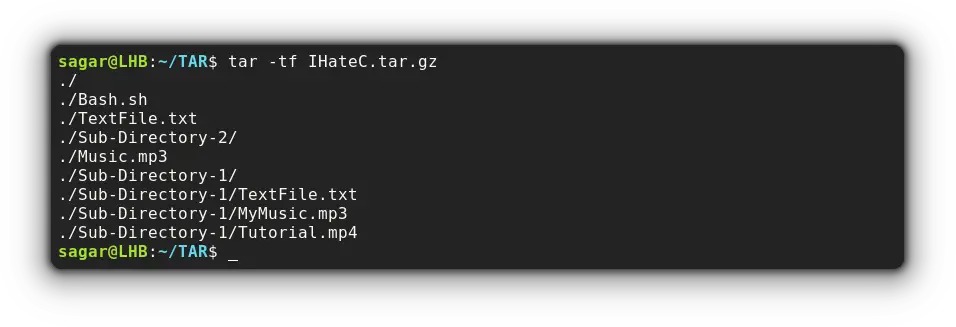
Run tar -tf to see the stored names without extracting anything.
tar -tf /tmp/tar-demo/project.tarThe member names include:
project/
project/README.md
project/.secret
project/docs/
project/docs/guide.txt
project/notes 2026.txt
Use tar -tvf /tmp/tar-demo/project.tar for a more detailed listing.
How to extract an archive into the directory you intend
-C sets the extraction directory. The stored member paths decide the folder structure created beneath it.
A reader in r/linux4noobs ran into an unwanted wrapper folder: “Now I want to extract that tarball but when I do it, it creates a Documents folder” The --strip-components option below fixes exactly this.
Keep the stored directory structure
Create a destination for the sample archive, then extract it:
mkdir -p /tmp/tar-demo/out/full

tar -xf /tmp/tar-demo/project.tar \
  -C /tmp/tar-demo/out/full
Because the archive stores project/docs/guide.txt, the extracted file appears at:
/tmp/tar-demo/out/full/project/docs/guide.txtRemove one leading path component
To put the project's contents directly inside another destination, use --strip-components:
mkdir -p /tmp/tar-demo/out/flat

tar -xf /tmp/tar-demo/project.tar \
  -C /tmp/tar-demo/out/flat \
  --strip-components=1
--strip-components=1 drops the first path component from each selected member as tar extracts it.
Archive member:
project/docs/guide.txt

Extract with -C out/full:
out/full/
└── project/
    └── docs/
        └── guide.txt

Extract with -C out/flat --strip-components=1:
out/flat/
└── docs/
    └── guide.txt
This works here because every member shares the project/ prefix. Archives with uneven path depths can lose or misplace entries under the same rule.
Extract a single member
Give the exact name from the archive listing, here project/docs/guide.txt. The names docs/guide.txt and ./guide.txt match different members. Quote names that contain spaces, such as 'project/notes 2026.txt', so the shell passes the whole name as one argument.
tar -xf /tmp/tar-demo/project.tar \
  -C /tmp/tar-demo/out/full \
  'project/docs/guide.txt'
How to keep tar from overwriting files and handle unknown archives
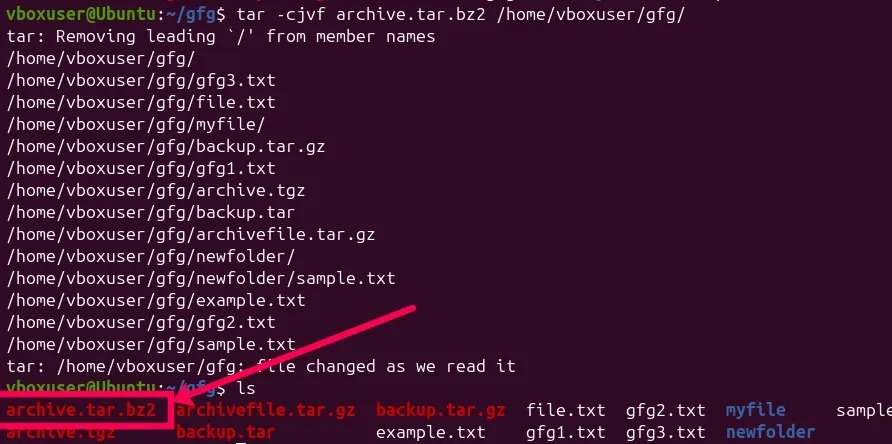
Extraction can replace existing files at the destination.
The GNU tar security manual recommends restricting access to the extraction working area and taking care with archives from untrusted sources.
Prepare a private staging directory
Create a new directory under your home directory with permissions that exclude other users:
mkdir -m 700 "$HOME/tar-review"This assumes only trusted users can access or change $HOME. If that isn't true, choose a trusted parent directory and adjust both paths.
If that name already exists, pick another empty directory.
Extract a downloaded archive into it:
tar -xf "$HOME/Downloads/download.tar.gz" \
  -C "$HOME/tar-review"
Replace the sample archive path with the file you received. Work as an ordinary user, without unnecessary root privileges. Review the extracted files and links before moving anything into an important directory.
Security boundary: A private empty directory lowers the risk of accidental overwrites. It does not scan for malware or contain a hostile archive. Hostile members need stronger isolation and closer inspection, especially when they involve links or dangerous path transformations.
When files already exist
GNU tar has two options for name collisions. --keep-old-files refuses to replace an existing file and reports the conflict. --skip-old-files skips existing files but reports them differently.
Say out/full already holds the earlier extraction:
tar -xf /tmp/tar-demo/project.tar \
  -C /tmp/tar-demo/out/full \
  --keep-old-files
Tar refuses to replace any file already there. The conflicting members won't be extracted, so read the diagnostics and exit status before assuming a full restore.
--overwrite, -P (preserve absolute names), and --remove-files change what the operation does. Don't add them just to silence an error.
How to verify a tar archive before relying on it
| Method | What it shows | Limit |
|---|---|---|
| Member listing | Which member names are stored | Does not check file contents |
| Compare with source | Differences between archive members and the original files | Needs the original files, unchanged |
| Saved checksum comparison | Whether the archive's bytes match an earlier hash | Needs a hash you recorded and trust |
| Trial restoration | Whether the files can be recovered in your environment | Tests file recovery only |
Compare archive members with the original files
Use -d (--compare) to compare archive members against the files currently on disk. Run it from the same parent directory you used when creating the archive:
cd /tmp/tar-demo
tar -df project.tar
printf 'Exit status: %s\n' "$?"
The original project/ directory must still exist in the same state. Files that change during the comparison skew the result.
In a GNU tar 1.35 test, comparing against the unchanged source returned status 0. After one source file changed size, the comparison detected a difference and returned status 1.
GNU tar also has a --verify option tied to archive creation. It does a different job than --compare against files on disk, and the GNU tar verification documentation explains the difference.
Compare archive checksums
Calculate a SHA-256 digest of the sample archive:
sha256sum /tmp/tar-demo/project.tarSave the value in a trusted place when you create the archive. A later digest then tells you whether the archive's bytes still match.
Try restoring the files
For important files, run a test restore. It shows whether the directory structure and contents can be recovered in your environment.
Common tar errors and what they mean
| Symptom or message | Likely cause | What to do |
|---|---|---|
Cowardly refusing to create an empty archive | No files or directories named after the options | Add a source such as project or . |
Archive file Cannot open / No such file or directory | The archive filename or directory path is wrong or missing | Give the archive's full path, or cd to the directory that holds it |
Not found in archive | The requested name differs from the stored pathname | Copy the full name, prefix included, from the member listing |
| Cannot update a compressed archive | In-place changes to a compressed archive are unsupported | Create a replacement archive |
Removing leading '/' from member names | GNU tar strips absolute path prefixes by default | Fine if you want relative paths. Otherwise change the source name |
Permission denied | Not enough access to a source, output file, or destination | Note the path in the message and whether tar was reading or writing it, then fix access there |
Unexpected result with *.tar.gz | The shell expanded the wildcard into several arguments | Pass one archive per command |
When should you use something other than tar?
Use tar to package a project directory or move a set of files. Keep directory copies synchronized with an rsync workflow. Scheduled retention, recovery policies, and coordinated server data belong in a server backup and restore workflow. A live WordPress site needs a WordPress backup process that covers both its files and its database.
