For a local .tar.gz or .tar.xz archive on GNU tar, use tar -xf followed by the filename. If the contents are unfamiliar, inspect the archive and extract it into a separate empty directory. Check that the expected files appeared, and investigate any error before trying again.
How to extract .tar.gz and .tar.xz files with tar
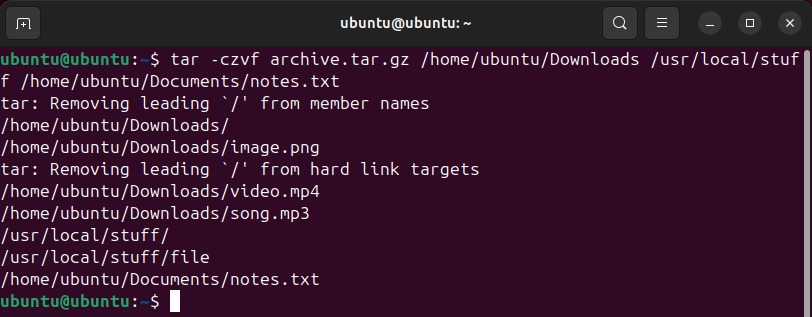
The same command handles gzip-compressed and xz-compressed tar archives. You don't need a separate decompression step.
| Archive format | Extraction command |
|---|---|
.tar.gz |
tar -xf archive.tar.gz |
.tgz |
tar -xf archive.tgz |
.tar.xz |
tar -xf archive.tar.xz |
.txz |
tar -xf archive.txz |
-x tells tar to extract, and -f marks the archive filename that follows. Replace the example name with the name of your downloaded file.
Files land in your current working directory, under the paths recorded in the archive. The original compressed archive stays intact.
GNU tar detects gzip and xz compression on its own when it opens a local file. The GNU tar compression manual also describes the explicit -z option for gzip and -J for xz.
Use those flags when tar reads compressed data from standard input or a pipe. Other tar implementations can detect compression differently.
How tar and compression work together
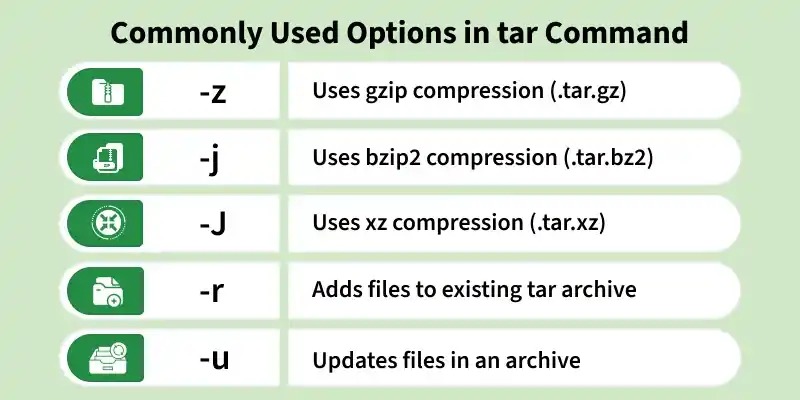
With .tar.gz, gzip compresses the tar archive. With .tar.xz, xz does.
For example, project.tar.xz is an xz-compressed tar archive, while notes.txt.xz is a single compressed file. For the latter, the XZ utilities provide unxz notes.txt.xz and xz -dk notes.txt.xz. The second form keeps the compressed input.
Use unzip for ZIP archives and GNU tar for tar archives.
Check the archive's contents before unpacking it
The names stored inside a tar archive decide the directory structure that extraction creates, and you can read them before anything is written to disk. Treat a downloaded or unfamiliar tarball as untrusted input: review its member paths and extract into a disposable directory.
List the members with:
tar -tf archive.tar.gz
-t lists the members and -f selects the archive. The same command works on a local .tar.xz archive.
Say the listing looks like this:
project/
project/README.txt
project/config/
project/config/settings.json
This archive has a top-level directory named project, holding a text file and a nested config directory. Extracted beneath a directory named archive-preview, it looks like this:
archive-preview/
└── project/
    ├── README.txt
    └── config/
        └── settings.json
The project/ folder comes from the paths stored inside the archive, not from its filename. If the stored members were just README.txt and settings.json, those files would land directly in the chosen destination.
The listing also shows suspicious or unexpected stored paths, such as absolute paths or parent-directory references.
Choose an extraction directory without overwriting your files
Without an explicit destination, tar extracts into the current working directory. With -C, GNU tar changes to the specified directory before unpacking.
Suppose the archive is in your Downloads folder and you want its contents in a separate folder in your home directory. Create a fresh destination and extract only if that succeeds:
mkdir -m 700 -- "$HOME/archive-preview" &&
tar --no-overwrite-dir -xf "$HOME/Downloads/archive.tar.xz" -C "$HOME/archive-preview"
The destination must exist before tar runs, because -C can't create it. mkdir -m 700 gives access to the owner only. If the directory already exists, mkdir fails and && stops tar from running.
--no-overwrite-dir keeps GNU tar from replacing the metadata of the destination directory you just created. Newly extracted files and subdirectories can still carry their own archived permissions.
The GNU tar security guidance explains how archived files, links, and metadata can affect the extraction destination. Never unpack such an archive over important working files, and don't use administrative privileges just to get past a permission error.
Where you point -C matters: in an r/linux4noobs discussion, an EndeavourOS user extracting Blender wrote, “I was trying to extract the blender tar.xz file and got this error (Many times).”
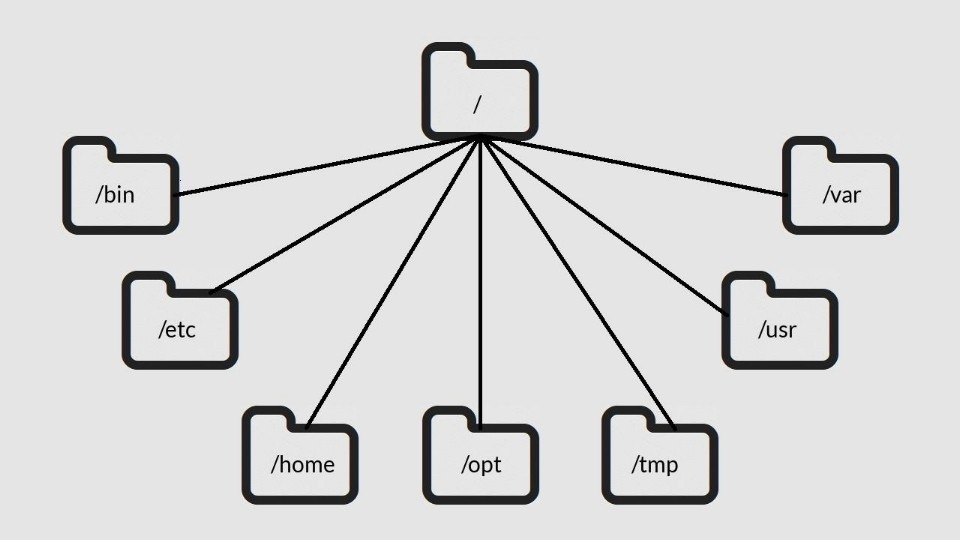
That command used -C /home with blender-5.0.1-linux-x64.tar.xz. /home holds the users' home directories, and an ordinary user can't write directly beneath it. $HOME and ~ refer to your own home directory.
If you deliberately reuse a destination, GNU tar offers two collision policies: --keep-old-files refuses to replace existing files and reports conflicts, and --skip-old-files silently skips them.
Verify the extracted files are where you expect
Right after extraction finishes, check the exit status before running anything else:
echo $?
In the earlier && example, this shows tar's exit status if mkdir succeeded. A 0 means the extraction completed. If mkdir failed, tar never ran and the status belongs to mkdir.
Next, compare the destination with the member paths from the listing. For the project/ archive:
ls -la "$HOME/archive-preview/project"
You should see README.txt and the config directory, which holds settings.json. If those are there and the status is 0, the extraction worked.
Fix common tar extraction errors

Find out what tar was trying to open, read, or write, then match the error below.
| Symptom | Cause | Check | Fix |
|---|---|---|---|
Cannot open: No such file or directory |
Archive missing or destination doesn't exist | Read which path the error names | Correct the path or create the destination |
Not found in archive |
The name you gave doesn't match a stored path | Compare it with the member listing | Use the exact stored path |
| Invalid archive or unrecognized format | Wrong extension, damaged file, or unsupported format | Run file, then try tar -tf |
Use the matching tool or get a valid archive |
| Permission denied | You lack access to the archive or output location | Check permissions on the path named | Choose a destination you can write to |
| Decompression fails | Missing decompressor, unsupported implementation, or damaged file | Check the compression format and installed support | Get suitable decompression support or fix the input |
| Existing-file conflict | A member has the same output path as an existing file | Find the conflicting path | Use an empty destination or a collision policy |
-C doesn't change where tar looks for a relative archive filename. To check the archive and the destination separately, run:
pwd
ls -l "$HOME/Downloads/archive.tar.xz"
ls -ld "$HOME/archive-preview"
pwd prints the current directory. The two ls commands check the archive file and the destination directory.
Check a file whose extension looks wrong
If tar rejects a file with the expected suffix, the name can be misleading. Check it with file:
file archive.tar.gz
file examines the file's characteristics, including recognized signatures, so it can expose a misleading suffix. Even when it reports XZ-compressed data, the payload is a valid tar archive only if tar can read its members.
For example, file identifies a text file named fake.tar.gz as text, and tar rejects it as an invalid archive.
A damaged or incomplete download can also prevent extraction, but if the error names a missing path, fix the path first.
Extract one file or folder from a tar archive
To extract one member, add its exact stored path to the command:
tar -xf archive.tar.gz project/README.txt
The project/ prefix matters because tar matches recorded member names. Giving only README.txt can produce Not found in archive. To get a directory and its contents, name the stored directory member, such as project/config/.
After extracting: do you need to install anything?
Many Linux applications ship as tar.xz files. A Nobara/Fedora user trying to run Clone Hero wrote in an r/linux4noobs discussion, “Every website that lets me download applications for linux gives me these tar.xz files.”
For a downloaded application, look at what was unpacked and follow the maintainer's instructions. Some packages contain source code that needs a separate build, and others are portable software. For system-managed software, your distribution's package manager can be an alternative.
If you unpacked a backup, a project folder or a collection of assets, there's nothing to install.
