Use grep to find matching text in known files, piped output, or a manageable directory tree. Start with the input, use -F for literal strings, and limit which files grep searches when you go recursive. Use find when selecting filesystem paths is the main job, and use ripgrep for code repositories with ignore rules.
What grep searches and your first working command
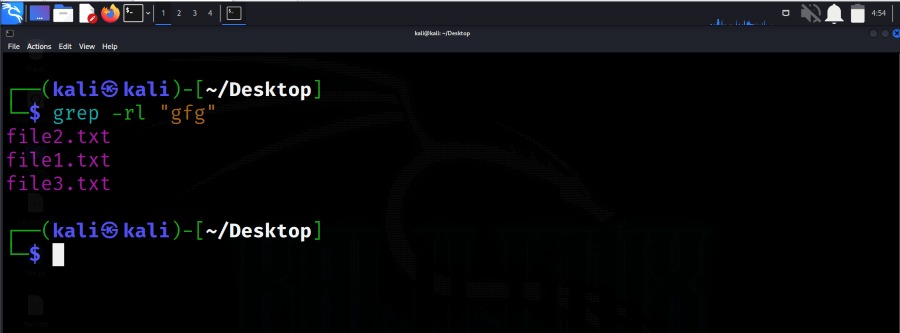
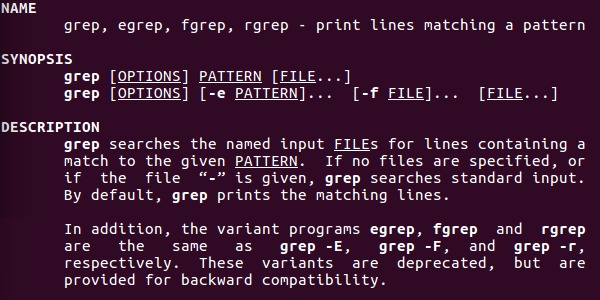
The grep command reads input and prints the lines that match a pattern. Its syntax is grep [OPTIONS] PATTERN [FILE...]. The pattern is the text to find, and the file name says where to look. In a nonrecursive search with no file name, grep reads standard input. The GNU grep manual documents these behaviors. For a repeatable check, use the same sample log for each flag and compare the matching lines and line numbers, not just whether grep returned output.
Add -n when you need the line number, and -F when the pattern is literal text.
The examples use a fictional file tree. Create it in a fresh, disposable directory that has no sample/ folder yet. The commands use >, which overwrites any existing contents of the named files. Later commands assume your terminal is in the parent directory of sample/.
sample/
├── logs/
│   ├── app.log
│   ├── worker.log
│   └── cache/
│       └── old.log
├── node_modules/
│   └── lib.log
└── src/
    └── server.js
Make the directories and populate the five files:
mkdir -p sample/logs/cache sample/node_modules sample/src
printf 'INFO boot\nERROR database unavailable\nWARN retry\nerror timeout\n' > sample/logs/app.log
printf 'INFO startup\nERROR worker stalled\n' > sample/logs/worker.log
printf 'ERROR stale cache\n' > sample/logs/cache/old.log
printf 'ERROR dependency\n' > sample/node_modules/lib.log
printf 'const error = new Error("failure");\n' > sample/src/server.js
Search the application log:
grep -nF 'ERROR' sample/logs/app.logOutput:
2:ERROR database unavailableGrep printed line 2 of app.log.
What counts as a match
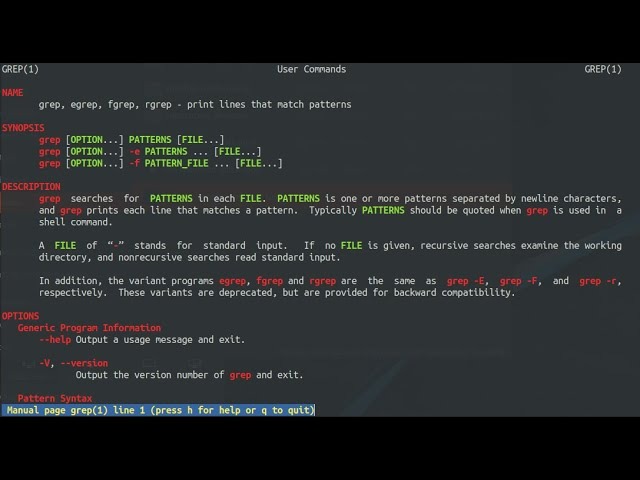
GNU grep reads your pattern as a basic regular expression by default. Use -F for a literal string, especially when the text contains punctuation that regex treats as special.
Add -i for a case-insensitive search. The sample log contains both an uppercase and a lowercase error marker:
grep -iF 'error' sample/logs/app.logOutput:
ERROR database unavailable
error timeout
Two options make a match stricter:
-w: Matches whole words only, by grep's word-boundary rules.-x: Selects a line only when the whole line matches the pattern.
-E turns on extended regex syntax, which gives you alternation:
grep -E 'ERROR|WARN' sample/logs/app.logOutput:
ERROR database unavailable
WARN retry
JavaScript uses \d for a digit, but a GNU grep expression needs [[:digit:]]. PCRE mode has its own syntax and differs by implementation.
printf 'HTTP 404\n' | grep -E '[[:digit:]]+'Output:
HTTP 404
With non-ASCII characters, locale affects case conversion and character classes. The examples here use ASCII text and GNU grep behavior.
Search files, directories, and piped output
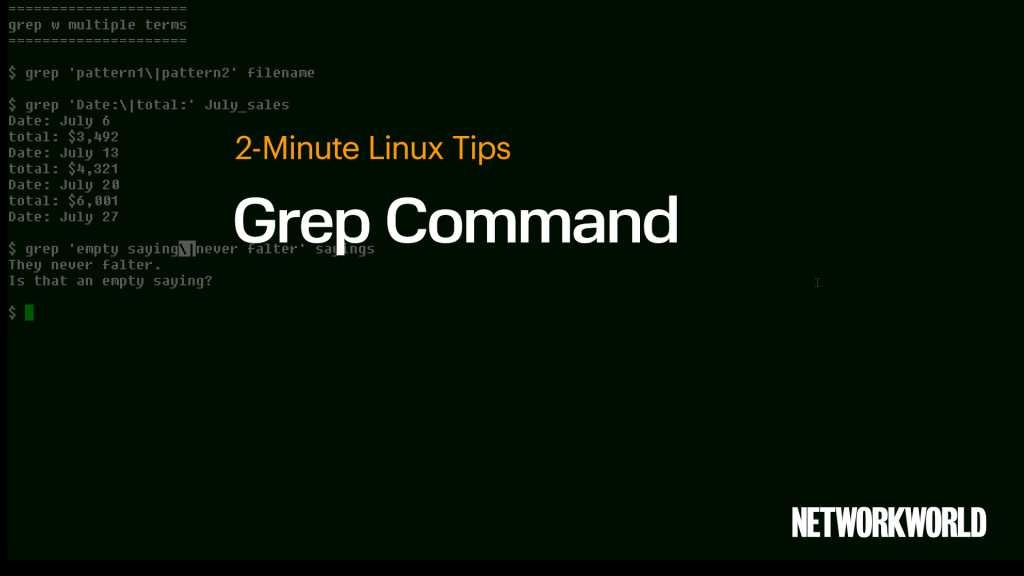
To search one file, name it:
grep -F 'ERROR' sample/logs/app.logTo search two files and see which one contains each match:
grep -nF 'ERROR' sample/logs/app.log sample/logs/worker.logOutput:
sample/logs/app.log:2:ERROR database unavailable
sample/logs/worker.log:2:ERROR worker stalled
To search every file under a directory, turn on recursion:
grep -rF 'ERROR' sample/This covers every file under sample/, including the dependency log in node_modules.
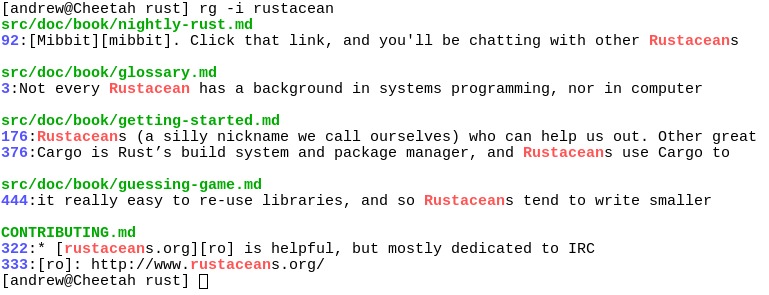
A Linux Academy learner in an r/linux4noobs discussion struggled with recursive searches: “I was using the grep -r unsuccesfully, i dont still understand why”
Relative paths start from your shell's working directory. Searching sample/logs/ starts in that folder. Searching . starts at the current directory and can cover a much larger tree.
GNU grep's -r follows symlinks you name on the command line but skips symlinks it finds while searching subfolders. -R follows those too, which widens the search.
To filter the output of another command, pipe it into grep:
printf 'INFO\nERROR\n' | grep -F 'ERROR'Output:
ERRORPick the output: lines, filenames, context, or counts
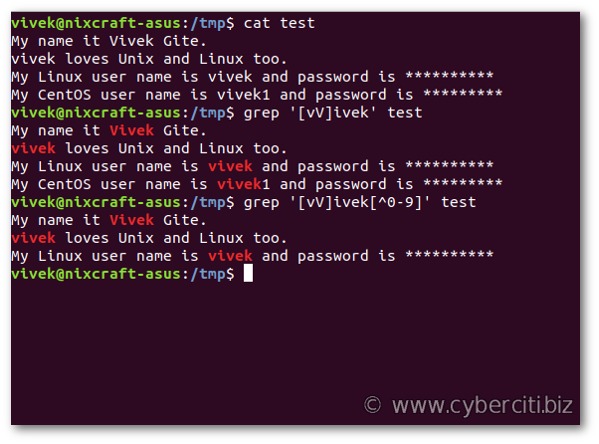
| Option | What it returns | Useful for |
|---|---|---|
-n | Matching lines with line numbers | Locating an entry inside a file |
-l | Names of files with selected matches | Finding files that need inspection |
-L | Names of files without selected matches | Finding files missing a marker |
-c | Number of selected lines per file | Counting qualifying lines |
-o | Individual nonempty matching substrings | Examining the exact matched text |
-C N | Matches with N lines of context on each side | Reading nearby log entries |
-q | No normal matching output. Result through exit status | Testing a condition in a script |
On the sample log, this command counts two lines. -c adds one per matching line, even if the text appears several times in it.
grep -icF 'error' sample/logs/app.logOutput:
2To get file names instead, use -l. This version searches only .log files and skips the dependency and cache directories:
grep -rilF --include='*.log' \
  --exclude-dir=cache \
  --exclude-dir=node_modules \
  'error' sample/
Matching filenames:
sample/logs/app.log
sample/logs/worker.log
Recursive traversal can list these files in a different order.
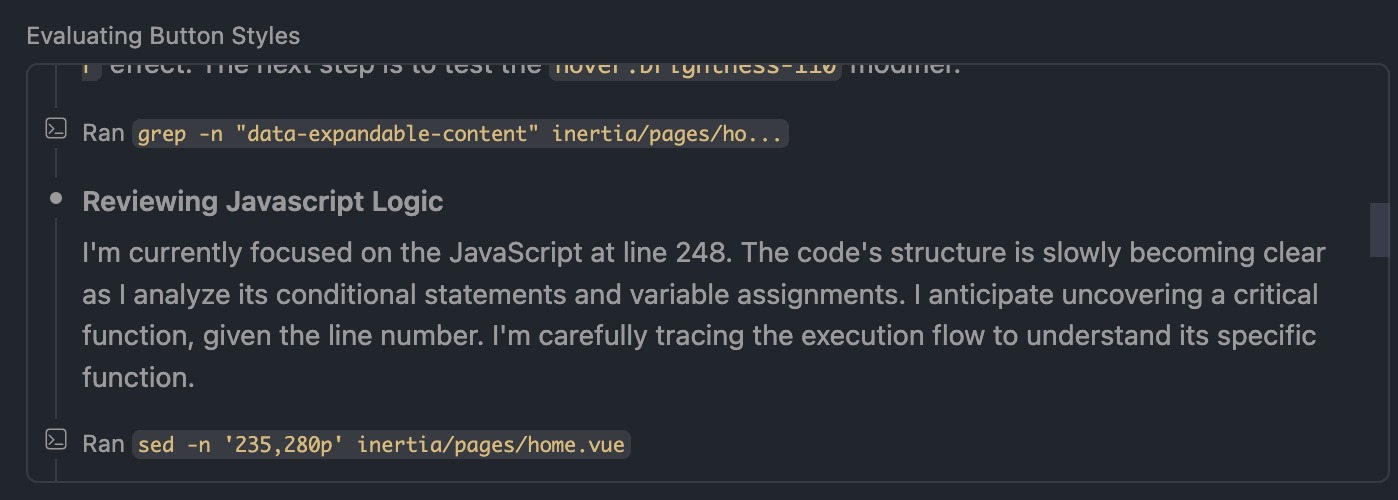
-C 1 adds one line before and one after each match, where those lines exist.
Exclude matching lines, files, or directories
| What to exclude | GNU grep selector | Effect |
|---|---|---|
Lines containing INFO | -vF 'INFO' | Selects lines without that literal string |
Files ending in .tmp | --exclude='*.tmp' | Skips matching filenames |
Files outside the .log set | --include='*.log' | Restricts eligible filenames |
Directories named cache | --exclude-dir=cache | Skips discovered directories matching that name |
| One specific nested subtree | Narrow the starting path or select files with find | Allows path-specific file selection |
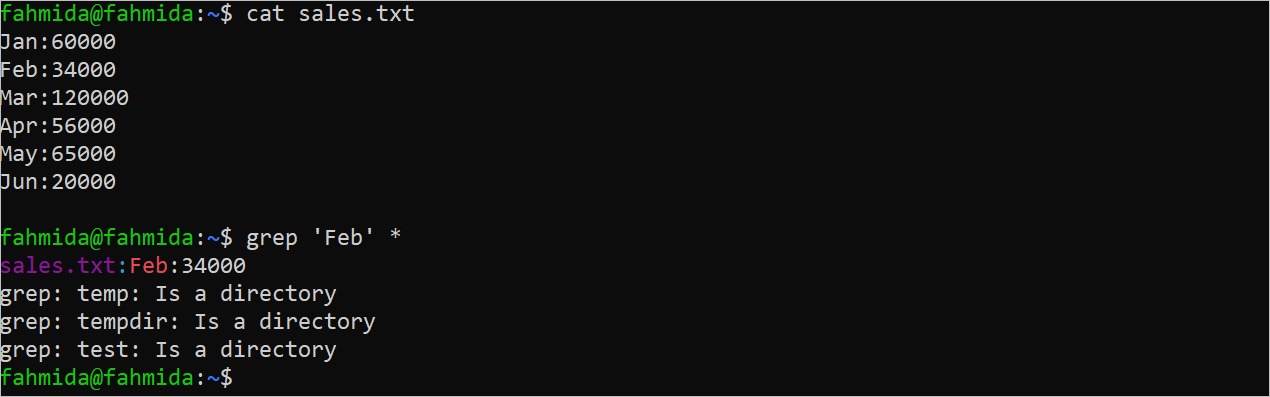
-v selects lines that don't match the pattern. Grep still reads every file it searches. File name filters use globs, and content patterns follow the mode you chose, fixed-string or regex. When several include and exclude rules match the same file, the last matching rule wins.
To exclude the INFO line from the application log:
grep -vF 'INFO' sample/logs/app.logOutput:
ERROR database unavailable
WARN retry
error timeout
Combine the options for a case-insensitive search limited to .log files that skips node_modules and cache:
grep -rinF --include='*.log' \
  --exclude-dir=node_modules \
  --exclude-dir=cache \
  'error' sample/
Output from the sample tree:
sample/logs/app.log:2:ERROR database unavailable
sample/logs/app.log:4:error timeout
sample/logs/worker.log:2:ERROR worker stalled
The cache log, dependency log, and JavaScript file stay out of the results.
A nested exclusion fails when the pattern is a path instead of the directory name GNU grep compares. This command tries to exclude logs/cache:
grep -rinF --include='*.log' \
  --exclude-dir='logs/cache' \
  'error' sample/
Among its results is:
sample/logs/cache/old.log:1:ERROR stale cacheDuring recursion, GNU grep compares the basename of each subdirectory it finds with the --exclude-dir pattern. The basename of sample/logs/cache/ is cache, so logs/cache never matches. This command also searches node_modules, since nothing excludes it.
--exclude-dir=cache skips every directory with that basename anywhere in the tree.
Match several patterns without complicated expressions
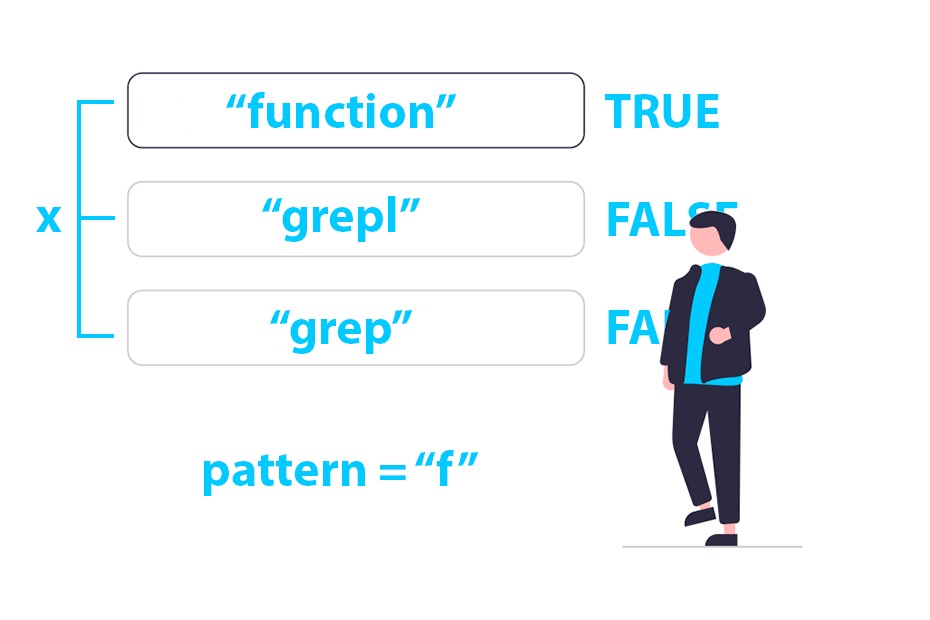
To match either of two patterns, repeat -e or use alternation with -E. Both commands return the uppercase ERROR and WARN lines from the sample:
grep -e 'ERROR' -e 'WARN' sample/logs/app.log
grep -E 'ERROR|WARN' sample/logs/app.log
The quoted | inside the extended regex means alternation. A shell pipe is a different thing: it connects one command's output to another command's input.
To require both ERROR and database on the same line, apply two filters in sequence:
grep -F 'ERROR' sample/logs/app.log | grep -F 'database'A grouped condition such as (Company1 AND 2010 OR Company2 AND 2020) AND Copyright is easier to inspect as a structured awk expression or a short script than as a complex regex that needs extra engine features.
Read grep's exit status in scripts
The exit status tells you whether grep found a match. Empty output doesn't, because it has several possible causes: quiet mode, no matching lines, or an input error.
| Exit status | Ordinary GNU grep meaning | Interpretation |
|---|---|---|
0 | A line was selected | A match was found |
1 | No line was selected | The searched input produced no match |
2 | An error occurred | Inspect the reported failure |
Other grep implementations can return an error status greater than 2.
Run a quiet search for a string that isn't in the sample file:
grep -qF 'NOT_PRESENT' sample/logs/app.log
echo "$?"
Output:
1$? holds the exit status of the previous command. Read it right after grep, because the next command overwrites it.

To use the result in a conditional:
if grep -qF 'ERROR' sample/logs/app.log; then
    printf 'Error marker found\n'
fi
With -q, GNU grep can return 0 on a match even if it hit an error elsewhere in the same run. A 0 means something matched, not that grep could read every file.
-s hides some error messages, including those for unreadable or nonexistent files. The problem with the input is still there.
Diagnose missing results, excessive output, and slow searches
- No output with status
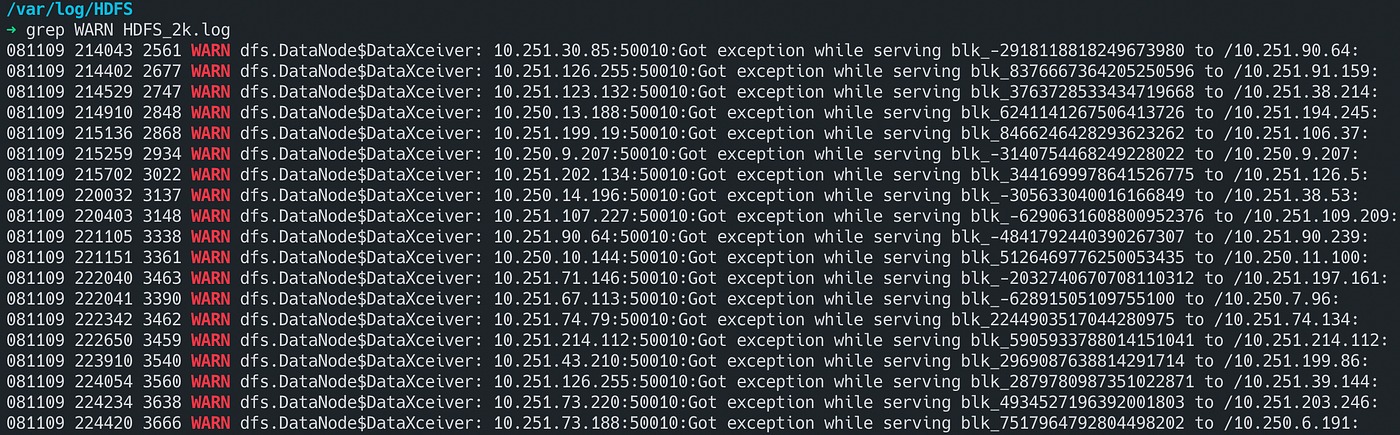
1: Grep read the input and found no matching lines. Test your pattern against the sample'sERRORentry, then check the path, capitalization, fixed-string or regex mode, and any include or exclude filters. - An error message or error exit status: Check the working directory and the file name. A misspelled path, an unreadable file, or an unavailable directory needs an input fix, so keep stderr visible while you debug.
- Unexpected files or far too many lines: Read the file names in the results. A starting directory that's too broad, a wrong glob in a file name filter, or a directory you forgot to exclude explains irrelevant matches. In the sample tree, leaving out
--exclude-dir=node_modulesaddssample/node_modules/lib.logto the results. - Very slow traversal: Narrow the search to the relevant directory or fewer files, for example with
--include.-Rfollows extra symlinks, and a needlessly complex regex adds work.
In a tree that mixes text and binary files, GNU grep's -I treats binary files as having no matches, so only text files contribute results. -a treats binary input as text and prints binary bytes your terminal can't display.
Which tool fits: grep, find, or ripgrep
| Tool | Main job | Appropriate situation |
|---|---|---|
grep | Select matching text from files or standard input | A known log, configuration file, or chosen directory tree |
find | Select filesystem entries by path and attributes | A specific nested subtree or files with particular properties |
ripgrep (rg) | Recursive text search with repository-oriented filtering | Source code where project ignore rules matter |
find can give grep a precisely selected set of file paths. Use it when one specific nested path must be included or excluded and grep's filename globs aren't precise enough.
In a Git repository, ripgrep applies .gitignore rules during recursive searches, and it also reads .ignore and .rgignore files. By default it skips hidden entries and binary files and doesn't follow symlinks. Options can change each of these, so a ripgrep search can cover a different set of files than grep -r.

A Fedora user with Heroku CLI tab-completion trouble wrote in an r/commandline discussion: “The root cause? I had alias grep='rg' in my bashrc.” Swapping rg in for grep changes the options it accepts and the files it searches.
