Use mv to rename or move files and directories in Linux. If the destination is an existing directory, the source goes inside it. Check the destination, decide what happens when the name already exists, verify the result, and use cp to keep the original or rsync to merge non-empty directory trees.
What does the Linux mv command do?
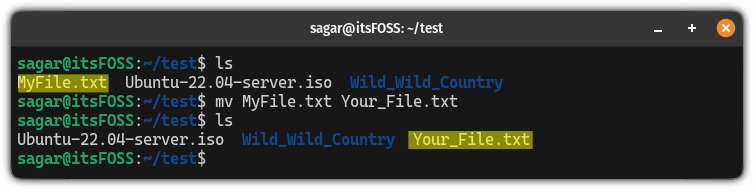
The Linux mv command moves and renames files and directories. Both tasks use the same form:
mv [OPTIONS] SOURCE DESTINATIONSOURCE is the existing path. DESTINATION is the path you want it to have afterward. The examples below assume archive/ and ~/Documents/ exist.
To rename report.txt to archive.txt in the current directory:
mv report.txt archive.txtTo move that file into archive/:
mv report.txt archive/Its new path is archive/report.txt.
You can change the location and filename together:
mv report.txt archive/old-report.txtThis produces archive/old-report.txt. These three commands are alternatives.
The same syntax moves a directory. -R isn't needed to move one.
Where will mv put the file or directory?
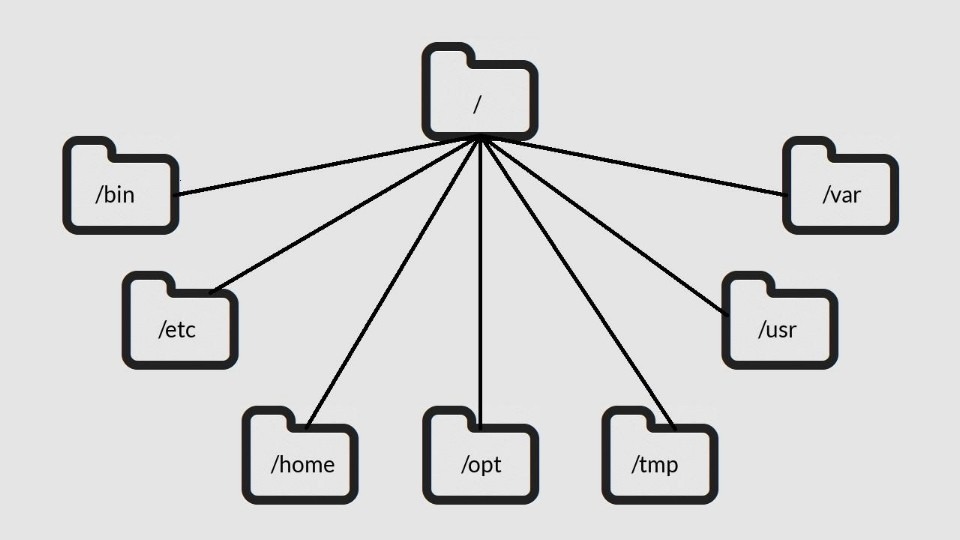
What already exists at the destination decides the result. If archive/ exists, moving report.txt to archive/ targets archive/report.txt. Check for that filename before running a move that would replace it.
| Starting state | Command | Result |
|---|---|---|
report.txt exists, old-report.txt does not | mv report.txt old-report.txt | File becomes old-report.txt |
report.txt exists, archive/ is a directory | mv report.txt archive/ | File becomes archive/report.txt |
project/ exists, backup does not | mv project backup | Directory is renamed backup/ |
project/ exists, backup/ is a directory | mv project backup/ | Directory moves to backup/project/ if that path is free |
project/ exists, backup/ is non-empty | mv -T project backup | Fails. mv won't merge two non-empty directories. |
Suppose project/ and backup/ are separate directories in your working directory. This command:
mv project backup/puts the whole source under backup/project/.
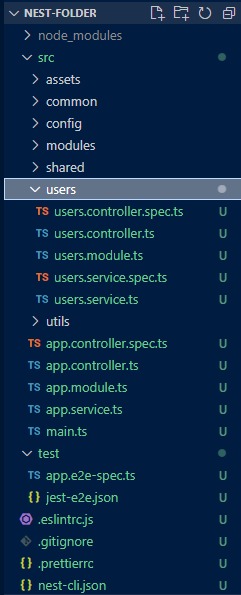
backup/
└── project/
If /opt/project already exists, this creates /opt/project/project/:
mv ./project /opt/projectTo see whether a path is a directory, run:
ls -ld backupGNU mv has -T for when the destination must be treated as the exact final path, even if it's an existing directory:
mv -T project backupNeither -T nor -f merges a non-empty backup/ with project/. -T is specific to GNU mv, so don't assume it exists in every macOS, BSD, or POSIX implementation.
Move multiple files and directory contents
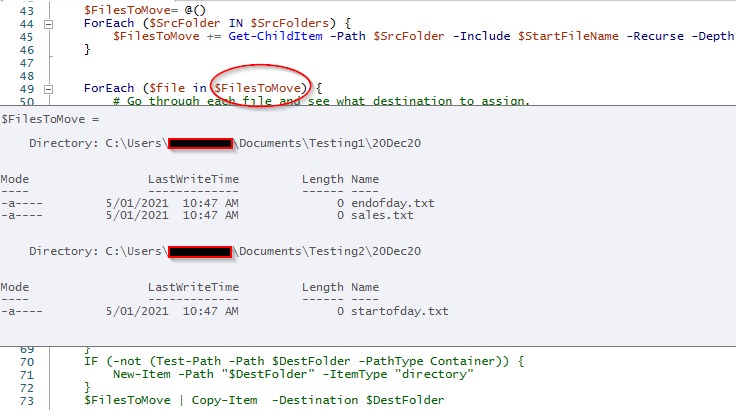
To move several files at once, list them and end with the target directory:
mv notes.txt slides.pdf archive/Each file goes into archive/. With multiple sources, the target must be an existing directory. GNU mv -t DIRECTORY SOURCE... is another way to specify it.
A wildcard selects several files:
mv *.pdf ~/Documents/In Bash, the shell expands *.pdf into the matching filenames before mv runs. For example, it can select notes.pdf and slides.pdf.
An r/linuxquestions poster trying to move several files wrote, “I messed something up. I was trying to move several files into a subdirectory.” (r/linuxquestions discussion) If a wildcard lands in the last position, mv reads what it expands to as the destination.
Moving a directory or selecting its contents
mv olddir newdir/mv olddir/* newdir/The first moves olddir/ itself. The second moves everything inside olddir/ that * matches to the existing newdir/.
By default in Bash, * skips filenames that start with a dot. If olddir/ contains index.html and .env, the second command moves index.html and leaves .env behind. Bash's dotglob setting changes that, as described in the GNU Bash filename expansion manual.
Preview what Bash will pass to mv before a wildcard move:
printf '%s\n' olddir/*This prints each expanded entry on its own line and moves nothing. With default settings and no matches, Bash prints the literal olddir/*, so check the pattern. If you change dotglob temporarily, restore it after the move.
Control overwrites before moving files
A plain mv overwrites an existing destination file. Suppose report.txt and archive/report.txt already exist with different data.
| Your decision | Command form | Effect |
|---|---|---|
| Ask before replacement | mv -i SOURCE DEST | Prompts before replacing an existing file |
| Leave an existing target unchanged | mv -n SOURCE DEST | Skips the file and leaves the target alone |
| Replace without prompting | mv -f SOURCE DEST | Overwrites without asking |
| Preserve the former destination | mv -b SOURCE DEST | Backs up the replaced target |
| Keep numbered former versions | mv --backup=numbered SOURCE DEST | Uses numbered backup names |
| Display what is moved | mv -v SOURCE DEST | Prints each move. Gives no collision protection |
For a manual move, use -i:
mv -i report.txt archive/If you decline the prompt, the existing target stays unchanged. For an unattended task, use -n:
mv -n report.txt archive/-n leaves an existing target alone. GNU treats -n and -b as mutually exclusive, and the last of -i, -f, and -n on the command line takes effect.
In a Debian 13 test using GNU Coreutils 9.7, a no-clobber skip left both files unchanged and returned exit status 0. The GNU Coreutils 9.11 manual describes -n as skipping with failure and distinguishes --update=none from --update=none-fail.
Run mv --version to see your GNU Coreutils version before relying on skip-status behavior in automation. The GNU Coreutils mv documentation gives the option definitions.
Keep a backup of the replaced file
To keep the old target when you do want replacement, use:
mv -b report.txt archive/With simple backup naming, the old archive/report.txt is saved as archive/report.txt~, though configuration can change the suffix. For distinct older versions, use numbered backups:
mv --backup=numbered report.txt archive/Handle spaces, leading hyphens, and file paths
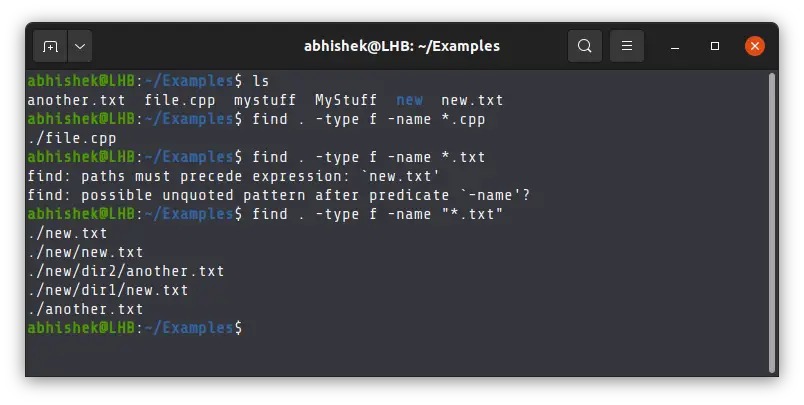
A filename with spaces must reach mv as one argument, so quote it:
mv -- "hello world.txt" output/This sends hello world.txt to the existing output/ directory. Without the quotes, the shell splits the name into separate arguments.
A filename that starts with a hyphen has a different problem: mv can mistake it for an option. If the file is named -file.txt, use:
mv -- -file.txt output/Here, -- ends option parsing. The relative path ./-file.txt also works.
In a discussion of xargs, an r/bash poster asked, “And how do I tell xargs to quote each of them so I can move the ones with spaces?” (r/bash discussion) For a single file, quote the name and skip the pipeline.
Relative and absolute paths
Relative paths start from your current working directory:
mv ./reports/report.txt ./archive/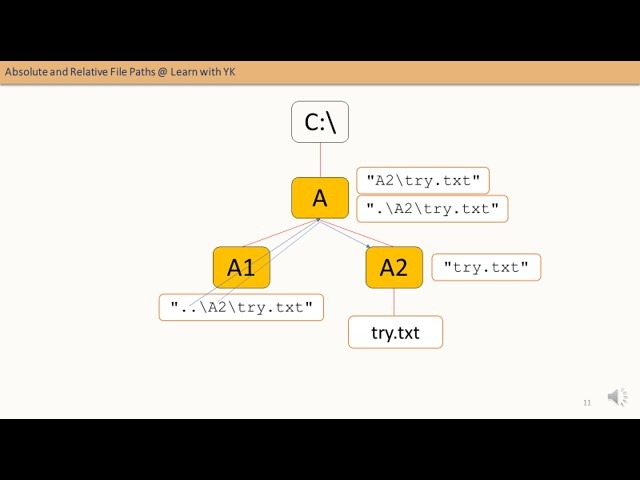
Absolute paths start at the filesystem root:
mv /home/alex/report.txt /home/alex/archive/What changes when mv crosses filesystems?
On the same filesystem, a successful mv changes directory entries without copying every byte of the file.
Across filesystems, GNU mv copies the source, then deletes it after the copy succeeds. The operation isn't atomic.
A command with several sources isn't one transaction. Earlier moves can finish even if a later one fails.
If a move to another drive gets interrupted, check both locations before retrying or removing the remaining files.
Troubleshoot common mv errors
| Error or symptom | Likely cause | First check |
|---|---|---|
cannot stat ... No such file or directory | The source is absent or misnamed | Run ls in the current directory and check the spelling |
Permission denied | Permissions or ownership on the source or destination directory | Permissions and ownership of both directories |
target ... is not a directory | Several sources, but the last argument isn't an existing directory | Count your arguments and check what the last one is |
Directory not empty | A non-empty directory blocks the replacement | List the conflicting directory with ls -la |
Source path errors
A typical diagnostic looks like this:
mv: cannot stat 'report.txt': No such file or directorymv resolves a relative filename from the directory where you run it.
Permission failures
A move needs access to both the source directory and the destination directory. Before changing any permissions, run:
ls -ld /path/to/source-directory
ls -ld /path/to/destination-directory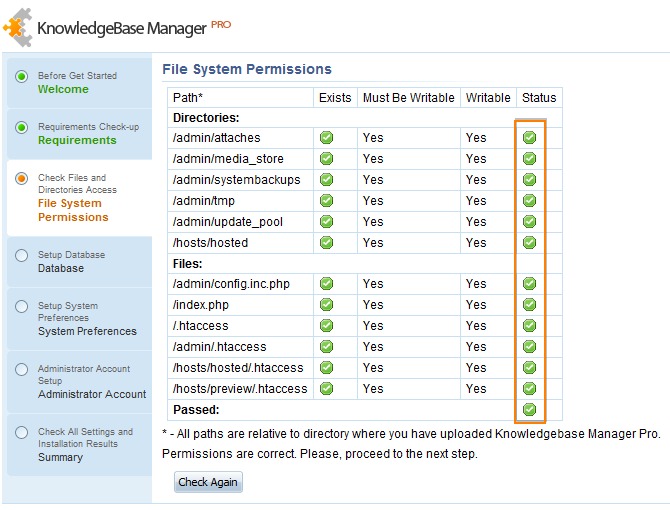
Don't automatically rerun a failed command with sudo. Elevated privileges make a wrongly targeted move harder to recover from, and access errors can have causes other than ownership.
Destination errors
This fails unless output is an existing directory:
mv a.txt b.txt outputCheck the result
After moving report.txt into archive/, list the destination:
ls -la archive/The listing should include report.txt. Then check the old path from the same directory you ran the move in:
ls -ld report.txtIf the move worked, ls reports that report.txt is gone. If the move was skipped or failed, the file is still there. After renaming a directory, list the result to tell archive/ from an unintended archive/project/.
mv has no undo command. Moving a file back reverses a simple move if you know the original path and the data is intact. It can't restore destination contents that were overwritten without a backup.
