Use cp SOURCE DEST to copy a file locally in Linux, adding -R for a directory. On GNU/Linux, cp -a src/. dest/ copies the contents of src, including hidden files, directly into an existing destination directory. Add -i, --update=none or -b to control overwrites, and -p or -a to keep attributes.
The Linux cp command duplicates files and directory trees and leaves the originals in place. Before a recursive copy, settle two things: where the new files will land and whether cp will replace anything already there.
Copy a file or several files with cp
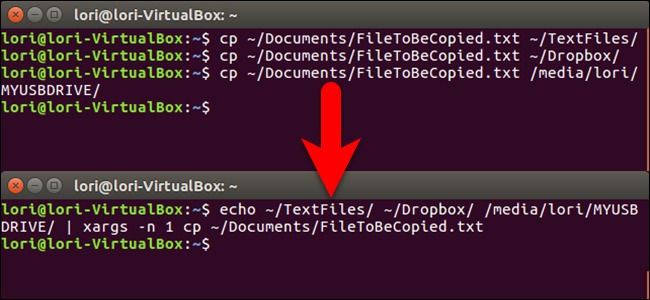
To copy one regular file, give cp a source and a destination. The destination can be a new filename or an existing directory.
cp report.txt report-copy.txtThis creates report-copy.txt next to report.txt.
To put the copy into an existing directory:
cp report.txt archive/The copy is archive/report.txt.
You can copy several files into one directory:
cp report.txt notes.txt archive/Both files land in archive/. The last operand is always the destination directory.
Relative paths start from the shell's working directory, absolute paths from the filesystem root. Quote filenames that contain spaces:
cp "draft report.txt" "review copy.txt"Copy a directory: where the files end up
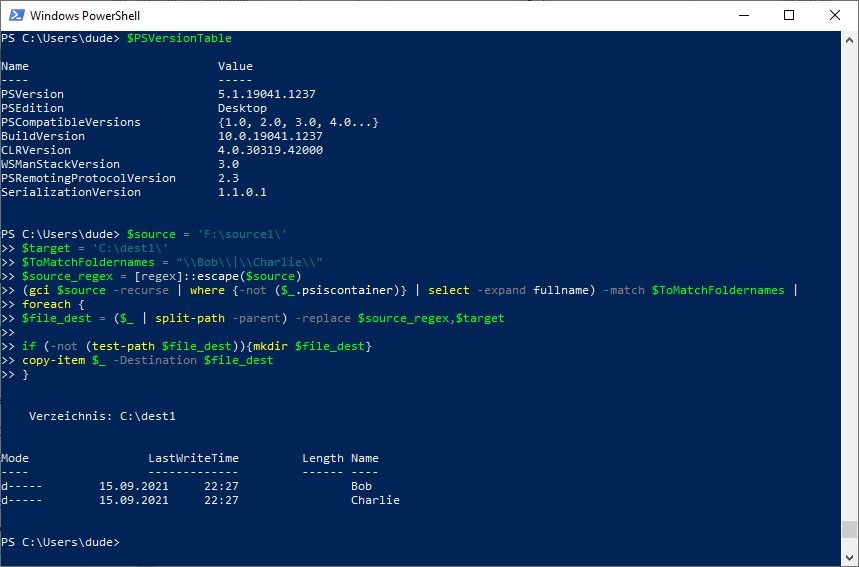
cp -R copies a directory and its subdirectories. Whether the destination exists decides where the source folder appears. Before copying, sketch the expected result as either destination/source-name/files or destination/files.
Suppose the source looks like this:
src/
├── report.txt
├── .env
└── sub/
    └── x
Run this command on disposable example directories:
cp -R src dest| State of dest before copying | Result |
|---|---|
dest does not exist |
dest/report.txtdest/.envdest/sub/x |
dest already exists as a directory |
dest/src/report.txtdest/src/.envdest/src/sub/xcp creates dest/src/, or merges into it if it already exists. |
dest already exists as a regular file |
The directory copy fails. A regular file cannot serve as the destination directory for a recursive copy. |
The first two cases are easy to confuse because the command is identical. The first run creates dest, so the same command run again takes the second path.
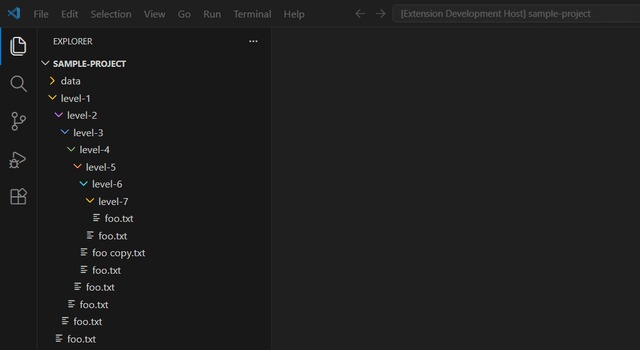
After the first run, the layout is:
dest/
├── report.txt
├── .env
└── sub/
    └── x
Run it a second time and the original entries stay at the top level while a new src directory appears:
dest/
├── report.txt
├── .env
├── sub/
│   └── x
└── src/
    ├── report.txt
    ├── .env
    └── sub/
        └── x
One poster on r/linuxquestions described the problem: “Title says it all. cp -R copies the directory and the files, but I only want to copy the directory contents.”
With GNU cp, a trailing slash on src/ does not switch to contents-only copying the way it does in rsync.
Copy only a directory's contents, including hidden files
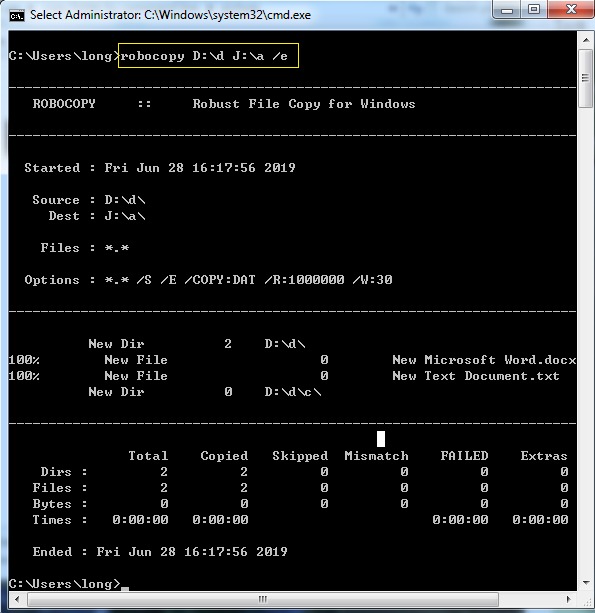
To copy everything inside src straight into an existing dest/ on GNU/Linux, use:
cp -a src/. dest/With the sample tree, you get:
dest/
├── report.txt
├── .env
└── sub/
    └── x
The src/. operand means the contents of src. Hidden entries like .env come along, and no extra src level appears.
In another r/linuxquestions thread, a user asked: “What am I doing wrong that prevents my .bashrc, .config, etc files from being copied?”
A shell wildcard is a common cause:
cp -R src/* dest/In Bash, * matches visible entries and skips names that start with a dot. The shell expands the wildcard before cp sees the operands, so the hidden files never reach it. The src/. form avoids that expansion and includes them.
Choose what happens when a destination file exists
| Desired behavior | Option | What happens |
|---|---|---|
| Replace an existing file | Plain cp |
cp writes the source over the destination without asking. |
| Approve each replacement | -i |
cp prompts before overwriting. |
| Leave existing files alone | GNU --update=none |
cp skips existing destination files on versions that support this policy. |
| Keep an overwritten version | GNU -b |
cp backs up the previous destination file before replacing it. |
An interactive copy looks like this:
cp -i src/report.txt dest/report.txtUse -i when you're at the keyboard. In a script, pick an option that doesn't prompt.
To skip existing destinations on a GNU system that supports it:
cp --update=none src/report.txt dest/report.txtIf the destination file already contains existing, that content stays. GNU cp returns exit status 0 after the skip.
To keep the old file instead, use GNU backup mode:
cp -b src/report.txt dest/report.txtWith the default backup suffix, the previous file is kept as dest/report.txt~. Backup naming is configurable, so your suffix can differ.
If the destination path is a symbolic link to an existing regular file, GNU cp follows the link and changes the file it points to. With -b, it backs up the destination link itself.
Ubuntu 22.04 documents Coreutils 8.32, while Ubuntu 24.04 documents Coreutils 9.4. GNU update-option support differs between editions. Inspect cp --version and cp --help before relying on a newer policy.
The GNU Coreutils cp manual documents the deprecation of -n.
Preserve file attributes and symbolic links when they matter
| Option | Main purpose | Important scope |
|---|---|---|
-R |
Copies directories recursively. | Does not request broad metadata preservation. |
-p |
Preserves standard file attributes. | Mode, ownership and timestamps, if your permissions allow. |
GNU -a |
Copies recursively with broad preservation. | Tries to keep attributes and symbolic links as links. |
-P, -H, -L |
Controls symbolic-link handling. | -P preserves links, -H follows links named on the command line, -L follows links found during the copy. |
GNU archive mode suits a tree with configuration files, timestamps or symbolic links:
cp -a src destSuppose src contains:
src/
├── report.txt
└── target -> report.txt
Copying to a new dest with -a leaves dest/target a symbolic link to report.txt. It does not become a separate regular-file copy.
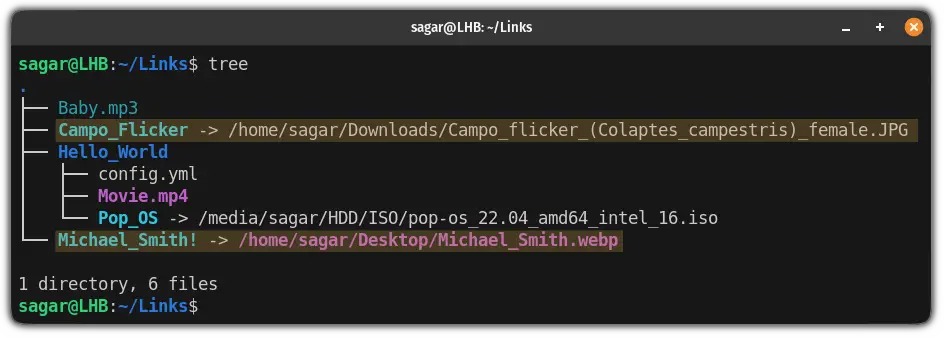
POSIX leaves some recursive link handling unspecified unless you pass -P, -H or -L explicitly.
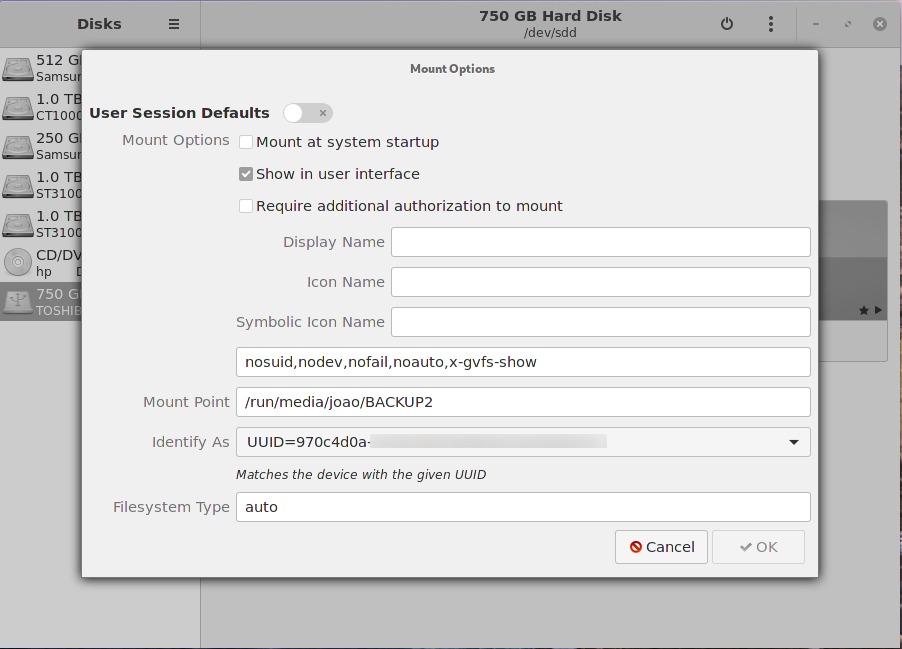
On a VFAT SD card or a differently configured mounted partition, a copy can hold the right data but show different ownership or permission bits. The filesystem, the mount behavior and your privileges decide which Unix attributes the destination can store, so even -a doesn't always keep ownership, ACLs, extended attributes or security contexts. A copied tree is not a full system backup.
Verify the copy instead of assuming it worked
Inspect the destination layout
List the copied entries, dotfiles included:
ls -la dest/Look in dest/ when it was new, in dest/src/ when it already existed, and directly in dest/ after the contents-only copy.
Compare regular file contents
For the new-destination case:
cmp src/report.txt dest/report.txtIf the bytes match, cmp prints nothing. A difference produces a diagnostic or nonzero status.
If dest already existed, compare the nested copy instead:
cmp src/report.txt dest/src/report.txt
To compare whole trees, use diff -qr:
diff -qr src/ dest/That fits a new destination. For the nested result, use dest/src/ as the second path.
Inspect preserved attributes
When permissions, ownership or timestamps matter, compare the files with stat:
stat src/report.txt
stat dest/report.txt
Adjust the second path to the copy's actual location. When data and metadata both need to match, run cmp and stat.
Fix “No Such File” and “Permission Denied” errors
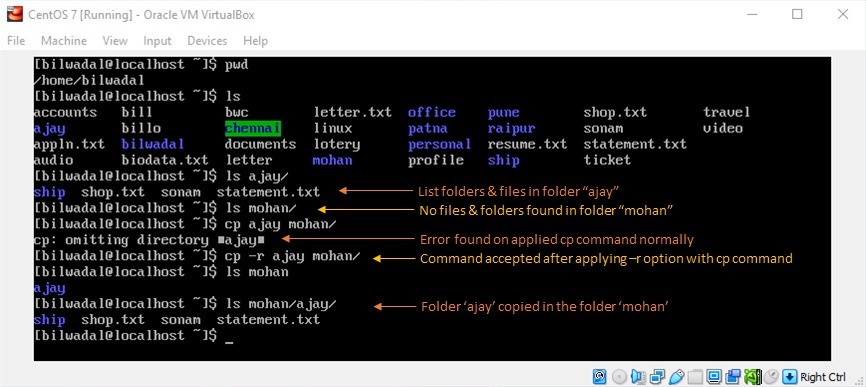
When cp fails, check the source path and the destination's parent directory first.
Take this command:
cp src/report.txt no-dir/report.txtIf no-dir does not exist, the copy fails because the destination's parent directory is missing. cp does not create missing parent directories.
| Symptom | First check |
|---|---|
| Source file missing | Source spelling and location |
| Destination parent missing | The destination's parent directory |
| Unexpected Documents path | /Documents versus ~/Documents |
| Permission denied | Access to the source, the destination's parent and every directory on the path |
| Unrecognized option | The options your installed cp supports |
pwd shows where you are. ls -ld shows whether src and no-dir exist:
pwd
ls -ld src no-dir
If you do want that directory, create it:
mkdir -p no-dir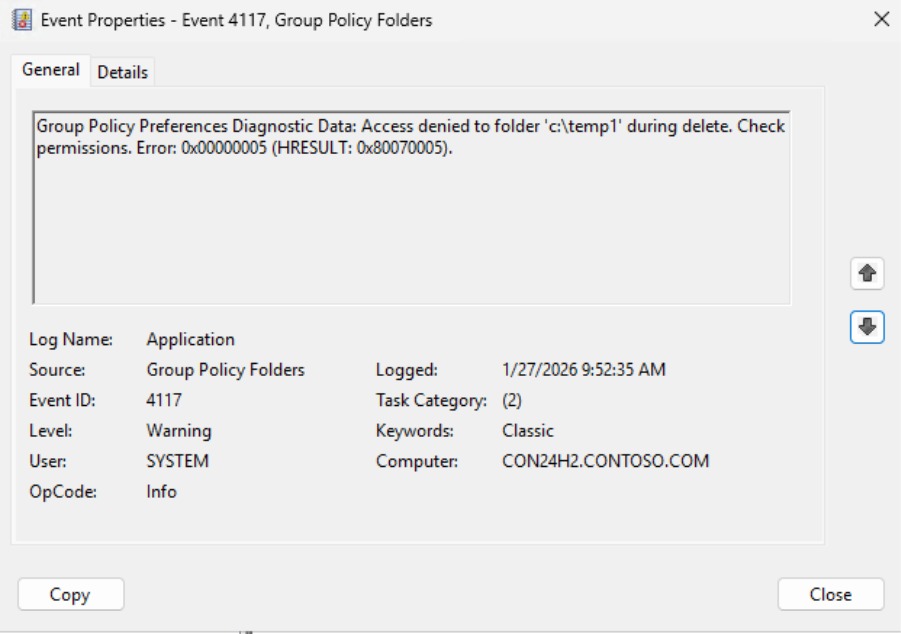
~/Documents sits in your home directory, while /Documents sits directly under the filesystem root.
On r/linux4noobs, a beginner reported: “I'm not being able to copy any file to another folder or directory. It keeps giving me permission denied error”
Permission denied can come from the source, the destination's parent or any directory on the path, so find the failing one before changing permissions or using sudo.
When cp is the wrong tool
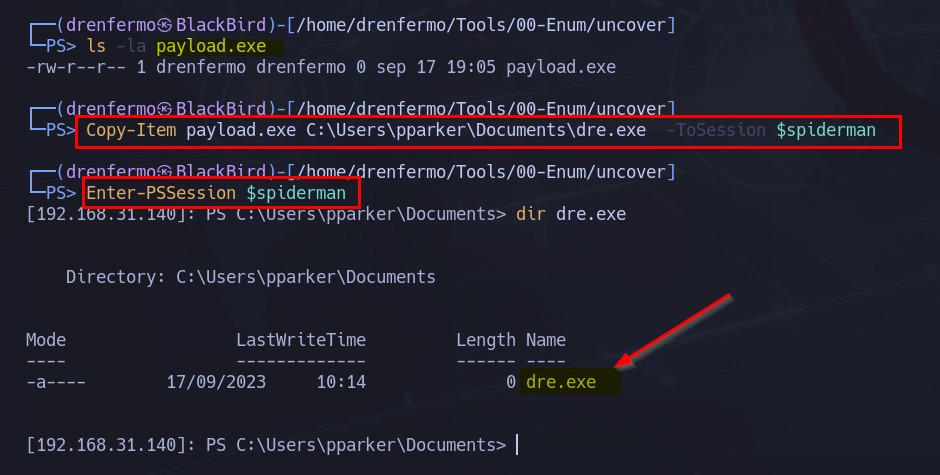
- cp: Copies a file or directory locally and leaves the source in place.
- rsync: Handles repeated directory transfers and synchronization.
- scp: Sends or retrieves files over SSH.
- mv: Renames or relocates the original.
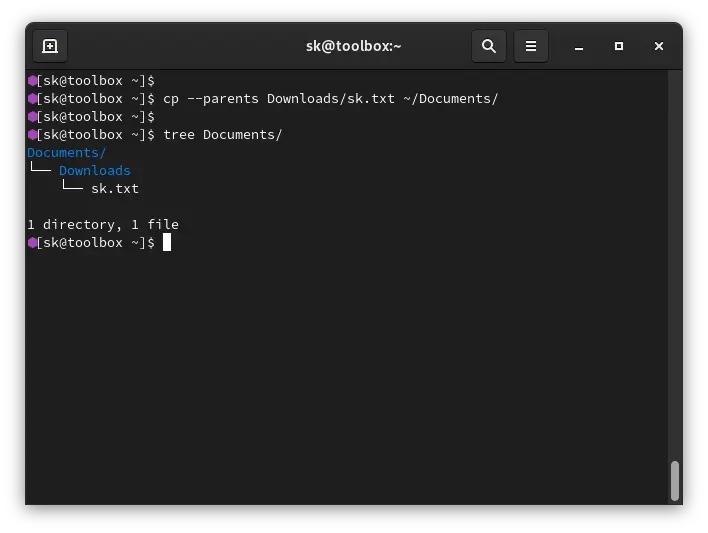
GNU cp --parents keeps the parent path components you supply inside the destination.
