Use gzip to compress a file and gunzip to decompress it, adding -k to keep the original. Use tar to pack a directory into one compressed archive. Check the file format and destination before changing important data, then verify the result.
| What you need | Command or tool | Expected result |
|---|---|---|
| Compress one file | gzip file.log | Only file.log.gz |
| Compress and keep the original | gzip -k file.log | Both files remain |
| Decompress a .gz file | gunzip file.log.gz | Only file.log |
| Decompress and keep the archive | gzip -dk file.log.gz | Both files remain |
| Package an entire directory | tar with gzip compression | One .tar.gz archive |
| Produce a ZIP file | ZIP tool | A .zip archive |
Which should you use: gzip, gunzip, tar.gz, or ZIP?

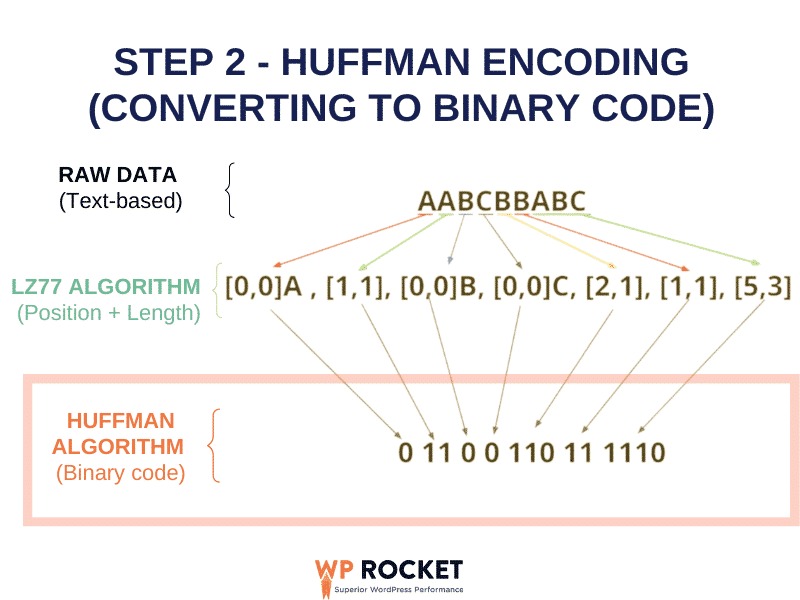
GNU gzip compresses file contents or a data stream. A plain .gz file holds one compressed input. tar collects multiple files and directories into an archive. Combine the two and you get a .tar.gz or .tgz file.
Take three filenames. server.log.gz is a compressed log you can decompress or inspect with gzip tools. backup.tar.gz is a compressed tar archive of file entries, and GNU tar extracts it. submission.zip is a ZIP archive.
If a downloaded file named download.gz refuses to decompress, check its real format with the file utility:
file download.gzThis helps when a server sends a wrongly named download or someone renamed a file without changing its format.
Compress a file and keep the original
For a file named sample.log, run:
gzip sample.loggzip deletes sample.log once it has written sample.log.gz.
To keep the original, add -k. gzip then leaves sample.log next to sample.log.gz:
gzip -k sample.logPractice on a disposable file
mkdir gzip-practice && cd gzip-practice && printf 'INFO started\nERROR example\n' > sample.logCompress with -k and list the directory:
gzip -k sample.log
ls -1
The listing shows both files:
sample.log
sample.log.gz
Decompress a .gz file without discarding the archive
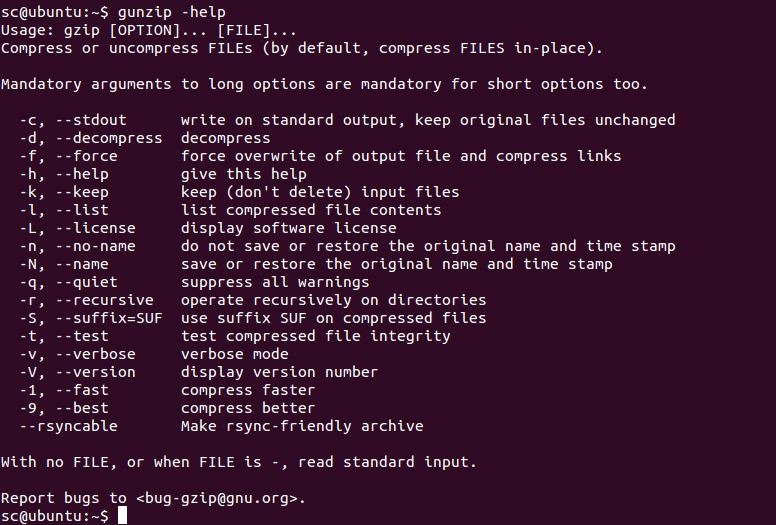
gunzip reverses gzip compression. gzip -d does the same, and -k keeps the compressed input. For sample.log.gz, use one of these:
gunzip sample.log.gzgzip -d sample.log.gzgzip -dk sample.log.gz| Starting state | Command | Files after successful decompression |
|---|---|---|
Only sample.log.gz exists | gunzip sample.log.gz | sample.log |
Only sample.log.gz exists | gzip -d sample.log.gz | sample.log |
Only sample.log.gz exists | gzip -dk sample.log.gz | sample.log and sample.log.gz |
The practice directory above already contains sample.log, so try gzip -dk in a separate folder that holds only the .gz file.
Compress multiple files or a directory: gzip -r vs tar
A student working in Lubuntu described the problem in r/linuxquestions: “I then opened the terminal and used gzip -r to compress the directory but instead it compressed every file inside the directory, no the directory itself.”
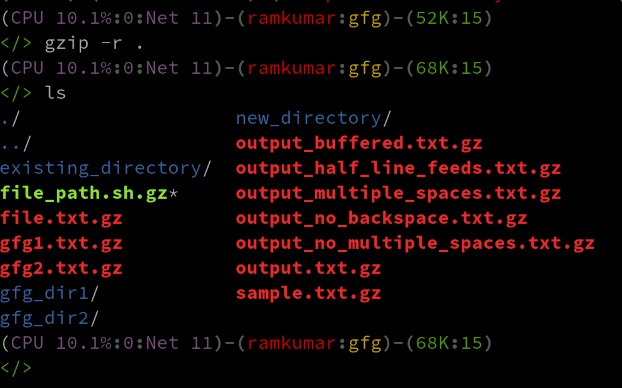
gzip -r does exactly that. It goes through a directory tree and compresses each eligible file on its own. Take this directory:
reports/
  jan.log
  feb.log
Run:
gzip -r reports/The result is two separately compressed files:
reports/
  jan.log.gz
  feb.log.gz
Create one compressed archive with tar
Starting from a separate original copy of reports/ with the two uncompressed logs, use GNU tar:
tar -czf reports.tar.gz reports/-c creates the archive, -z applies gzip compression, and -f sets the output filename.
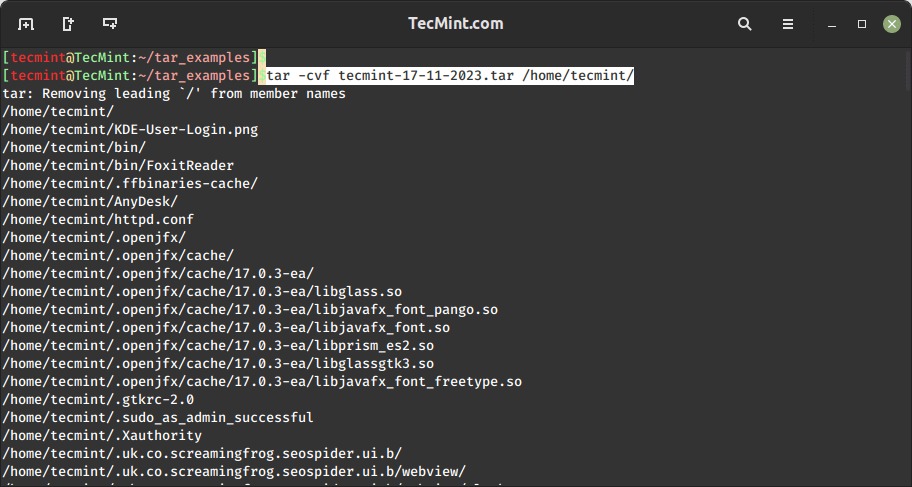
tar packs a directory into one transferable file and leaves the original directory in place. A submission that requires ZIP needs a real ZIP archive, because .tar.gz is a different format.
View and search compressed text without extracting it

zgrep 'ERROR' app.log.gz prints matching lines from a compressed log, and no restored copy lands on disk. zless app.log.gz opens the contents for browsing. zcat app.log.gz sends the full decompressed text to standard output. Don't send a very large or binary file through zcat to the terminal, because the output becomes unwieldy or unreadable.
Choose a compression level or write to standard output

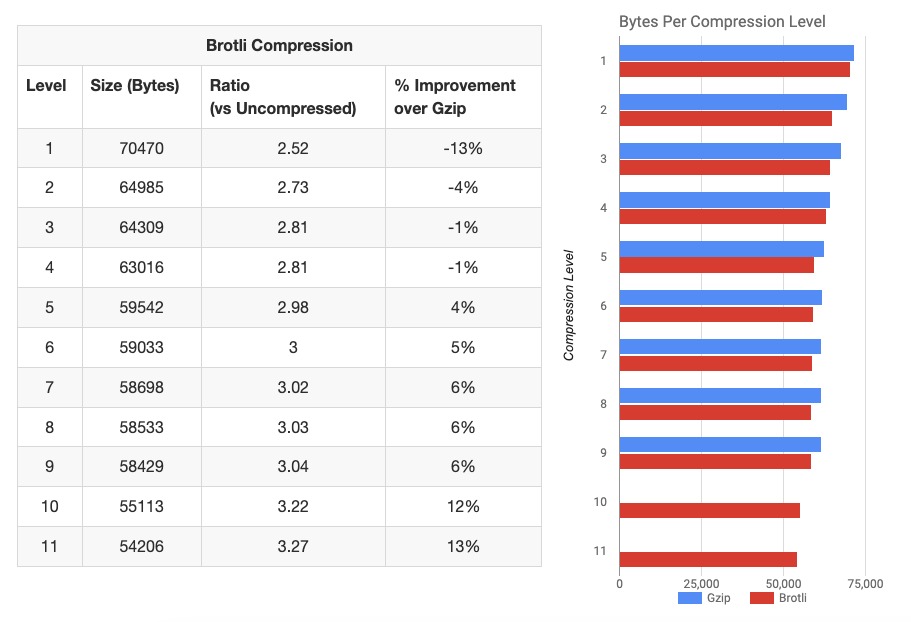
gzip has compression levels that trade effort against output size.
-1: Faster compression.-6: The documented default.-9: More effort for a smaller result.
Data that is already compressed gains little.
To compare levels, run two of them on a representative, noncritical file and write to separate output names:
gzip -1 -c sample.log > speed.gz
gzip -9 -c sample.log > size.gz
sample.log stays in place. Compare the two output sizes.
Send compressed data to a new output filename
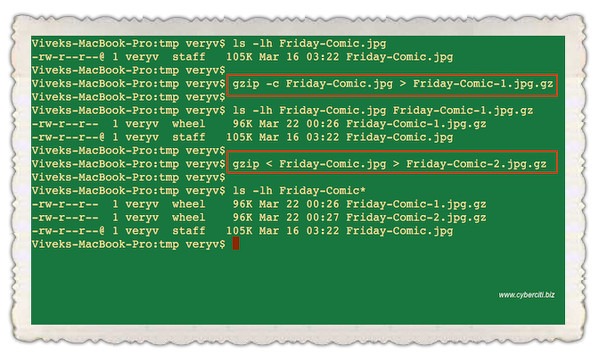
-c writes the output to standard output (stdout), and shell redirection puts it in a file:
gzip -c sample.log > stream-copy.gzThis creates stream-copy.gz and keeps sample.log.
Use a new output filename: The shell's > operator can truncate an existing file before gzip runs, even if your gzip options preserve the input.
Decompress to stdout like this:
gzip -dc sample.log.gz > restored.log-d selects decompression, -c sends the result to stdout, and the shell writes it to restored.log.
Test a .gz file and check the restored data
gzip -t tests the internal consistency of a compressed stream and writes no output file.
gzip -t sample.log.gzA damaged stream triggers an error and a nonzero exit status.
What the gzip integrity check means
The gzip format stores a CRC32 value calculated from the uncompressed data and an ISIZE field with the uncompressed length modulo 232. RFC 1952 defines both.
CRC32 detects errors. A valid gzip stream doesn't prove who produced it.
Compare recovered bytes with a trusted original
If you still have the original sample.log from the disposable exercise, compare it with the decompressed stream:
gzip -dc sample.log.gz | cmp - sample.logcmp reads its first input from standard input when you pass -. A matching result means the bytes it received are identical to those in sample.log. A pipeline reports only the final command's status, so it can hide a gzip error unless pipefail is enabled. Run gzip -t sample.log.gz first, and count the data as verified only when both the test and the comparison succeed.
gzip -l lists information about compressed files. Its uncompressed size is unreliable for very large inputs and concatenated gzip members, so don't treat it as a byte-accurate measurement.
Troubleshoot gzip errors without making the problem worse
| Symptom | Possible cause | First safe diagnostic |
|---|---|---|
not in gzip format | Wrong file type, misleading extension, or a stream already decompressed | Run file on the input, and in a pipeline check which earlier step already decompressed it |
| Destination already exists | The output name matches an existing file | Keep the existing file and check what it contains |
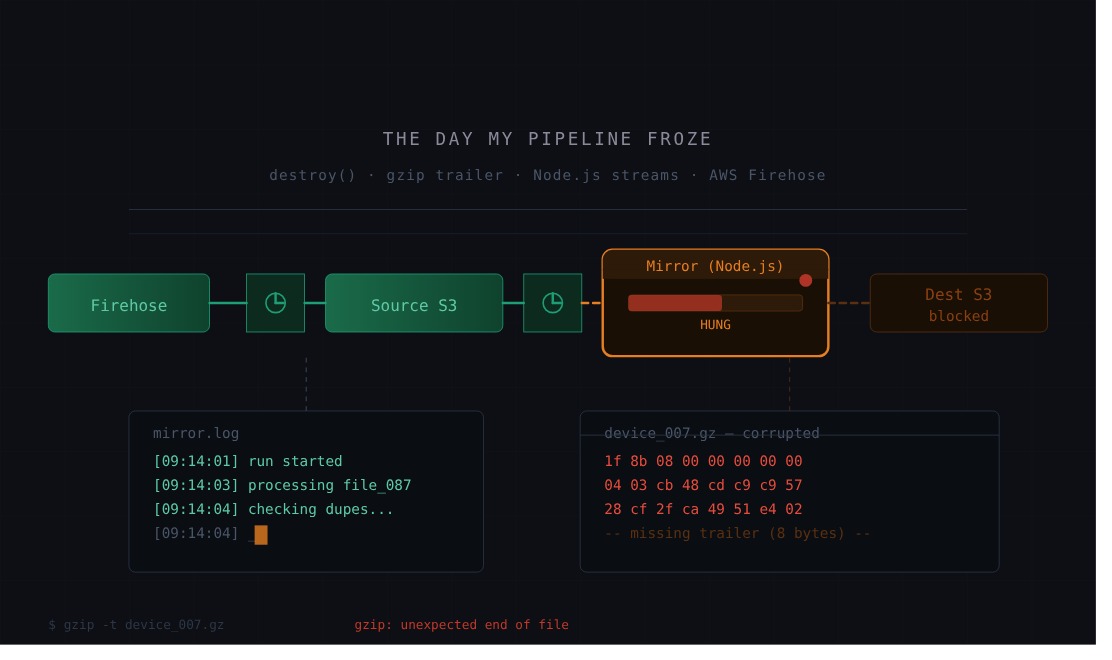
| Corrupt or truncated gzip data | The compressed stream failed its integrity check | Run gzip -t on the file |
| Permission or storage error | The output location isn't writable or is out of space | Check write permission and free space on the output folder |
| Failure after a decompression pipeline | An earlier step already removed the gzip layer | Find which program in the pipeline did the decompression |
| Empty redirected output | The command didn't send the intended data to stdout | Check the -c and -d options |
When a pipeline decompresses gzip twice
“How is the gzipped archive not in gzip format?” a reader asked in r/linuxquestions while troubleshooting a decompression pipeline.
In that pipeline, gunzip -c had already removed the gzip layer before tar tried to decompress the stream again. Once the first step produces a tar stream, a second gzip step fails on it.
If you have a real gzip-compressed tar archive as a regular file, GNU tar handles the compression itself. Extract into a new directory so existing reports/ files stay untouched:
mkdir restored-test && tar -xf reports.tar.gz -C restored-testtar detects the compression, decompresses it, and puts the reports/ tree inside restored-test/.
When the restored filename already exists
Say sample.log.gz should decompress to sample.log, but a file with that name already exists. Keep the existing file until you know whether it holds data you still need.
In an isolated gzip 1.13 test, gzip -dk sample.log.gz encountered an existing sample.log, returned exit status 2, and left that destination unchanged.
Don't use -f to force past an unexplained collision, because it changes overwrite behavior. A truncated download needs another copy. Don't change permissions or delete unrelated files at random to get past a permission or space error.
