Run unzip archive.zip to extract a ZIP into your current directory, or unzip archive.zip -d destination to put the files somewhere else. Preview the contents with unzip -l archive.zip first. If files with the same names already exist, add -n to keep them or -o to replace them, then check that the files you expect are there.
Unzip a ZIP file from the Linux terminal
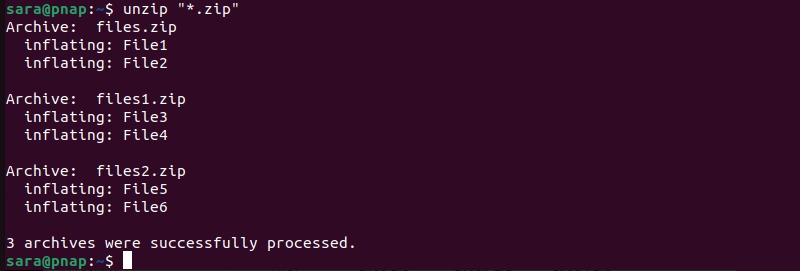
Run unzip archive.zip in the terminal and replace archive.zip with the name of your file. The command looks for the ZIP in your current directory unless you give it a path. pwd shows which directory that is. The command does not automatically create a new folder named after the ZIP.
Install unzip if the command is missing
If the terminal says unzip: command not found, the program is missing or not on your shell's command path. Install the unzip package with your distribution's package manager.
| Linux distribution | Installation command |
|---|---|
| Ubuntu or Debian | sudo apt install unzip |
| Fedora using DNF | sudo dnf install unzip |
| Arch Linux | sudo pacman -S unzip |
sudo authorizes the installation. You don't need it to unpack an ordinary ZIP in a folder you can write to.
Preview the ZIP and choose where the files will go
The destination folder and the paths saved inside the ZIP decide where the files end up. Preview the paths with:
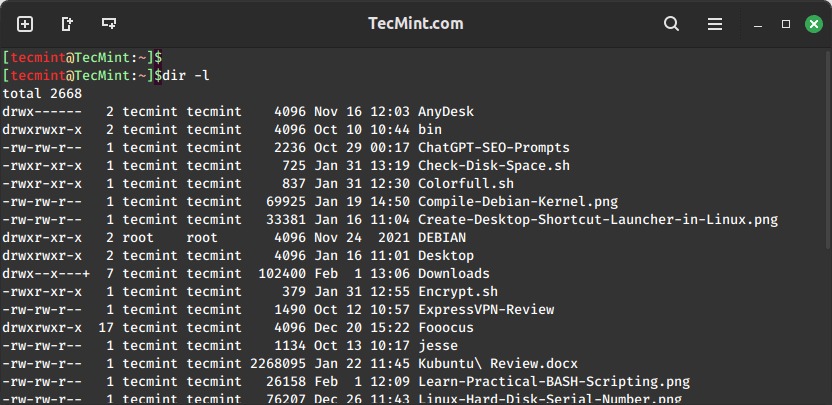
unzip -l archive.zip-l lists the file names and sizes inside the ZIP. The output shows whether the ZIP has an outer project/ folder, several folders, or files at its top level.
A user in an r/linuxmint discussion asked: “Hi! How do i unzip a folder that has a file inside it and keep the folder structure(a file inside of a folder) after the folder is unzipped?”
Take a ZIP with three files:
archive.zip
├── project/README.txt
├── project/config/default.ini
└── other/README.txt
To put the files in a folder named extract, run:
unzip archive.zip -d extract-d sets the destination. The result looks like this:
extract/
├── project/
│ ├── README.txt
│ └── config/
│ └── default.ini
└── other/
└── README.txt
extract is the destination you chose. project and other come from the paths saved in the ZIP.
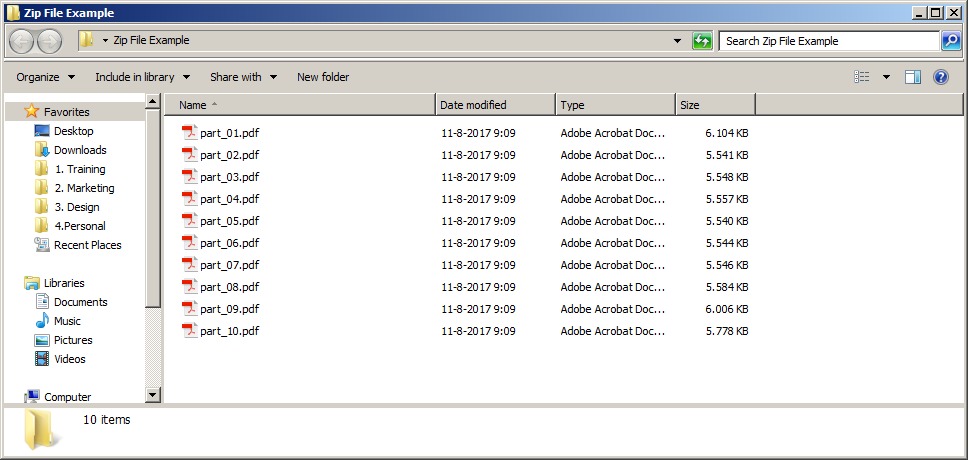
On Debian GNU/Linux 13 with Info-ZIP UnZip 6.00, all three files landed in extract with their folders intact.
If the ZIP already has an outer folder, -d keeps it. If the files are at the top level of the ZIP, they appear directly in the destination.
A nested destination such as parent-missing/leaf fails when its parent folder doesn't exist. Unzip then reports checkdir: cannot create extraction directory ... No such file or directory. Create the parent first:
mkdir -p parent-missingThe Ubuntu unzip(1) manual covers both -l and -d.
Keep existing files, overwrite them, or flatten the folder tree
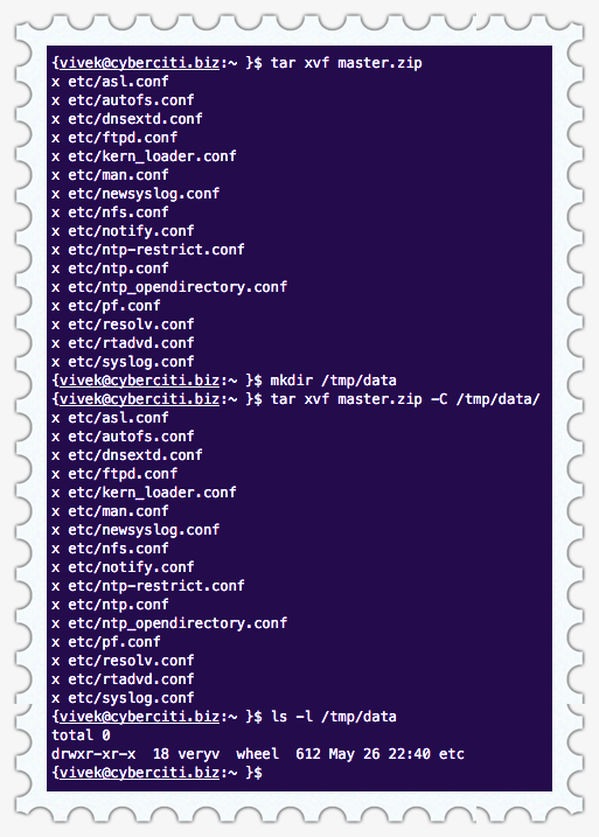
If the destination already holds files with the same names, you choose whether to keep them or replace them.
| Mode | When a destination file already exists | Use when |
|---|---|---|
Ordinary unzip | Asks before replacing it | You want to decide interactively |
-n | Skips that file | You need to keep the existing version |
-o | Overwrites without prompting | You intend to replace the existing version |
Suppose you extracted project/README.txt and edited it. This command leaves the edited version in place:
unzip -n archive.zip -d extractTo restore the version from the ZIP, run:
unzip -o archive.zip -d extractWhy -j changes the folder layout
The -j option, short for junk paths, drops every folder level from the paths inside the ZIP. In the example ZIP, these two files:
project/README.txt
other/README.txt
both end up named README.txt.
Combine -n with -j and unzip skips one of them, because the flattened name already exists.
-j is the wrong option if you only want to drop an outer project/ folder, because it also flattens the folders inside it.
Extract one file, a subfolder, or more than one ZIP
To extract one file, add its path as written inside the ZIP after the ZIP's name. For the configuration file in the example:
unzip archive.zip project/config/default.ini -d subsetThe file ends up at subset/project/config/default.ini. To extract every file that matches a path pattern inside the ZIP, use:
unzip archive.zip 'project/config/*' -d subsetThe quotes matter. Without them, the shell expands * against files on disk. With them, unzip receives the pattern and matches it against the names inside the ZIP.
Matching ZIP files on disk is a separate step. Say the folder holds several ZIPs and you run:
unzip *.zipThe shell passes each ZIP name as a separate argument. Info-ZIP reads every name after the first as a file to pull from the first ZIP, so you get filename not matched.
In a Unix-style shell, quote the pattern and Info-ZIP expands it itself, as its documentation describes:
unzip '*.zip'If two ZIPs contain the same path, they write to the same file.
Check the ZIP and verify what was extracted
-t tests the ZIP's data without extracting files to the destination:
unzip -t archive.zipFor quieter output, use:
unzip -tq archive.zipOn the three-file example, -tq prints “No errors detected...” and exits with status 0. The test checks data integrity only. It says nothing about malware or whether the files are safe to run.
One user in an r/linux4noobs discussion reported the error “empty archive” when trying to unzip a file.

After extracting, check the output for errors or skipped files, then confirm that the files you expect are in the destination, such as project/README.txt and project/config/default.ini. Exit status 0 doesn't rule out skipped files, because -n skips them on purpose.
Troubleshoot common unzip errors

| Error or symptom | Cause | What to check |
|---|---|---|
cannot find or open | Wrong archive filename or path | Check the spelling of the file name and the path you typed. |
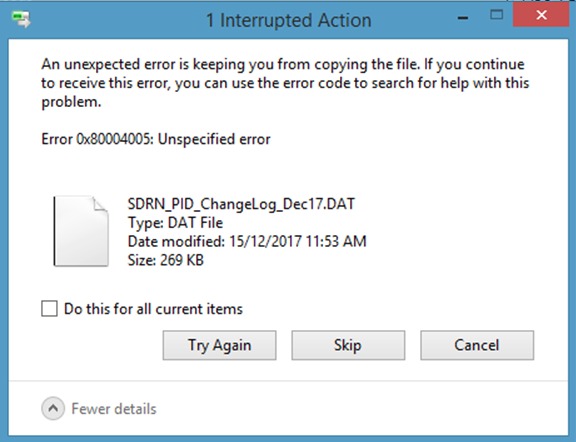
checkdir: cannot create extraction directory | A parent folder of the destination is missing, or the destination isn't writable | Check that every parent folder exists and that you can write to the destination. |
permission denied | You lack access to the ZIP or the destination | Check the permissions and owner of both. |
filename not matched | No file in the ZIP matches your pattern, or the shell expanded it first | Compare your pattern with the names that unzip -l lists. |
End-of-central-directory signature not found | Wrong format, incomplete download or damaged ZIP | Check that the file is really a ZIP. |
| No space available for extraction | The destination filesystem is full | Check the free space at the destination. |
| Unsupported compression or encryption method | Your extractor cannot process the method the ZIP uses | Find out which method the ZIP uses and switch to a tool that supports it. |
Don't use sudo unzip as a first fix for permission errors. Extracting as root can change file ownership, and a write into the wrong directory does more damage.
If the ZIP looks incomplete or damaged, go back to the original download and its source before trying any recovery.
When unzip is the wrong tool
Each format has its own extraction tool.
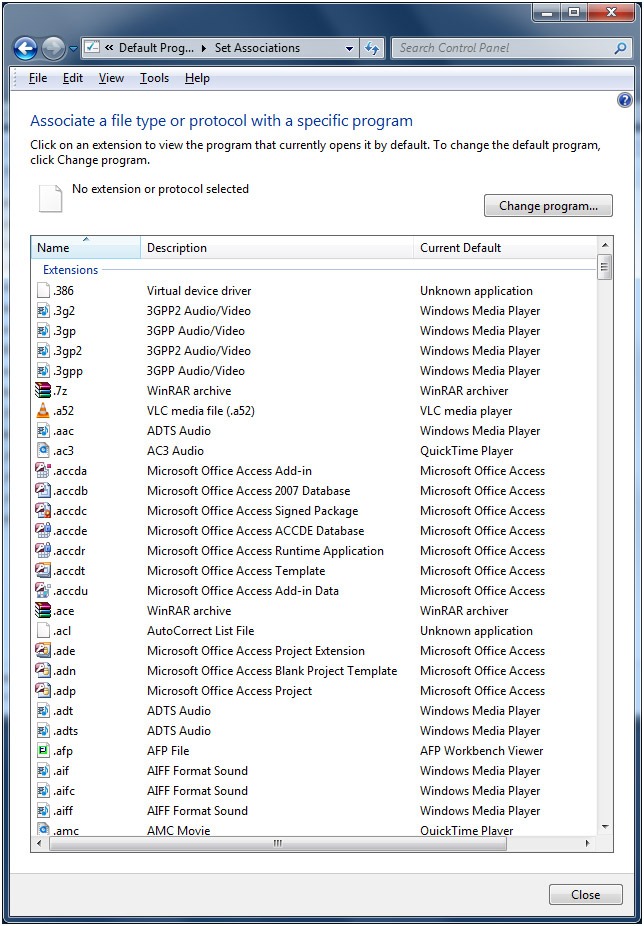
.zip: Use a ZIP extractor such as Info-ZIPunzip..tar.gzor.tar.xz: These are compressed TAR archives. Extract them with a TAR tool, notunzip..gz: This usually names a gzip-compressed stream. It is not a ZIP, and it is not automatically a TAR archive.
Password-protected and AES-encrypted ZIPs
A password-protected ZIP prompts you for its password. Don't pass the password with -P password, because that exposes it through the command arguments.
A ZIP entry reported as compression method 99 can indicate AES encryption. A Red Hat AES compatibility note documents that error on Red Hat Enterprise Linux 5 with a legacy extractor and names 7-Zip as a compatible alternative.
