Type cd followed by the path you want: an absolute path (starting with /) works from anywhere, and anything else is relative to the directory you're in. Use cd .. to go up one level, cd - to jump back to where you just were, and pwd to check where you ended up.
How cd reads absolute and relative paths
In Bash, cd directory changes the working directory of the shell you type it in. The path can start at the filesystem root or at your current location.
Say you're in /home and it contains a directory named Test:
/
└── home/
    └── Test/
An r/linux4noobs poster asked, “I just wanted to ask why I can't go into the next folder there.”
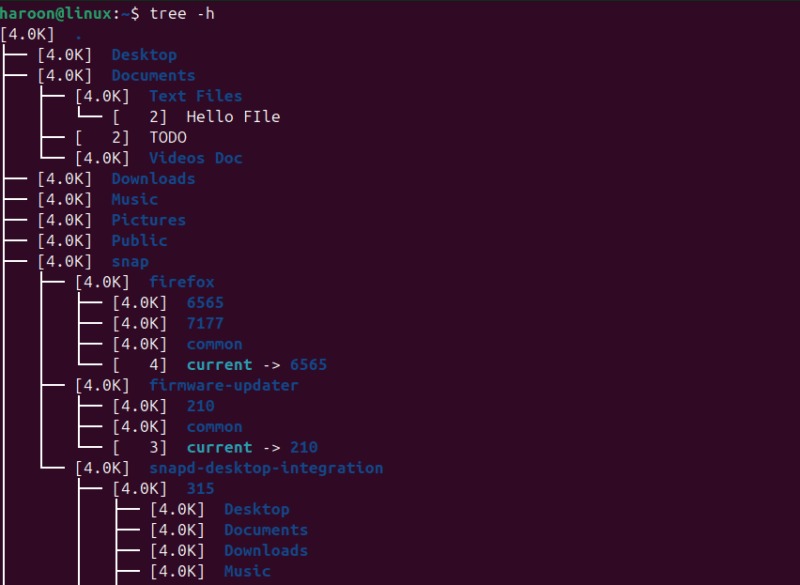
From /home, cd Test takes you to /home/Test. cd /Test looks for a directory directly under / and fails when there isn't one. cd /home/Test reaches the directory from any working directory.
cd ./Test points at Test inside your current directory. A directory named -name looks like an option to Bash, but cd -- ./-name gets you into it.
Quote a folder name that contains a space so cd receives it as one argument:
cd "My Projects"On a case-sensitive filesystem, Test and test are different names.
Go home, up a level, or back to the previous directory
| Where you want to go | Command | How Bash gets there |
|---|---|---|
| Your home directory | cd | Uses HOME |
| Home explicitly | cd ~ | Shell expands ~ to your home directory |
| Filesystem root | cd / | Goes to / |
| One parent directory | cd .. | Goes up one level |
| Two parent levels | cd ../.. | Goes up two levels |
| Your previous directory | cd - | Uses OLDPWD |
From /home/Test, cd .. takes you to /home. cd - returns you to your previous working directory.
An r/linux4noobs user described the effect: “If I do cd - again though, it takes me to the directory I was just in, so it has this toggling effect.”
On a server with Nginx, visit both directories, then toggle:
cd /var/log/nginx
cd /etc/nginx/conf.d
cd -
The last command takes you back to the logs. Run it again and you're in the configuration directory.
To work through a longer history of directories, Bash has the directory-stack commands pushd and popd.
Check your current working directory
Relative paths are always read from the shell's working directory. After a cd, run pwd to see it.
A successful cd prints nothing, with two exceptions: cd - and some CDPATH cases print the new path. That silence is why you should run pwd before any command that changes or deletes files. If the path goes through a symbolic link, pwd -P shows the physical location, which can differ from the logical PWD.
Fix common cd errors
| Typical error | Cause and what to check | Fix |
|---|---|---|
No such file or directory | A name or parent component doesn't exist at the path you gave. Check your starting directory, spelling, case, and every path component. | Run ls -la on the directory where the missing name should be, then correct the path. |
Permission denied | A directory on the path blocks search/execute access, or another access policy does. A directory can still appear in a listing while you lack that access. | Go to a destination you're authorized to enter, or have the owner or admin change the access rule. |
Not a directory | A component of the path, the last or an earlier one, is a file or another non-directory object. | Drop the file name from the path, or cd to the directory that holds it. |
too many arguments | The shell split a pathname with spaces into several arguments. | Quote the whole pathname or escape each space. |
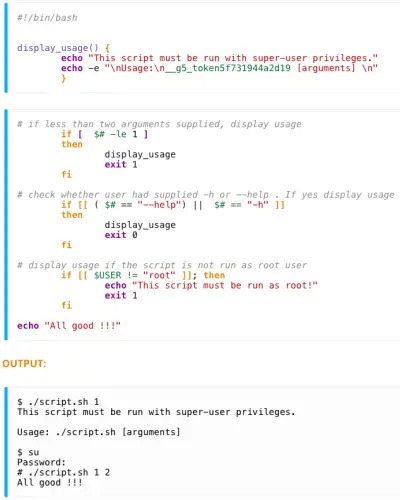
sudo cd won't fix it. cd is a builtin, and a command run through sudo can't change the directory of the shell you're typing in.
A failed cd doesn't stop a script. Later commands keep running from the previous directory unless the script checks the result.
cd /intended/path || exit 1The || exit 1 guard stops the script when cd fails. Don't type it at an interactive prompt, because exit 1 closes your shell. The GNU Bash Reference Manual documents the builtin and its exit status.
Why cd in a script doesn't change your terminal's directory
| Where cd runs | Which directory changes | What persists afterward |
|---|---|---|
| Interactive Bash shell | Your shell's directory | The new location stays in your shell |
| Script run in its own shell | The script's directory | Your calling shell keeps its original location |
| Current-shell function or sourced file | The invoking shell's directory | The change stays in the invoking shell |
Suppose a file named navigate.sh contains:
cd /bash navigate.sh starts a second Bash that enters / and exits. Your own shell doesn't move. Typing cd / at your prompt does move it.
A Bash function can run directory-navigation code in your current shell. Sourcing a trusted file works too, but it executes every command in that file in your current environment and can alter variables and other shell state. The POSIX cd specification explains why changes in a separate shell execution environment don't affect the invoking shell.
When symlinks and CDPATH change the result
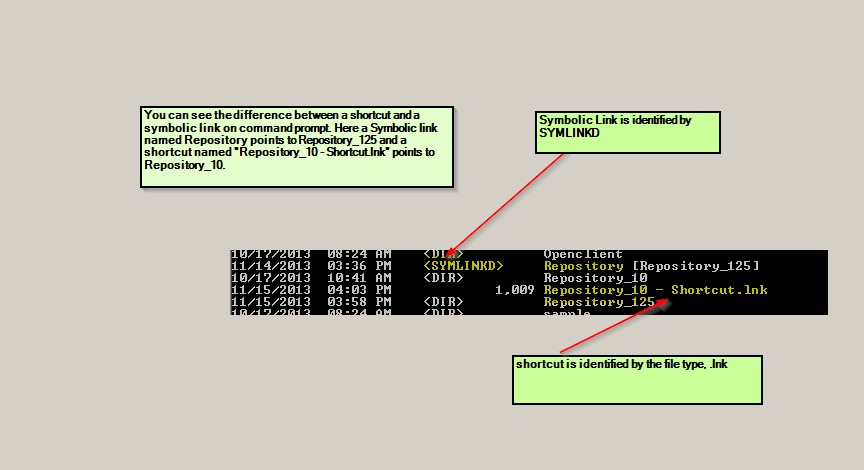
If your path runs through a symlinked directory, cd -L .. goes up the logical route and cd -P .. goes up the physical one. They can land in different parent directories. This is Bash and POSIX behavior, and other shells can differ.
CDPATH is a shell variable listing locations Bash searches for relative directory names. When it's set, cd projects can land in a directory found through that search.
echo "$CDPATH"
cd ./projects
echo "$CDPATH" shows what the variable holds. cd ./projects skips the CDPATH search and goes to projects in your current directory.
