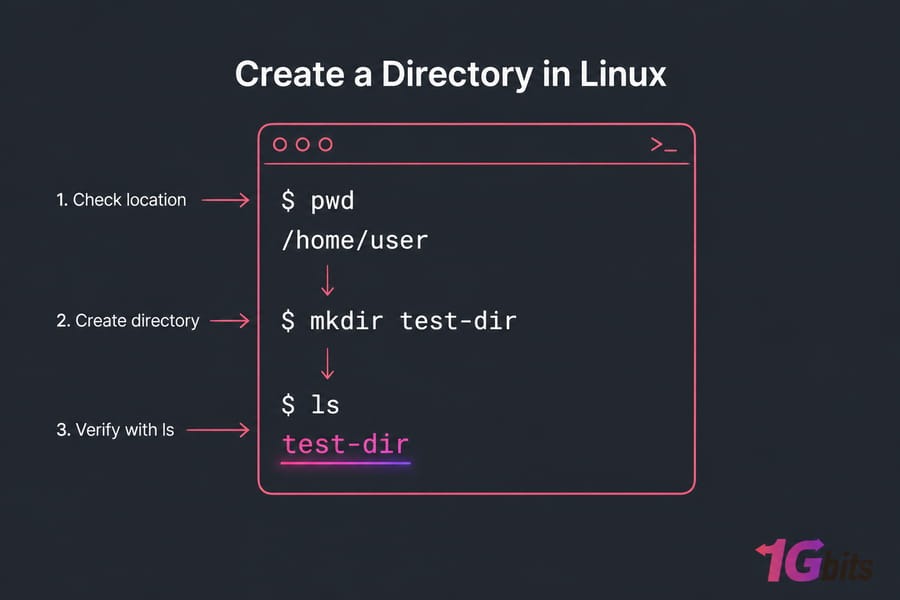
Use mkdir name to create a directory inside an existing parent. Add -p to create missing parents too, or to avoid an error when the directory already exists.
Create a directory in Linux with mkdir
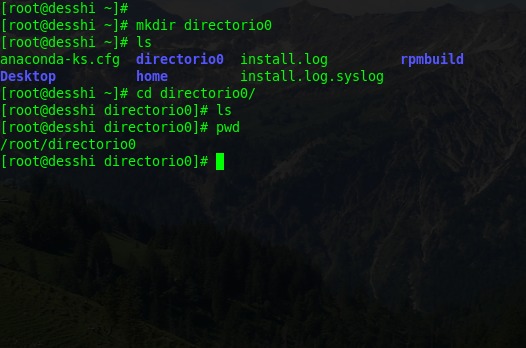
To create a directory in your current location, type mkdir followed by its name:
pwd
mkdir reports
pwd prints your current working directory. If it prints /home/alex/projects, the new directory ends up at /home/alex/projects/reports. The parent must already exist, and you need permission to create directories there.
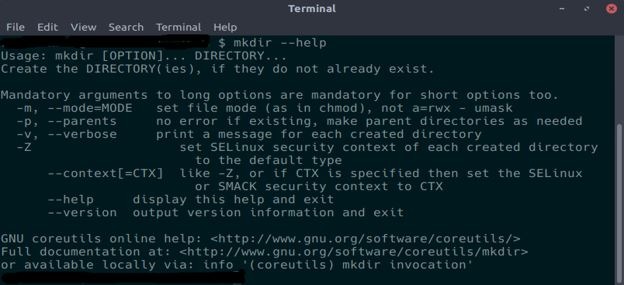
GNU mkdir follows the syntax mkdir [OPTION]... DIRECTORY..., as the GNU Coreutils manual documents.
An absolute path starts at the filesystem root, so you can use it from any location without changing directories first:
mkdir /tmp/demo-dir
You can create several directories in one command:
mkdir drafts images logs
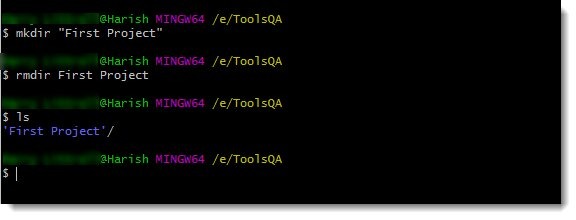
Each name becomes its own directory. If a name contains spaces, wrap it in quotes:
mkdir "Project Notes"
Without the quotes, you get two directories, Project and Notes.
mkdir prints nothing when it works. It also leaves you where you are.
Create nested directories with mkdir -p
The -p option creates missing parent directories along with the one you name. A user on r/bash asked: “but what is the advantage of using the flag -p?”
Suppose you want this structure:
projects/
    app/
        config/
If projects doesn't exist yet, this fails because a parent is missing:
mkdir projects/app/config
Add -p and the whole path gets created:
mkdir -p projects/app/config
Directories that already exist along the path are left in place.
Plain mkdir fails on an existing target, which is useful the first time you set something up. For a configuration directory that must survive repeated setup runs, use -p.
If config is a regular file, mkdir -p projects/app/config can't turn it into a directory. It also fails on a path you can't access or on read-only storage.
A typo is a different problem. mkdir -p projcts/app/config creates a new projcts tree and reports no error.
Set directory permissions with mkdir -m and umask
Use mkdir -m MODE name when a new directory needs a specific mode:
mkdir -m 700 private-notes
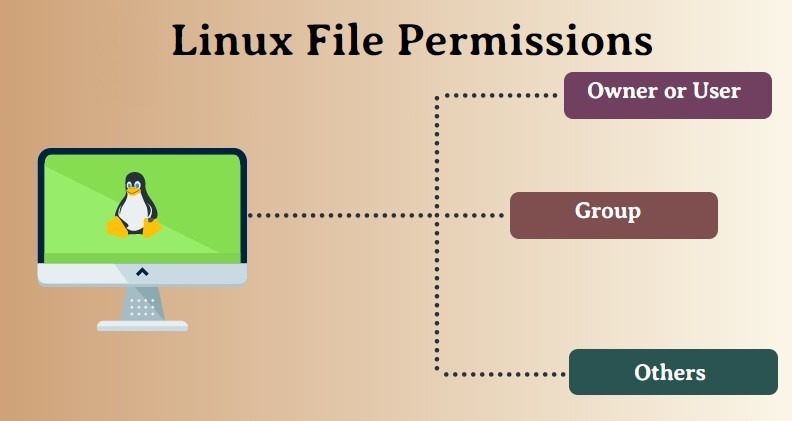
The mode sets permissions for the owner, the group, and other users. On a directory, the execute bit (x) grants search access, which means you can traverse it. Write plus search lets you add entries. Read lets you list them.
A poster on r/linuxquestions wrote: “but if I change to 660, Gary can only ls, can't do cat/touch/mkdir, shows permission denied.”
Mode 660 has no execute bit. On a directory, that bit lets you enter it, so the group can't traverse it or add anything, even though rw looks like enough.
Choosing a mode
| Mode | Who can do what | Example use |
|---|---|---|
700 |
Only you can list, enter, and add entries | A private directory |
750 |
You have full access. Your group can list and enter | Sharing with your group, read-only |
755 |
You have full access. Everyone else can list and enter | A directory anyone on the system can browse |
Why parents and children can have different modes
When -p creates missing parents, the -m mode applies only to the directory you name:
mkdir -p -m 755 sample-parent/sample-child
sample-child gets 755 if it's new. GNU mkdir sets the mode of the new sample-parent on its own. If sample-child already exists, -p accepts it and leaves its permissions unchanged, even with -m 755.
With umask 077 on GNU Coreutils 9.7, sample-parent came out as 700 and sample-child as 755.
Without an explicit mode, umask influences the permissions of new directories. Default ACLs, setgid inheritance, and filesystem behavior can change the resulting permissions or group ownership too.
Setting 777 gives every user write and traversal rights, so don't use it as a quick fix for an access error. Creating directories with elevated privileges can also cause ownership problems when another account later runs maintenance.
Create multiple directory names with Bash brace expansion
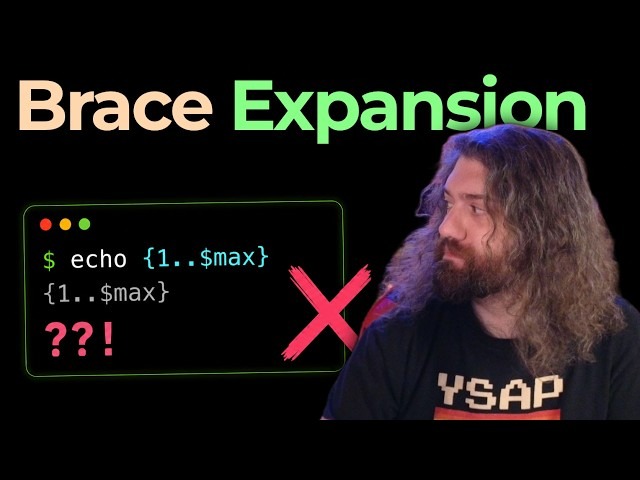
In Bash, one brace expression can create several directories. The shell expands it before mkdir sees the arguments:
mkdir -p project/{docs,images}
That becomes two paths:
project/docs
project/images
-p creates project if it's missing. If project already exists, you can leave -p out.
Portable POSIX sh doesn't require brace expansion and can treat {a,b} as a literal name.
Spacing inside braces matters. A commenter on r/bash described an unexpected result: “I had a space after the comma: {stick, figure} which has bizarrely different results.”
The space splits the expression into two separate words, so Bash no longer expands it into two names. Write {stick,figure} with no space.
Use mkdir safely in shell scripts
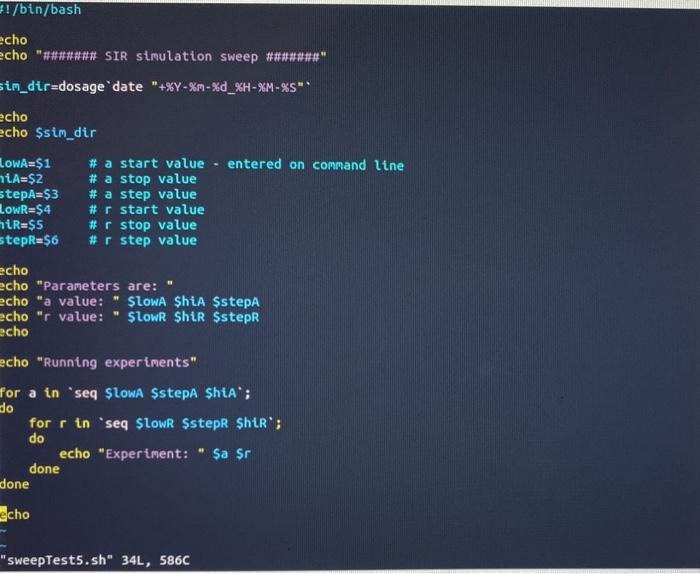
In a script on GNU/Linux, mkdir -p with a quoted variable is the safe way to create a directory:
dir="$HOME/my app/data"

if ! mkdir -p -- "$dir"; then
    exit 1
fi
The -- marker ends option parsing in GNU mkdir. It protects you when the variable holds a name that starts with a hyphen, which mkdir would otherwise read as an option.
The if checks the exit status. When mkdir fails, the script exits. Skip || true: it would let the setup carry on and hide the difference between success and failure.
Fix common mkdir errors without guessing
When mkdir fails, start with the path component or filesystem condition behind the error.
The messages below are typical English wording, which varies by implementation and locale.
| Message or error category | Likely cause | Next action |
|---|---|---|
No such file or directory (ENOENT) |
A path component is missing, or a symlink dangles | Use -p to create the missing parents, or fix the path |
File exists (EEXIST) |
The target already exists, as a directory or as another object | Reuse the existing directory if you meant to, otherwise choose another name |
Permission denied (EACCES) |
Parent lacks write access or an ancestor lacks search access | Fix the permission that blocks you |
Not a directory (ENOTDIR) |
A path component is a regular file or another non-directory object | Fix the path |
No space left on device (ENOSPC) |
The filesystem is out of space or inodes | Free up space or inodes |
Disk quota exceeded (EDQUOT) |
Your account's block or inode quota is used up | Free up quota, or use a destination you're authorized to use |
Read-only filesystem (EROFS) |
The filesystem doesn't allow writes | Use a writable location, or change the mount if you're authorized to |
The Linux mkdir(2) manual documents these error conditions.
Investigate the failed path
Start with the destination, then work through its ancestors in order. Take this command:
mkdir a/b
If a is missing, you get the missing-parent error. If a is a regular file, the path conflicts with it and a/b can't be created.
For permission problems, check the directory and the account you're running as:
ls -ld a
id
If you can't access a parent directory, these checks can fail too.
For storage errors, check both blocks and inodes:
df -h
df -i
df reports filesystem-wide numbers. Quotas need their own check. A read-only filesystem is a separate problem: retrying with elevated privileges won't fix it.
Don't overwrite an existing file just to make an error go away.
If you pass several names and one fails, the others may already exist, because POSIX permits creating some directories before a later one fails. An error doesn't mean everything was rolled back. Check what exists before retrying.
Verify the directory, path, and permissions
After creating a directory, check the exact path you meant to create. A successful exit status shows the command ran, not that you typed the right destination.
For the nested directory from earlier, start with a directory test:
if test -d projects/app/config; then
    printf 'Directory found\n'
else
    printf 'Directory check failed\n'
fi
test -d succeeds when the path resolves to a directory. It prints nothing by itself, so the conditional makes the result visible. It also follows symbolic links to directories. The next command tells a link from a directory.
To see the entry and its permissions:
ls -ld projects/app/config
-d shows the entry itself, even if it's a symbolic link. An l at the start of the permission string marks a link, and a d marks a directory. The rest of the line shows the permissions, owner, and group.
Compare the whole path when access matters
Inspect the parent directories as well as the target:
ls -ld projects projects/app projects/app/config
This matters most after -p created the ancestors.
For a more detailed view on GNU/Linux, use:
stat projects/app/config
To get a confirmation message next time, add -v:
mkdir -v new-reports