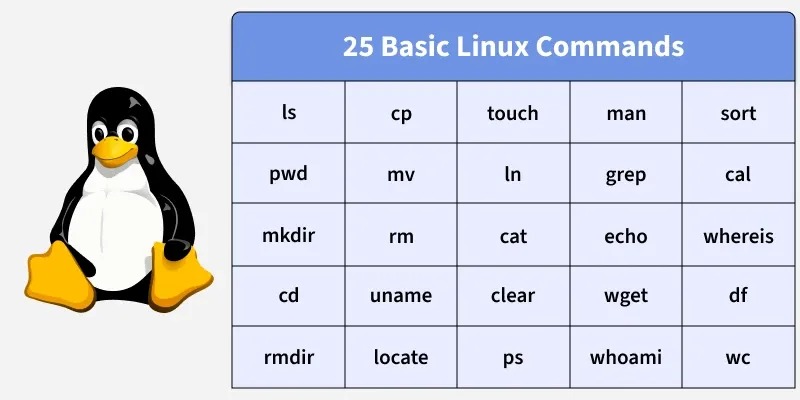
Find your task in the table, copy the example, and swap in your own file or directory names. Check the target and the effect before running any command that changes files, permissions, services, or packages.
Pick the Linux command by the task
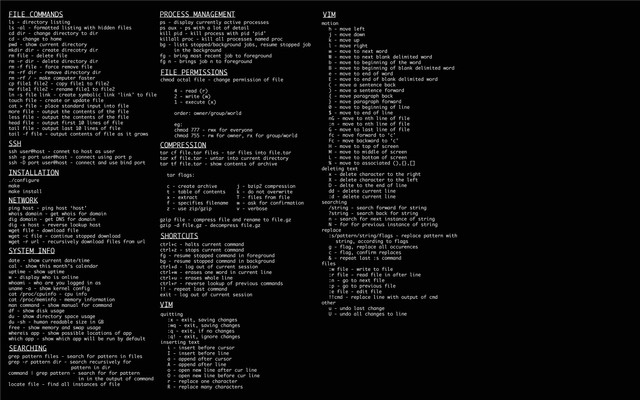
The table links each job to a short example and, where it matters, the condition that changes how you use it. Use this page when you remember the task but not the spelling of a command. For choosing between tools, see the task-oriented guide.
| What you need to do | Command | Details |
|---|---|---|
| See your current directory | pwd | Navigation |
| Find a file by name | find | File search |
| Find text inside a file | grep | Text search |
| Read recent log entries | tail | Logs |
| Copy, move, or remove a file | cp, mv, rm | File changes |
| Check ownership and access | id, ls -l | Permissions |
| Find a process or check a service | pgrep, systemctl | Processes |
| Check free filesystem space | df | Storage |
| Measure a directory's usage | du | Storage |
| List listening ports or their processes | ss | Networking |
| Manage installed packages | apt, dnf, pacman | Packages |
| Inspect an archive | tar, unzip | Archives |
| Recall a command you ran | Ctrl-R in Bash | History |
| Find a command's manual | man, man -k | Local help |
The examples target common GNU/Linux systems. Tools, options, package managers, and keybindings vary by distribution and shell. Run commands as a normal user and use higher privileges only for the task that needs them.
In the examples, FILE, DIR, SOURCE, DEST, NAME, SERVICE, HOST, and URL stand for your own values. Quote any path that contains spaces or special characters: grep -n 'error' 'application log.txt' treats that filename as one argument.
Navigate directories and inspect files
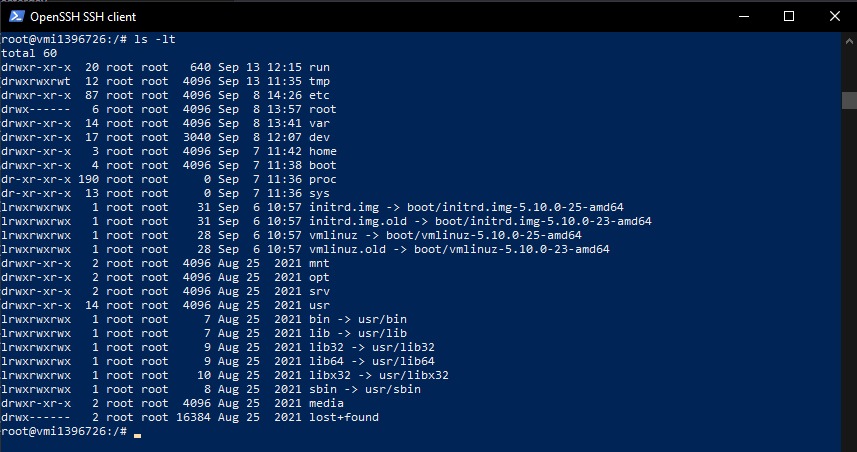
Relative paths start from your current directory, so check where you are first.
pwd: Print your current working directory.ls -la: List everything in detail, including hidden files.cd DIR: Change to that directory.file FILE: Show what type of file it is.stat FILE: Show the file's filesystem metadata.
To inspect a downloaded file, start with:
pwd
ls -la
file FILE
Replace FILE with the path you're examining. An absolute path starts at the filesystem root. The path . means the working directory, and ~ expands to your home directory.
A beginner in r/linuxquestions asked: “Do any of you have a command list? I'm on Lubuntu 24.04 LTS.”
Find a filename or search inside a file
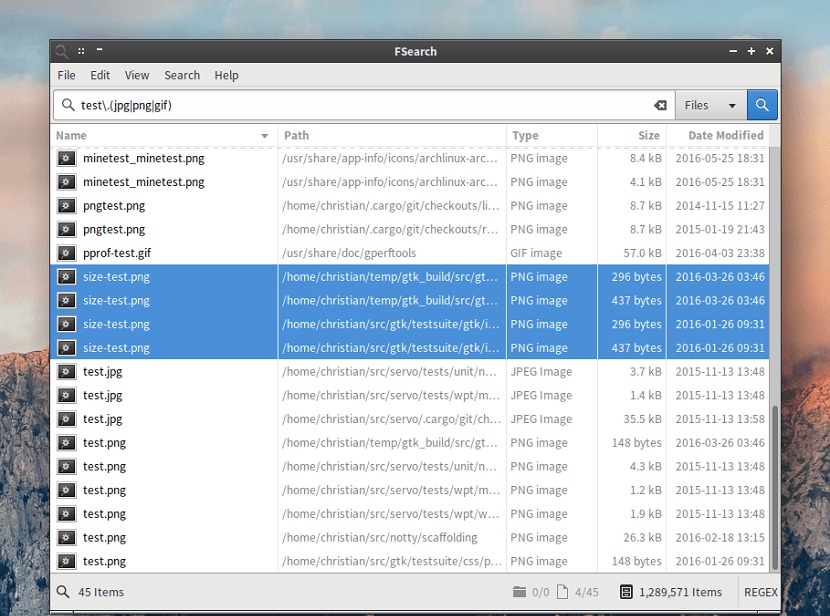
find searches for files by name. grep searches for text inside the input you give it. command -v covers a third task: checking whether a program name resolves to something you can run.
Find paths by name
find . -name '*.log'This searches the working directory and everything below it for names that match *.log. The quotes stop your shell from expanding the pattern before find sees it.
Find a line inside a known file
grep -n 'error' FILE-n adds line numbers to each matching line. In a plain GNU grep search, exit status 0 means at least one line matched, 1 means none matched, and 2 means an error. find -name matches filename patterns. grep reads its search argument as a regular expression by default. The same symbol can mean different things in the two.
Locate a command name
command -v NAMEUnder POSIX shell rules, this reports how the shell resolves NAME. The answer can be an executable, a builtin, or an alias.
GNU Findutils documents the hazards of adding -exec or -delete to a search, especially when filenames come from an untrusted source. Run the search on its own first, then add the destructive action. See the GNU Findutils security documentation.
Read files and follow logs
less FILE: Browse the file interactively.head -n 20 FILE: Read the first 20 lines.tail -n 50 FILE: Read the last 50 lines.tail -f FILE: Watch new lines as they are added to the file.journalctl: Read systemd journal entries on systems that use systemd, if you have access to those records.
If an application writes its errors to a plain text log, start with tail. An empty result can mean the log has no matching entries, has rotated, or isn't the right log. On a systemd system, the journal is a separate source from any text file, so read it with journalctl.
Create, copy, move, and remove files
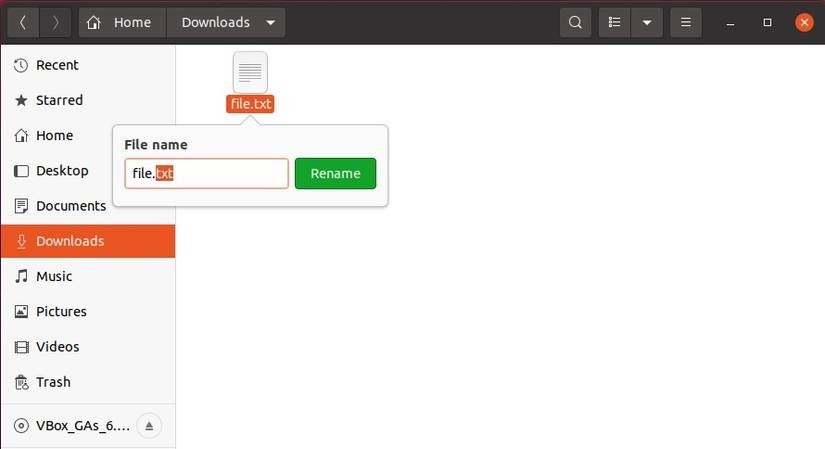
Check the source and destination before copying or moving.
| Task | Example | What changes |
|---|---|---|
| Create a directory | mkdir DIR | Creates the directory |
| Copy | cp SOURCE DEST | Creates or updates a copy at the destination. An existing file there can be overwritten |
| Move or rename | mv SOURCE DEST | Changes the name or location. An existing file at the destination can be overwritten |
| Remove with confirmation | rm -i FILE | Asks for confirmation before removing the file |
When you delete, the path you name is the data you lose, and normal rm has no undo. GNU rm -I asks for confirmation less often, and only for larger or recursive removals. rm -rf removes a directory tree without the usual prompts. Don't make rm -rf your default.
When you move a file across filesystems, GNU mv copies the source and removes it once the copy succeeds. That move lacks some of the atomic properties of a rename inside one filesystem.
A Linux administrator in r/linuxadmin explained why they keep notes: “Not because I do not know the tools but when I am on a production system I do not trust myself to remember all the resync flags, system options firewall rules or one off commands.”
Check users, groups, and file permissions
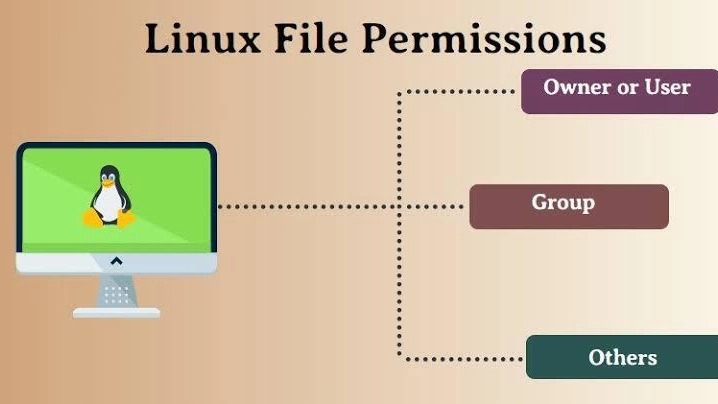
A permission error traces back to who runs the command, the file's owner or group, or its access bits. Check all three before changing access.
id: Show your user ID and groups.ls -l FILE: Show a file's owner, group, and permission bits.ls -ld DIR: Show the directory itself rather than its contents.chmod: Change permission bits.chown: Change ownership.sudo: Run a command with another user's privileges.
One tempting shortcut is chmod -R 644 folder/. In a tree with subdirectories, it sets mode 644 on those directories too. A directory's execute bit controls search and traversal, so users who could reach its contents before can lose access.
Permission consequence: Regular files and directories need different execute and search bits. GNU chmod documents the symbolic X form for handling them conditionally, but no single recursive mode fixes every access problem. Check the GNU chmod manual before changing a mixed tree.
Check processes and services
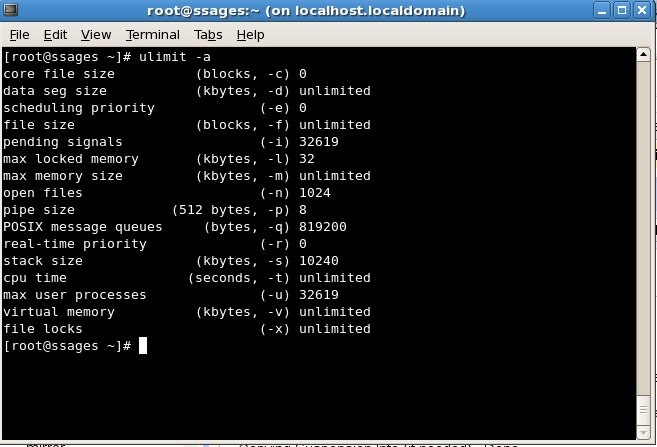
ps aux
pgrep NAME
ps reports process information, and pgrep finds processes that match NAME. To check a unit under systemd, use:
systemctl status SERVICEA running process doesn't mean the application responds. kill sends a signal to a process, so confirm the target first. Don't use it as your default answer to a hung application.
Check storage, directory size, and memory
| Question | Example | Measure or view |
|---|---|---|
| Is there space available on the filesystem? | df -h | Filesystem capacity and available space |
| How much space does this path use? | du -sh DIR | Total usage of the path |
| What does the system report about RAM? | free -h | Memory summary |
| Which block devices are visible? | lsblk | Block-device layout |
A large du value needn't match the filesystem-wide figure from df. The two measure different scopes, and permissions, mounts, and filesystem behavior can change what the numbers mean.
Check network settings, ports, and SSH
- Local interface:
ip addrshows interface addresses. - Listening TCP sockets:
ss -ltnlists listening TCP sockets with numeric addresses and ports. - Associated processes:
ss -ltnpalso lists the process behind each socket. - ICMP probe:
ping HOSTsends an ICMP probe to test reachability. - HTTP headers:
curl -I URLsends an HTTP HEAD request and shows the response headers. - Remote shell:
ssh HOSTopens an SSH connection using your account and client configuration.
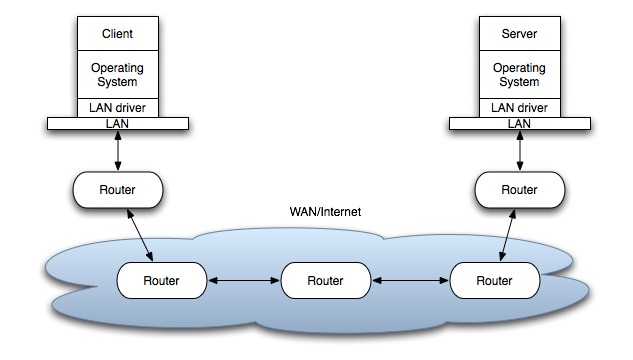
For a local web service, a listening socket means a process has opened an endpoint on the machine. Routing or firewall rules can still keep remote clients out. ICMP can be blocked, and a HEAD response can differ from the response to a normal GET request. Choose the check that fits the failure you're investigating.
Manage packages on your Linux distribution
| Distribution family | Tool | Decision that matters |
|---|---|---|
| Ubuntu / Debian | apt, apt-get | Metadata refresh and package upgrade are separate steps |
| Fedora | dnf | Follow the workflow and options for Fedora-family systems |
| Arch Linux | pacman | Arch expects all packages to upgrade together |
On Ubuntu, sudo apt update refreshes the available package metadata but installs no upgrades. Ubuntu's server guidance points to apt for interactive use and apt-get in scripts.
Arch works differently. Running sudo pacman -Sy on its own refreshes the database without a coordinated upgrade, which leaves you in an unsupported partial-upgrade state. The ArchWiki system maintenance guide documents this.
Software installed another way, such as Flatpak, can be managed outside the native package tool, so find out how it was installed before picking a maintenance command.
Work with archives
A .tar archive, a compressed .tar.gz file, and a .zip archive each need their own tools.
tar: Work with tar archives, including listing their contents.gzip: Compress or decompress a stream of data.unzip: Inspect or extract ZIP archives.
These commands list the file names recorded in a tar or ZIP archive:
tar -tf ARCHIVE.tar
unzip -l ARCHIVE.zip
Read the listing before extracting an archive from an unfamiliar source. Its paths can set where files are extracted and can overwrite existing files. A listing is a quick look, not a full security check.
Recall a command you ran before
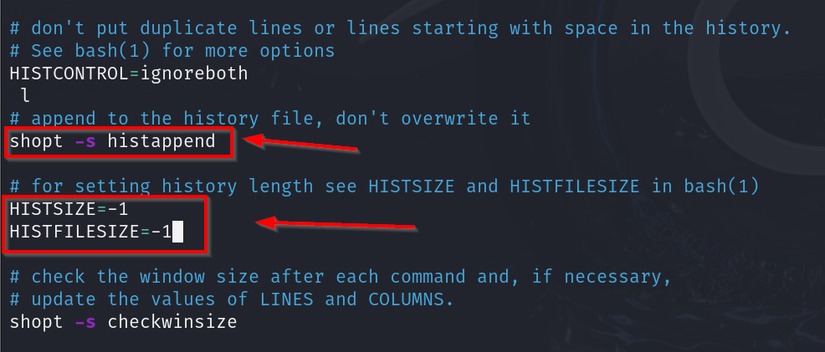
If you remember part of an earlier command, Bash's Readline interface can search your interactive history. With Emacs-style editing bindings, press Ctrl-R and type the fragment to find a match.
A user in r/linuxquestions described the convenience: “For example, Ctrl + R in Bash lets you search through your command history, which is much nicer than repeatedly pressing the up arrow when you know you've run a command before.”
The history builtin gives another view. Look at the matched line and its paths before reusing it, since your current directory and intended targets can change. The shell's editing mode determines the binding. See the GNU Bash history documentation.
Know when to open the full documentation
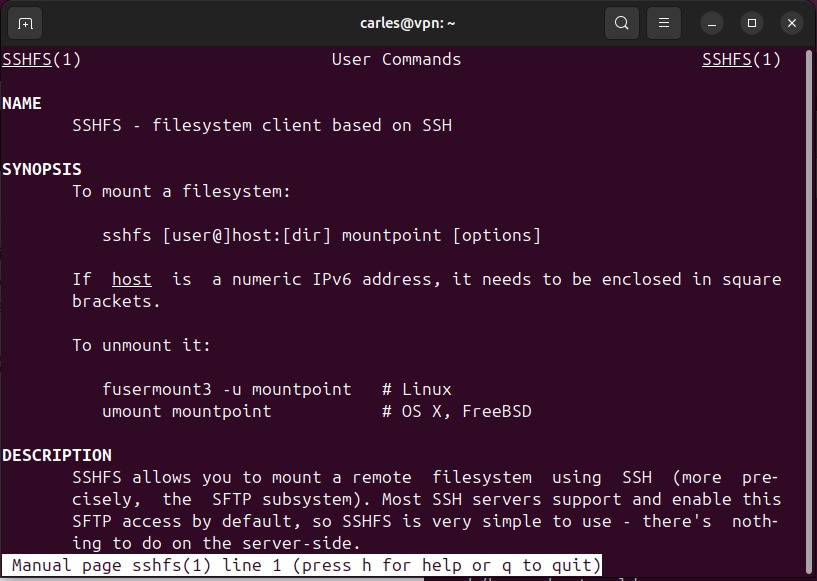
Open the local documentation when the options, your installed version, or the effects of a command decide what happens next.
man COMMAND: Open the local manual page for a command.man -k KEYWORDorapropos KEYWORD: Search manual descriptions for a subject when you don't know the command name.help: Show help for shell builtins.
Ordinary results go to standard output (stdout), and diagnostics can go to standard error (stderr). Bash gives you the last command's exit status in $?. Status zero means success by shell convention, and any nonzero status means failure. Check $? right after the command, because the next command overwrites it.
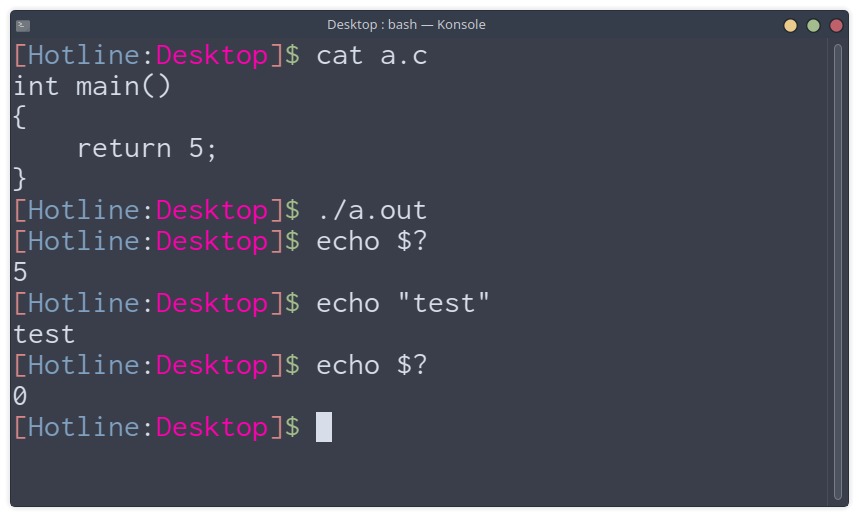
A zero exit status says nothing about whether a web service, destination, or wider workflow is healthy.
