Your terminal and your website can run different PHP versions, so find the one your web server calls first. Confirm your app supports the target branch, point the Nginx or Apache handler at it, reload, and load a real page. Keep the old configuration until the new one passes.
You can change the PHP version in an SSH session and find that your website still uses the old one. Find the one that serves your site first, then change it safely.
Check the PHP version serving your website
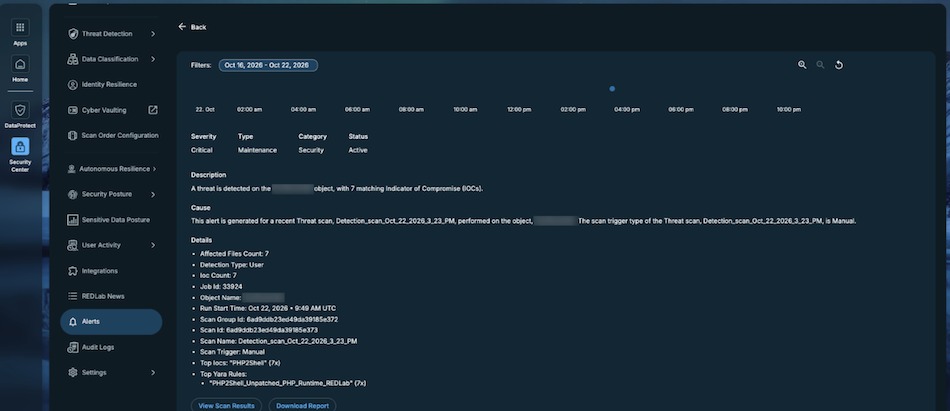
Running php -v shows the PHP executable your shell selects. Your website can use another interpreter through PHP-FPM or an Apache module. Verify CLI and the web-facing PHP-FPM or module path independently.
Start with three read-only commands:
php -v
command -v php
php --ini
PHP calls these execution interfaces SAPIs, short for Server Application Programming Interfaces. A web SAPI can load different configuration from your terminal.
| Execution path | What to inspect | Result |
|---|---|---|
| CLI | php -v and command -v php |
Selected command-line interpreter |
| CLI configuration | php --ini |
INI files used by the terminal |
| Nginx with PHP-FPM | Loaded fastcgi_pass and pool listen |
PHP backend selected for requests |
| Apache with mod_php | Loaded PHP Apache module | Embedded PHP integration |
| Apache with PHP-FPM | Apache handler and proxy_fcgi |
PHP-FPM backend selected by Apache |
| WordPress | Tools > Site Health > Info > Server | PHP version reported by the application |
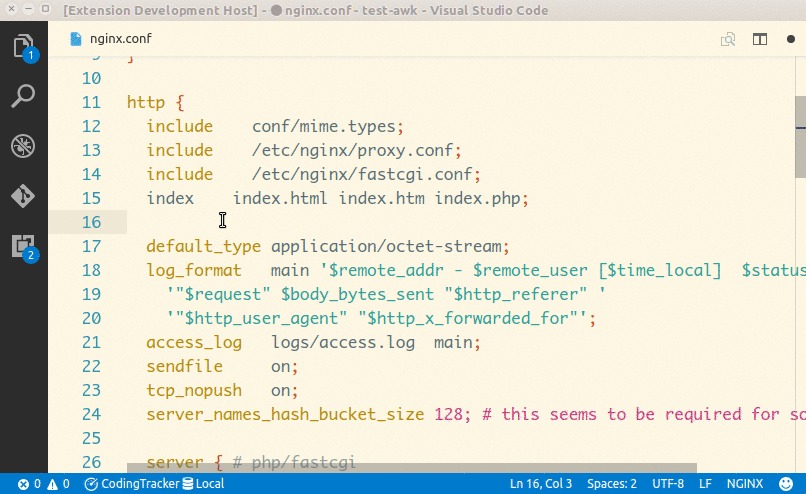
Find the loaded Nginx configuration
Dump the loaded configuration and find the server block for your hostname:
sudo nginx -TThe -T option tests the configuration and prints it. Find your server_name, its PHP location or included handler file, and the fastcgi_pass destination. Keep the output private, since it can contain server configuration details.
Two more commands list the FPM services and the socket references:
sudo systemctl list-units 'php*-fpm.service' --all
sudo grep -R 'fastcgi_pass' /etc/nginx/sites-enabled/
The grep is only an inventory. The loaded configuration shows which match applies to your site.
A destination such as /run/php/php8.3-fpm.sock must match the listen setting of your PHP-FPM pool.
Identify Apache's PHP integration
If Apache hosts the domain, list its loaded modules:
sudo apachectl -MThen check whether your site's PHP requests go through an embedded PHP module or a FastCGI handler.
For another application, create a temporary diagnostic file where your site serves PHP, and limit access to a trusted IP address or an authenticated session:
<?php
echo phpversion();
Request the file through your site's hostname to read the PHP version handling that request, then delete the file. Keep fuller output such as phpinfo() private.
Choose a PHP version your application supports
Pick a branch that your application supports and that still gets security maintenance. The newest branch does not always suit existing code and extensions.
The PHP supported versions schedule sets these lifecycle boundaries:
| PHP branch | Active support until | Upstream security support until |
|---|---|---|
| 8.2 | December 31, 2024 | December 31, 2026 |
| 8.3 | December 31, 2025 | December 31, 2027 |
| 8.4 | December 31, 2026 | December 31, 2028 |
| 8.5 | December 31, 2027 | December 31, 2029 |
Match PHP to Ubuntu and the application
Ubuntu 24.04 LTS defaults to PHP-FPM 8.3, while Ubuntu 26.04 LTS defaults to PHP-FPM 8.5.
WordPress recommends PHP 8.3 or newer, though its requirements documentation acknowledges that some legacy installations run on PHP 7.4 or later. A legacy install that works on an obsolete branch still lacks security maintenance.
Each WordPress core release has its own compatibility status, and your plugins, themes and custom code need a separate check. An inherited site can fail on a newer interpreter because its dependencies are out of date.
Check these before picking a branch:
- Application support: Which PHP versions the application or framework supports.
- Dependencies: Whether the required extensions, libraries, plugins and themes exist and work on that version.
- Maintenance: Whether the upstream project or package vendor still ships security fixes.
- Packaging: Whether an Ubuntu repository carries the branch.
- Migration work: Whether the jump needs code changes or updated dependencies. For 8.4 or 8.5, read the PHP migration documentation for backward-incompatible changes and deprecations.
Check the package candidate for your branch, swapping in its versioned package name:
apt-cache policy php8.3-fpmUbuntu's own packages can already meet your needs. A supplemental PHP repository adds a separate package source and maintenance responsibility, so use one only when the branch you need is missing from the distribution packages.
Prepare a reversible production change
Before changing a live PHP handler, save the working configuration and confirm you can restore it.
A self-hosted WordPress owner planning a PHP 8.2 to 8.3 upgrade wrote on r/Wordpress: “I'm not sure where to go from here - I can see that some of the error messages have to do with specific plugins, but I'm not sure what to do about that.” The staging check below exists to catch plugin errors like these.
Complete these preflight checks:
- Record the working setup: Note the website, handler, PHP branch, FPM service, configuration files and key application behavior.
- Prepare application recovery: Save the site's files and database, and confirm the restoration procedure works.
- Preserve the old runtime: Keep its required packages and service available during the initial switch.
- Test the target: Run the application in staging with its actual extensions, plugins and integrations.
- Find shared dependencies: Include other virtual hosts, scheduled jobs and scripts that use the same settings.
- Set recovery criteria: Decide which failures trigger restoration and pick a maintenance window.
You are ready for production when the restoration procedure works and the staging checks pass.
Postpone the production change if a critical dependency is unresolved, you have no recovery procedure, or you have not found every shared PHP handler. Reloads and restarts can interrupt active requests, so schedule the maintenance window accordingly.
Switch Nginx to the target PHP-FPM version
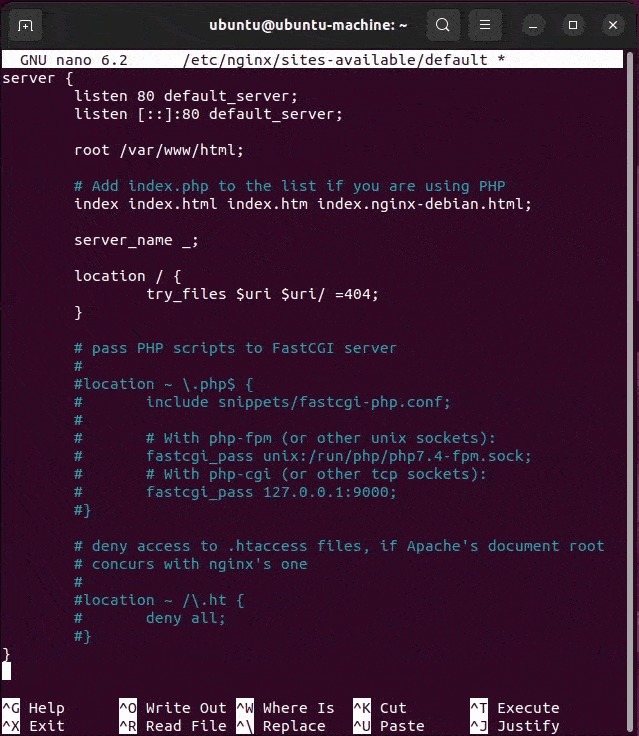
On Nginx with PHP-FPM, the version changes at the FastCGI route. The destination must point to the running FPM pool you want.
The example below moves a site on Ubuntu 26.04 from a PHP-FPM 8.3 pool to a PHP-FPM 8.5 pool, after the application has passed its compatibility checks.
Prepare the target PHP-FPM service
First, check package availability:
apt-cache policy php8.5-fpmIf the configured repositories offer the package and it is not installed yet, install it:
sudo apt install php8.5-fpmCheck the new service and the sockets in /run/php/:
sudo systemctl status php8.5-fpm
ls -l /run/php/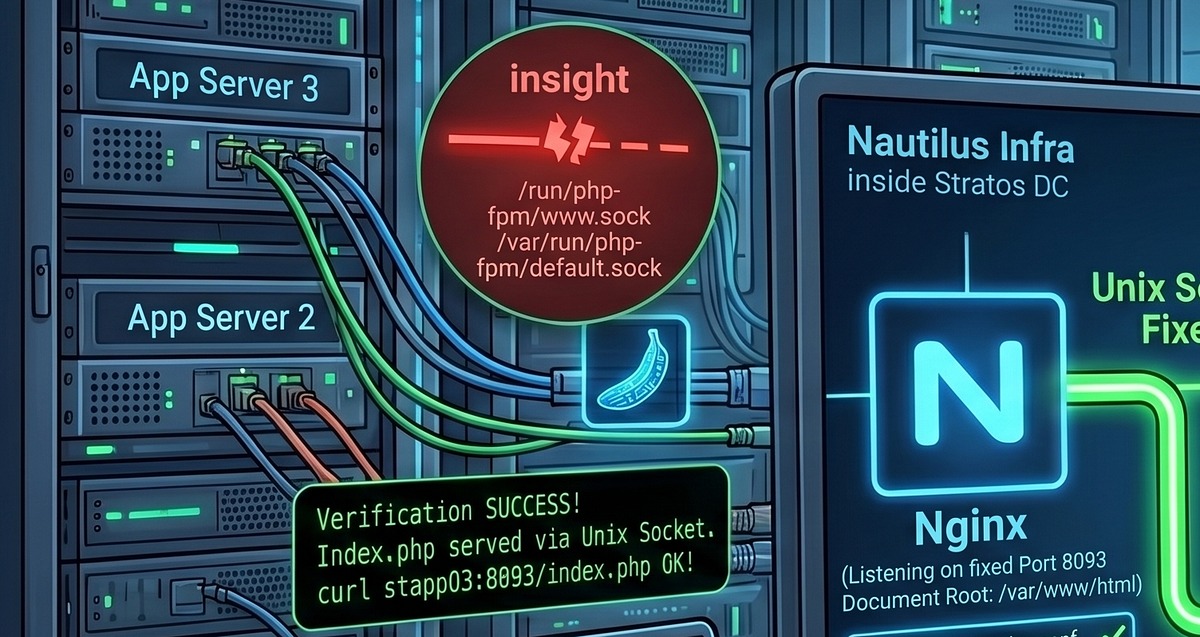
Change the active FastCGI destination
In your active Nginx PHP handler, the old directive reads:
fastcgi_pass unix:/run/php/php8.3-fpm.sock;Change it to:
fastcgi_pass unix:/run/php/php8.5-fpm.sock;Edit only this directive inside your existing PHP location or included file, and leave the other Nginx settings alone.
Test the modified configuration:
sudo nginx -tAfter a successful test, reload Nginx:
sudo systemctl reload nginxThe reload applies only the web-server change. PHP-FPM runs as a separate service, so check its health and the application's behavior after the cutover.
Restrict access to your PHP-FPM FastCGI listeners. An unauthenticated FastCGI listener exposed on a public network is a serious security risk.
Change PHP on Apache
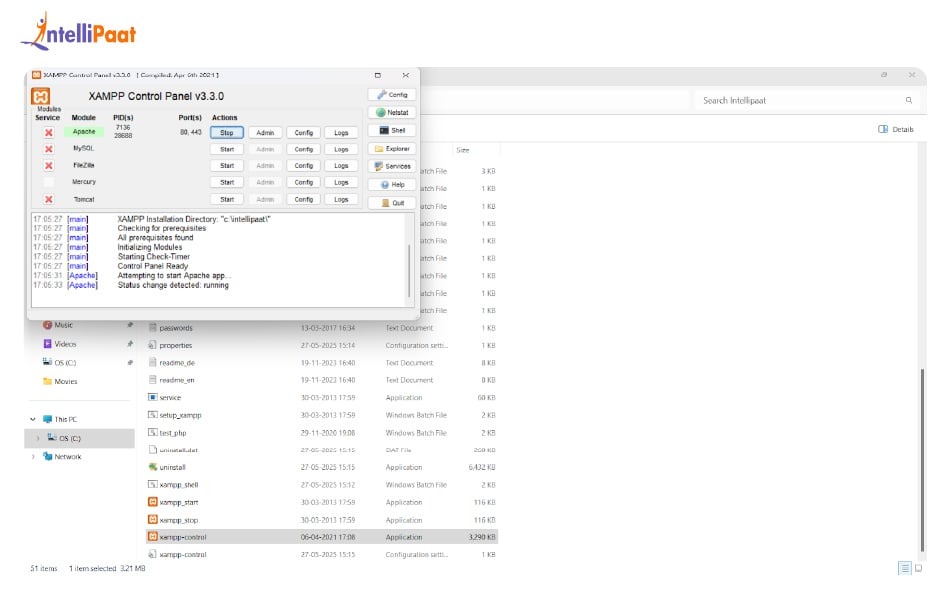
Your site's handler decides the steps. A loaded PHP module (mod_php) and a FastCGI proxy (PHP-FPM) are two different integrations, each with its own commands.
Apache with mod_php
If your site uses a versioned PHP Apache module, disable the old module and enable the new one. Both modules must be installed:
sudo a2dismod php8.3
sudo a2enmod php8.5
sudo apachectl configtest
When the test passes, reload or restart Apache in a controlled way. A module switch is global and affects other virtual hosts that share the PHP integration.
Apache with PHP-FPM
With mod_proxy_fcgi, Apache forwards PHP requests to a separately managed PHP-FPM backend, so the site's FastCGI handler must name the pool you want.
The Apache mod_proxy_fcgi documentation includes a handler form like this:
<FilesMatch "\.php$">
    SetHandler "proxy:unix:/path/to/app.sock|fcgi://localhost/"
</FilesMatch>
Replace the socket placeholder with your pool's listening endpoint, and enable the required Apache proxy modules.

Confirm the new runtime carries your application's extensions and PHP settings. Then validate the Apache configuration and apply the change through your usual service-management procedure.
Select PHP for CLI tools and scheduled jobs
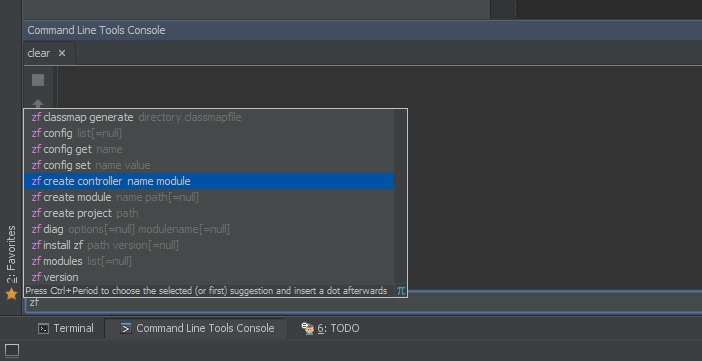
Ubuntu's alternatives system can expose several installed PHP executables. If versioned alternatives are registered, pick the command-line PHP with:
sudo update-alternatives --config phpCheck the result:
php -vFor a project that needs a specific installed interpreter, use its full executable path:
/usr/bin/php8.3 -vThe full path keeps a project on its branch without changing the system's generic php command.
Watch your cron jobs and maintenance scripts. A job that calls /usr/bin/php8.3 keeps invoking that binary until you change the command. A job that calls plain php uses whatever executable and environment the scheduler provides.
Read the commands your scheduled tasks use and run one safe, representative task with the PHP executable you want. Different CLI versions can load different extensions and INI settings.
Run separate PHP versions for separate sites

A self-hoster maintaining two sites wrote on r/selfhosted: “I am trying to run 2 different sites with 2 different php versions.” You can do that when each site's handler sends requests to its own PHP-FPM service or pool.
For example, a blog can run on PHP-FPM 8.3 while a separate application runs on PHP-FPM 8.5, each with its own FastCGI endpoint. The command-line PHP setting stays independent.
Keep a record of each hostname, its handler, its pool and its required extensions. Separate FPM routing does not give you full filesystem, network or permission isolation.
Plan to bring any application that needs obsolete PHP up to a maintained branch.
Change PHP through managed hosting

On managed hosting, use the PHP version selector for your website. cPanel MultiPHP Manager offers domain-level and inherited PHP settings, and Plesk exposes version and handler controls according to your account's permissions. A cPanel PHP-FPM change for domains that share a document root affects all of them, so confirm the scope before applying it.
If the host controls updates or the setting you need is missing, ask support for the effective runtime and the vendor's patch documentation.
Verify PHP security patches and Ubuntu backports
The installed package and who maintains it determine your security status. Ubuntu backports fixes into packages whose displayed upstream PHP number is older than the matching PHP.net release.
On October 21, 2026, the PHP project announced an emergency release for two critical vulnerabilities, CVE-2026-109618 and CVE-2026-109619.
The upstream project issued patched releases for four branches: PHP 8.2.35 and 8.3.36, followed by PHP 8.4.27 and 8.5.12.
Ubuntu published USN-8948-1 for its packages the same day. The notice lists these patched revisions:
| Ubuntu release | PHP branch | Package revision in USN-8948-1 |
|---|---|---|
| 22.04 LTS | 8.1 | 8.1.2-1ubuntu2.28 |
| 24.04 LTS | 8.3 | 8.3.6-0ubuntu0.24.04.13 |
| 26.04 LTS | 8.5 | 8.5.4-0ubuntu1.5 |
The Ubuntu 24.04 package begins with 8.3.6, while the upstream security release for that branch was 8.3.36. Read the full distribution revision against the vendor notice to see which backported update you have.
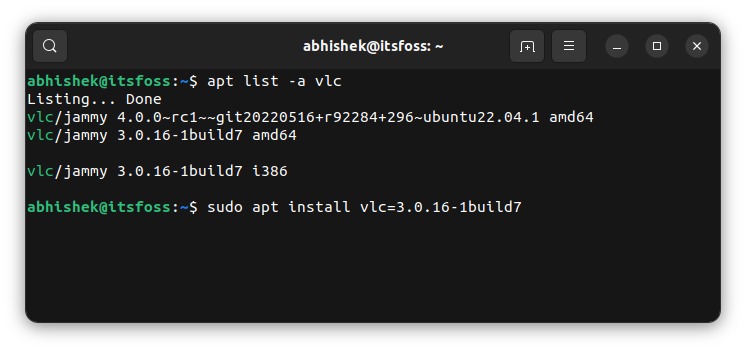
Inspect the installed package revision
For an Ubuntu-managed PHP 8.3 installation, use:
apt-cache policy php8.3-fpm
dpkg-query -W 'php8.3-fpm' 'php8.3-cli'
For another branch, use its package names. apt-cache policy shows the installed version, the available candidates and the configured package sources. dpkg-query -W reports installed package revisions.
Compare the full installed revision with the vendor advisory and changelog. After you install the security update, confirm the PHP service runs the updated code. The package on disk says nothing about the workers already running.
The Ubuntu USN-8948-1 notice documents these fixes. Its revisions apply to that advisory only.
A managed-hosting customer on r/PHPhelp wasn't sure a patch had landed: “Checking one of my sites, the build date is indeed 21 October 2026 - but I don't feel reassured as the version number remains 8.5.11.” With a provider-managed installation, ask the host for its documented patch or build record.
On October 23, 2026, PHP published a separate informational advisory associated with CVE-2026-115560. It covers session upload progress and a runtime change of session.serialize_handler from php_binary or php_serialize to php. If your configuration is affected, disable session.upload_progress.enabled as an interim measure.
Test the website after switching PHP
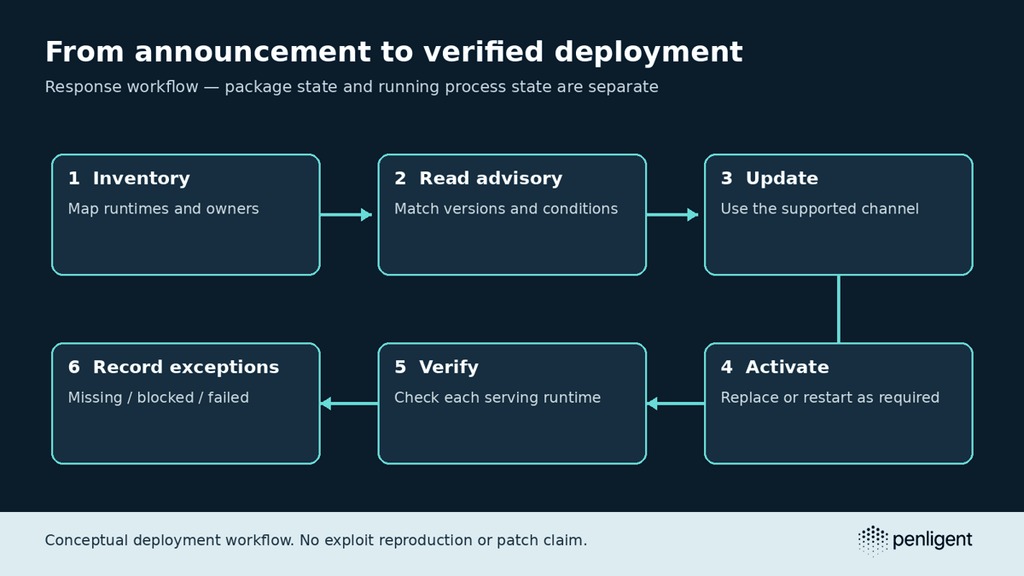
After the handler change, confirm your website processes PHP requests through the new runtime and that its key functions still work.
A static homepage or cached response can return HTTP 200 OK without touching the changed PHP path, so include a dynamic application request. Compare the web-side PHP version with the baseline you recorded before the change, then work through these checks:
- Runtime: A real application request runs under the new PHP branch.
- Service: The FPM service or Apache handler is running and connected to the expected backend.
- Application: Essential front-end and administrative routes work.
- Data operations: Database, form and upload behavior succeeds, where safe to test.
- Background jobs: Important scheduled tasks run with the correct PHP executable.
- Error logs: Application, PHP and web-server logs show no new critical failures.
Roll back if a critical function still fails.
Diagnose version mismatches and application failures
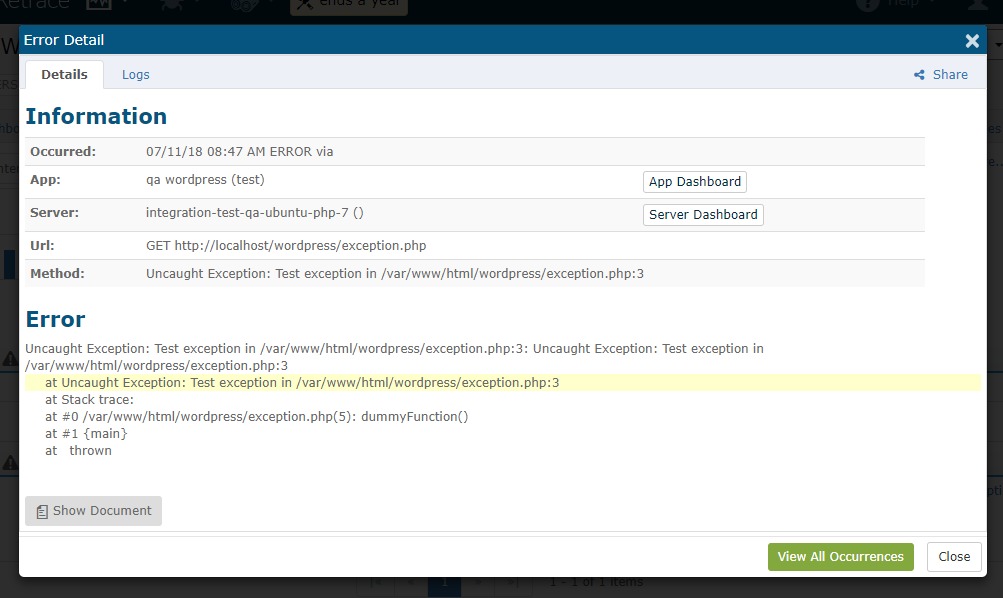
When a PHP change fails, find the failing layer before changing more packages. A wrong version, a FastCGI connection error and an application fatal error each need a different investigation.
| Symptom | First evidence to inspect | What to do next |
|---|---|---|
| Website still shows old PHP | Loaded vhost, FastCGI route and web-side runtime | Point the handler's FastCGI route at the new pool |
502 Bad Gateway |
Web-server log, FPM service and socket | Check the log for a stopped FPM service, a wrong socket path or a connection-permission problem |
503 after the change |
Service state and application logs | Find the component the logs report as unavailable |
| WordPress critical error | PHP/application log and recent compatibility changes | Find the failing plugin, theme or extension in the log |
| CLI succeeds, cron fails | Job executable path and error output | Set the job's command to the PHP executable it needs |
| Missing PHP extension | Modules loaded by the web runtime | Install or enable the extension for that PHP version |
Application compatibility failures need different evidence. A PHP upgrade can hit a missing version-specific extension, changed language behavior, or incompatible plugin or theme code.
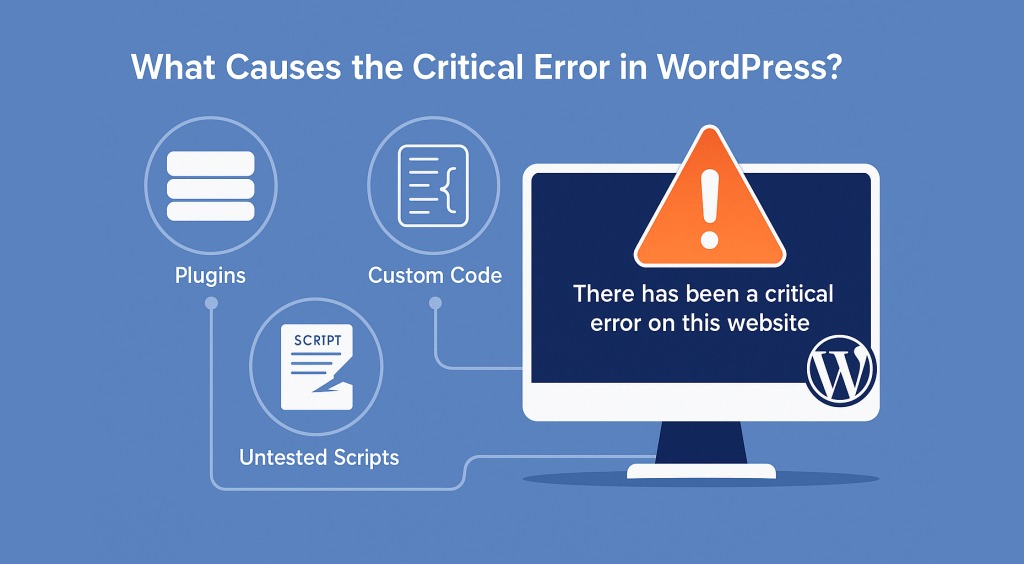
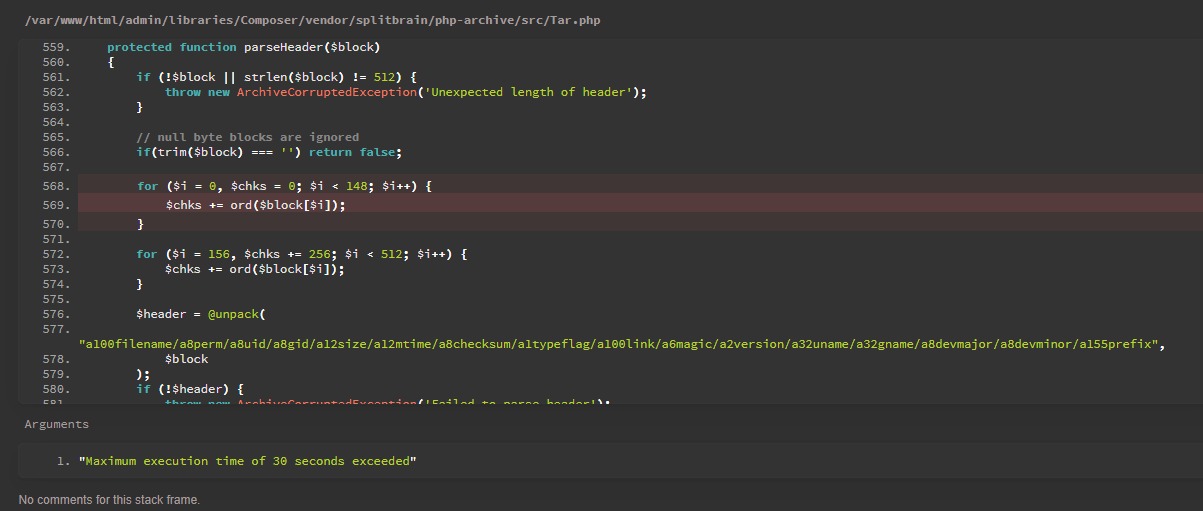
A blogger on r/Blogging posted this after moving from PHP 7.3 to 8.3: “Just jumping from PHP 7.3 to 8.3 literally destroyed my blog and only a "critical error" message was left.” A critical-error screen means the application failed. It does not mean you lost data. Open the PHP and application logs to find the component that broke.
Deprecation messages are not fatal errors, and hiding diagnostic output does not repair incompatible code.
Restore the previous PHP configuration
Restore the working handler configuration for the affected application and leave unrelated workloads alone. Reverse the integration you changed.
Restore Nginx and PHP-FPM
If the previous PHP-FPM service is still available, restore the saved FastCGI destination for the domain.
Test the Nginx configuration and reload after a successful test:
sudo nginx -t
sudo systemctl reload nginx
Restore Apache's handler
For Apache, reinstate the saved handler configuration. With mod_php, revert the Apache module you switched. With PHP-FPM, restore the previous FastCGI proxy destination.
Validate the Apache configuration, then reload or restart in a controlled way. Limit the changes to the affected configuration.
Restore affected CLI jobs and application data
If you changed a job's interpreter, return its command to the working executable. A website handler change needs no global CLI reversal unless you also altered the command-line environment.
Changes to application files, configuration, the database or the schema need their own recovery procedure. Restoring the PHP handler recovers the runtime and leaves separately modified application data as it is.
Once the earlier configuration runs again, isolate the incompatible dependency and test the fix against the newer branch. The old runtime is a recovery measure, and it still needs security maintenance.
