For a new, self-managed WordPress site with no Apache-specific .htaccess rules, start with Nginx and PHP-FPM, though Apache with the event MPM and PHP-FPM works well too. If your Apache site already runs fine, keep it unless matched tests show a gain big enough to justify migrating. On managed hosting, your provider decides which options you get.
Which should you choose for a WordPress site?
Three decisions hide in this question: which server to put on a new VPS, whether to replace a working Apache setup, and which options your host allows. Start with the one you control. For WordPress, compare the PHP execution path, rewrite behavior, and operational tools you already have.
| Your situation | Sensible choice | What determines it |
|---|---|---|
| New WordPress VPS under your control | Nginx + PHP-FPM | You control the server and don't rely on .htaccess |
| Existing Apache event + PHP-FPM site | Keep the working setup initially | Migration needs a measurable benefit |
Site depends on .htaccess or plugin-generated rules |
Apache, or a carefully planned Nginx configuration | Those rules must keep working after the switch |
| Shared or managed hosting | Provider-supported stack | Your host's permissions limit your options |

With Nginx, you maintain one central configuration.
How Nginx and Apache handle WordPress requests
Nginx handles connections with an event-driven model. Depending on the operating system, its documented event mechanisms include epoll and kqueue.
Apache offers several Multi-Processing Modules, or MPMs, including prefork, worker and event. The event MPM frees worker threads from certain idle-connection duties, so they can handle other requests.
Compare equivalent PHP configurations
A WordPress request that runs PHP follows one of these paths:
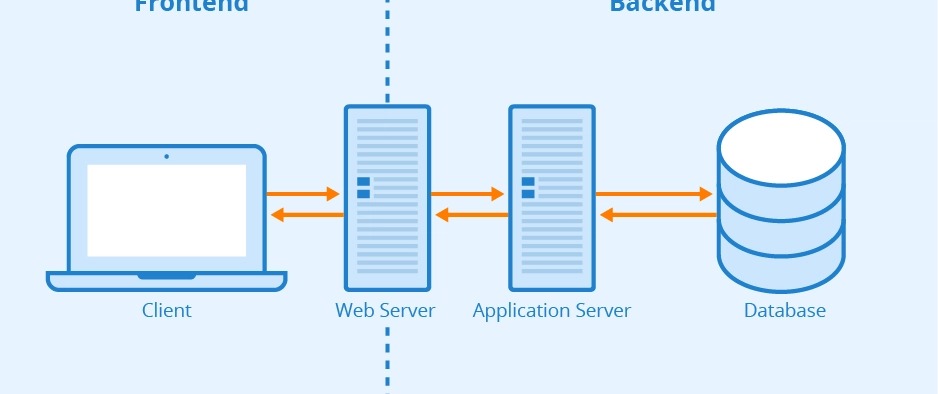
Nginx path: Client → Nginx → FastCGI → PHP-FPM → WordPress/PHP → Database
Apache event path: Client → Apache event MPM → PHP-FPM → WordPress/PHP → Database
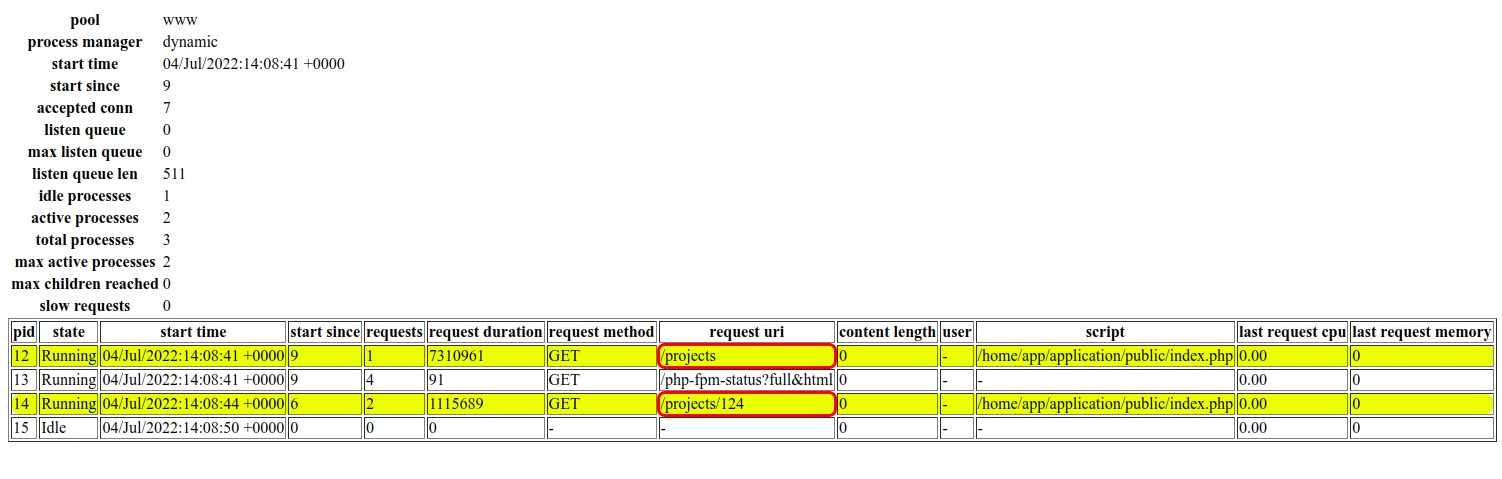
The web server takes the HTTP request. PHP-FPM runs the PHP workers that execute WordPress code.
Some older comparisons pit Nginx with PHP-FPM against Apache prefork with mod_php. That swaps the PHP handler along with the web server, so you can't tell which change caused the difference.
Apache event and Nginx still manage connections differently, but a PHP-heavy request uses the same application resources after the hand-off in both. Record the installed server, Apache MPM if you use Apache, PHP handler and PHP-FPM pool settings before accepting any comparison.
Why .htaccess and WordPress permalinks can change the choice

Apache reads per-directory rules from .htaccess files when the administrator permits the overrides, and settings such as AllowOverride control which directives it honors. Nginx does not read .htaccess files, so you have to recreate those rules in its own configuration.
A URL such as /product/example/ has to reach WordPress even though no file exists at that path. Apache handles this with mod_rewrite and .htaccess rules. Nginx uses its own routing directives, including try_files. WordPress cannot write those rules into a live Nginx configuration for you.
When the homepage works but other URLs fail
After moving a WordPress site from Apache to Nginx on Oracle Cloud, a poster on r/Wordpress wrote, “Now only the homepage works, all the other pages using pretty links don't work and gives error 404.”
When the homepage loads and pretty permalinks return 404, check the effective routing configuration first.

Your site can also rely on more than basic permalinks:
- Plugin redirects: custom routing or redirects added through Apache configuration.
- Access restrictions: rules that protect files or directories, which need the same enforcement after migration.
- Cache-related rules: plugins that use Apache directives to serve or control cached content.
- Multisite: subdirectory and other network setups, which need extra routing documented by WordPress.
List the effective rewrite rules, plugin directives, redirects, access controls and Multisite requirements. Write down what each one should do before mapping it to Nginx. The syntax will differ. A good translation keeps the routes and protections working.
Is Nginx faster for WordPress? Read benchmarks by workload
Nginx delivers higher throughput on static files and cached pages. On uncached WordPress requests the two can land much closer, because PHP and database work are still part of the response.
What two WordPress benchmarks measured
RS Computers published its test on October 13, 2026. The Debian 13 test container had 2 vCPU and 2 GiB RAM and ran WordPress 7.1.3 with PHP-FPM 8.4.26, comparing Nginx 1.26.3 with Apache 2.4.68 event MPM. The reported medians came from three 15-second runs at 50 concurrent connections.
HostHandbook published its separate test on June 6, 2026. It used a Hetzner CX31 with 2 vCPU and 4 GB RAM under Debian 12, running WordPress 6.6 and PHP 8.3-FPM, and compared Nginx 1.26.1 with Apache 2.4.61 event MPM. The rows below use 100 concurrent connections.

| Published test | Workload | Concurrent connections | Nginx (req/s) | Apache event (req/s) |
|---|---|---|---|---|
| RS Computers | Uncached WordPress homepage | 50 | 24.7 | 26.6 |
| RS Computers | Uncached search | 50 | 25.5 | 25.1 |
| RS Computers | Cached homepage | 50 | 2,811 | 916 |
| HostHandbook | Uncached WordPress | 100 | 148 | 98 |
| HostHandbook | Static 1 KB HTML | 100 | 13,800 | 9,200 |
Source note: The figures come from two separate vendor-operated tests, RS Computers and HostHandbook, run in different environments. In RS Computers' cached-homepage test, Nginx used fastcgi_cache while Apache served WP Super Cache files through mod_rewrite, with differing compression behavior.
In the RS Computers uncached tests, the two servers land within 2 req/s of each other, while the cached homepage differs by about three times. HostHandbook found a larger Nginx lead in both its uncached and static-file tests.
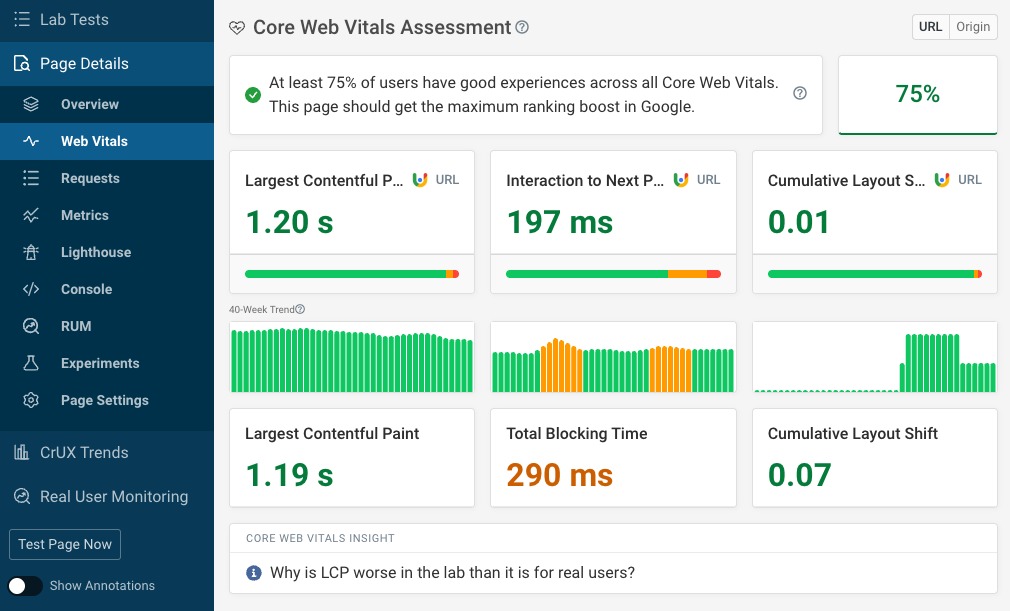
Requests per second measures throughput under load. It says nothing about browser rendering or Core Web Vitals. The cacheable share of your traffic decides how much the cached-homepage result matters to you.
How to interpret a performance claim
Read the figures within each test and workload. A high static-file result answers a different question from an uncached WordPress search.
Caching and dynamic WordPress pages change the answer
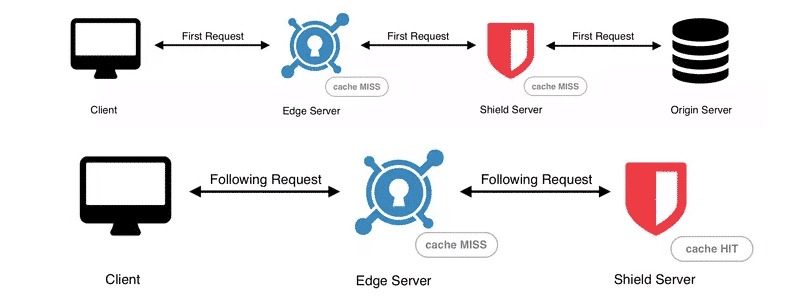
A full-page cache serves previously generated HTML without running the full WordPress request again. That suits anonymous, repeatable pages. Personalized requests follow the visitor or application state, so they need different handling.
Four caching layers affect WordPress performance:
- Full-page cache: stores generated responses and can skip WordPress and PHP execution for eligible requests.
- Persistent object cache: reuses application objects or data across requests, which cuts repeated backend operations.
- OPcache: stores compiled PHP bytecode, so PHP compiles less.
- Browser or CDN cache: reuses suitable resources in the browser or on a delivery network.
Nginx can use FastCGI caching for full-page responses. Apache can serve prebuilt HTML through WP Super Cache and mod_rewrite. Compare the two only with matching cache policies.
Which WordPress requests can use page caching?
| Request | Full-page cache treatment | Reason |
|---|---|---|
| Anonymous public article | Suitable when configured as a shared, cacheable response | The server can serve existing HTML |
| WordPress search results | Usually dynamic | Each query produces its own response, which often needs PHP |
| Logged-in admin or member area | Requires authenticated or personalized handling | Each response holds account-specific data |
| WooCommerce Cart, My Account and Checkout | Exclude from shared full-page caching | Pages hold customer-specific data, so session and cookie handling must stop a shared cache from serving one customer's page to another |
If your important paths stay dynamic, look at PHP, the database and hosting limits before swapping the web server.
Sort your important routes into anonymous and cacheable, personalized, or necessarily dynamic. Then confirm that every private response uses the right bypass or variation behavior in your caching system.
Managed hosting and Nginx–Apache hybrids are different choices
Root access lets you maintain the central server configuration. A limited panel or managed account gives you no choice of web server.
cPanel & WHM documents an ea-nginx/NGINX Manager setup that places Nginx in front of Apache. The proxy layer adds forwarding, header and cache-management responsibilities. That is a cPanel-specific supported setup, not a promise about every host, so ask your provider which stack and configuration permissions your plan supports.
Should you migrate a working Apache WordPress site to Nginx?
Switching servers adds rewrite, maintenance and recovery costs.
Configuration left behind by a hosting move
The reverse move shows the same problem. After moving from Nginx hosting to Apache, a poster on r/Wordpress wrote, “When these lines are in the htaccess, Apache returns a 500 server error.”
The post traces the recurring .htaccess directives to a must-use Endurance cache plugin.
Before cutover
Two things need to exist before the production cutover:
- Recovery point: a tested restoration path or a working fallback environment.
- Rollback trigger: the failed function, reliability regression or unmet objective that sends you back to the previous setup.
If you cannot demonstrate recovery, postpone the cutover.
How to test the choice on your own WordPress site
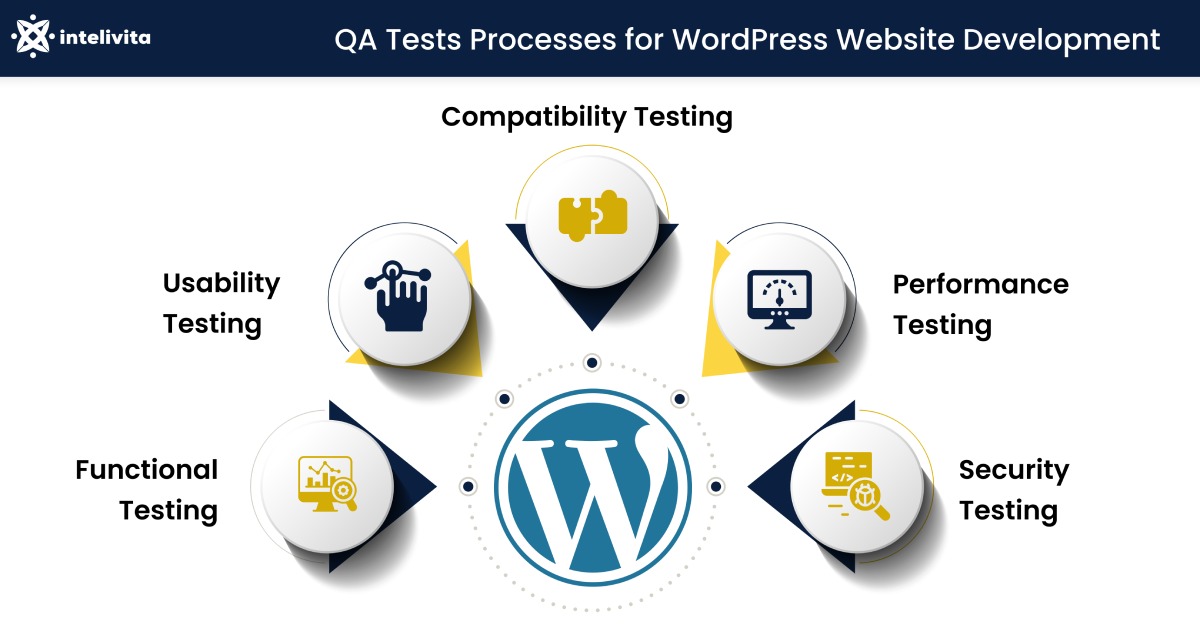
Run a matched comparison on staging, so real visitors never serve as test traffic.
Build a matched test
Choose representative requests. Include an anonymous cacheable page, an uncached dynamic route, static resources and any personalized workflow your site uses.
Keep the application comparable. Match WordPress content, theme, plugins, database state, PHP version and PHP-FPM pool settings. Use comparable CPU and memory, network location and request load.
Control cache behavior. Record which requests are cache hits or misses and which compression settings are active. If the cache policies differ, treat the result as a comparison of the complete configurations.
Run repeated measurements. Record time to first byte (TTFB), response latency, p95 latency where the test supports it, throughput and error rate. Capture CPU, memory and cache behavior when you can. Repeated runs give a better picture than one unusually fast response.
Check application functionality. Confirm that permalinks, redirects, administration, authentication, private pages and critical plugin operations pass on the new setup.

Set the pass/fail rule before testing. The change must improve the workload that motivated it by enough to matter, while latency, resource use and errors stay within limits you choose.
The new setup can serve cached articles faster and leave a slow authenticated workflow unchanged. If that workflow motivated the project, the cached-page gain misses the goal.
A throughput gain with broken login or redirects fails the test.
