On a systemd-based Linux server, install and manage Apache as apache2 on Ubuntu/Debian or httpd on RHEL 9. Test the configuration before every reload or restart, then confirm the site returns a real HTTP response. If Apache runs but the site won't load, stop restarting it and find the first layer that fails (socket, network or application).
The hard parts are a service command that succeeds while the site stays down, and applying a configuration change without dropping visitors.
This guide covers packaged Apache 2.4 on systemd-based Linux servers, from first install through service control and troubleshooting.
Which Apache package and service name does your Linux server use?
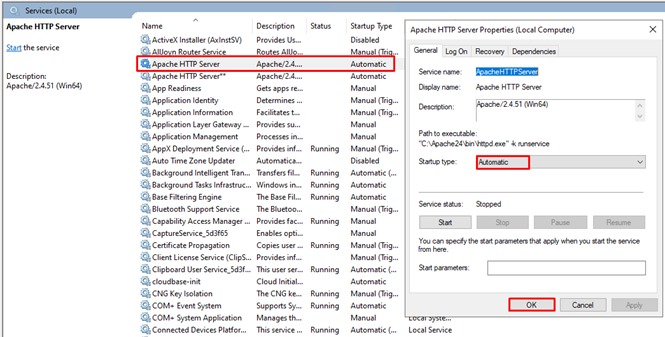
Ubuntu and Debian package Apache as apache2. On Red Hat Enterprise Linux 9, the package and systemd service are named httpd. Both are Apache HTTP Server, but the package managers and service commands differ. Use the service manager to confirm the installed web server is the process handling requests.
| Linux distribution | Package manager | Apache package | systemd service |
|---|---|---|---|
| Ubuntu | APT | apache2 |
apache2 |
| Debian | APT | apache2 |
apache2 |
| RHEL 9 | DNF | httpd |
httpd |
Check your distribution before running any install or service command:
cat /etc/os-release
These instructions assume Apache was installed through the distribution's package manager and runs under systemd. Containers, snap packages, manually compiled builds and non-systemd systems can use different service names or controls.
Install Apache with APT or DNF
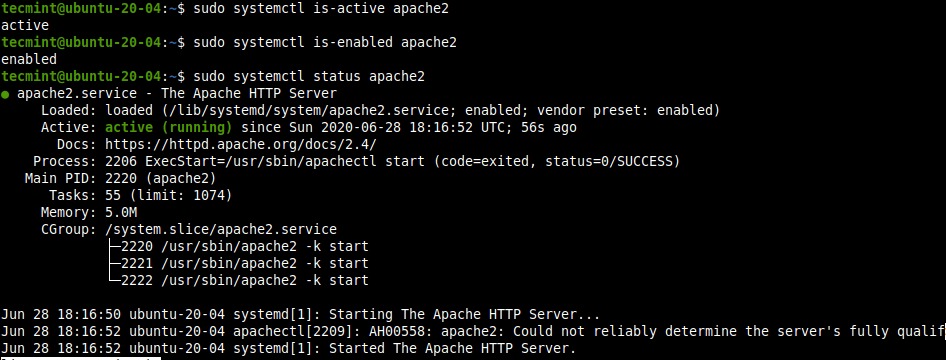
Site configuration and public access are separate tasks.
Ubuntu and Debian
Update the package information:
sudo apt update
Install Apache:
sudo apt install apache2
Red Hat Enterprise Linux 9
Install the httpd package with DNF:
sudo dnf install httpd
Check the installer output for errors. On an existing production server, don't purge a working Apache installation just to follow a clean-install procedure.
Start, stop, restart, reload, and enable Apache
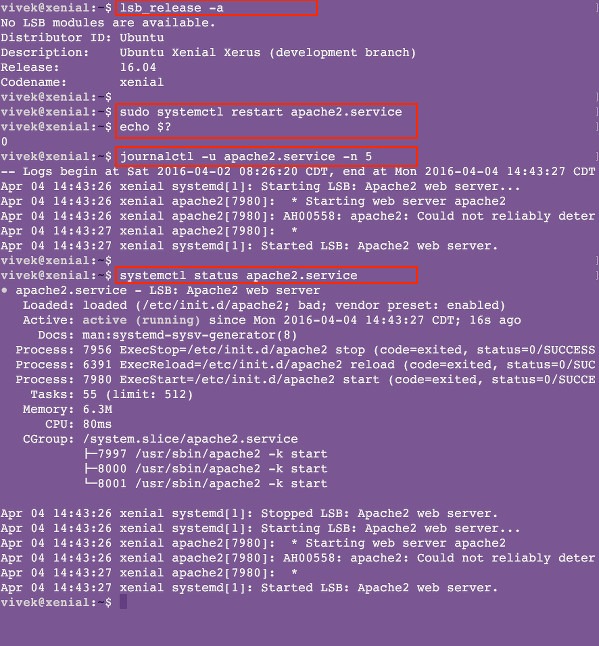
Use systemctl to control a packaged Apache service.
| Task | Ubuntu/Debian | RHEL 9 | Effect |
|---|---|---|---|
| Start | sudo systemctl start apache2 |
sudo systemctl start httpd |
Starts the service now |
| Stop | sudo systemctl stop apache2 |
sudo systemctl stop httpd |
Stops the running service |
| Restart | sudo systemctl restart apache2 |
sudo systemctl restart httpd |
Restarts the service. Can interrupt active requests |
| Reload | sudo systemctl reload apache2 |
sudo systemctl reload httpd |
Runs the unit's configured reload operation |
| Enable at boot | sudo systemctl enable apache2 |
sudo systemctl enable httpd |
Starts Apache automatically at boot |
| Disable at boot | sudo systemctl disable apache2 |
sudo systemctl disable httpd |
Stops Apache from starting at boot |
On a fresh install, run start. Run enable too if Apache should come back after a reboot. The same split applies to stopping: disabling Apache does not stop an instance that is already running.
Systemd can enable and start in one command. On Ubuntu/Debian:
sudo systemctl enable --now apache2
On RHEL 9, use sudo systemctl enable --now httpd.
Stop a production service only when you mean to take it offline.
Test configuration changes and choose a safe reload or restart

Before applying a configuration change, check the syntax and see how your service handles reloads. Keep a copy of the last working configuration before editing a production server, so you can restore it if the change breaks something.
Test the configuration
On Ubuntu or Debian:
sudo apache2ctl configtest
On RHEL 9:
sudo apachectl configtest
A successful check can report:
Syntax OK
That means Apache accepted the syntax. It does not confirm that every certificate file, runtime dependency or network socket will work when the service starts. If the test reports an error, fix it before applying the change.
Understand Apache's graceful operation
Apache 2.4 supports graceful restarts. Existing workers finish their current requests while replacement workers take over with the reread configuration.
The upstream Apache invocation is:
apachectl -k graceful
That is upstream syntax, so don't paste it across distributions unchecked. RHEL 9 packages define their own apachectl behavior and systemd integration. Use the control operation your installed package and unit support.
For process details, see the Apache HTTP Server stopping and restarting documentation.
Check what systemd reload does on this host
systemctl reload runs whatever the systemd unit defines. That can differ from Apache's upstream graceful mechanism.
Inspect the installed unit on Ubuntu/Debian:
systemctl cat apache2
Or on RHEL 9:
systemctl cat httpd
Look for the reload operation, such as an ExecReload line.
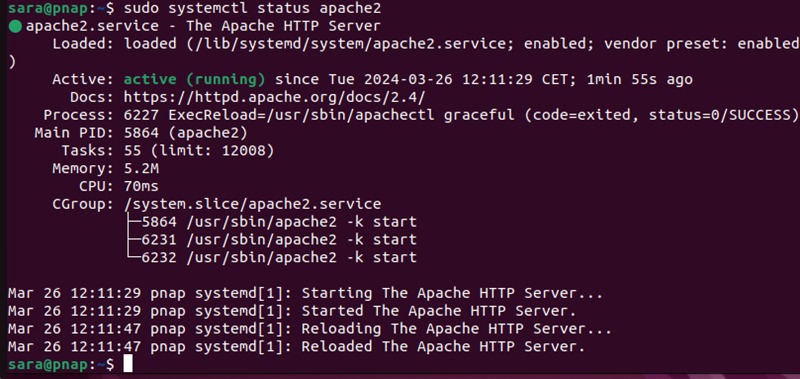
After the syntax check passes, run a reload for an ordinary configuration change. Restart if the unit has no reload or the change requires one.
A renewed TLS certificate is a good test case. Apache has to use the new files, and the HTTPS connection has to present the new certificate. A reload that returns without an error doesn't prove either.
Apache service not found or won't start: identify the failing layer

A missing systemd unit, a failed package installation and an Apache process that crashes at startup each need a different fix. Start with the service status and the journal for the unit.
For Ubuntu/Debian:
systemctl status apache2
journalctl -u apache2 -b
For RHEL 9:
systemctl status httpd
journalctl -u httpd -b
The status output shows the unit state and can name the immediate failure. The journal lists the messages for that unit since the current boot.
| Observed symptom | Likely cause | Next step |
|---|---|---|
Unit apache2.service could not be found |
Wrong name, missing package or unavailable unit | Run the list-unit-files check below |
no installation candidate |
Package-management problem | Check package availability and dependencies |
| A unit exists but exits on startup | Runtime or configuration failure | Read the error in the unit status or journal |
Address already in use |
Conflicting listener | Run the ss -ltnp check in the next section |
| Certificate or permission error | File, TLS or runtime dependency | Check the file named in the error and the Apache error log |
On r/linux4noobs, a Debian 13 user wrote, “I was running several websites (personal) but they are now all offline.” In a case like that, check first whether the unit still exists.
To find the unit-file name, run:
systemctl list-unit-files | grep -E '^(apache2|httpd)\.service'
A matching line means the unit file exists. If nothing matches, check package installation and availability before reinstalling. A missing match leaves open whether the Apache binary is installed.
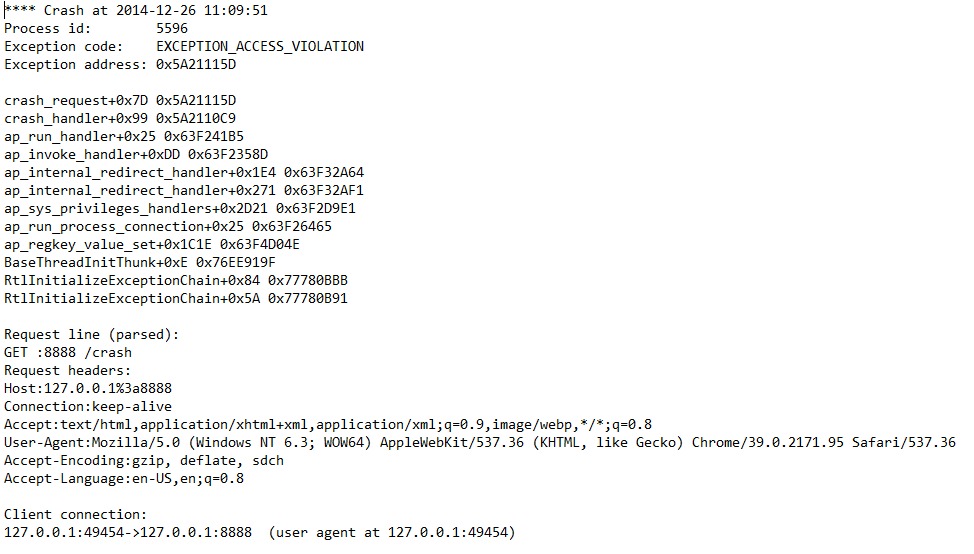
On Debian-family systems, packaged Apache also reads an envvars file. An error from running the apache2 binary directly can be absent when you use the service or the apache2ctl wrapper.
Fix port 80 or 443 conflicts without stopping the wrong service
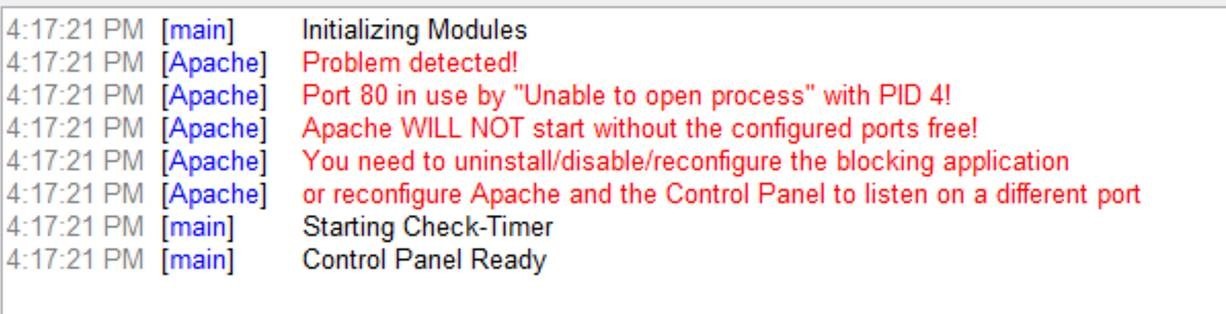
When Apache reports Address already in use or could not bind to address, another listener owns that address and port. Find it first.
List listening TCP sockets with their processes:
sudo ss -ltnp
Look for entries on port 80 (HTTP) or 443 (HTTPS).
The address matters. A listener bound to one interface differs from one bound to all interfaces, and IPv4 and IPv6 bindings can decide whether two services compete for the same endpoint.
Decide which service should own the port
If Nginx holds the port, it can be the public-facing server with Apache running behind it. The two can coexist when their addresses, ports or proxy roles are set up for that.
Other owners include a second Apache instance, an application with its own HTTP server, or Apache inside a container or snap-managed application.
On r/zabbix, one poster wrote, “Just had to change the port used by Zabbix web server from 80 to 8000.” Port 8000 was specific to that setup. Choose an alternative port that suits your own routing.
Once you know who owns the endpoint, decide whether Apache should move to another address, another port, or sit behind a reverse proxy.
Production caution: Changing a listener's port can affect reverse-proxy targets, firewall rules and application URLs. Keep the public entry point working and make the change in the configuration of the service that owns it. Don't kill a process just because it owns port 80.
When syntax passes but Apache still fails: certificates, paths, and SELinux
Apache can pass the syntax test and still fail when the service starts. Certificate files, file permissions and operating-system security policy are runtime dependencies worth checking.
Check certificate and file-related errors
When the failure involves an enabled site, a certificate, a key file or an application path, read the Apache error log next.
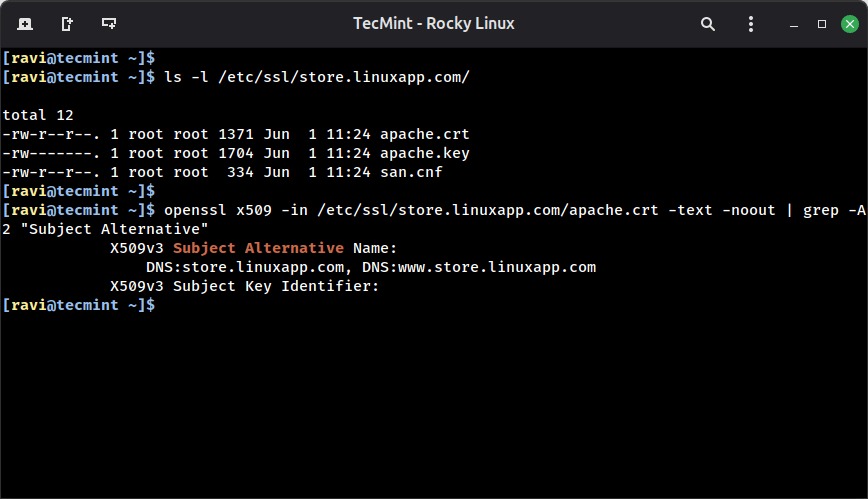
If the error names a certificate or key file, check the configured path and whether the Apache process can read the file. The problem can be the file itself, its location or its permissions.
AH00016: Configuration Failed on an enabled virtual host can point to a certificate problem, as in one Server Fault case. It does not always mean an expired certificate. After an operating-system upgrade, an enabled site or a configured file path can also trigger the error.
Consider SELinux on Red Hat systems
SELinux can block Apache from binding a port outside its permitted policy. Red Hat's guidance on services with nonstandard configurations covers this, but it addresses RHEL 10, so don't paste its policy-repair command into another release unchecked.
If the failure points to a denied bind, check the SELinux or audit records for the specific restriction. Don't disable SELinux globally or loosen file permissions as a default fix. Correct the configuration or the authorized policy for that service and port.
Verify that Apache serves the site, not just that the service is active

After managing the service, verify the website over HTTP. A running process, an open listening socket and a response from your public hostname are three separate checks.
| Verification layer | What to observe |
|---|---|
| Service state | Apache unit is active |
| Listening socket | Intended address and HTTP/HTTPS port are bound |
| Local HTTP | Response from the server's local endpoint |
| Your hostname | Response for the configured site name and scheme |
| Public access | Response from outside the server network |
Test Apache locally
From the server, request HTTP headers from the loopback address:
curl -I http://127.0.0.1/
The -I option sends an HTTP HEAD request. An HTTP response means the endpoint handled it.
Some applications treat HEAD differently from GET. If the site treats methods or content differently, send a request that matches.
For a name-based virtual host, a request to 127.0.0.1 can reach the default site. If Apache accepts HTTP connections on loopback or a wildcard address, test your hostname locally with this command, replacing example.com with your site's name. For an address-specific listener, substitute its reachable local IP for 127.0.0.1 in the command:
curl --resolve example.com:80:127.0.0.1 -I http://example.com/
The command uses your hostname but connects to the local IP you give it. It tests the server's named HTTP route, not public DNS or internet ingress.
Test your hostname and the external path
Request the live site's real hostname with the expected scheme and check that the response comes from the right site. With HTTPS, the hostname and certificate must match. Then test the same hostname from outside the server's local network.
If the local request works but the external one fails, check the network controls between the visitor and the server. Depending on the deployment, that means the host firewall, cloud ingress rules, DNS, a router, a load balancer or a reverse proxy.

On r/Ubuntu, a beginner configuring a web server wrote, “So far I've put Apache on it and local host sees my index.html.” That result confirms the local step only.
When you change firewall or ingress settings, open only the services you need and keep SSH access on a remotely managed VPS. HTTP and HTTPS use TCP ports 80 and 443 by default, but your deployment decides which endpoint should be reachable.
Know when the problem is no longer Apache service management
If Apache responds but the site returns a 500, 502 or 503 error, follow the error from the application or upstream service. An existing Nginx front end falls under web-stack configuration.
